|
VOOZH | about |
|
VOOZH | about |
Keeping the correct time on your Windows 11 computer is essential for system updates, file timestamps, scheduled tasks, and online activities. Whether your clock is incorrect due to a time zone change, daylight saving adjustment, or manual error, Windows 11 offers several easy ways to fix it. This guide walks you through all the reliable methods to change the time, date, and format on Windows 11.
👁 How-to-Change-the-Time-in-Windows-11
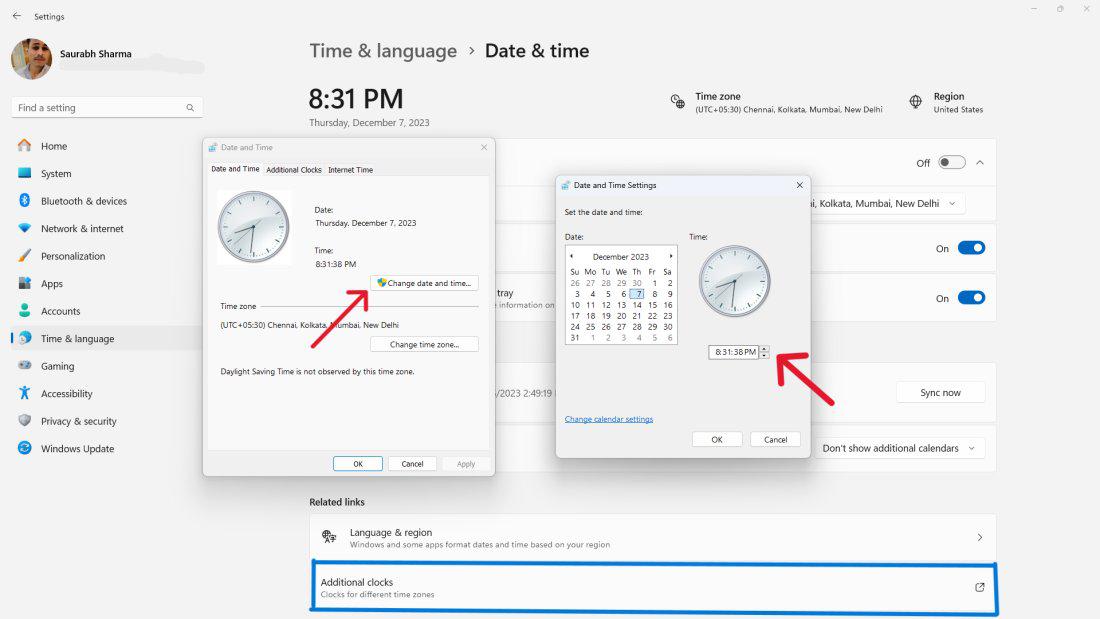
Changing the clock time in Windows 11 is a simple process that involves adjusting the date and time settings.
Step 1:
👁 How-to-Change-the-Clock-in-Windows-11
Step 2:
Step 3:
👁 How-to-Change-the-Clock-in-Windows-11-1
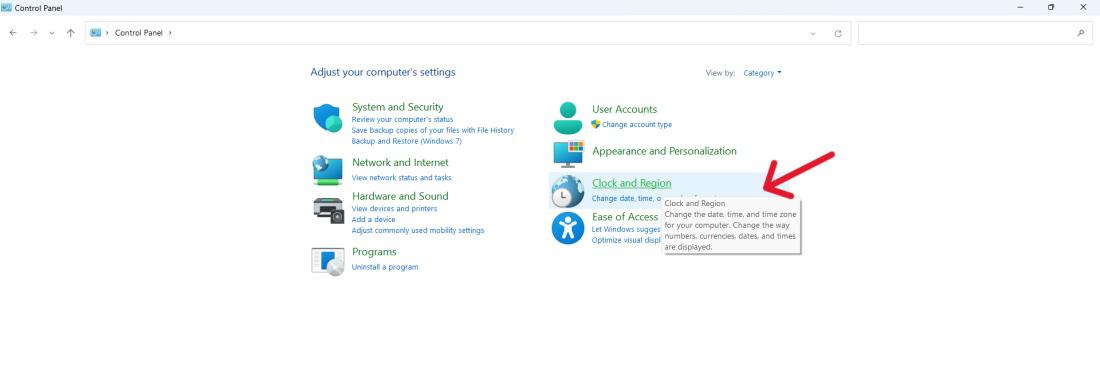
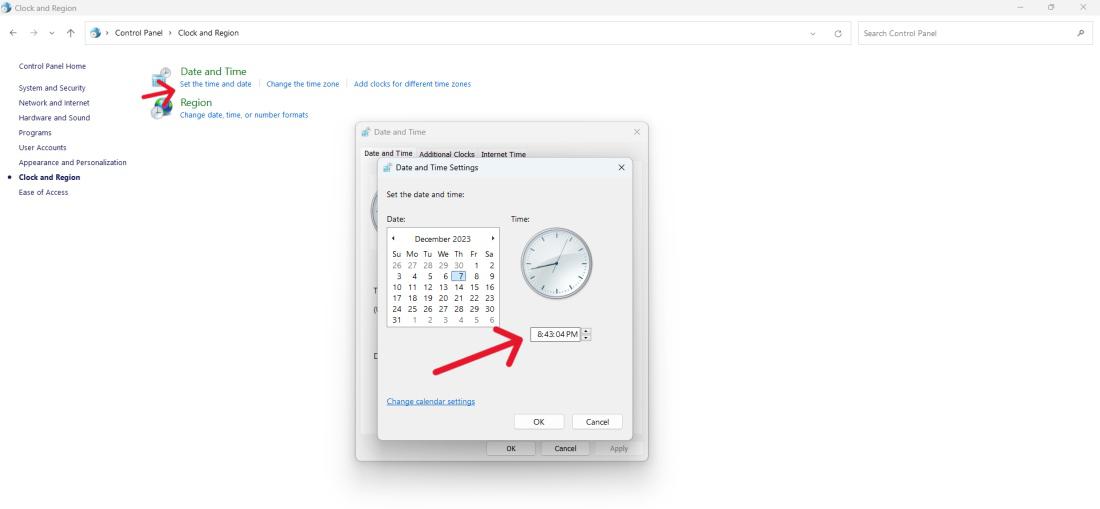
You can easily adjust the time format in Windows 11 by accessing the Control Panel and navigating to the date and time settings.
Step 1:
Step 2:
👁 How-to-Change-the-Time-in-Windows-Control-Panel-1
Step 3:
Step 4:
👁 How-to-Change-the-Time-in-Windows-Control-Panel
Step 5:
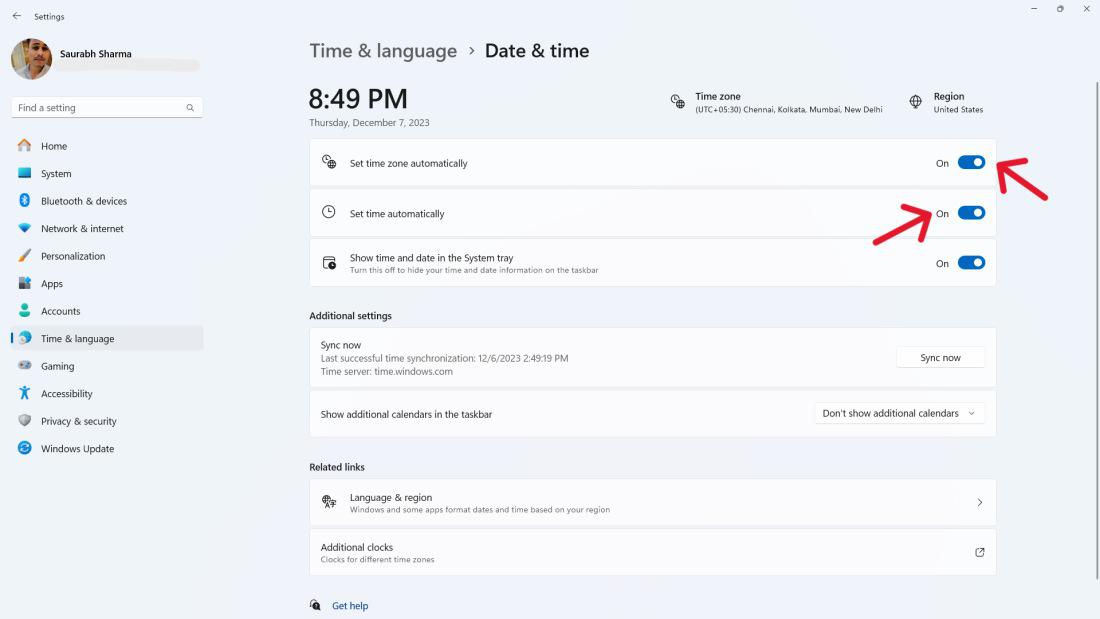
To ensure your computer's time is always accurate without manual intervention, you can enable the automatic setting for date and time zone.
👁 How-to-Automatically-Set-Your-Date-and-Time-Zone
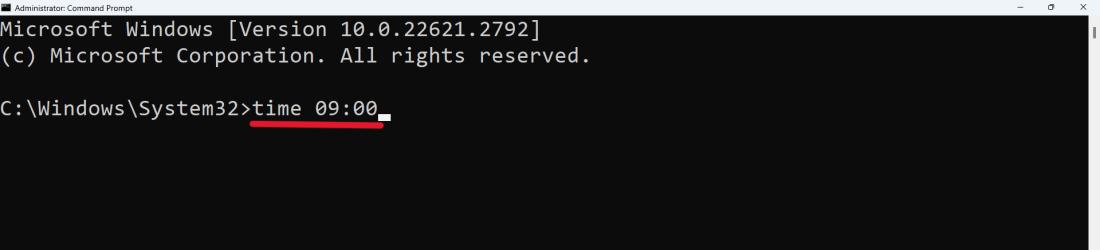
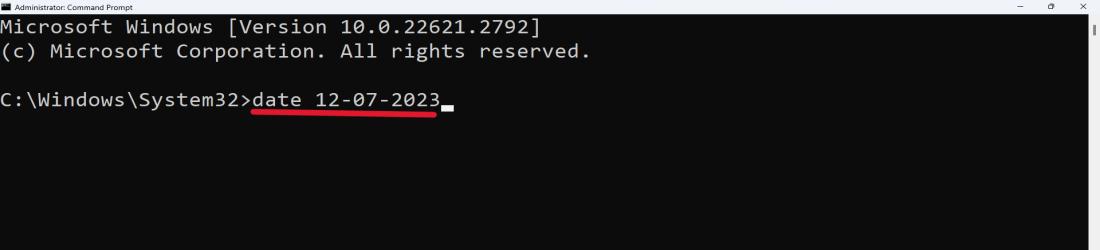
If you prefer using the command prompt to make changes to your computer's date and time settings, you can do so easily in Windows 11.
time HH:MM
👁 How-To-Change-Clock-Time-and-Date-from-Command-Prompt-on-Windows-11
date MM-DD-YY
Press Enter after each command.
👁 How-To-Change-Clock-Time-and-Date-from-Command-Prompt-on-Windows-11-1
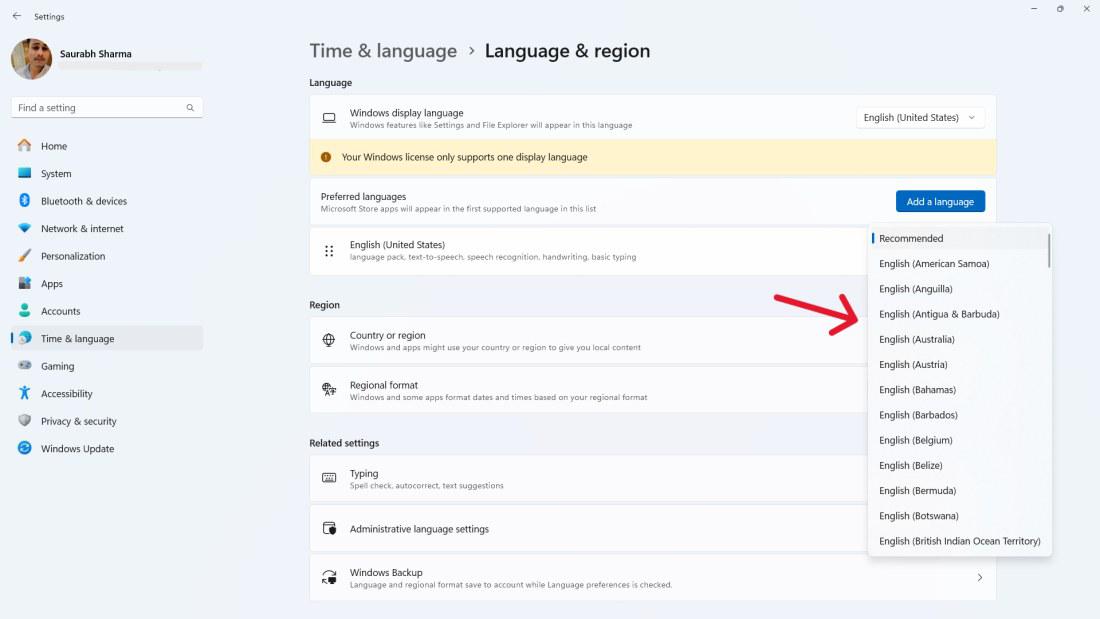
To adjust the time format and date on Windows 11, you can easily modify the date and time settings.
This affects date, time, and number display styles.