VOOZH about

URL: https://www.geeksforgeeks.org/techtips/how-to-clear-browser-cache-on-windows-10/

⇱ How to Clear Browser Cache On Windows 10 - GeeksforGeeks


  • Courses
  • Tutorials
  • Interview Prep

How to Clear Browser Cache On Windows 10

Last Updated : 23 Jul, 2025

You must clear your browser cache periodically to ensure that your web browser is not taking excess loading time. However, clearing the browser cache will have a different approach across browsers. Follow these steps to clear your browsing cache in Windows 10 across Google Chrome, Microsoft Edge, and others.

Why to Clear Browser Cache?

  • Free up space
  • Refresh and Update browser
  • Fix Website errors (formatting)
πŸ‘ How-To-Clear-Browser-Cache-On-Windows-10_
Clear browsing cache in Windows 10

1. Google Chrome - Clear Browsing Data

Chrome is a widely used web browser across platforms and clearing Chrome's browsing data requires just a handful of steps. Here's how you can do it:

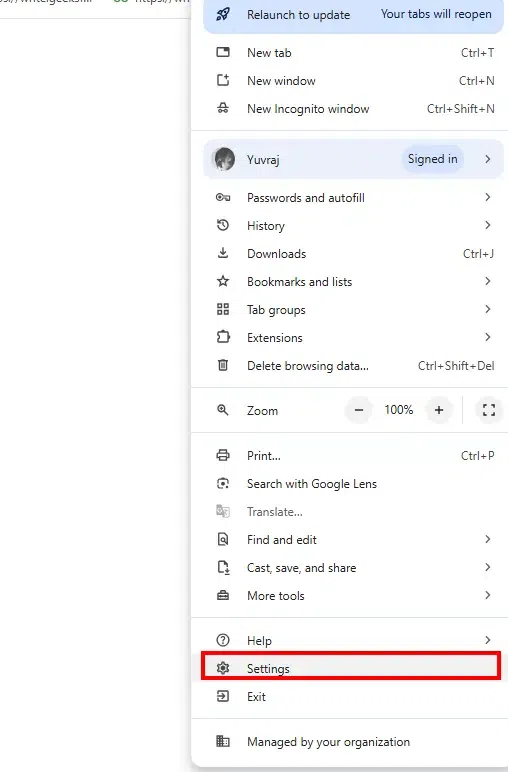
  • Open Google Chrome, click on the three dots (Menu Tab) on the top-right corner and navigate to Settings.
πŸ‘ chrome-set1
Chrome Settings
  • On the left-hand side, you'll see a list of options
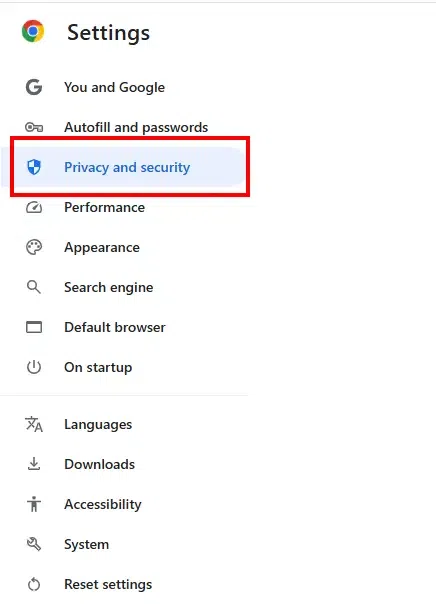
  • Scroll down and press on Privacy and Security in the left-hand menu.
πŸ‘ chrome-set-2
Privacy and Security
  • Select Delete browsing data, then select Browsing History, Cookies and other site data and Cached Imahes and files and click "Delete Data"

Set Time Range: Select the time range (like Last hour, Last 24 hours, or All time).

πŸ‘ chrome-browsing
Google Chrome

2. Microsoft Edge - Clear Browsing History

Microsoft Edge is the default browser in Windows 10, and it has a comparable process for clearing cache:

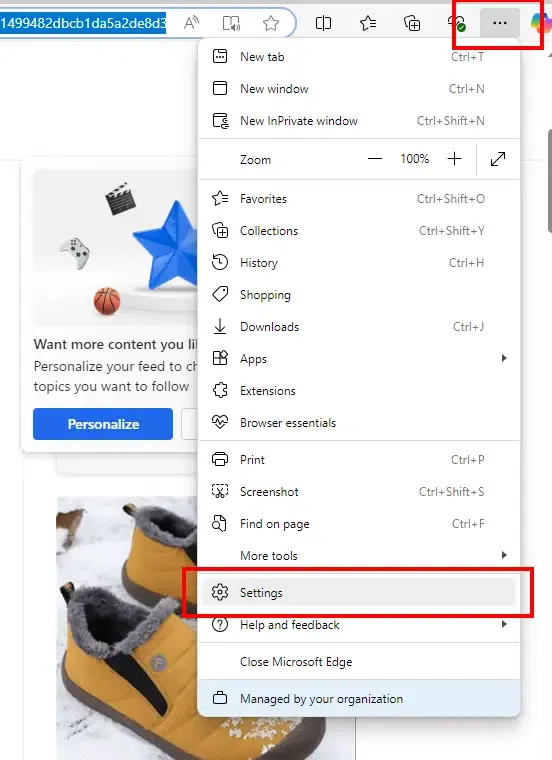
  • Launch Microsoft Edge and click on the three dots (menu symbol) in the top-right corner, then go to Settings.
πŸ‘ edge-cookie
Edge - Settings
  • On the left-hand side, select Privacy, search, and services and scroll down to Clear browsing information and tap Select what to clear.
πŸ‘ edge-cookie-2
Privacy, search and services
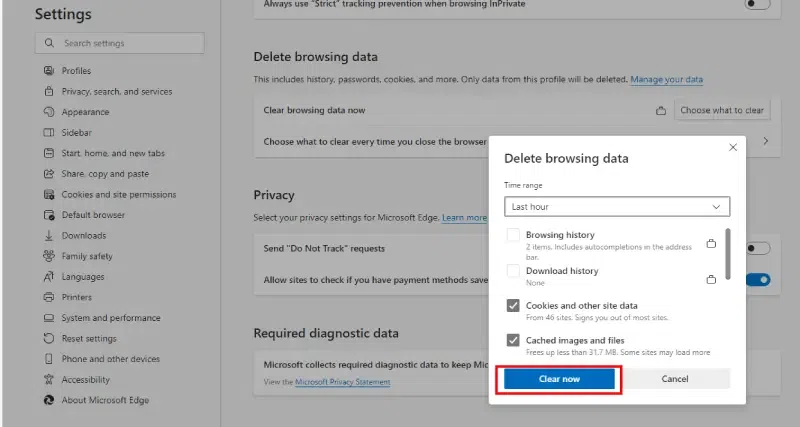
  • Now, select "Cached Images and files, Cookies, Download and Browsing History.
  • Choose the time range, like Last hour or All time.
  • Tap Clear now to erase cached files from Edge browser.
πŸ‘ edge-cookies-3
Delete browsing data

3. Mozilla Firefox - Erase all Data

For Mozilla Firefox users, here’s how to clear the cache:

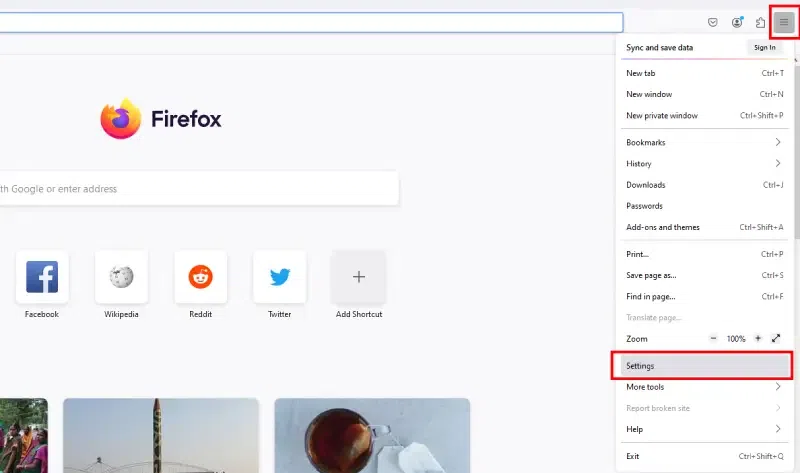
  • Open Firefox and click on the three horizontal lines (menu symbol) in the upper-right corner and go to Settings.
πŸ‘ firefox-cache
Mozilla Firefox
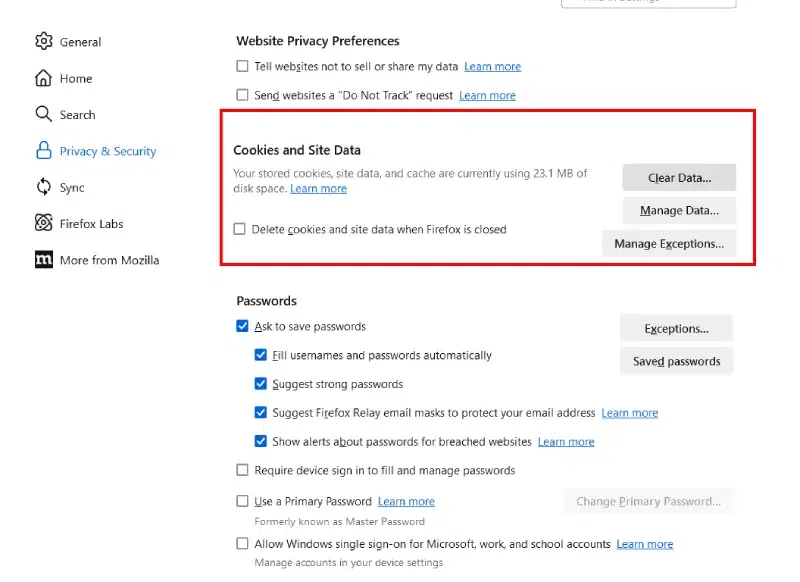
  • On the left-hand panel, Select Privacy & Security.
πŸ‘ firefox-cache-2
Mozilla Firefox
  • Scroll down and view "Cookies and Site Data".
πŸ‘ firefox-cache-3
Cookies and site data
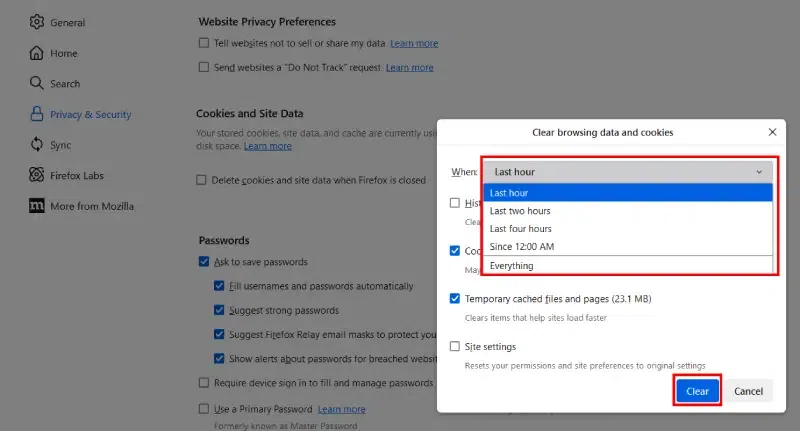
  • Select Cached Data, History and other attributes as per need and select Time line.
  • Click "Clear" to remove cached files from Firefox.
πŸ‘ file
Clear browsing data and cookies

4. Clearing Cache in Other Browsers (Safari, Opera, etc.)

The steps for clearing browsing in other applications are more or less the same. Here's a quick recall to perform this action:

Safari Web Browser:

  • Navigate to Settings > Privacy > manage Website Data (also select time frame) and clear cache.

Opera Browser:

  • Click the menu button, then Navigate to Settings > Advanced > Privacy & Security > Clear Browsing Data and select Cache and Cookies options to clear them instantly.

Conclusion

Clearing the browser cache on Windows 10 is a quick and easy way to make your browser smooth and lag free. You can apply these methods in Google Chrome, Microsoft Edge, Safari, Opera, firefox and so on.

Comment