|
VOOZH | about |
|
VOOZH | about |
When using Safari, you might occasionally encounter issues like websites not loading, seeing outdated versions of pages, or experiencing slow browsing speeds. These problems can sometimes stem from Safari’s DNS cache. Safari maintains its own cache of DNS (Domain Name System) records to make web browsing faster, but if this cache becomes outdated or corrupted, it can cause connectivity problems.
Now, clearing the DNS cache is a simple fix that can get things back on track. In this article, we’ll explain what DNS is, why Safari uses a DNS cache, and walk you through the steps to clear it.
You don’t need to clear the DNS cache regularly, but it’s a good troubleshooting step if you notice:
Clearing the cache is safe and has minimal downsides—though the first visit to a site afterward might be slightly slower as Safari performs a new DNS lookup.
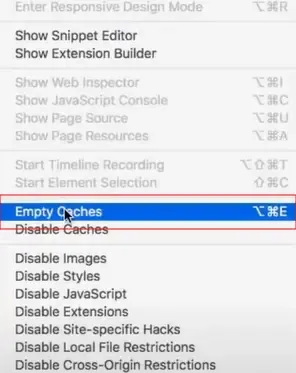
Safari doesn’t have a direct “clear DNS cache” button like some other browsers, but you can achieve the same result by clearing Safari’s overall cache or using system-level commands. Below are three methods to clear the DNS cache in Safari, with the first method being the most straightforward for most users.
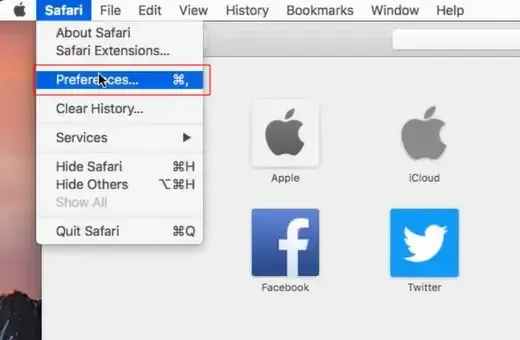
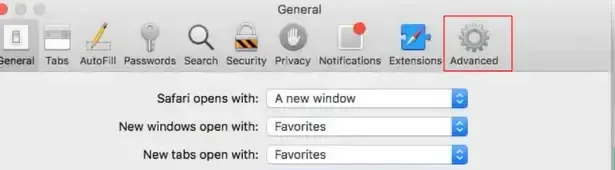
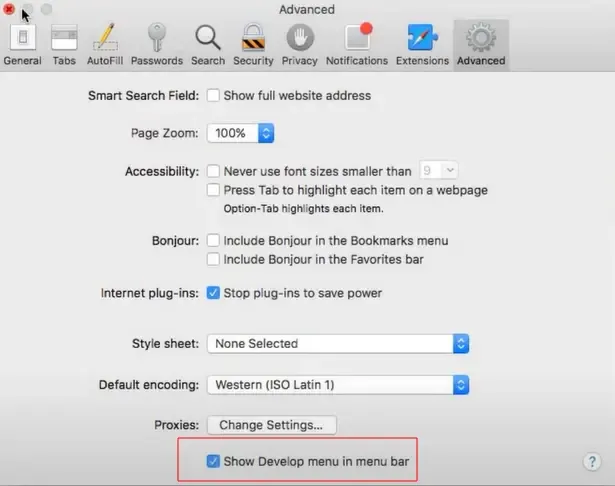
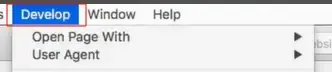
This method clears Safari’s entire cache, which includes the DNS cache. It’s the easiest approach for most users.
This will clear Safari’s cache, including the DNS cache. Note that this also clears other cached data like images and scripts, which might not be ideal if you only want to clear the DNS cache. However, it’s the most accessible method for most users.
This method flushes the DNS cache at the system level, affecting all applications, including Safari. It’s more targeted than clearing Safari’s entire cache but requires comfort with using Terminal.
sudo dscacheutil -flushcache; sudo killall -HUP mDNSResponderThis command clears the DNS cache for the entire system, which can be more effective for resolving persistent DNS issues.
Here’s a quick comparison to help you choose the best method for your needs:
Method | Pros | Pros |
|---|---|---|
Clear Safari’s Cache |
|
|
Use Terminal |
|
|
Clearing the DNS cache in Safari is a quick and effective way to fix common browsing issues, from websites not loading to outdated content. Whether you choose to clear Safari’s cache through the Develop menu or use Terminal for a more precise approach, this guide provides the tools you need to refresh Safari’s DNS data. If problems persist, explore additional troubleshooting steps like checking VPN settings or restarting your router.