|
VOOZH | about |
|
VOOZH | about |
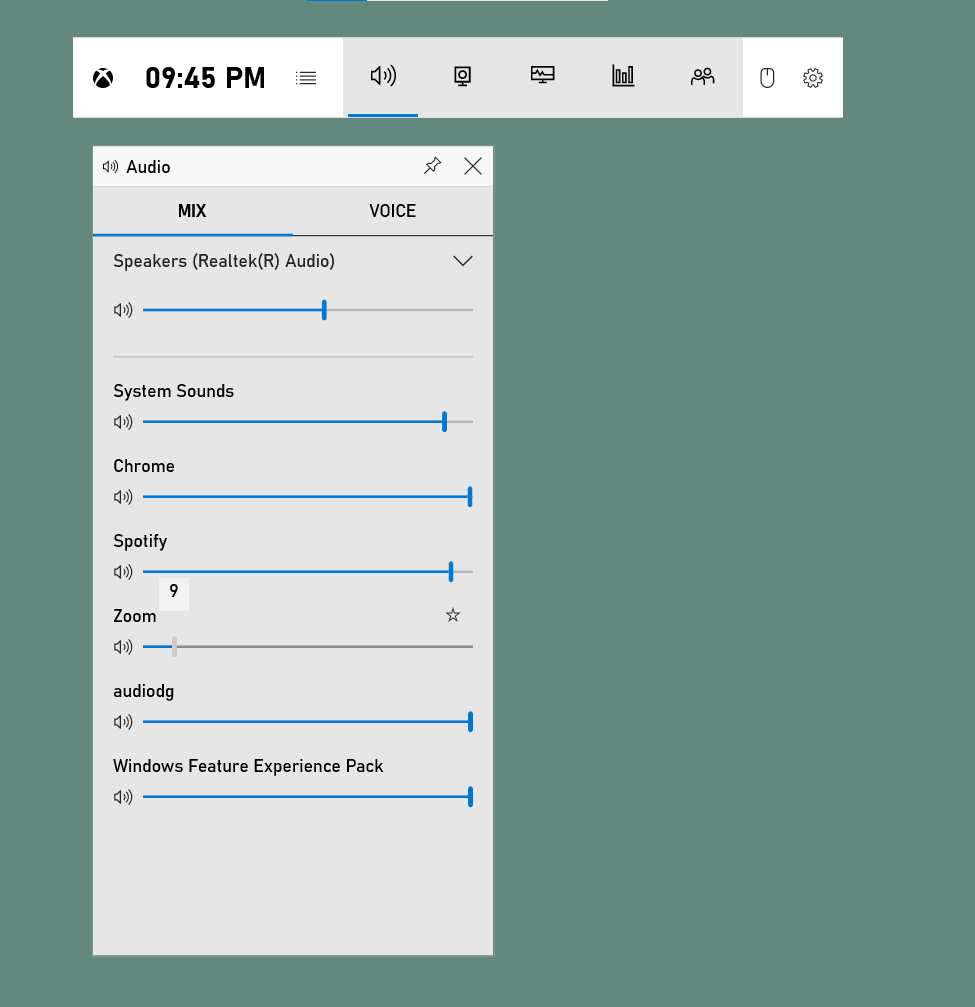
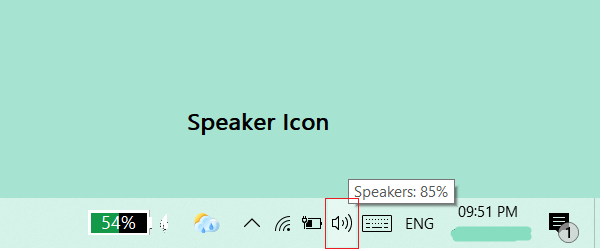
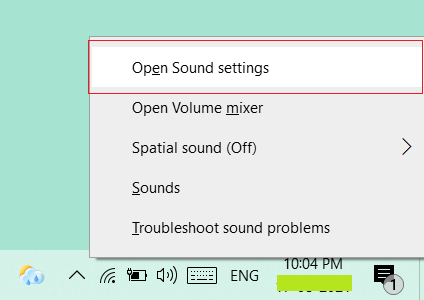
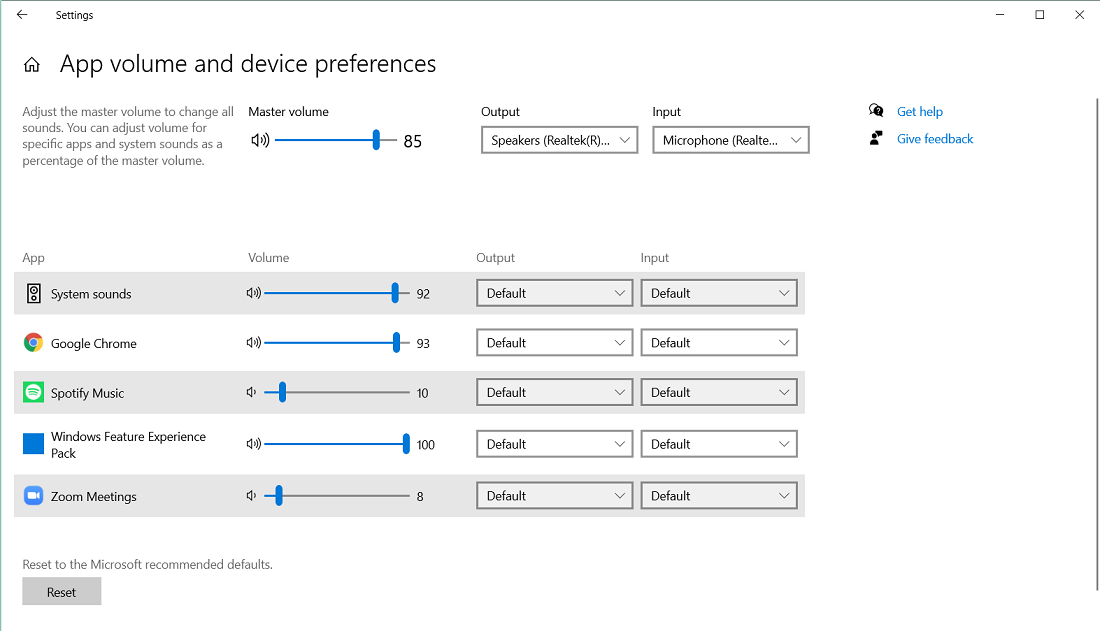
If you are running two or more applications on your laptop and you want to control their volume, for instance, if your online lectures are going on zoom but because you have already studied it, you want to do other courses on chrome, then you need less volume for zoom (not mute) and full volume for chrome. You can easily do that within a few steps. Let's see how you can do this using different methods.
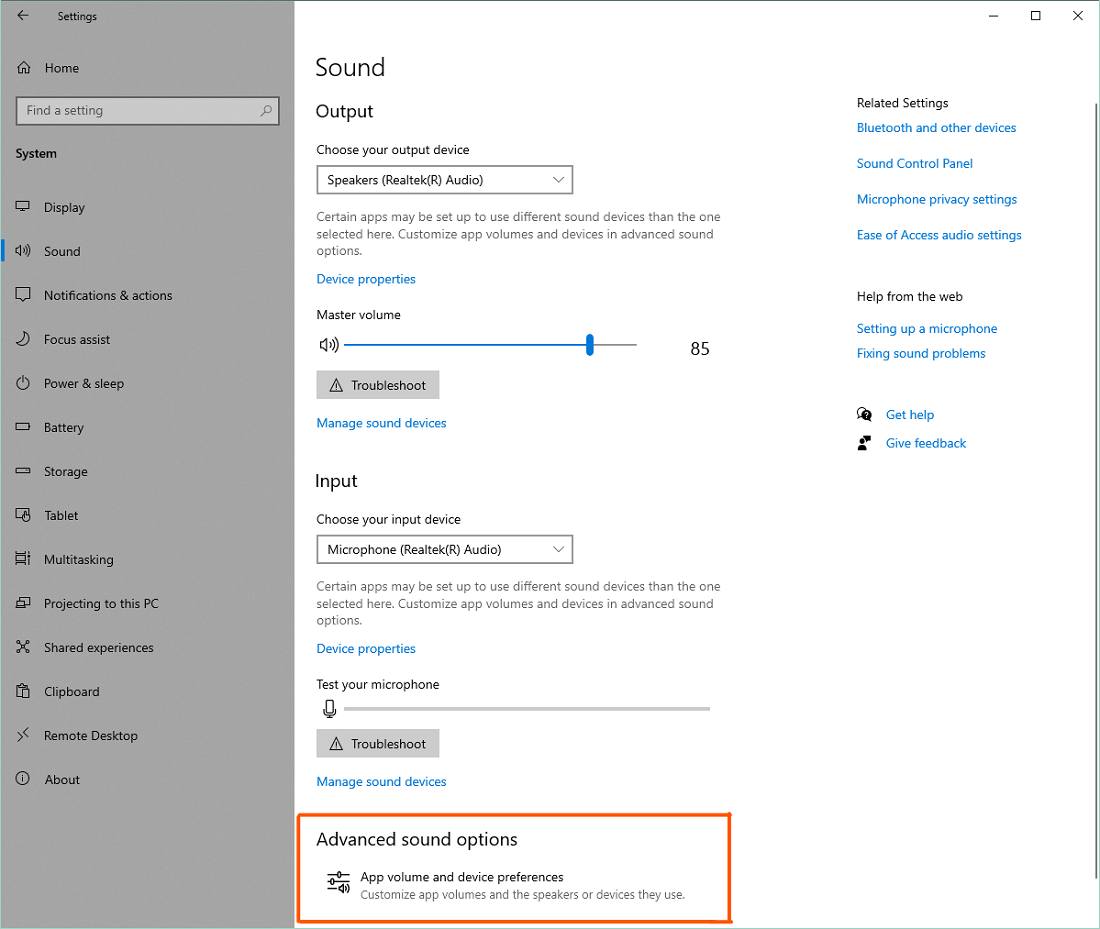
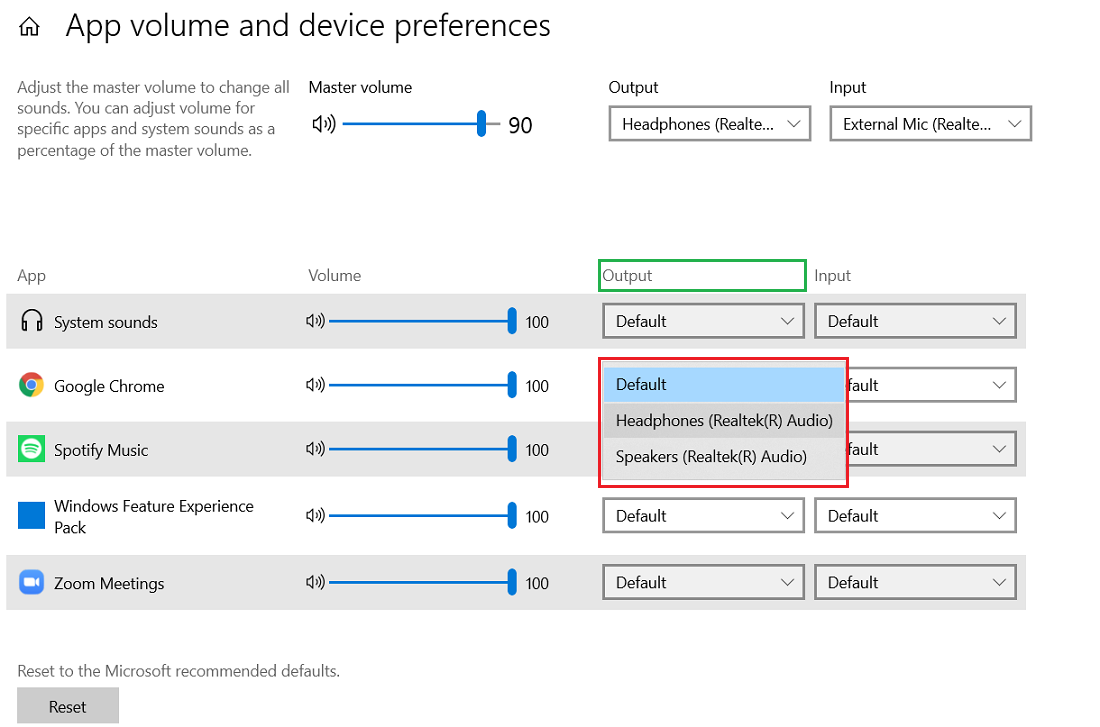
👁 ImageFrom this option, you can also change Sound Outputs for Specific Apps between Headphones and Speaker, like you can set Chrome output in Headphone but, if you set Spotify app's output to Speakers, Everyone can listen to it and you can still listen to chromes audio through your headphones.
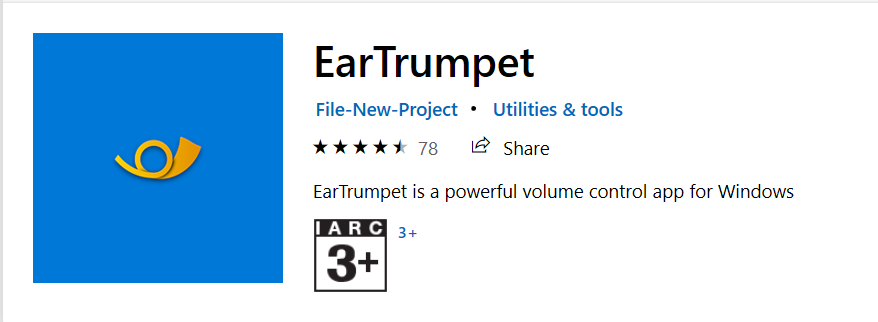
If you don't like all the above methods, this is a very simple method for you Go to the Microsoft Store and Search for EarTrumpet App.
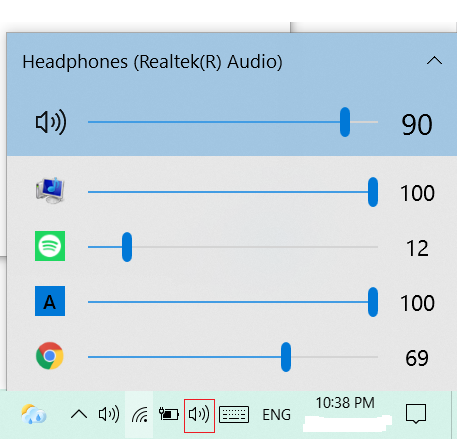
As soon as you install it on your machine, you can notice that there is one more icon similar to the sound menu icon that has arrived on your right corner of the taskbar. When you click on it, you will see the same status of audio volumes of different apps, and this is the easiest way to control the audio volumes of your apps.
These are the 3 different methods for controlling the audio volumes of windows applications.