|
VOOZH | about |
|
VOOZH | about |
In today's fast-paced digital world, converting emails to PDF format can be incredibly useful for archiving important information, sharing documents securely, and keeping records for future reference.
But did you know that you can convert your emails to PDFs directly through your email itself? In this guide, we will walk you through the simple steps to convert your emails to PDF quickly and efficiently, ensuring you can easily manage and store your valuable communications.
Whether you are a professional needing to preserve business correspondence or an individual wanting to keep personal emails organized. Although there are certain Online Converters available to Change Emails into PDFs, we can perform it from the Email Server itself. This article is intended to Generate PDF from Email on Both Desktop & Mobile.
Table of Content
The Portable Document Format (PDF) is the best format that can be used to store any data forever on your local device. If you want to access any information on email frequently without using the internet, then the best possible way will be to Save Email As a PDF on your local device. And there are numerous reasons behind such operations with email.
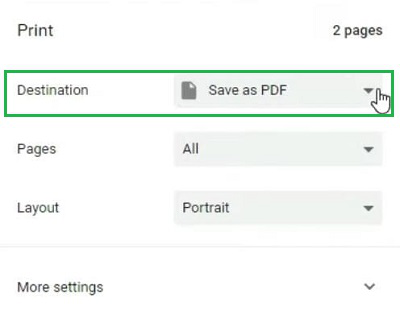
Step 1: Open Gmail & select the Email that you want to convert. Now, click on the Printer Symbol beside the email.
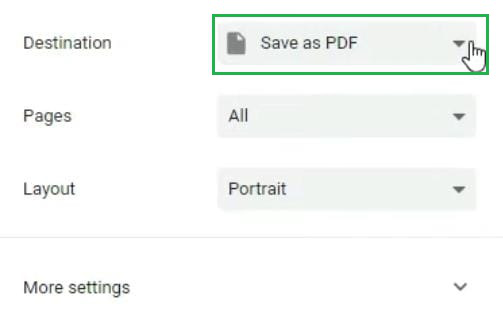
Step 2: Select the option Save As PDF instead of the Printer Name. Click on the Save Button to complete the process.
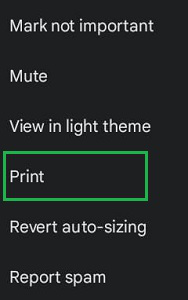
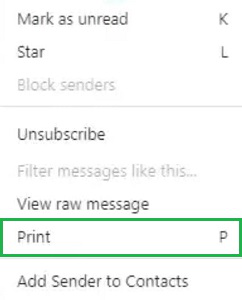
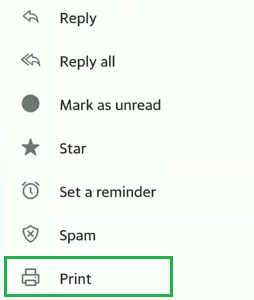
Step 1: Open the Gmail Application & select the Email. Now, click on the Three Dot Option to find the Print.
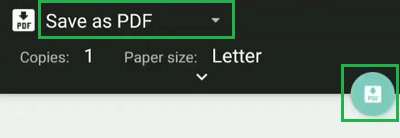
Step 2: Tap on the Dropdown Menu & select the Save as PDF option. Later, click on the Save Symbol.
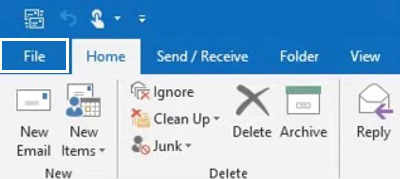
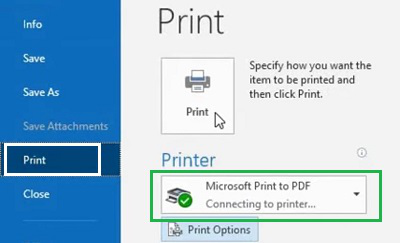
Step 1: Open the certain email on the Outlook Application & go to the File Option.
Step 2: Now, click on the Print option. Select the Microsoft Print to PDF option from the Printer.
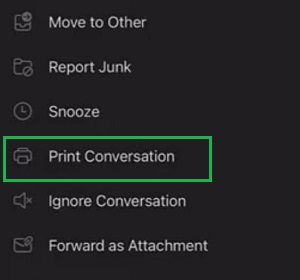
Step 1: Open Outlook Application on Mobile & click on the Three Dot Menu of Email. Now, go for the Print Conversation option.
Step 2: Again, select Save As PDF & click on the PDF Symbol.
Step 1: Open the Yahoo Email & select a certain email. Now, click on the Three Dot Menu to get the Print option.
Step 2: After that, click on the Save As PDF of Destination. Click Save.
Step 1: In this case as well, find out the Printer option from the Three Dot Menu.
Step 2: After that, select Save As PDF & click on the Save PDF Button.
After such an extensive discussion, we can say that there is no need to have any converter to Get Emails As PDFs on Local Devices. You can use the Email Printer Option to Save Email as PDF on the device. So, if you have a bunch of important emails, start making a PDF Version of Important Emails.