|
VOOZH | about |
|
VOOZH | about |
Windows 11 emerges as a trailblazer, introducing a groundbreaking feature that sets it apart from its predecessors. Enter Windows Copilot, a built-in AI assistant that transforms the user experience by providing centralized AI support directly within the operating system. This marks a significant leap, making Windows 11 the pioneer in offering such comprehensive AI assistance.
Imagine having an intelligent companion seamlessly integrated into your PC experience. With Copilot, this vision becomes a reality. Accessible through a dedicated button strategically placed in the Taskbar, right next to the familiar Search bar, or effortlessly summoned using the Windows + C keyboard shortcut, Copilot is designed to enhance productivity and user interaction.
Microsoft Copilot, introduced with the Windows 11 23H2 upgrade, is an innovative AI-powered digital assistant designed to boost user interactions and capabilities within the operating system. This cutting-edge feature outperforms conventional boundaries, offering a range of functionalities that extend far beyond the ordinary.
Copilot harnesses the power of artificial intelligence to deliver natural language responses, comprehensive summaries, seamless configurations, adept problem-solving, and streamlined app integration. As a multifaceted digital companion, Copilot redefines user expectations by providing an intuitive and intelligent layer to the Windows 11 experience. Whether offering guidance, simplifying tasks, or enhancing overall productivity, Microsoft Copilot serves as a transformative addition, empowering users to achieve more than ever before.
If you are running Windows 11 version 23H2 or higher, you can enable Copilot.
Select 'New' from the right-click menu, followed by 'Shortcut' from the drop-down menu.
Microsoft-edge://?ux=copilot&tcp=1&source=taskbar
To start the Registry Editor, type "regedit.exe" into the Windows Search box and press Enter.
Go to HKEY_CURRENT_USER\Classes\DesktopBackground\shell in the Registry Editor.
Give the new key the name "Copilot" and right-click on the "shell" key. Then choose "New" > "Key." Type "Enter."
To make a new value, right-click the "Copilot" key, select "New," then "String value." Name the new value "MUIVerb."
Double-click on the value called "MUIVerb" and change its value to "Windows Copilot."
You can make a new text value called "Icon" and set its data to the full path of your "Copilot.ico" file if you want to.
Select "New" > "Key" and give the key the name "command." Then right-click the "Copilot" key again.
In the right pane, double-click the number that doesn't have a name and change it to:
rundll32.exe url.dll,FileProtocolHandler "microsoft-edge://?ux=copilot&tcp=1&source=taskbar"
If you follow these steps, Windows Copilot will be added to your context menu, making it easy to use.
Done! Now, right-click on the desktop and choose Windows Copilot from the menu that comes up. Have fun!
If you follow the steps above, a link to Copilot will be made, but it will not have the Copilot logo on it. It will instead have the Microsoft Edge logo, which can be hard to find if you also have a desktop link for Microsoft Edge.
Here's what you need to do to change the picture for your Copilot shortcut:
Find the new Copilot shortcut on your desktop and right-click on it.
You can get to the Copilot Properties dialogue box by selecting "Properties" from the context menu.
Find the button that says "Change Icon" in the Copilot Properties box and click on it.
You can pick a picture from the list or click "Browse" to find your own. Make sure the file type of the picture is. ICO.
You can use an online converter to change your picture to.ICO format or save it as a "24-bit Bitmap (.bmp)" file in Microsoft Paint.
You can get to the Change Icon box by clicking "Browse." From the menu that drops down, pick "All files."
Select the.ico or .bmp file you downloaded, changed, or made yourself, and then click "Open."
In the Change Icon box, make sure that the icon you want to use is selected.
In the Change Icon box, click "OK" to confirm the selected icon.
To use the changes, go back to the Copilot Properties box and click "Apply."
To save the changes, click "OK" in the Copilot Properties box.
The picture or logo you chose is now your Copilot icon.
Press Win + C Keys: To use a keyboard shortcut, hit the Win + C keys at the same time. This move opens Windows Copilot right away. Use the same set of keys to close it.
Go to the Taskbar, then search for the Copilot button.
To open the assistant, click on the Copilot button in the Taskbar.
On your device, open the Microsoft Edge browser.
The Bing/Copilot button is located at the right end of the toolbar.
Open Copilot in the Edge sidebar by clicking the Bing/Copilot button.
How do I Disable Copilot in Windows 11?
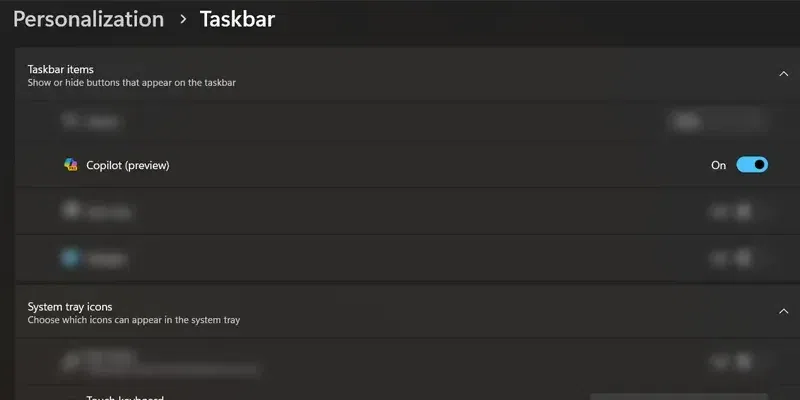
To turn off Copilot in Windows 11, press the Windows key + I, go to Settings, and then go to Privacy & security > Copilot. Uncheck the box next to "Enable Copilot." Change the settings, then go to Personalization > Taskbar and turn off the switch for Copilot.
Why don't I see Copilot in Windows 11?
Click the Copilot button on the desktop or press Win + C on the keyboard to open Copilot. It will appear in a panel on the right side of your screen. Also, you can turn off Copilot by going to Personalization > Taskbar in Settings and selecting "Off."
What can Copilot help me with?
Copilot is a chatbot that works with AI and can help you with different things on your Windows 11 computer. It can start apps, search the web, set reminders, sort your files, send messages, write draughts, make formulas, summarise emails, plan meetings, change text, and more. You can use Copilot for free and don't need to sign up or subscribe. You can get to Copilot by hitting "Windows key + C" or clicking on the Copilot shortcut on your desktop. Then, type your question or prompt into the chat box and hit "Enter." It is Copilot, a strong app for Windows 11 that can help you get more done and save time.
Can I use Copilot on other devices?
No, Copilot can only be used on machines that have Windows 11. As per the news, Copilot is soon coming to Windows 10. The Copilot desktop shortcut or the "Windows key + C" computer shortcut can be used to get to it. It's built into the operating system. It is Copilot, a strong app for Windows 11 that can help you get more done and save time.