Editing PDF files is a common requirement, whether you need to fix a typo, add an image, or remove unwanted content. While most PDF editors are paid, LibreOffice offers a completely free and powerful way to edit PDFs using its Draw application.
Works on Windows, macOS, and Linux Export in PDF or multiple other formats No additional plugins or software required 👁 How-to-Edit-PDF-Free-using-LibreOffice How to Edit a PDF for Free using LibreOffice How to Edit a PDF Using LibreOffice Follow the step-by-step guide below to edit PDFs easily using LibreOffice Draw.
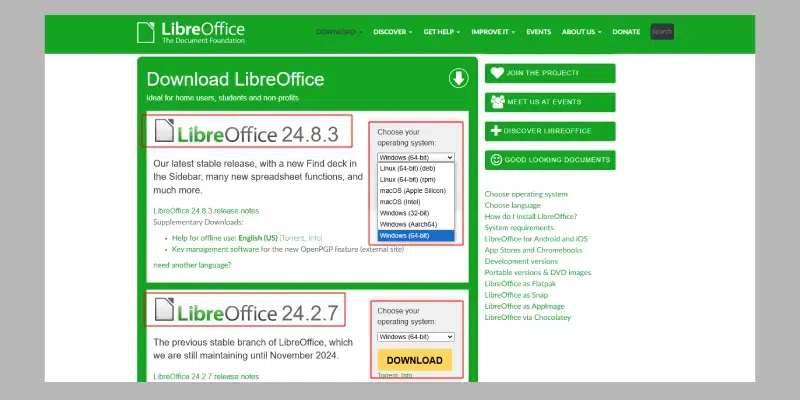
Step 1: Install LibreOffice (If Not Installed) Before editing a PDF, ensure that you have LibreOffice installed on your computer. It is available for Windows, macOS, and Linux.
Go to the official LibreOffice website: LibreOffice Download Download and install based on your operating system. Follow the on-screen instructions to complete installation. 👁 Install-LibreOffice Install LibreOffice Step 2: Open LibreOffice Draw LibreOffice Draw is the tool within the LibreOffice suite that is capable of opening and editing PDFs.
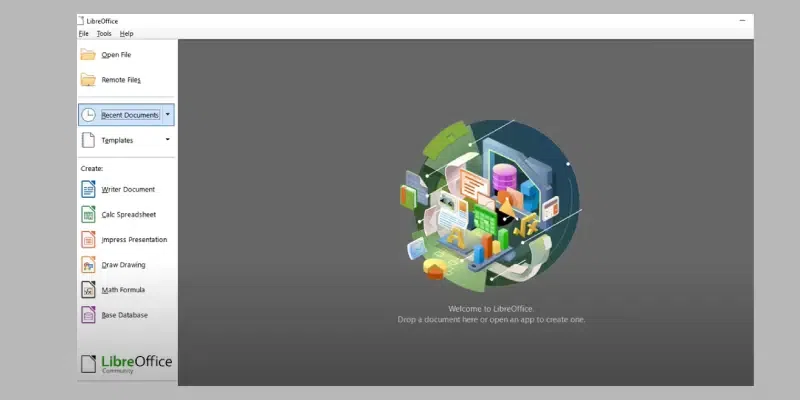
Launch LibreOffice. Click on LibreOffice Draw from the start screen. This application lets you import and edit PDF content. 👁 Open-LibreOffice-Draw Open LibreOffice Draw Step 3: Open the PDF File You Want to Edit Now, you need to open the PDF file you want to edit.
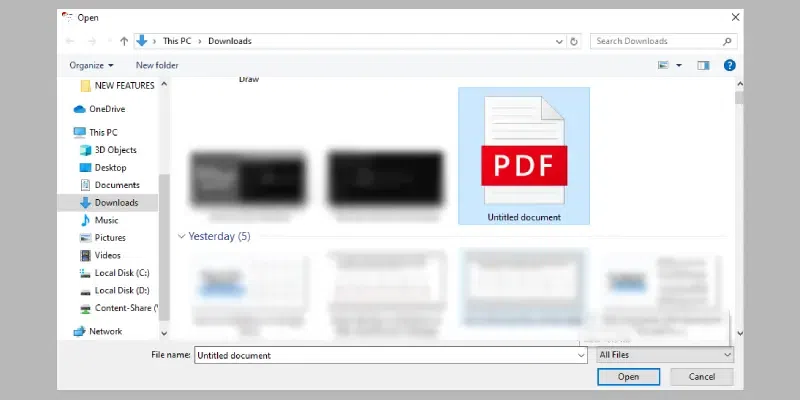
In LibreOffice Draw, click File → Open (or click the Open File icon on the left sidebar) Browse to the PDF file on your computer. Select it and click Open. Note: LibreOffice Draw will convert the PDF into an editable format. Each text box, image, and shape becomes an object that you can modify.
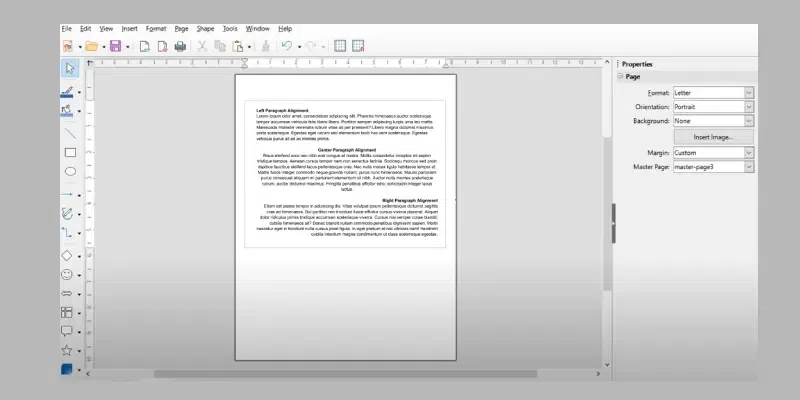
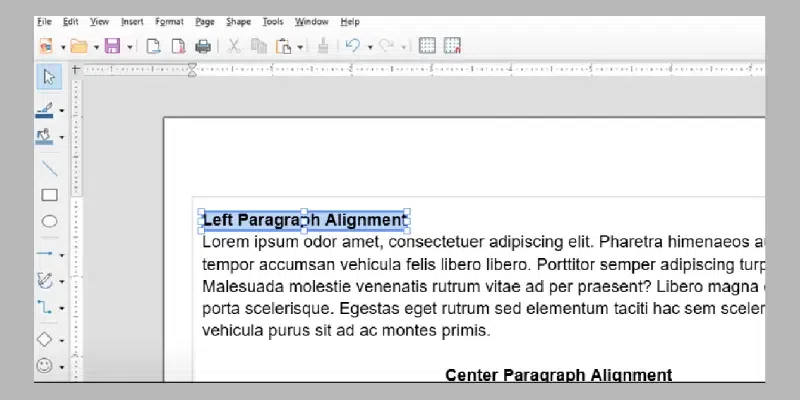
👁 Open-the-PDF-in-LibreOffice-Draw Open the PDF in LibreOffice Draw Step 4: Select PDF File from your PC Select the file from your PC or Laptop and Click on Open. 👁 Select-PDF-File-from-your-PC Select PDF File from your PC Step 5: Edit the PDF Content Once the PDF is opened, you can edit it. Here’s how to modify the content: 👁 Edit-the-PDF-Content Edit the PDF Content 1. Editing Text
Click any text block to start typing. Change font, size, color, alignment, etc., from the toolbar. 2. Adding / Editing Images
Add: Click Insert → Image, then choose your image. Edit: Select the existing image to resize or replace it. 3. Moving Elements
Click and drag text boxes, images, or shapes to reposition them. 4. Deleting Content
Select the object and press Delete. 5. Adding Shapes or Drawings
Use the drawing toolbar to insert:
Lines Arrows Shapes Freehand drawings 👁 Do-Formatting-in-PDF Do Formatting in PDF Step 6: Save the Edited PDF After making changes:
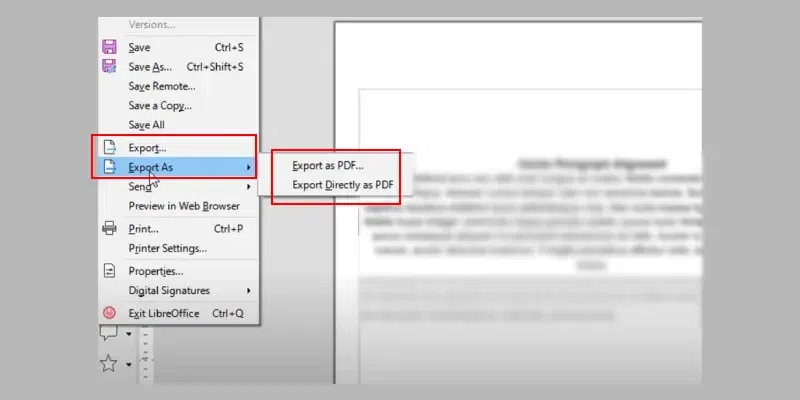
Go to File → Export As → Export as PDF Choose where to save the edited PDF. Click Save. Important Notes Use a different filename to avoid overwriting the original. Exporting as PDF ensures layout consistency. If you want future edits, first save the file as .odg (Draw format). 👁 Save-the-Edited-PDF Save the Edited PDF LibreOffice Saving PDFs and Important Notes (Optional) Save Frequently : Large/complex PDFs may cause slowdowns, saving often avoids data loss. Keep Original and Final Versions: Save with different names like: document_original.pdf document_edited.pdf Export Options : LibreOffice lets you configure: Image compression PDF quality Password protection PDF/A format (archival) For Printing : Use high-quality settings from the PDF export dialog. Step 7: Review the Changes Open the saved PDF in any viewer to confirm the changes. If anything looks off, return to Draw and make the adjustments. Additional Tips for Editing PDFs in LibreOffice 1. Complex Layouts Multi-column designs, tables, or graphics-heavy PDFs may not import perfectly. Some manual adjustments may be needed. 2. Text Formatting The font may differ slightly depending on what’s available on your system. Adjust font styles manually if required. 3. Multiple Page PDFs Navigate pages easily using thumbnails on the left side of Draw. 4. Saving PDFs with Editable Text For further text editing in Word or Writer, export as: Why Choose LibreOffice for Editing PDFs Completely free and open-source Works on Windows, macOS, Linux Ideal for basic to moderate PDF edits Supports text, images, shapes, and object editing No subscription or license required Limitations of LibreOffice Draw Not suitable for very complex PDF designs May not preserve all formatting Lacks advanced features like form editing or digital signatures