|
VOOZH | about |
|
VOOZH | about |
Have you ever sent a message on WhatsApp and instantly noticed a typo or wished you could change the wording? It happens to the best of us! Whether you want to correct spelling mistakes, adjust your tone, or completely rephrase your text, WhatsApp now lets you easily edit your messages. No need to delete and resend – just a quick tap and you can update your message instantly. This feature is super helpful for avoiding awkward moments or misunderstandings in both personal and professional chats.
In this article, we’ll show you how to edit messages on WhatsApp step-by-step, making sure you stay in control of your conversations. Get ready to master this simple but powerful feature and learn how to keep your chats smooth, error-free, and perfectly tailored!
Table of Content
On Monday, 22nd May 2023, the biggest social messaging app, WhatsApp finally announced the launch of one of the most demanded features in the app. The instant messaging app, in a blog post, announced they’re rolling out the “Edit Message” feature for iOS and Android users across the world in the coming weeks.
The users will now be able to edit the WhatsApp messages they’ve mistakenly sent with a typo. The edit feature will allow the users to edit a particular message up to fifteen minutes after being sent. Users can edit a particular message as many times as they want but within the limit of fifteen minutes.
The WhatsApp official blog post says, “From correcting a simple misspelling to adding extra context to a message, we’re excited to bring you more control over your chats. All you need to do is long-press on a sent message and choose ‘Edit’ from the menu for up to fifteen minutes after.”
The process to edit the message is same for the Android as well as iOS users as explained by the company in their post however the feature will only be accessible in the most recent update of the app. Editing WhatsApp message is easy process for both Android and iOS. Follow these Steps given below:
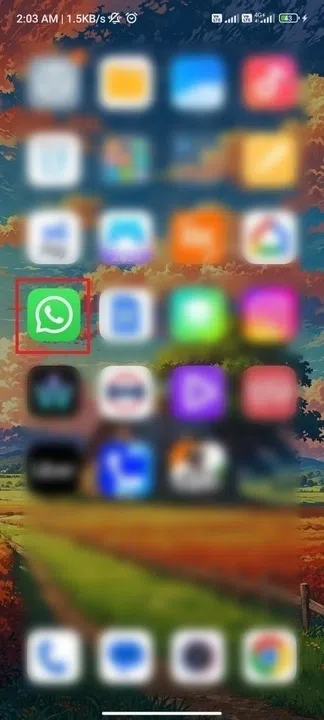
Open the Whatsapp application. Make sure you’ve updated your WhatsApp.
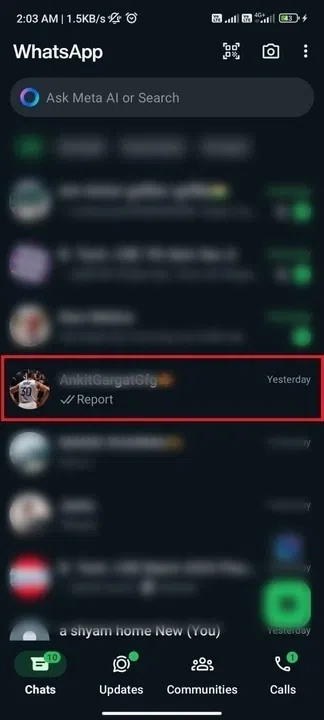
Open the chat where you’ve mistakenly sent the wrong message to your friend.
Now, long press on that particular message that you want to edit and click on the three dots menu.
Now, edit the message as you want and click the send button. The edited message will get delivered to the sender instead of the previous one.
Keep in mind that the message editing window will close after fifteen of sending the original message. The messages can be corrected by replacing the wrongly typed words with the correct ones or by entirely deleting the previous message and writing a completely new one. Sounds quite fun though!
However, the edited message will display a tag of “edited” under the message and the receiver will eventually know that the message has been edited by the sender.
Edited messages will display ‘edited’ alongside them, so those you’re messaging are aware of the correction without showing edit history. As with all personal messages, media, and calls, your messages and the edits you make are protected by end-to-end encryption.
The Meta-owned application keeps receiving new and advanced feature updates frequently to enhance the user experience and increase the privacy in their application across versions. The company also launched the Chat Lock feature a few days back owing to increase the privacy of the users and allowing them to lock their private chats with passwords and biometrics.
The Edit feature has only recently started rolling out and is only accessible to a few users as of now but will eventually be available for all in the coming weeks.
Here’s a section on Common Issues and Solutions When Editing Messages on WhatsApp:
1. Edit Option Not Available
Issue: The edit option isn’t showing up when you long-press the message.
Solution: Ensure your app is updated to the latest version. If the feature still doesn’t appear, it might not yet be available in your region.
2. Time Limit Exceeded
Issue: You can’t edit a message because the edit option is disabled.
Solution: WhatsApp allows editing only within 15 minutes of sending the message. If the time has passed, you’ll need to delete and resend the corrected message.
3. Changes Not Saving
Issue: You edit a message, but the changes don’t reflect.
Solution: Check your internet connection. If the issue persists, restart the app and try again.
4. Feature Not Available on Desktop
Issue: You can’t find the edit option when using WhatsApp Web or Desktop.
Solution: The editing feature might be limited to mobile devices in some regions. Use your smartphone to edit messages.
5. Message Display Error After Editing
Issue: Edited messages display incorrectly for you or the recipient.
Solution: Refresh the chat by closing and reopening WhatsApp. If the problem continues, ask the recipient to do the same or update their app.
If you’re having trouble editing messages on WhatsApp, here are some common reasons and troubleshooting tips:
1. Outdated App Version
Reason: The edit feature may not be available on older versions of WhatsApp.
Solution: Update your app to the latest version via the App Store or Google Play Store.
2. Time Limit Expired
Reason: WhatsApp only allows you to edit messages within 15 minutes of sending.
Solution: If the time has passed, you won’t be able to edit the message. Consider deleting and resending a corrected version.
3. Feature Not Available in Your Region
Reason: The message editing feature may not yet be rolled out in your area.
Solution: Check for updates regularly or wait until the feature becomes available in your location.
4. Network Issues
Reason: Poor internet connection might prevent the edit option from showing up.
Solution: Ensure you have a stable internet connection and try again.
5. Using WhatsApp Web or Desktop
Reason: The edit feature may be limited to mobile devices in certain regions.
Solution: Switch to your mobile device to access the edit option.
Editing messages on WhatsApp is a game-changing feature that helps you avoid embarrassing typos, correct errors, or simply improve your message after it’s been sent. Whether it’s for casual chats with friends or important professional conversations, knowing how to edit messages on WhatsApp can save you time and keep your communication clear and polished. Now that you know how easy it is to tweak your messages, you can confidently send texts without worrying about mistakes. Stay on top of your conversations and make sure your messages are always spot-on!

.webp)