|
VOOZH | about |
|
VOOZH | about |
Content blockers in Safari help enhance the browsing experience by preventing unwanted ads, trackers, and other intrusive content from appearing while you browse. These tools improve privacy, speed up webpage loading times, and give you more control over your online experience. However, you may sometimes need to enable or disable content blockers based on specific websites or personal preferences. This guide walks you through the process of enabling or disabling content blockers in Safari, both on your Mac and iPhone, to help you manage your online browsing more efficiently.
A content blocker, within the branch of technology and online environments, is an application or software crafted to limit or filter certain categories of content on the internet. Its primary purpose is to improve user interaction by hindering the appearance or availability of undesirable or harmful material.
Content blockers in Safari operate as specialized applications provided with an extensive set of rules designed to identify and block specific types of unwanted content. Each rule within these blockers is composed of triggers and corresponding actions. Triggers are the conditions that, when met, signal Safari to take action against certain types of content, such as advertisements or trackers.
The actions defined within the rules dictate how Safari should deal with this content, typically by preventing it from loading. This mechanism enhances the browsing experience by speeding up web page loading times, enhancing user privacy, and reducing data consumption. Through the use of these content blockers, users can enjoy a cleaner, faster, and more secure browsing experience on Safari.
Here are some reasons to enable or disable content blockers in Safari:
Enabling content blockers can improve your overall browsing experience, but disabling them temporarily might be useful when visiting websites that require ads to function or to support creators.
In this section, we will guide you through the simple steps to enable or disable content blockers in Safari on your Mac.
Launch the Safari browser on your device.
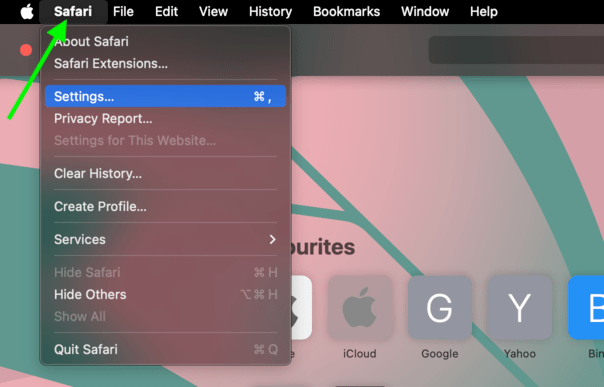
Click on the Safari option in the top-left corner of the screen.
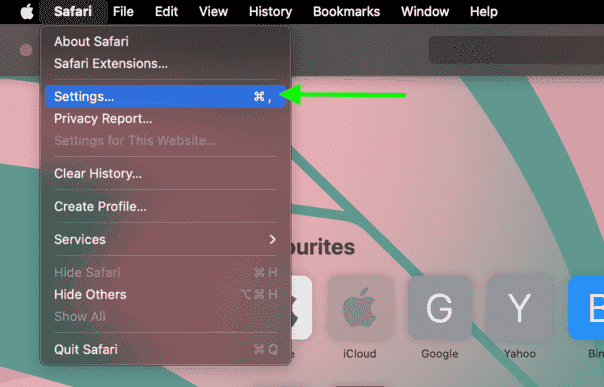
From the drop-down list, select Settings.
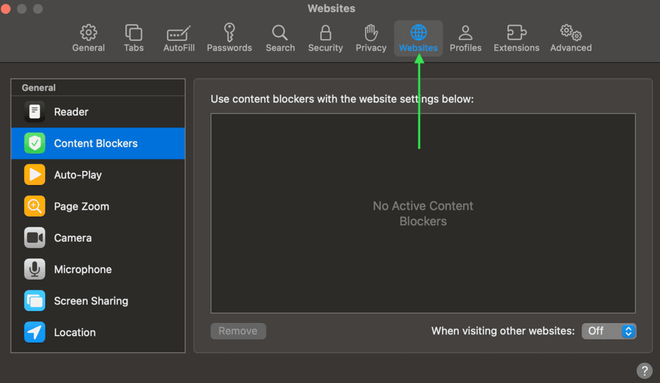
Click on the Websites option in the settings menu.
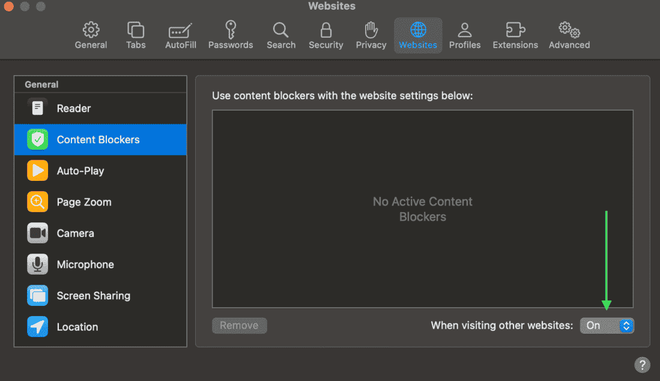
In the box at the lower-right, you will see "On" and "Off" buttons. Use this to enable or disable the content blocker.
In this section, we'll walk you through the easy steps to enable or disable content blockers in Safari on your iPhone.
Launch the Settings app on your mobile device.
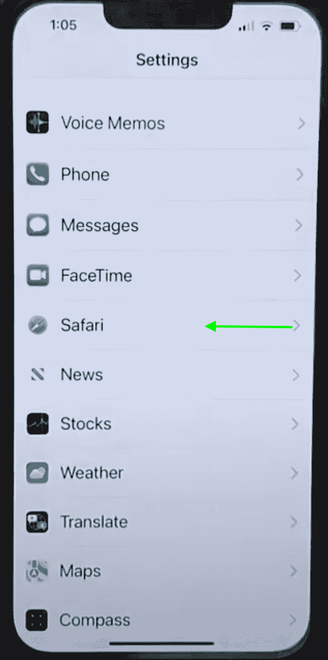
In the search bar, type "Safari" and click on the Safari option when it appears.
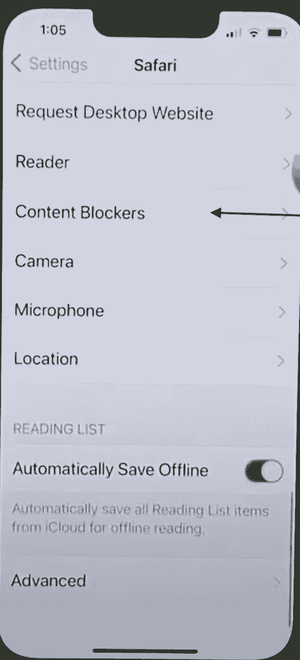
Scroll down and select the "Content Blockers" option.
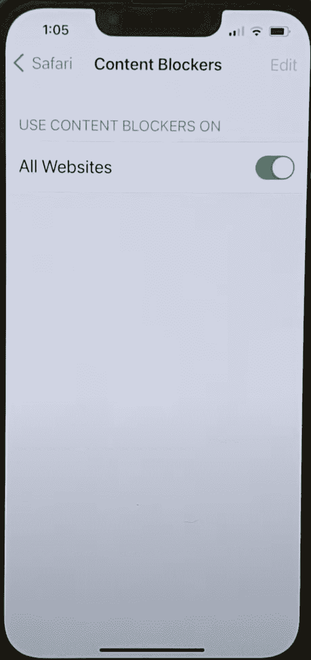
Here, you can enable or disable the content blocker for your Safari browser on the mobile device.
Content blockers in Safari offer essential benefits like improved privacy, faster browsing, and fewer distractions. Whether you want to enable them for a smoother browsing experience or disable them for certain websites that require content access, adjusting these settings is simple. By following the steps for both Mac and iPhone, you can ensure that your browsing environment aligns with your preferences and needs. Whether you're prioritizing privacy or convenience, content blockers provide you with the flexibility to control your online experience.