|
VOOZH | about |
|
VOOZH | about |
Web browsers are like magic that opens doors to the internet world from where you can see and travel the whole world by sitting inside the room. But sometimes, they can be too frustrating, when you are working on something and browsers keep on popping the notifications on the screen.
Luckily, you can control notifications on your browser, let's learn how to manage notifications on your web browser.
Following are some points that why managing notifications is helpful:
Some of the following steps to enable or disable notifications on popular web browsers Google Chrome, Firefox, and Microsoft Edge are given below:-
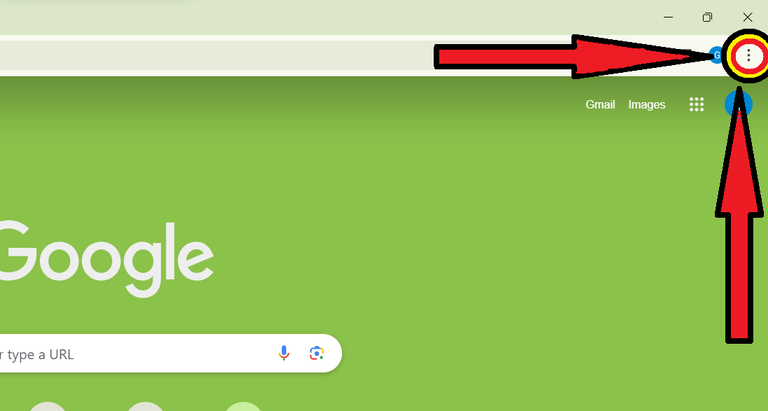
Step 1: Open the chrome browser and click on the three dots in the top-right corner.
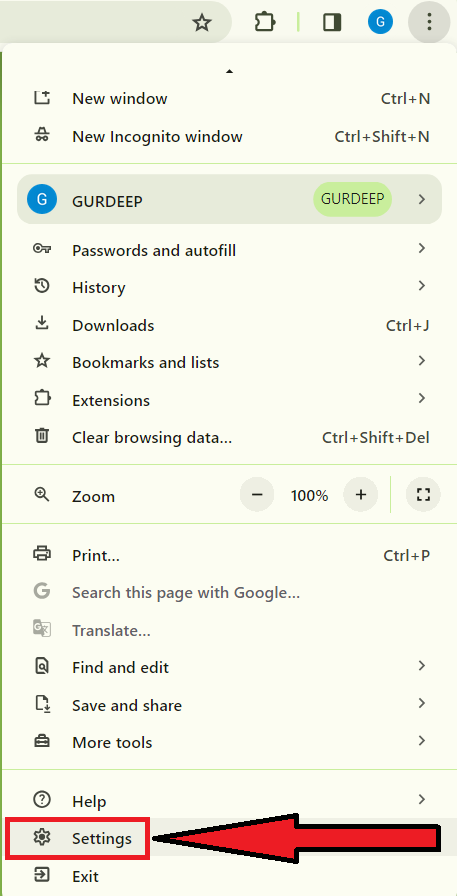
Step 2: Select "Settings" from the appeared options.
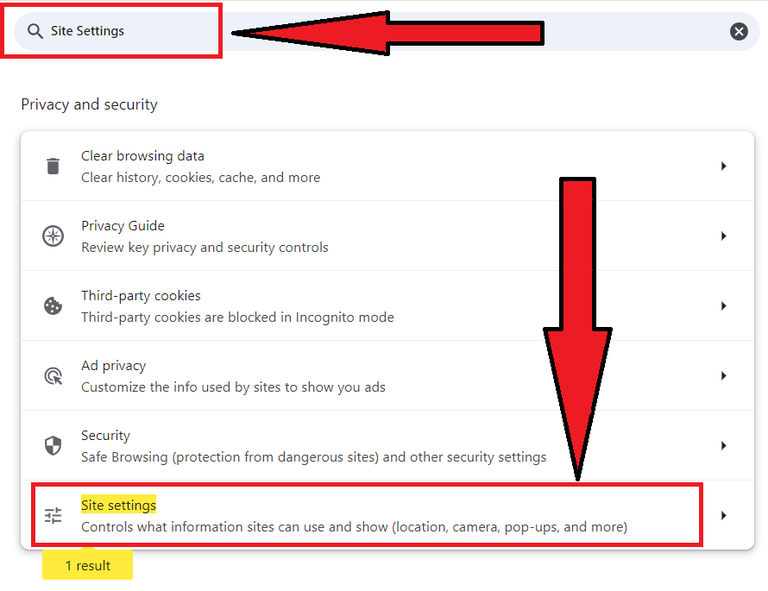
Step 3: Search "Site Settings" on the search bar and then click on the "Site Settings" from the appeared results.
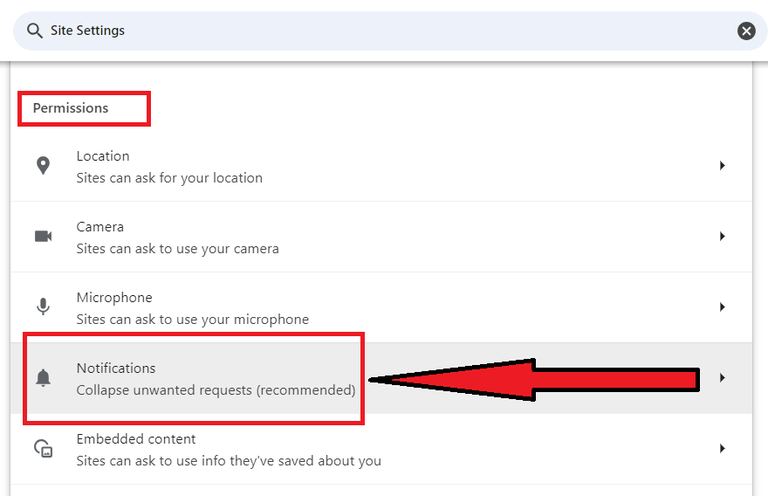
Step 4: Now, under the Permission section, click on "Notifications" option.
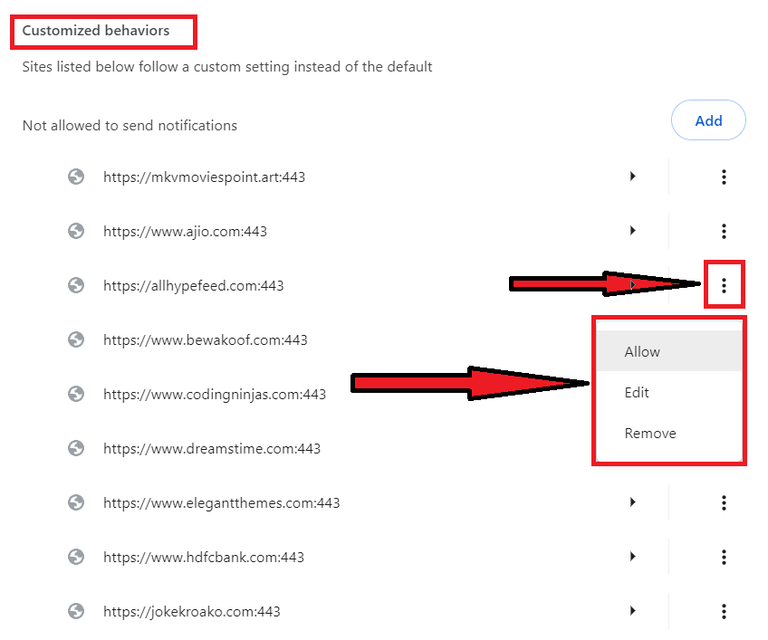
Step 5: Under the Customized behaviors section, user can "Allow" or "Remove" permission for notifications from a particular websites.
By following the above steps you can easily enable or disable the notifications from your web browsers. The above steps are only for the Google Crome browser , now let's cove the same for the Mozilla Firefox browser.
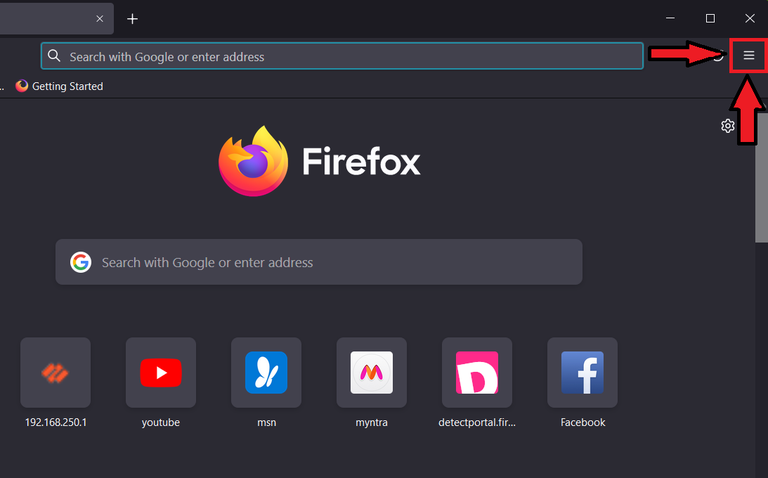
Step 1: Open the Firefox browser and click on the three horizontal lines in the top-right corner.
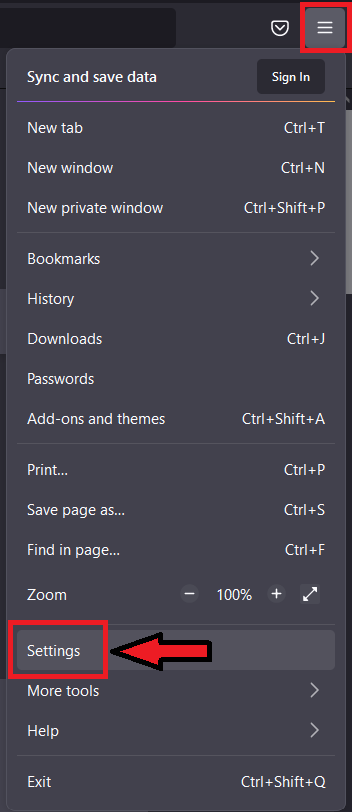
Step 2: Select "Settings" from the appeared options.
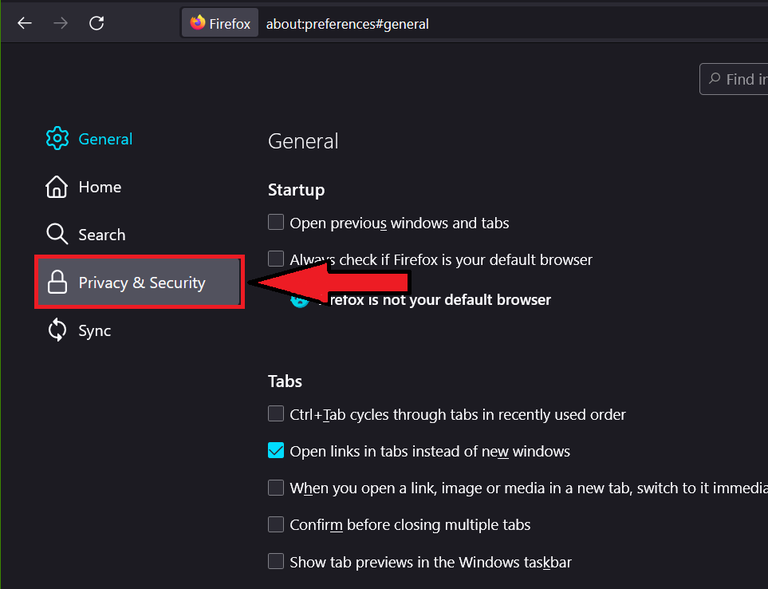
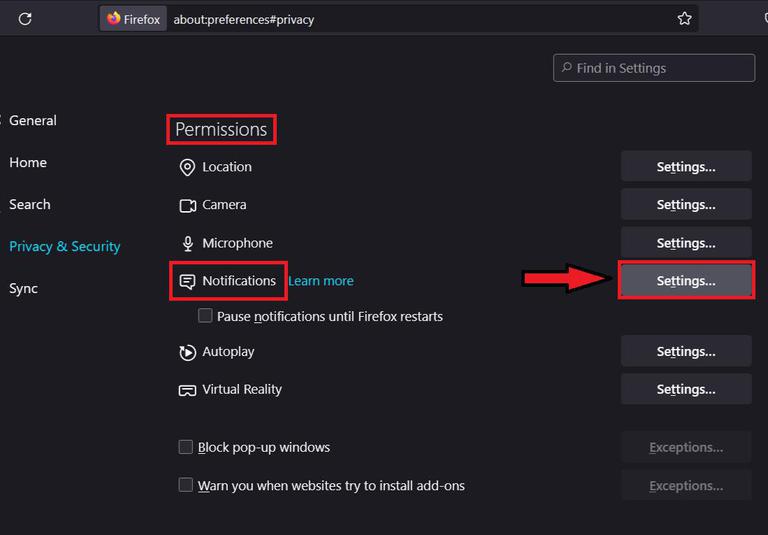
Step 3: Then click on the "Privacy & Security" option present.
Step 4: Now, under the Permission section, click on settings of "Notifications" option.
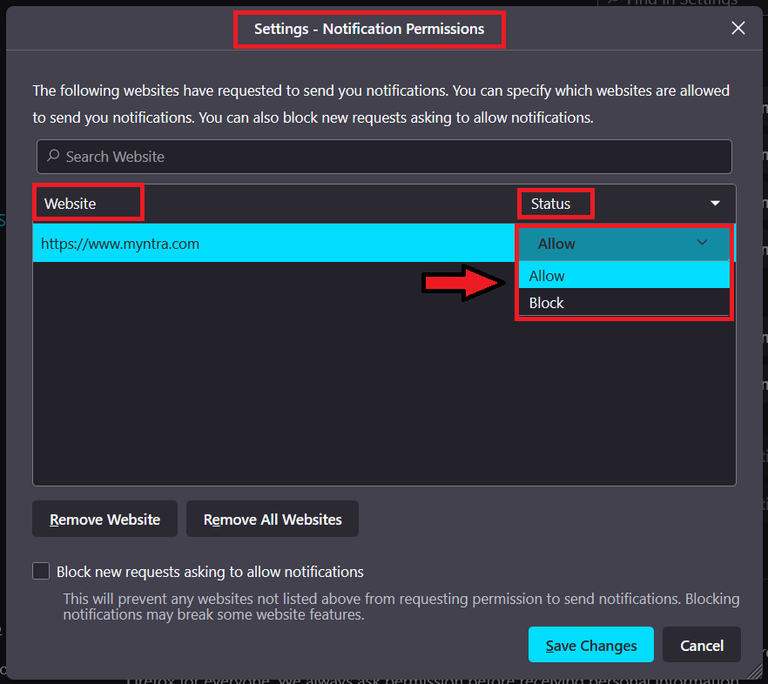
Step 5: After clicking on Notification settings, user can "Allow" or "Block" permission for notifications for a particular websites under website status section.
By following the above steps you can easily enable or disable the notifications from your web browsers. The above steps are only for the Mozilla Firefox browser , now let's cove the same for the Microsoft Edge browser.
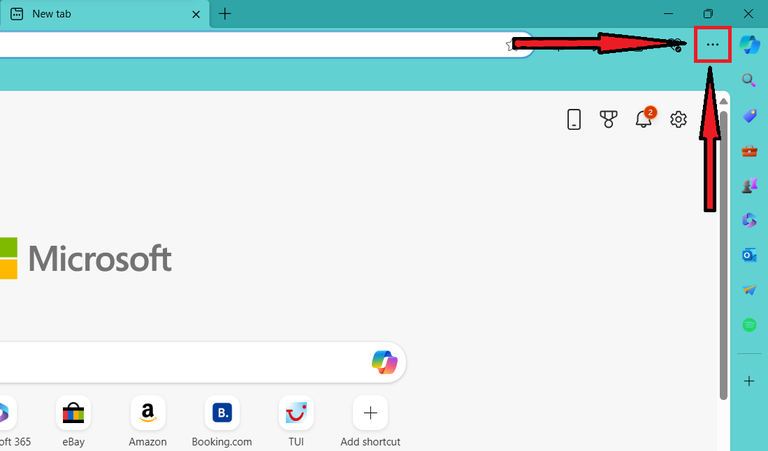
Step 1: Open the Microsoft Edge browser and click on the three dots in the top-right corner.
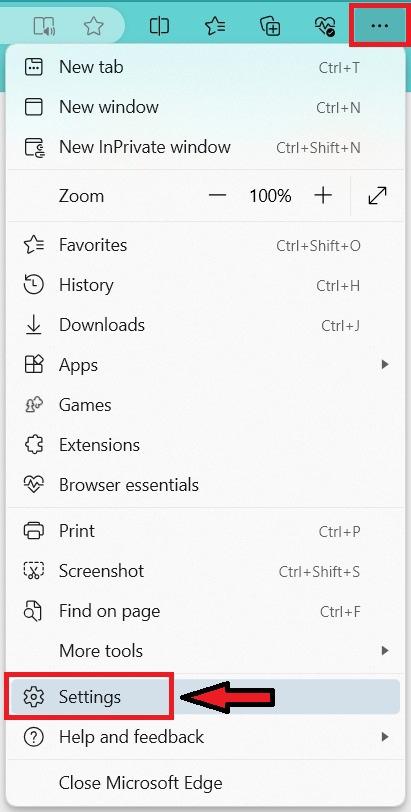
Step 2: Select "Settings" from the appeared options.
Step 3: Then click on the "Cookies and site permission" from the appeared options.
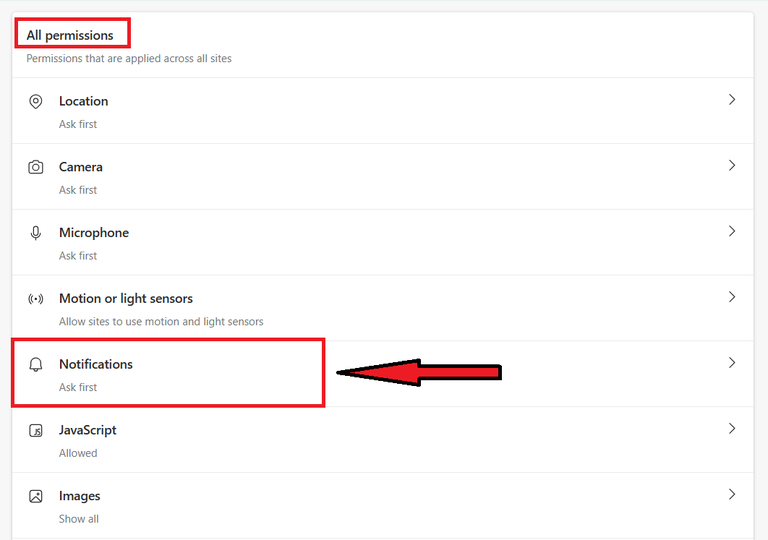
Step 4: Now, under the Permission section, click on "Notifications" option.
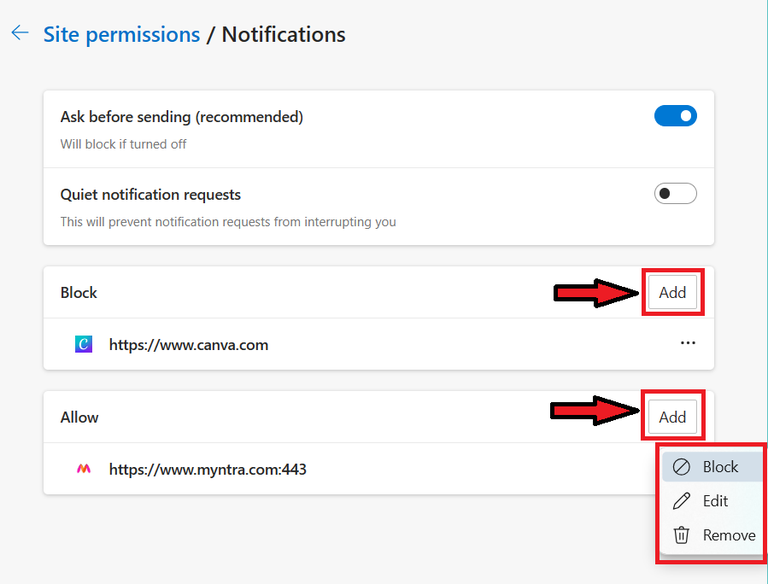
Step 5: After clicking on Notification, user can "Block" , "Allow" or "Remove" permission for notifications for a particular websites under "Block" and "Allow" section.
Managing notifications in your web browser is easy and makes browsing more enjoyable. By following these steps, you can customize your browser and keep your focus maintain on what matters most to you. So, take responsibility of your notifications today and enjoy a smooth browsing experience.