|
VOOZH | about |
|
VOOZH | about |
Auto HDR is a feature in Windows 11 designed to enhance your gaming experience by automatically upgrading standard dynamic range (SDR) games to high dynamic range (HDR). This guide will walk you through the steps to enable Auto HDR, ensuring you can enjoy richer colors and improved visuals while gaming.
Gamers who prefer high-refresh-rate monitors (NVIDIA/AMD GPUs) can be amazed with the Auto HDR function that Windows 11 is offering with the help of AI. So, let's understand how you can enable Windows 11 Auto HDR to enjoy the real-gaming experience now.
System Requirements:
- Hardware:
- Display: HDR-10 compatibility (Samsung Odyssey Ark 55", Sony INZONE M9 27", Lenovo ThinkVision P27u-20 27")
- GPU: Nvidia GeForce GTX 900 series, AMD Radeon RX 400, etc.
- Display Ports: HDMI 2.1 or DP 1.4 (for 4K@ 120Hz HDR)
- Software:
- OS: Windows 11 Version 22H2 or later (*if not updated, Navigate to Settings > Windows Update)
- Gaming GPU Drivers: NVIDIA, AMD
Windows 11's Auto HDR feature improves your gaming experience by automatically enabling High Dynamic Range (HDR) in DirectX 11 and DirectX 12 games—even if they weren't initially intended to support it. Turning on Auto HDR on your HDR-capable TV or monitor is a terrific way to get the most out of your display.
Now, see the below-mentioned easy steps and implement them properly to Enable Windows 11 Auto HDR for Gaming.
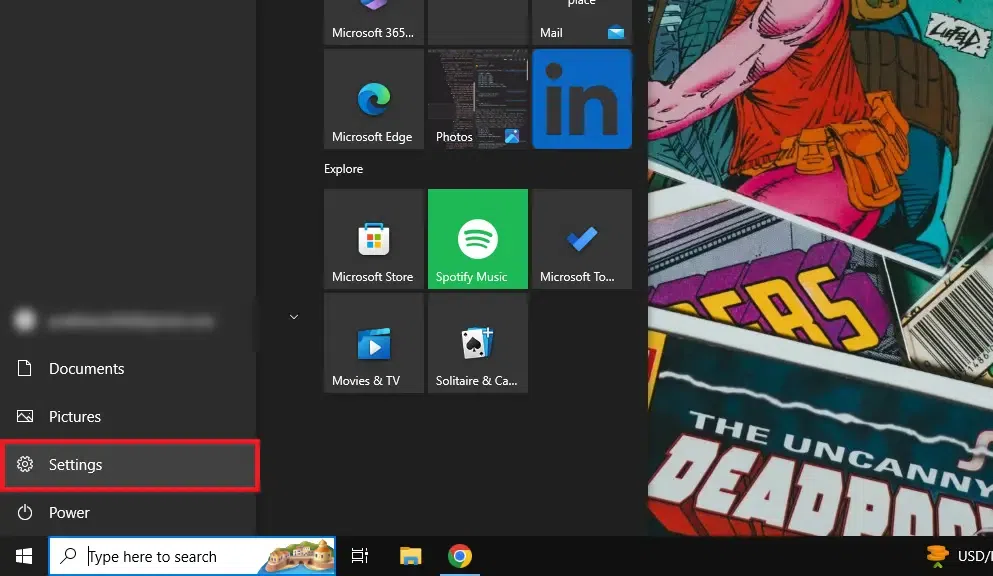
From the Start Menu click on the Settings icon to go to the Settings icon.
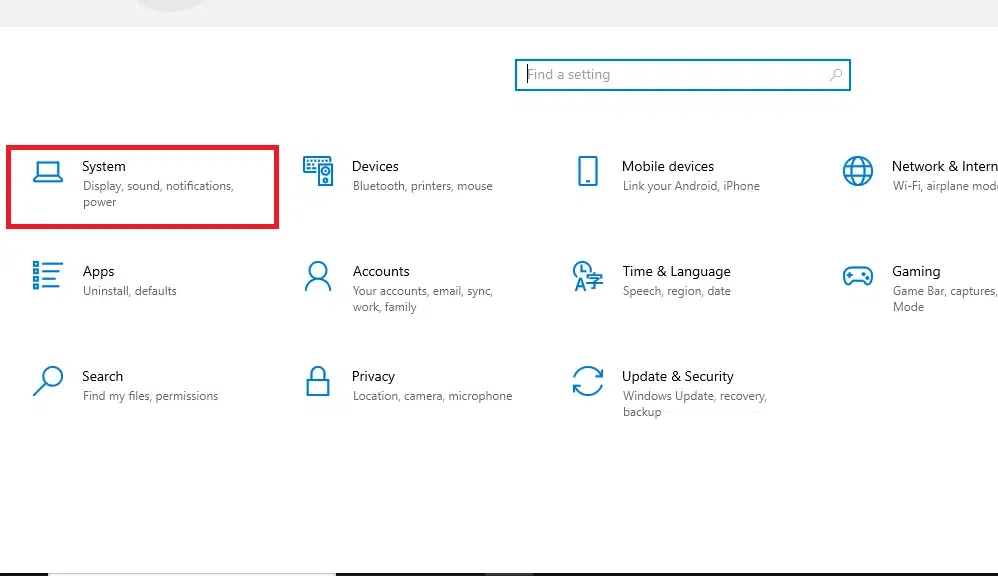
Now click on the System to go to the system settings of your laptop.
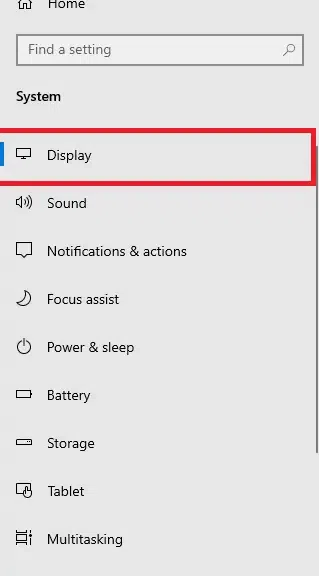
Select Display from the left pane of the interface, when you click on the Display button you will move to the Display settings of your laptop.
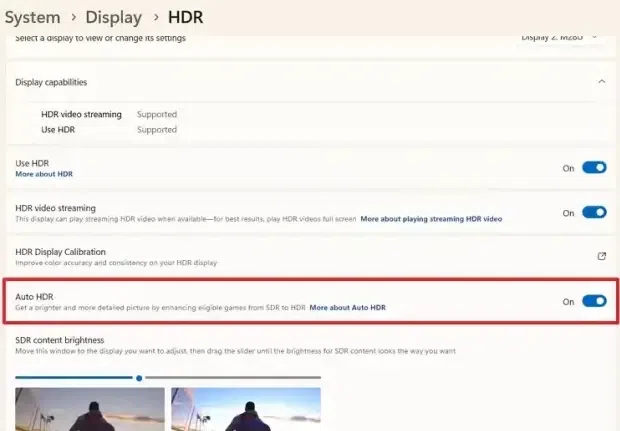
Enable Auto HDR button and HDR settings will be enabled on your computer.
*Note: You can also click over HDR Display Calibration to adjust brightness/contrast using the built-in tool.
You can also adjust the intensity of Auto HDR using the Game Bar:
By using the above-mentioned 4 simple steps, you can enable Auto HDR on Windows 11 system. Now, let's check how you can activate Auto HDR in games.
Click on the Start Menu or Press the Win key to open the Start Menu and type "Settings" and hit the Enter button.
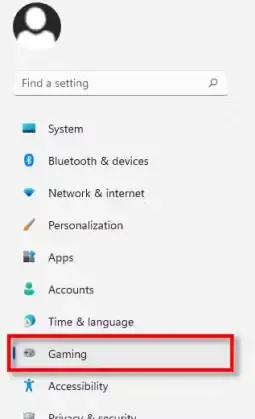
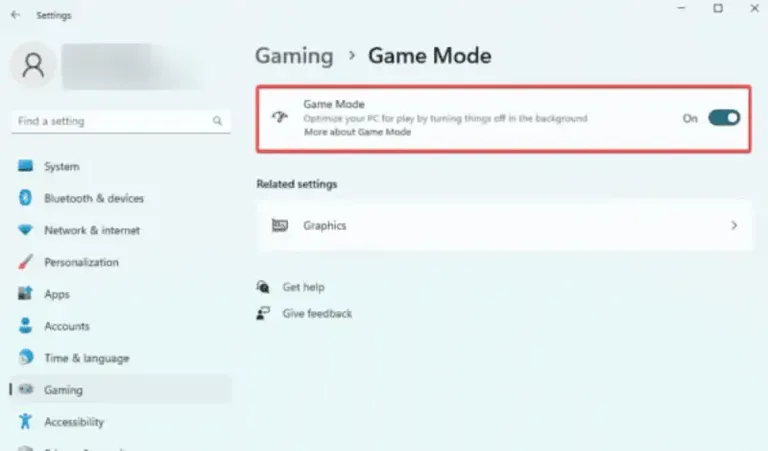
Navigate to the Settings > Gaming > Game Mode
Click to toggle ON the Auto HDR. Also note that this feature will only works in DirectX 11/12 or Vulkan (low graphics) games.
Alternative:
- Launch your game
- Press Win + G ( access Xbox Game Bar )
- Navigate Settings > Gaming Features > Enable Auto HDR
If you encounter issues with Auto HDR, consider these troubleshooting tips:
Enabling Auto HDR in Windows 11 can significantly enhance your gaming experience by providing more vibrant colors and better contrast. By following this guide, you can easily activate this feature and enjoy a more immersive gaming environment. Make sure your hardware meets all necessary requirements for optimal performance, and don’t hesitate to explore further adjustments through the Game Bar settings for a personalized experience.