How to Factory Reset Windows: A Step by Step Guide
Last Updated : 23 Jul, 2025
A factory reset can be a critical step in troubleshooting, clearing out viruses, or simply starting fresh with a clean version of Windows. Whether you're preparing to sell your device or aiming to resolve persistent system issues, knowing how to properly perform a factory reset on Windows can save you time and ensure your data security.
In this blog post, we'll guide you through the detailed steps of performing a factory reset on Windows, ensuring you understand the implications and the process involved.
Factory reset is a built-in tool in Windows that helps restore a computer to its factory state by reinstalling the operating system. A reset restores it to its factory setting and deletes all the settings, applications, and data that might differ from the original installation (depending on the reset option selected). This function is usually employed when a system is facing serious issues, has performance glitches, or is being prepared for a sale.
Why Performa Factory Reset Windows 10?
There are several reasons you might want to perform factory reset. Basically a factory reset can effectively resolve a wide range of minor issues, including:
Very slow performance.
Startup and shutdown issues.
High usage of memory.
Software crashing or showing errors.
Draining battery too quickly.
Prepare you PC for sale
To remove malware and unwanted softwares.
Furthermore, a reset serves the purpose of improving system performance by clearing out bloatware and other unwanted files.
Benefits of Factory Reset
Performance Boost: Improve speed and responsiveness by removing unnecessary files, bloatware, and corrupted data.
Solves Software Problems: Fixes problems like software crashes, application errors, or system hang problems.
Resets Factory Settings: Install Windows with default settings and remove problems created by third-party applications or settings tweaks.
Prepares for New Ownership: Useful when selling or donating a PC since it clears all personal data and resets the computer for the new user.
What to Do Before You Factory Reset Windows 10 or 11
There are many things you should follow before you factory reset:
Backup Your Data: See whether all important files are backed up on an external drive, OneDrive, or any other cloud service.
Deauthorize Software: Some software, like iTunes and Adobe, locks your license into the PC itself.
Check Update Status of the System: Make sure that you are fully updated on your system so as to avoid any reinstallation of out-of-date software.
Have your Product Key Ready: If you reinstall Windows, prepare to have your product key (if applicable) ready to reactivate.
How to Factory Reset Windows 10
There are two major methods used to reset Windows 10
Keep My Files: In this scenario, your PC is reset to factory settings but the users' accounts are preserved.
Remove Everything: This option deletes everything from your PC and reinstall Windows 10 on it.
Method 1: Factory Reset Windows 10 (Keep My Files)
This requires a complete reset of your computer while saving your private files. Follow these steps:
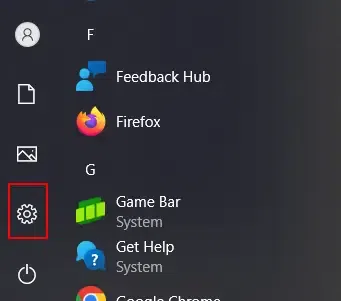
Step 1: Open Settings
The Start Menu has Settings, which looks like a gear. Open Settings.
If you select 'Cloud download', a window with additional settings will appear. You can either click 'Next' or 'Change settings' to change the settings.
If you click 'Change settings', you can accept or decline to restore preinstalled apps and settings, and download and reinstall Windows by toggling the switches on or off. Once you make your choice, click 'Confirm.'
If you opt for the 'Local reinstall', a window with additional settings will appear. There, you can either click 'Change settings' or proceed by clicking 'Next.'
If you click 'Change settings,' you can accept or decline to restore apps and settings, and reinstall Windows from your device by toggling the switches on or off. Once you make your choice, click 'Confirm.'
After the reset, check for Updates. Go to Settings > Update & Security >Windows Update, and click Check for Update. Install for drivers and updates that are missing. You may also reinstall your applications if you have to.
If you select 'Local download', a window with additional settings will appear. You can either click 'Next' or 'Change settings' to change the settings. As explained above.
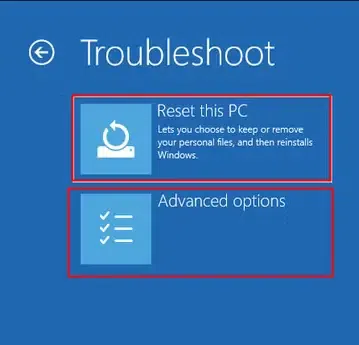
Choose Remove everything to wipe the device clean. As explained above.
Walk through the screens to reset Windows 10. You may be asked if you want to wipe the drive completely (this takes longer but is more secure if you're going to sell or give away the PC).
How to do Factory Reset in Windows 11
In Windows 11 you can opt for more than one way to reset your PC but in this section, we are going to discuss the easiest way to perform this task:
Step 1: Go to Recovery >> Reset Option
Open Windows Settings and then navigate to the System >> Recovery and then click on the Reset PC.
Step 2: Choose What to Delete
After this, you will see two options at your screen:
Keep my files (Choose to remove all apps but keep your personal files)
Remove Everything (Choose this to remove all your personal files, apps, and settings)
Choose the option as per your requirement.
Step 3: Select the Reinstall Option
Before resetting your system, decide how to reinstall Windows. Opt for "Local reinstall" to use files from your device, or choose "Cloud download" to download files from Microsoft, requiring at least 4GB of free space.
Step 4: Reset your Windows 11 Computer
Once you have selected all options, click on Next. After this, Windows will generate a summary. Read the point carefully, and then click on the Reset button to perform a factory reset of Windows 11.
Other Reset Alternatives: Cloud Download, Local Reinstall, Clean Data
1. The Cloud Download
So this one when you have your Cloud Download, Windows will download the latest version of the operating system Windows from Microsoft servers, so you can be sure to have the newest security updates and features.
Useful if a local recovery partition is damaged or you want to make sure your reset will happen with Windows, the latest version.
After that select Cloud Download after selecting which reset type to perform.
Wait to download the files from the system (requires an active internet connection and may take time depending on your internet speed).
Reset will follow once downloaded.
2. Local Reinstall
Local Reinstall is just using files that are stored on the device to reset Windows. This is faster than Cloud Download but may not include the latest updates.
After that, select Local Reinstall after choosing what type of reset to use.
Existing recovery files will be used to carry out the process within the computer, hence does not require an internet connection.
Perfect for slow internet speeds or areas devoid of internet connectivity.
3. Clean Data
Factory reset with the Remove everything option wipes storage drives clean as well. This will thoroughly erase data on your device because it is very important when sold or donated PC as private information will remain private.
Further, it will provide the option to remove files and clean the drive after selecting Remove Everything.
This makes sure that everything on the drive is securely erased and non-recoverable.
Regardless of whether you choose to keep your files, factory resetting Windows 10 serves as an effective remedy for most stubborn system issues. Well, if you follow the steps given in this guide, you will be able to restore your PC back to factory settings and boost its performance in just a few simple steps.