How to Fix Bluetooth Connectivity Problems in macOS?
Last Updated : 24 Oct, 2024
Bluetooth is among the important features in macOS, acting as a bridge for devices to connect wirelessly to your computers, including keyboards, mice, headphones, and others. Commonly, some macOS users face connectivity issues with Bluetooth, either by delays or disconnections of hardware parts. We will show you, in this article, easy ways to troubleshoot Bluetooth issues on macOS.
Common causes of Bluetooth issues
Software bugs or macOS acting out of date.
Overloaded list of Bluetooth devices.
Interference from nearby devices using wireless.
Corrupted Bluetooth settings.
Fixing Bluetooth Connectivity Problems in macOS
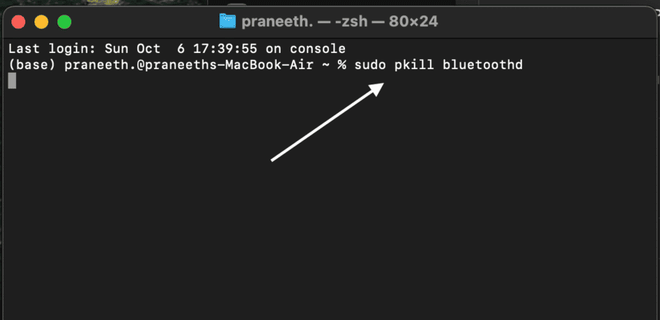
Restart Bluetooth > Forget and Re-pair Bluetooth Devices >> Reset Bluetooth Module >>> Delete Bluetooth Preferences >> MacOS Sonoma update.
Step 1. Restart Bluetooth
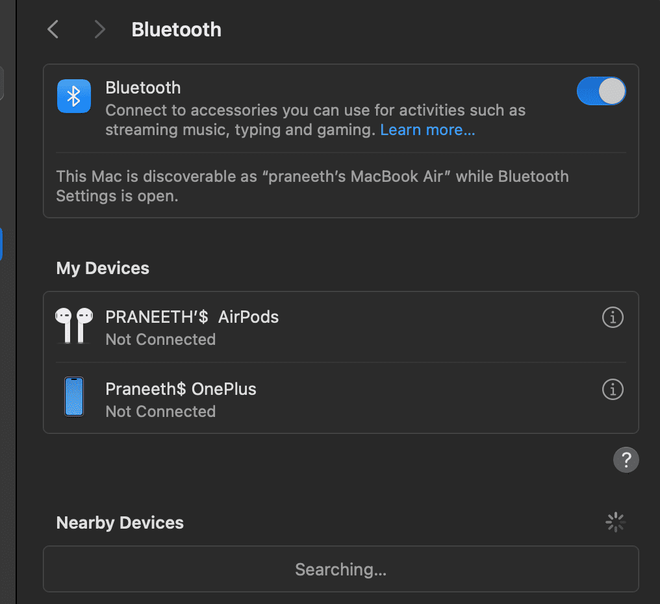
Open System Settings > Bluetooth.
Turn the switch off for Bluetooth, wait some seconds, and turn it on again.
Look for the file named com.apple.Bluetooth.plist, delete it, and restart your Mac.
Step 5. MacOS Update
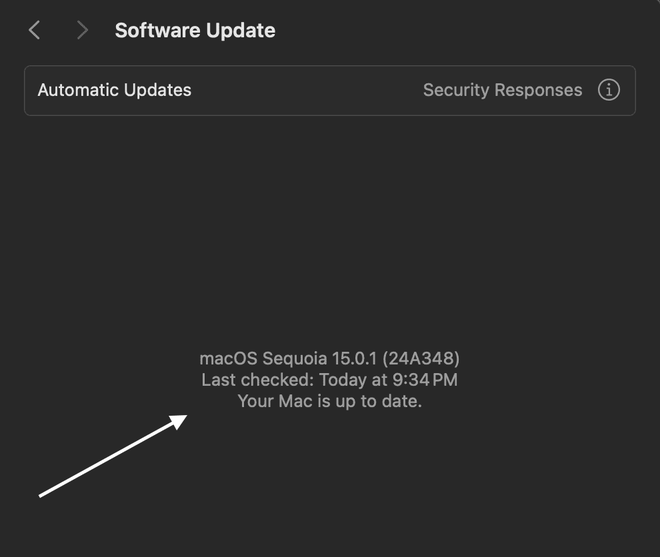
Sometimes, Bluetooth issues are caused by bugs in the software. Go check at System Settings > Software Update to see whether there’s an update available.
Run any available updates, as they often contain bug fixes for connectivity issues.
Keep Devices in Range: Keep your Bluetooth devices near your Mac, within their range.
Compatibility: Ensure that your Bluetooth device is macOS Sonoma 14 compatible.
Avoid Wireless Interference: Let it be free from interference with other wireless electronics.
Erase the Device Pairing List: Most devices have too many pairing device lists. Forget those devices that are no longer in use.
Keep Your Devices Charged: Low battery levels in Bluetooth devices can disrupt connectivity.
Points to Avoid
Not skipping software updates: missed macOS updates can cause unresolved bugs that may affect performance in Bluetooth
Avoid pairing too many devices: too many paired devices can stress the Bluetooth module.
Don’t Neglect Rebooting: After making changes, always restart your Mac, whether it’s resetting the Bluetooth module or deleting preferences.
Avoid unnecessary third-party tools: Additional installation of Bluetooth drivers or software from third-party vendors can create conflicts.
Don’t Overlook Issues of Hardware: If all else fails, one might want to consider hardware issues that may affect either your Mac’s Bluetooth chip or the device itself.
👁 file How to Fix Bluetooth Connectivity Problems in macOS?
Conclusion
Bluetooth issues are frustrating; on the other hand, the above-mentioned steps will fairly fix most of the problems occurring in macOS. Keeping the devices in range, updating, and resetting the Bluetooth module are some effective fixes. Apply the above power solutions to maintain seamless wireless connectivity.