|
VOOZH | about |
|
VOOZH | about |
Most people use Google Chrome as a web browser. Yet, numerous users tend to experience more or less acceptable downloading speeds that happen to be lower than desired. Slow speeds can be very annoying when dealing with big or several files at the same time.
Fortunately, there are a few tips that you can implement that will help include the download speed in Chrome. In this article, we will look at some of the tips that will help you make the downloading experience better.
Having more in-built features or setting adjustments to play with does not mean the search for solutions should begin there. It is also necessary to make sure the internet is of high speed and the connection is steady. It is common for download speeds to experience problems because of a bad Wi-Fi connection or problems from the service provider. In cases like these, it is better to check the connection speed using ones like Speedtest.net. It is important to note that if the internet speed is not in the expected range then it is either the modem or router that needs to be restarted or the plan has to be upgraded.
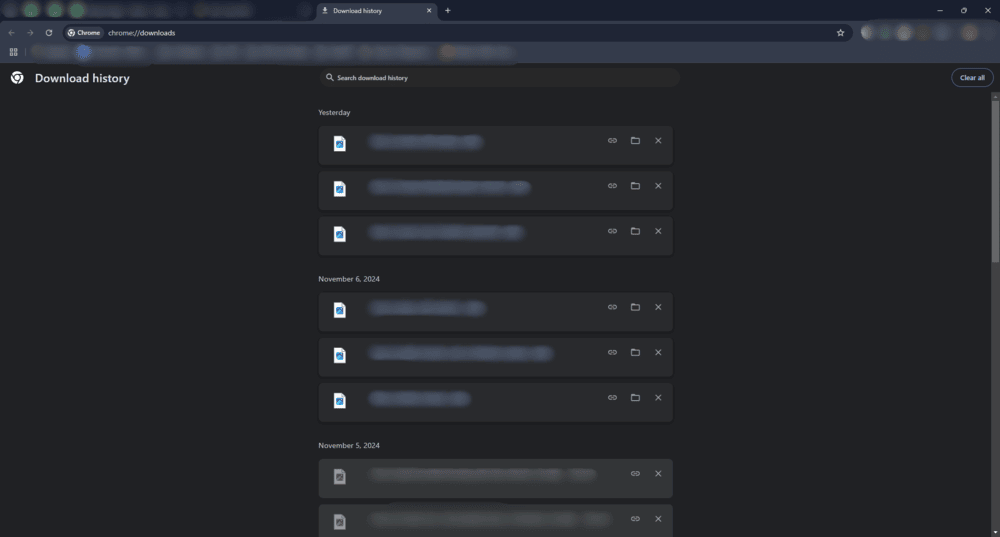
When you download several files at the same time, they fight for the same bandwidth. Simply click on the three dots in the upper right corner of Chrome, then Downloads, and manage your ongoing downloads, or you can simply pause or cancel unimportant downloads to allow resources for the file you are serving.
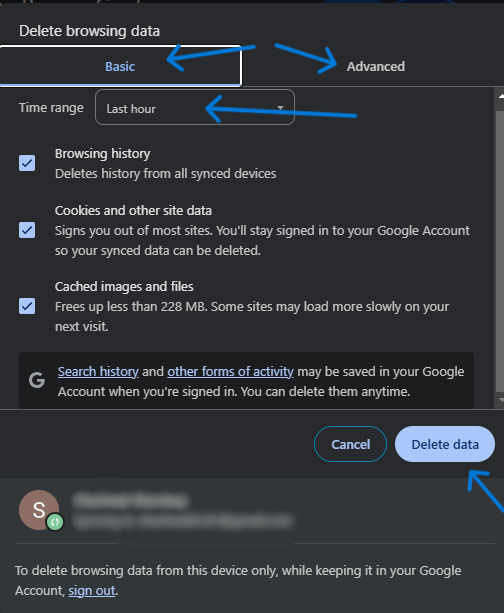
The browser saves cache and cookies whenever one visits certain websites and these caches can build up with time and slow down the browser. You can clear these caches to enhance the performance of your browser, especially the speed with which you make downloads. To make this happen:
Step 1: Start up Google Chrome and look for the three vertical dots situated in the upper right corner.
Step 2: Select More tools then Clear browsing data.
Step 3: Select the time range as All Time and tick the Cached images and files.
Step 4: Press the Clear Data button.
Extensions in Chrome are useful but come at the cost of consuming CPU and memory thus affecting performance. Some add-ons, such as a download app or even an ad blocker, can affect the speeds at which downloading takes place. For that, you will need to:
Step 1: Head over to the three dots found in the right-hand upper corner.
Step 2: Click on More Tools then on Extensions.
Step 3: Turn off or eliminate extensions if they are not important.
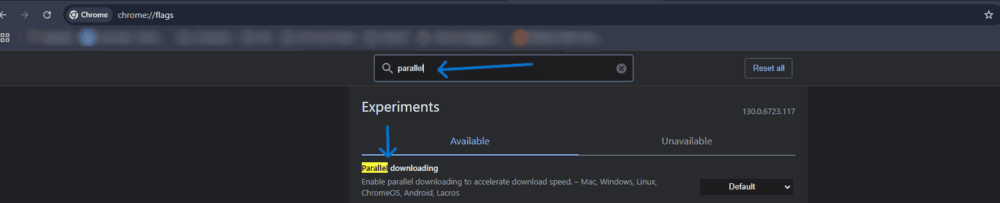
Parallel downloading is a function that helps enhance the speed of a certain file which may be broken into smaller portions and all these portions are downloaded at the same time. However, there is no option for enabling parallel downloading in Chrome settings.
To activate parallel downloading in Chrome, do the following:
Step 1: In the URL bar, simply enter " chrome://flags " and hit the Enter key on your keyboard.
Step 2: Look for Parallel downloading, and turn it on.
Step 3: Close and open the browser so that the modifications can take effect.
When it comes to downloading heavy files on frequent occasions, investing in a download manager will definitely increase your speed performance. These allow the downloading of files in parts, the ability to continue if a download is interrupted, and the ability to perform multiple downloads at once. Popular ones for Chromes include Free Download Manager and JDownloader download tools.
Wi-Fi is quite accessible however it may also come with a lot of distractions which could reduce the rate of downloads. Connecting your computer directly to the network using an Ethernet cable will provide a more stable and faster internet connection which will facilitate faster downloading. If a wired connection cannot be used, try to get closer to the Wi-Fi router to minimize the weakening of the signal.
It is important to ensure that you keep upgrading Chrome not only for security reasons but also for performance benefits. This is because quite often, upgrades of Chrome bring about fixes, optimizations, and speed improvements. To check if there are updates available:
Step 1: Tap the three dots in the upper right corner.
Step 2: Select Help > About Google Chrome.
Step 3: Updates if any, will be searched for and installed by Chrome, as the case may be.
In conclusion, increasing the download speed on Google Chrome is possible by ensuring that there are no interruptions to the internet, controlling the number of downloads in progress, and tuning the browser. The recommendations provided In this text, including clearing the cache, disabling some not-so-useful extensions, and using parallel downloading can help one improve downloads and most importantly help beat the clock.