|
VOOZH | about |
|
VOOZH | about |
Lack of memory or RAM which refers to random access memory can be an extremely irritating affair. This is particularly the case if you work with resource-demanding apps or you have several concurrent processes on your macOS device. While some models of Windows computers allow for RAM upgrades, the latest Macs have parallel memory, so physical upgrade Of course, that is not entirely true because there are several things you can do to optimize your Mac’s memory.
Table of Content
Before delving into optimization techniques It's important to understand how macOS manages memory. macOS is designed to manage RAM efficiently using memory compression. Introduced in OS This leaves more space for active applications.
However, if you frequently run out of memory macOS may not be able to compress the data enough to prevent slowdowns. That's where the following method comes in.
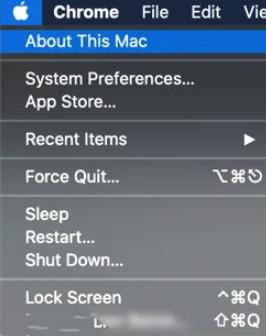
macOS receives regular updates that optimize system performance. Including memory management Newer versions often have bug fixes and better memory management. Therefore, upgrading to the latest version can sometimes improve RAM performance.
Steps to upgrade macOS:
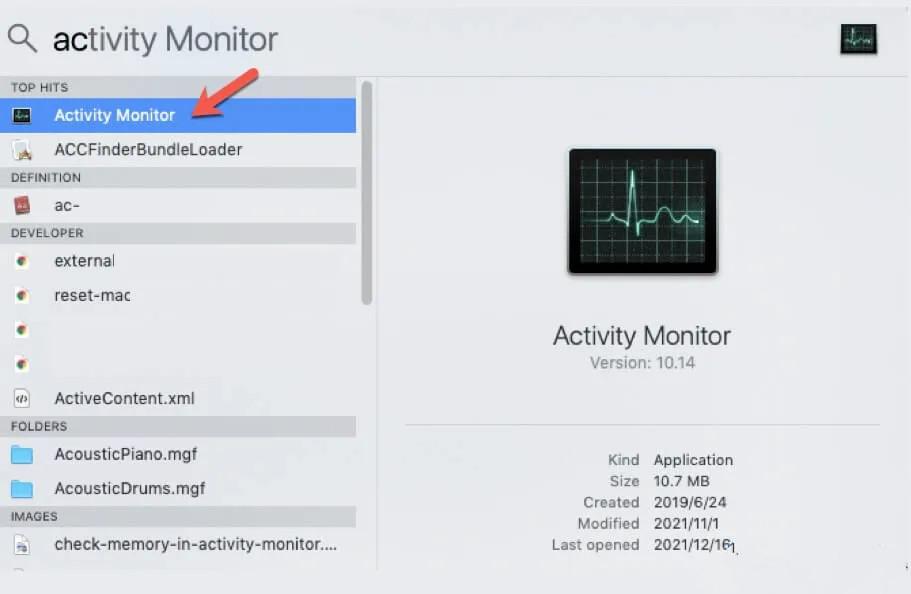
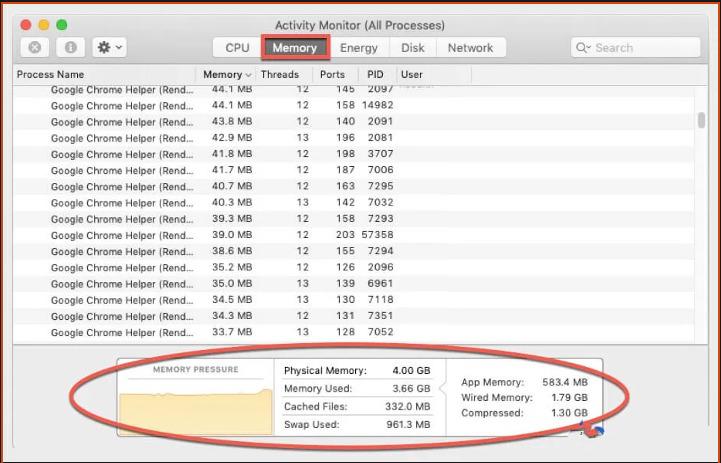
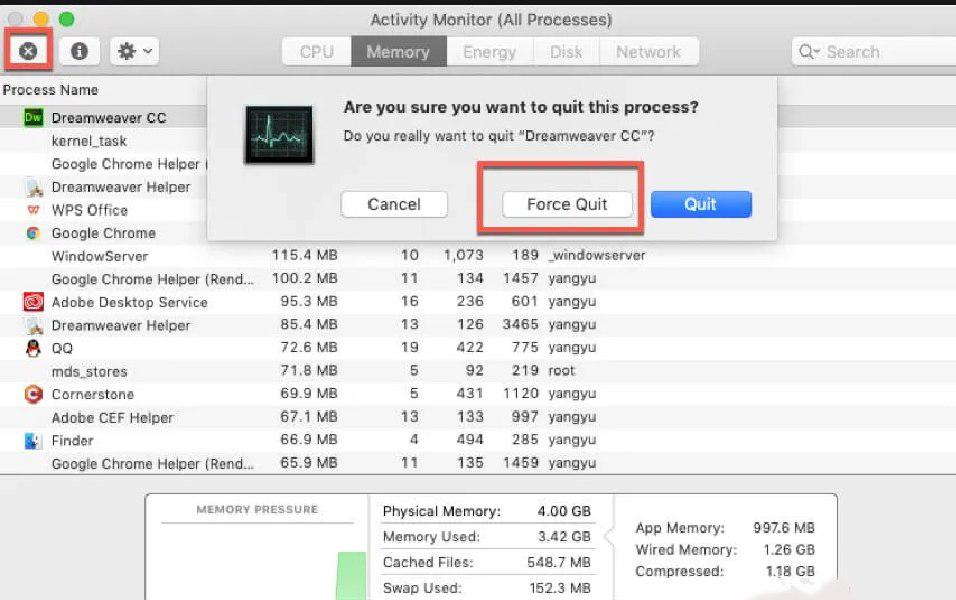
Activity Monitor is a built-in tool that lets you see which applications and processes are consuming the most memory.
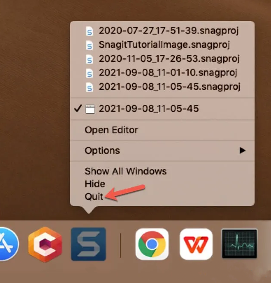
Steps to increase RAM using Activity Monitor:
Your storage space can indirectly affect how well macOS uses RAM. If your startup disk is full, macOS may have trouble managing RAM because it needs disk space to swap files.
Optimize storage space:
Terminal commands give you more direct control over how macOS manages memory.
Steps to clear unused memory using the terminal:
sudo purgueThis command will force macOS to clear free memory and free up RAM.
Although this command may help free up temporary memory, keep it in mind. , it is not a permanent fix.
Many applications launch automatically at startup and run in the background, eating up RAM even when you're not using them.
Disable default objects:
These can manage the memory, clean the RAM, and provide an increased level of performance.
The SMC manages a lot of things about your Mac, including power management, which in turn interacts with memory. Some of the performance problems may be solved by resetting the station management command or SMC.
Steps to reset the SMC on an Intel-based Mac:
When RAM is fully used, macOS uses swap memory, which moves inactive data to the hard drive or SSD, allowing more space for active processes.
Monitor swap memory:
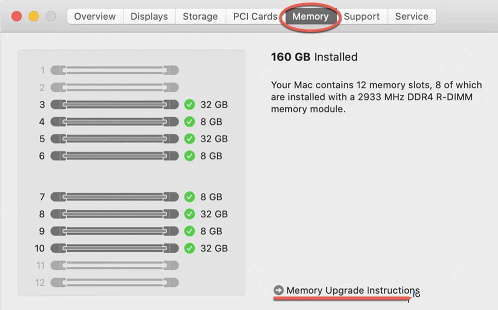
Increasing RAM in macOS doesn't always mean increasing physical memory. But by optimizing your system's memory usage through Activity Monitor. You take proactive steps to maintain system performance. Physical upgrades are not an option on newer macOS devices, especially those with soldered RAM.
1. Keep an Eye on System Updates
2.Reboot Regularly
3. Use Lightweight Apps
4. Clear Cache and Unused Files