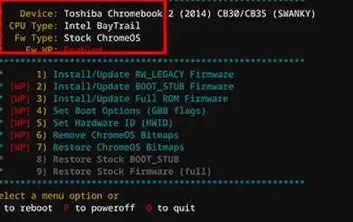
Chromebooks are built for Chrome OS, but you can install Windows 10 or 11 for more app options like Microsoft Office or games. It's tricky, risks your warranty, and may slow down low-spec devices. We recommend virtualization first for easier testing, it's safer, and keeps Chrome OS intact. For a full native install, follow below (only for Intel/AMD models; ARM won't work).
Big Warning: Backup everything! This wipes your Chromebook. Check compatibility at MrChromebox.tech or CoolStar.org. Not all models support it. e.g., newer Intel like Core i3/i5 work best; avoid if under 8GB RAM/64GB storage.
Quick Alternatives to Full Install (Try These First!)
Before risking a full swap, run Windows virtually:
V2 Cloud or Cameyo: Cloud-based Windows apps, no install needed. Great for business.
Wine/CrossOver: Free/paid layer for Windows apps on Chrome OS (Intel 2019+ models only).
VM Method: Use Linux (Crostini) + QEMU/Virt Manager for a Windows VM (slower on non-KVM hardware).
If those don't cut it, go native.
How to Install Windows 10 on a Chromebook with USB
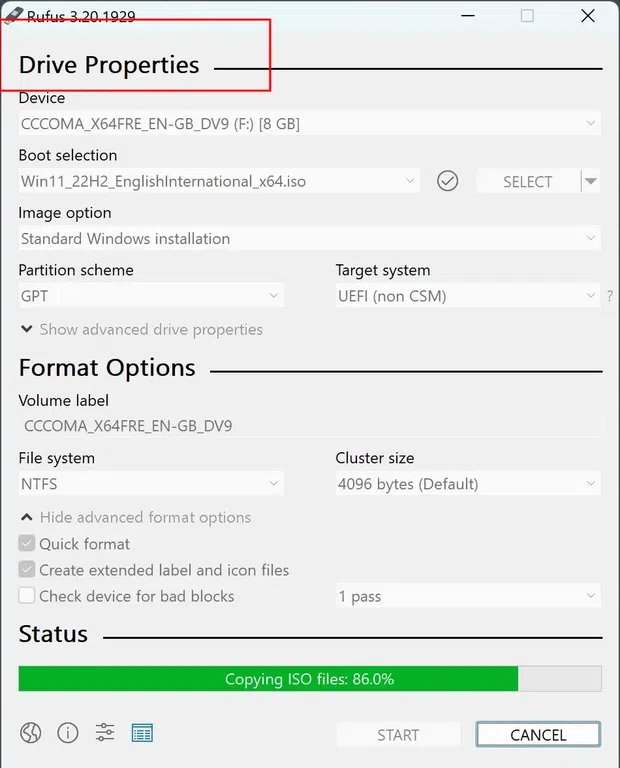
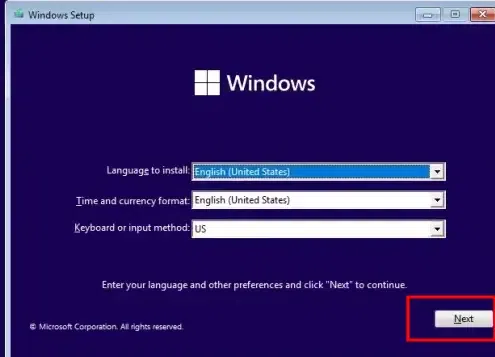
Below, we have segregated a simple way to get Windows 10 or 11 using a USB drive. Following are the 6 basic steps:
Step 1: Backup Your Data
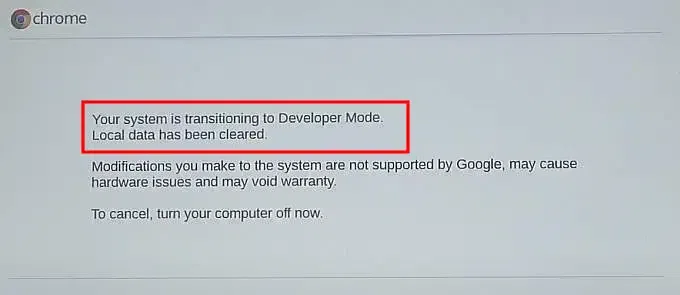
Before you proceed with the Windows Installation, ensure to back up your data first. As you move into the Developer Mode, all your data will be wiped out.
Note: Once the installation gets completed, Windows driver such as touchpad, sound drivers, Wi-Fi, etc. may not work without installing additional drivers. You can download it from the online resource and reboot your system.
How to Install Windows 10 on Chromebook without USB
Now let's dive in to learn about installing Windows 10 and Windows 11 without using any USB drive.
Step 1: Linux Beta Option
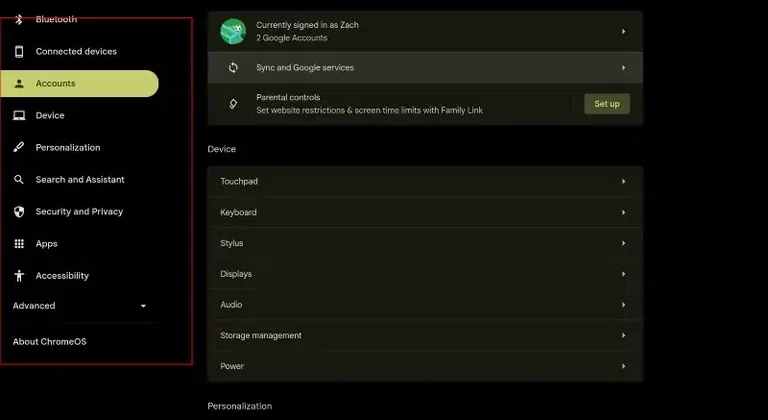
Open Chromebook Settings & go for the Linux Beta option. Under that, click on the Turn On option.
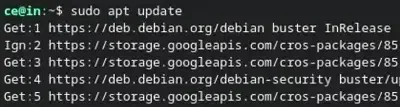
Step 3: Execute the command to Finish the Installation
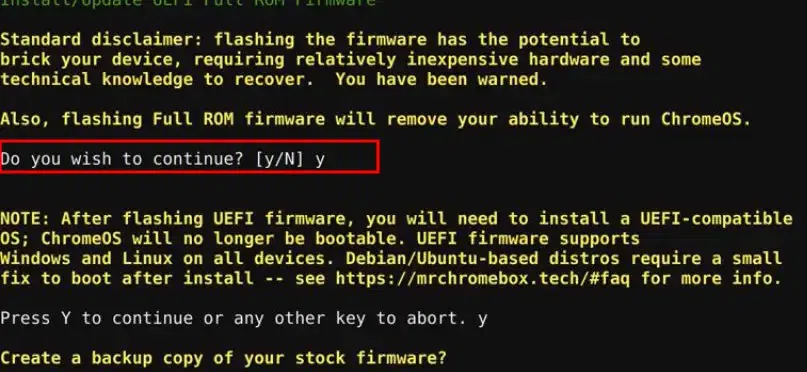
Now, the Linux Terminal will be opened on the Chromebook as the process is completed. You have to execute the following command to make the Chromebook ready for installation.
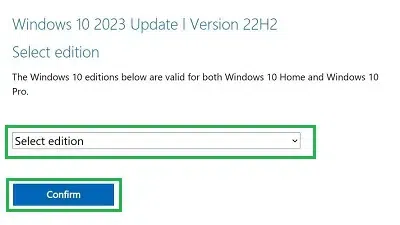
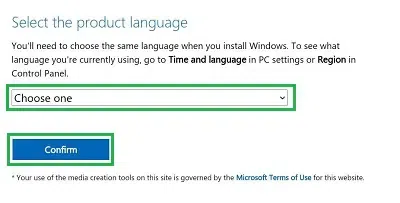
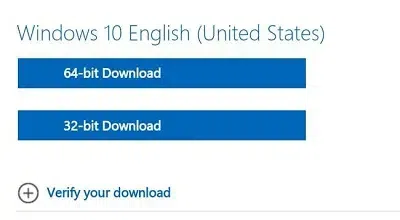
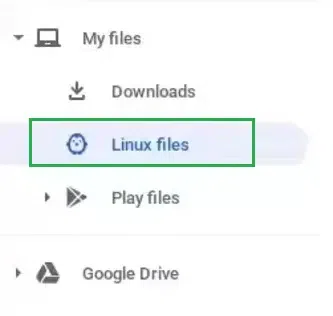
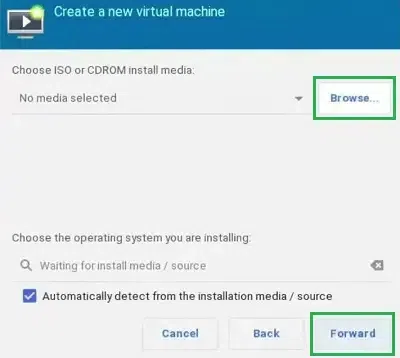
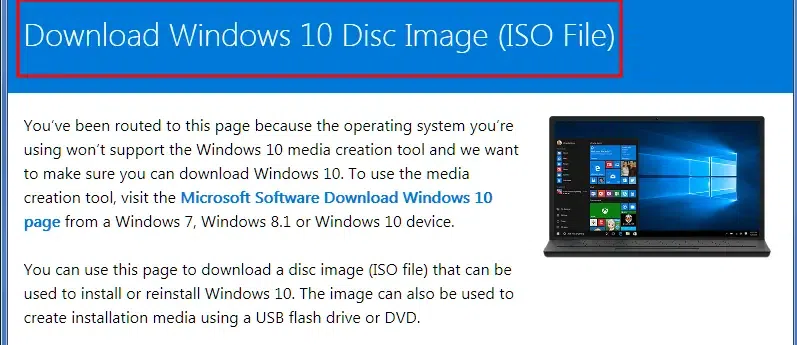
Once the file is downloaded, open the Chromebook File Application. The ISO File will be downloaded in the Download Folder. Move the File to the Linux Beta Folder.
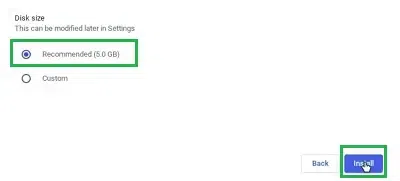
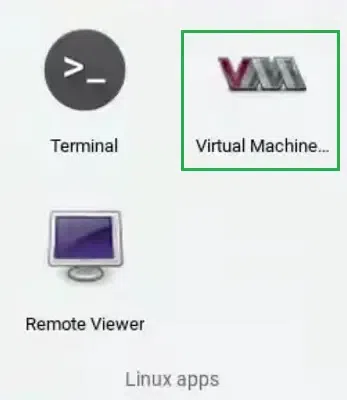
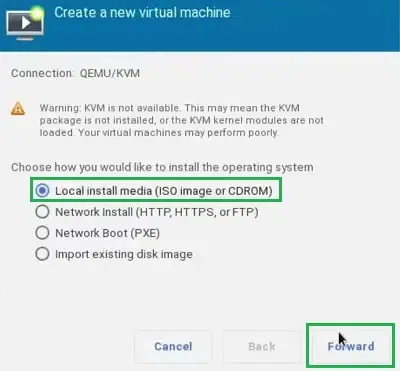
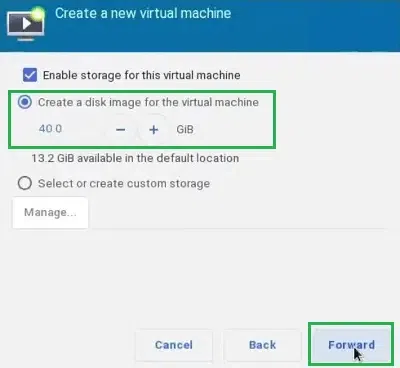
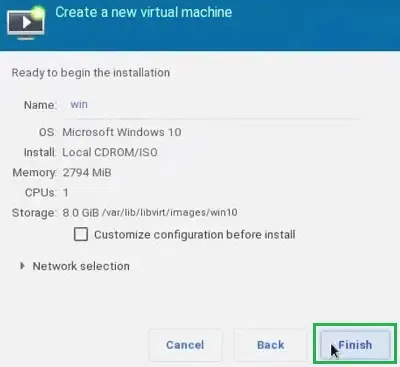
Now open the App Drawer on your Chromebook. Now, under the Linux Apps, click on the Chromebook Virtual Machine which is only dedicated & available on Chromebooks.
Alternate Methods - Install Windows 10 on Chromebook
You may also try for alternate methods to get Windows 10 or 11 if you find it difficulty or looking out for additional methods to download and install Windows in your Chromebook.
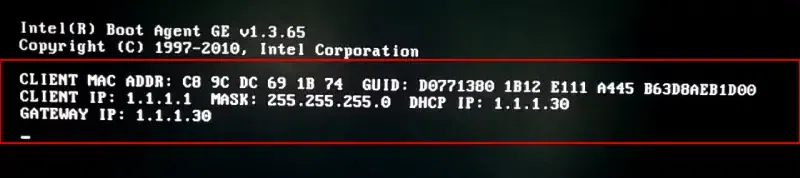
1. Using Network Boot (PXE)
Not all Chromebook supports Network Boot so make sure tat you can proceed with this method. Below are the quick steps to perform Windows Boot Installation:
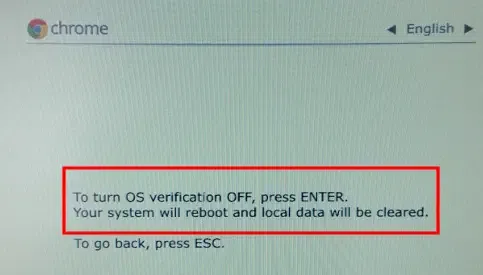
Step 1: Enter Developer Mode
Press Esc + Refresh + Power keys simultaneously
This will allow your system to enter the Developer mode
In the end, we can conclude that the Installation of Windows on a Chromebook is not a big deal. If you have followed all the above steps, the Windows Installation Process will become a breeze for you. So, without waiting any longer, use the above steps & Get New Windows 10 along with ChromeOS on your Chromebook.
Points to Consider Before You Switch
Installing Windows 10 on your Chromebook might void your current Warranty so make sure to take that decision carefully.
As you're aware of the fact that ChromeOS is a light-weight whereas Windows OS is a bit heavy so installing Windows 10 on your Chromebook might affect your system's health and performance.
Google Chromebooks are loaded wit ARM processor mostly so there are chances that your installation might failed and you might get compatibility issue.
Even if you supass all the hurdles, the chances are likely that you mgit face issue with your hardware/drivers which has been encountered in such cases.