|
VOOZH | about |
|
VOOZH | about |
Experiencing high CPU usage can significantly slow down your computer, making even simple tasks frustrating. Whether you're running demanding software, multitasking with numerous applications, or playing high-performance games, consistently high CPU usage can lead to overheating, lag, and system instability. Fortunately, there are several ways to bring down CPU usage and optimize your PC for better performance.
From managing startup programs to tweaking system settings, we’ll help you troubleshoot high CPU usage issues and show you how to optimize your system for smooth, lag-free performance. Whether you're using your Windows PC for gaming, video editing, or just using it for day-to-day tasks, these steps can help you reduce CPU utilization under control and ensure your computer runs efficiently.
If you’ve been wondering, “Why is my CPU usage so high?” or “How do I reduce CPU usage on my computer?” or Why it's showing CPU 100% Usage? you’re not alone. 100 CPU Utilization is a common issue faced by many users, especially when their systems are running multiple applications or processes in the background. In this guide, we’ll provide a complete list of fixes and strategies that you can use to resolve high CPU usage on both Windows and Mac devices.
Table of Content
High CPU usage can be caused by a variety of factors, including:
High CPU usage on Windows can significantly degrade your system's performance, leading to slowdowns, freezes, and overall sluggishness. This issue can stem from various factors, including resource-intensive applications, background processes, system processes, or even hardware limitations.
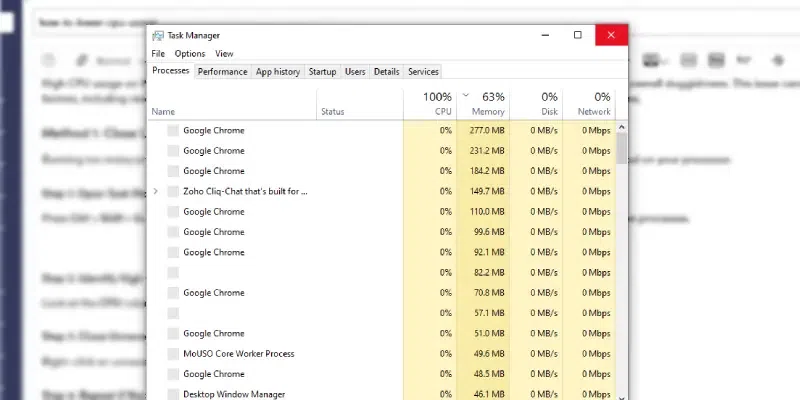
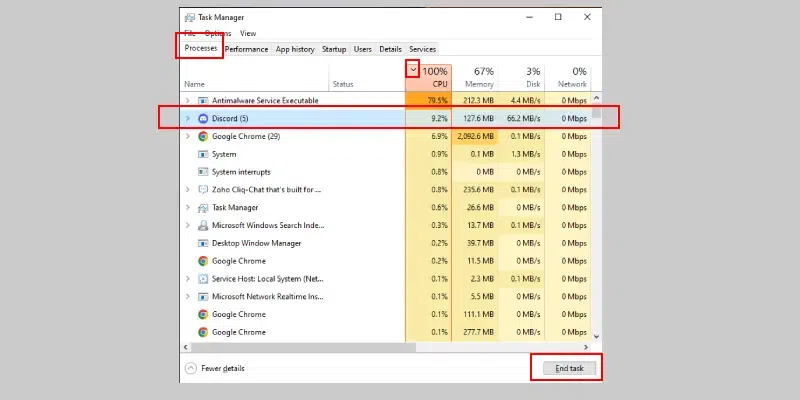
One of the most direct ways to reduce CPU usage is to close applications that are not actively in use. Many programs, especially those running in the background, can consume significant CPU resources. By closing these programs, you can free up processing power and improve your system's overall performance..
Note: When you open the Task Manager, its pre-default showing Processes of Windows
Note: You can also directly End Task by Clicking the "End Task" button given in bottom right corner of the task manager.
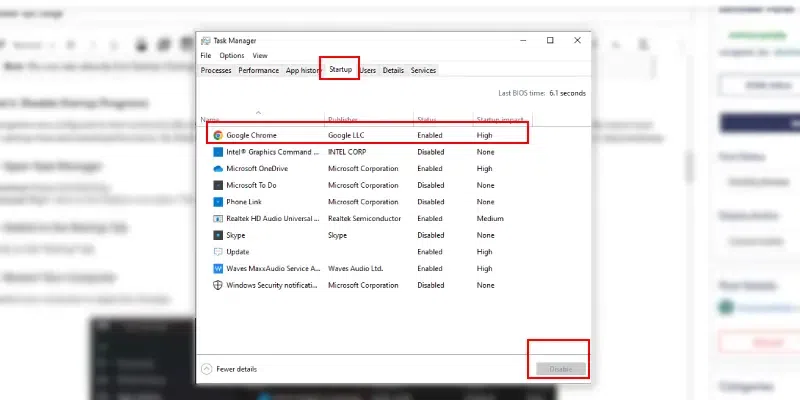
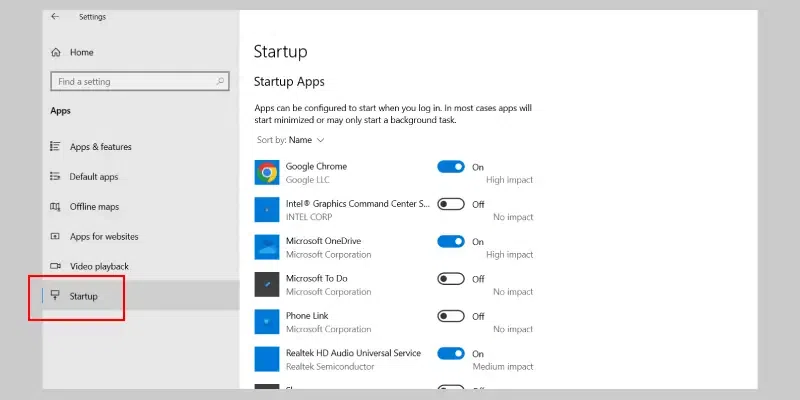
Many programs are configured to start automatically when your computer boots up. While some of these programs may be essential, others can significantly impact your system's startup time and overall performance. By disabling unnecessary startup programs, you can reduce the initial load on your CPU and improve system responsiveness.
Note: By taking the help of Step 1 you can easily go to startup programms, then by RIght-clicking you can Disable it.
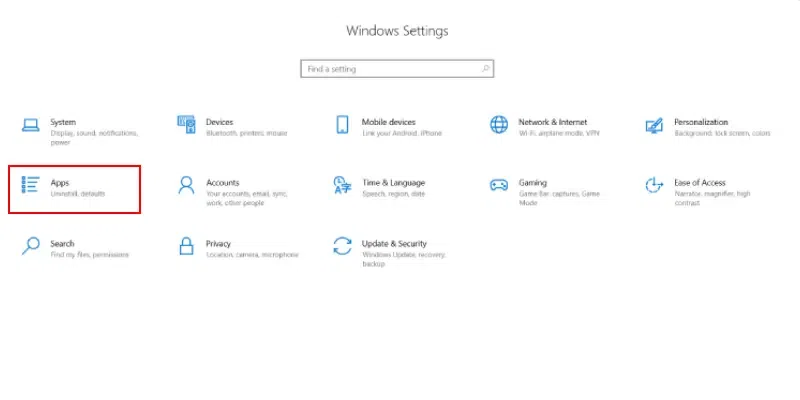
Step 1: Open Settings and Click on Apps
Step 2: Select Startup and Disable Unnecessary Programs
Additional Tips:
- Be Cautious: Avoid disabling critical system programs, as this can lead to system instability.
- Review Startup Impact: Task Manager often shows the startup impact of each program. This can help you prioritize which programs to disable.
Outdated or corrupted device drivers can lead to various performance issues, including high CPU usage. Device drivers are software programs that allow your computer's operating system to communicate with hardware devices like graphics cards, sound cards, and network adapters. Keeping your drivers up-to-date ensures optimal performance and compatibility.
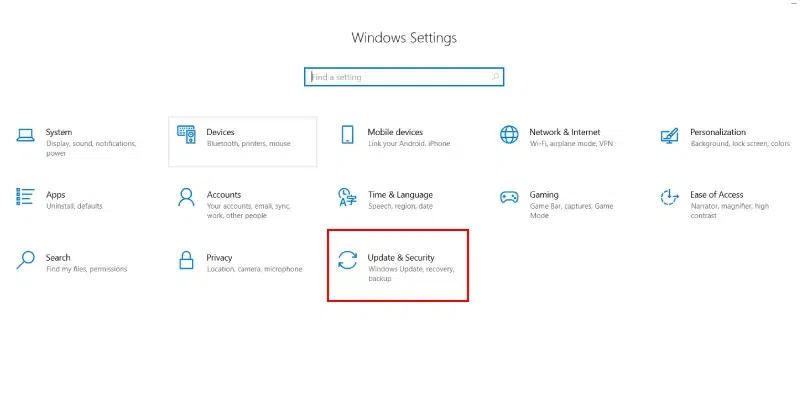
In the below steps we will learn how to update windows "Using Windows Update" feature.
Windows Update will automatically download and install any available driver updates.
Note: Make sure to Restart the Computer to Successfully Install the Windows update.
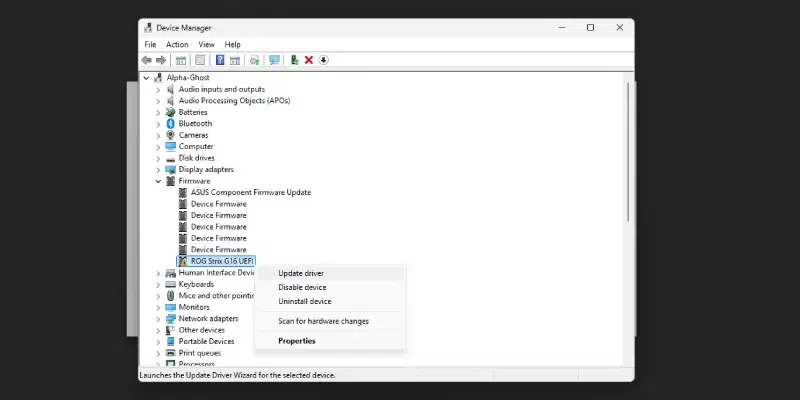
Step 1: Open Device Manager
Step 2: Select Driver and Update
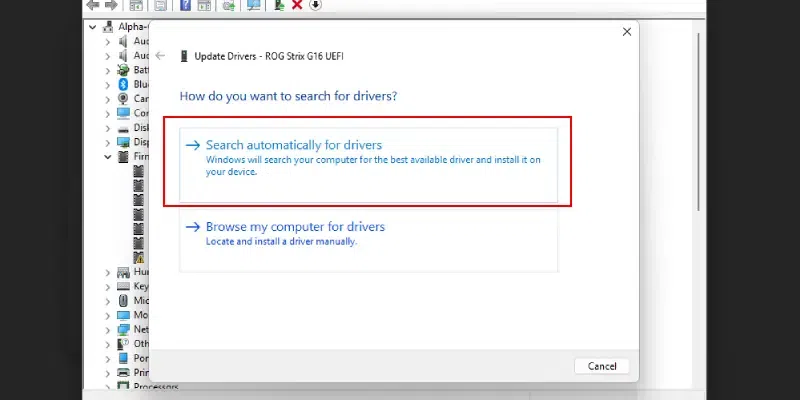
Step 3: Choose Update Option
Now you will be asked to choose the update type, here we have choosen Search Automatically for Drivers, this is the easiest way to update your driver or you can also browse from your computer if you have the driver file saved.
Additional Tips:
- Check Manufacturer's Website: Sometimes, the latest drivers may not be available through Windows Update. You can check the manufacturer's website for the latest drivers for your specific hardware.
- Use Driver Update Software: Third-party driver update software can automate the process of finding and installing driver updates. However, use reputable software to avoid potential security risks.
- Be Cautious with Third-Party Drivers: While third-party drivers can sometimes offer additional features or performance improvements, they can also cause stability issues. Only install third-party drivers from trusted sources.
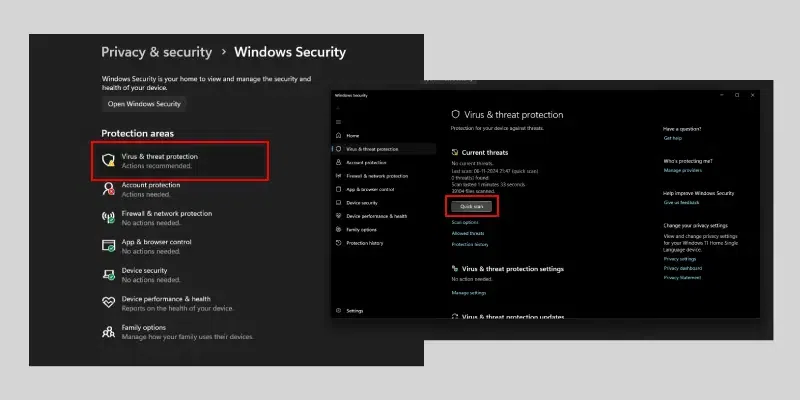
Malware, such as viruses, worms, and spyware, can consume significant CPU resources as they run in the background, performing malicious activities. These malicious programs can slow down your system, cause crashes, and even compromise your personal information.
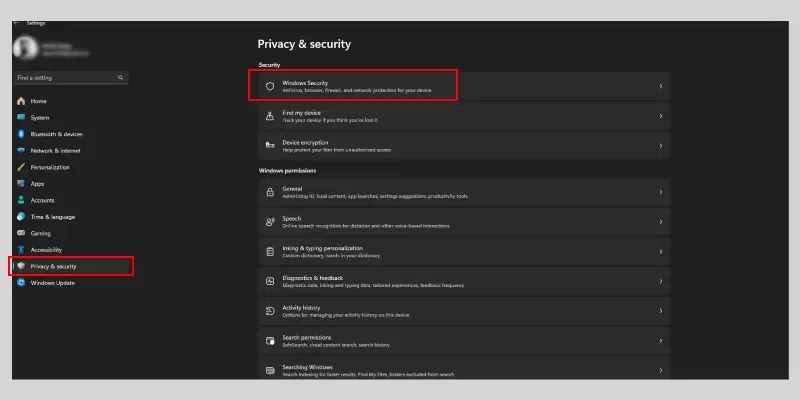
Another Way: You can also go to settings and then search for Privacy & Security and then select Windows Security in both Windows 10 and Windows 11.
Additional Tips:
- Keep Your Antivirus Updated: Ensure your antivirus software and its definitions are up-to-date.
- Be Cautious with Downloads: Avoid downloading files from untrusted sources.
- Use a Firewall: A firewall can help protect your system from unauthorized network access.
- Be Wary of Phishing Emails: Don't click on suspicious links or open attachments from unknown senders.
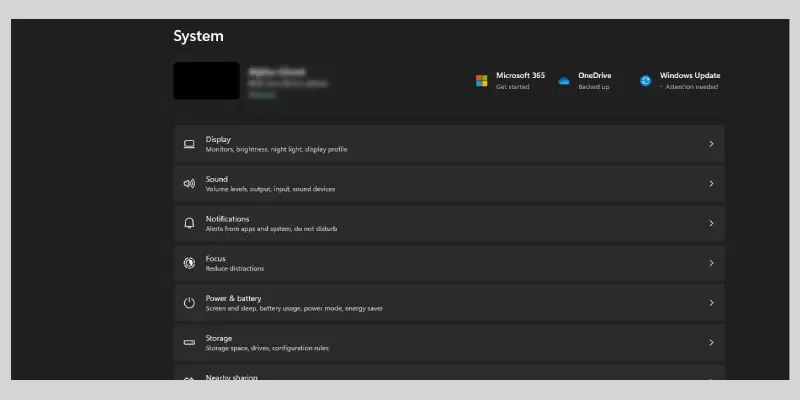
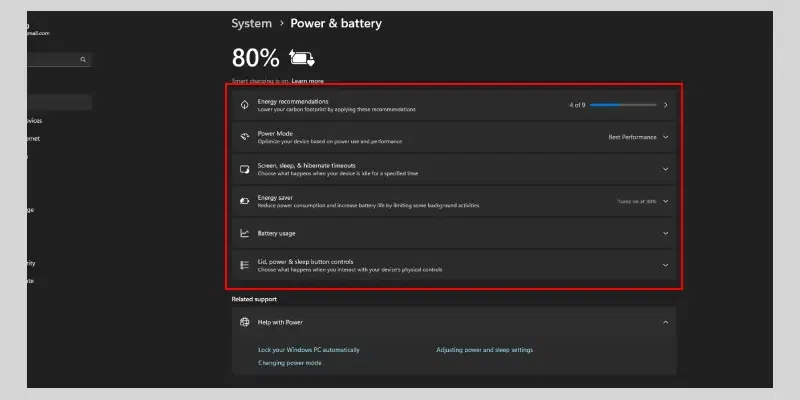
Your computer's power settings can significantly impact CPU usage. Here's how to adjust them on Windows 10 and 11
Search for "Control Panel" in the Start menu and open it.
Click on "Hardware and Sound," then "Power Options."
Select a power plan that suits your needs:
Customize Power Plan Settings (Optional):
- Click on "Change plan settings" next to your selected plan.
- Adjust settings like screen brightness, sleep timeout, and power button action.
Click on "Power & battery."
Select a power plan that suits your needs:
Customize Power Plan Settings (Optional):
- Click on "Additional power settings" to access advanced power settings.
- Adjust settings like screen brightness, sleep timeout, and power button action.
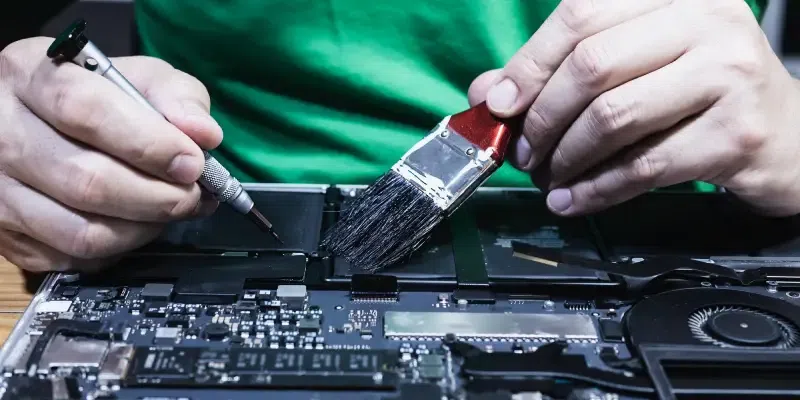
Dust and debris inside your computer can cause it to overheat, leading to higher CPU usage as the system tries to cool down. A clean computer can run more efficiently, including lower CPU usage. Here's how to clean your hardware:
Additional Tips:
- Regular Cleaning: Clean your computer regularly to prevent dust buildup.
- Avoid Extreme Temperatures: Keep your computer away from heat sources and ensure proper ventilation.
- Use a Cooling Pad: A cooling pad can help reduce CPU temperature, especially for laptops.
If you’ve tried the above steps and your CPU usage is still high, consider these additional tips:
Lowering CPU usage is very important for maintaining a smooth and fast computing experience. By following these simple methods, such as closing unnecessary programs, updating drivers, and scanning for malware, you can reduce the load on your processor. If these steps don’t work, you may need to check for hardware issues or consult with a professional. Keep your system clean, updated, and free from unnecessary processes to ensure optimal performance.