The Command Prompt is a powerful Windows tool used for managing files, troubleshooting issues, and controlling system settings. However, many commands require administrator rights to run properly. Opening Command Prompt in elevated mode gives you full control to perform advanced system tasks.
This guide covers the quickest and easiest ways to open Command Prompt as an administrator in both Windows 10 and Windows 11 .
Method 1: Using Windows Search (Windows 10 & 11) Step 1: Open Start Menu and Search for CMD
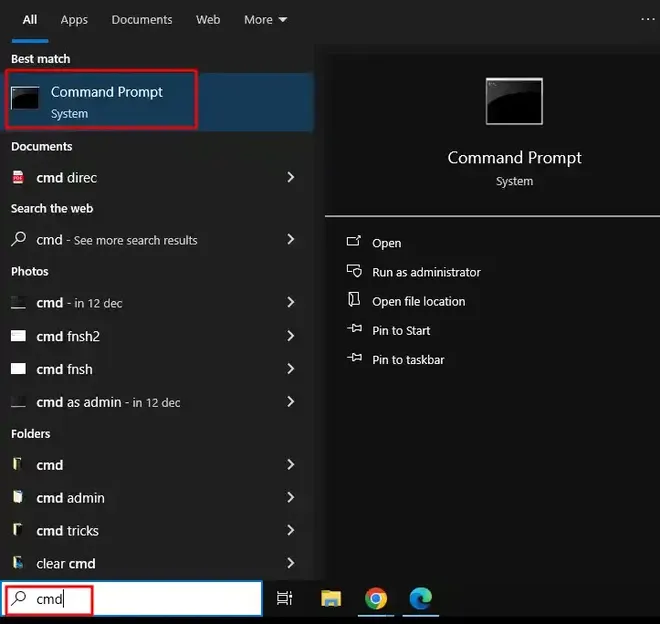
Press the Windows key or click the Start Menu, then type CMD or Command Prompt . 👁 command-prompt---start-menu Open Command Prompt Step 2: Run as Administrator
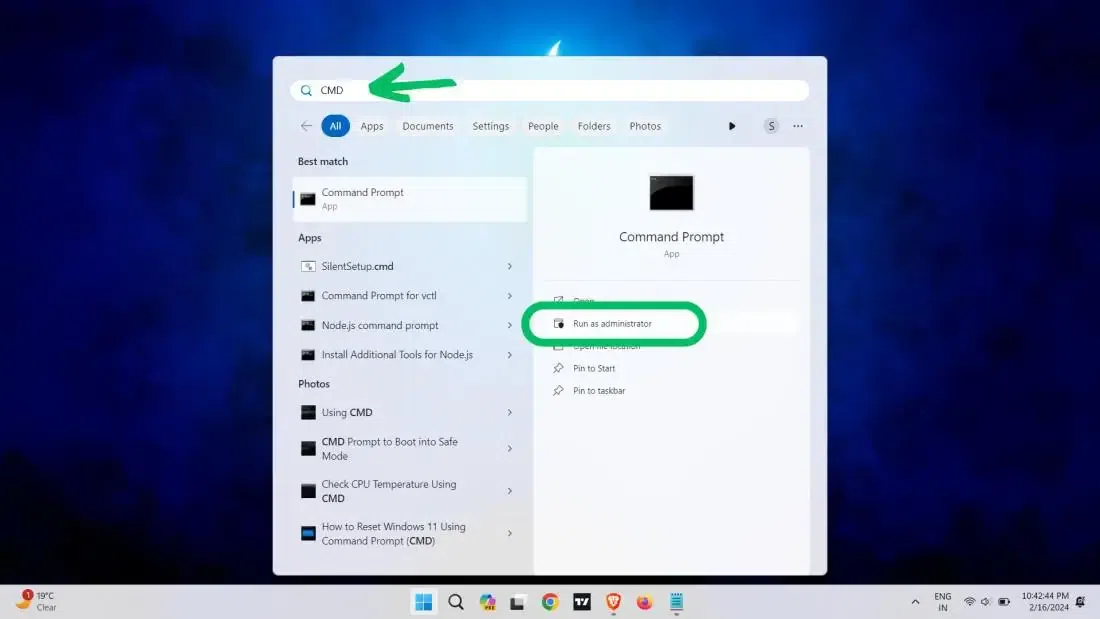
Right-click Command Prompt → select Run as administrator . 👁 Run-CMD-as-an-Administrator-Using-Windows-Search Run CMD as Admin Method 2: Using the Run Dialog Box (Windows 10 & 11) Step 1: Open Run Box
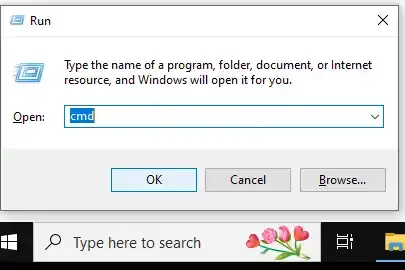
Press Win + R , then type cmd . 👁 run-dialogue-box---cmd Run Dialogue (Win + R) Step 2: Launch with Admin Rights
Press Ctrl + Shift + Enter to open it as Administrator. (If prompted, enter the admin password.)
👁 Run-CMD-as-an-Administrator-Using-the-Run-Dialog Use Dialog Box Method 3: Using the Quick Access Menu (Windows 10 & 11) Step 1: Open the Power User Menu
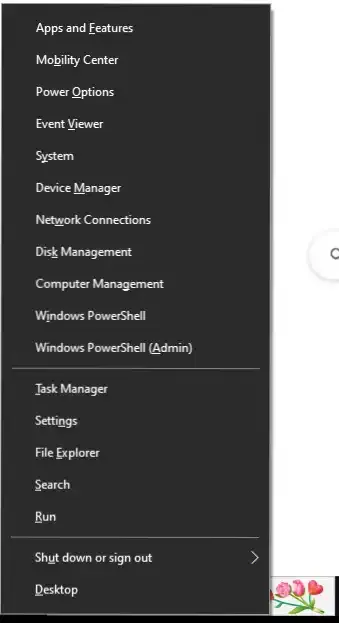
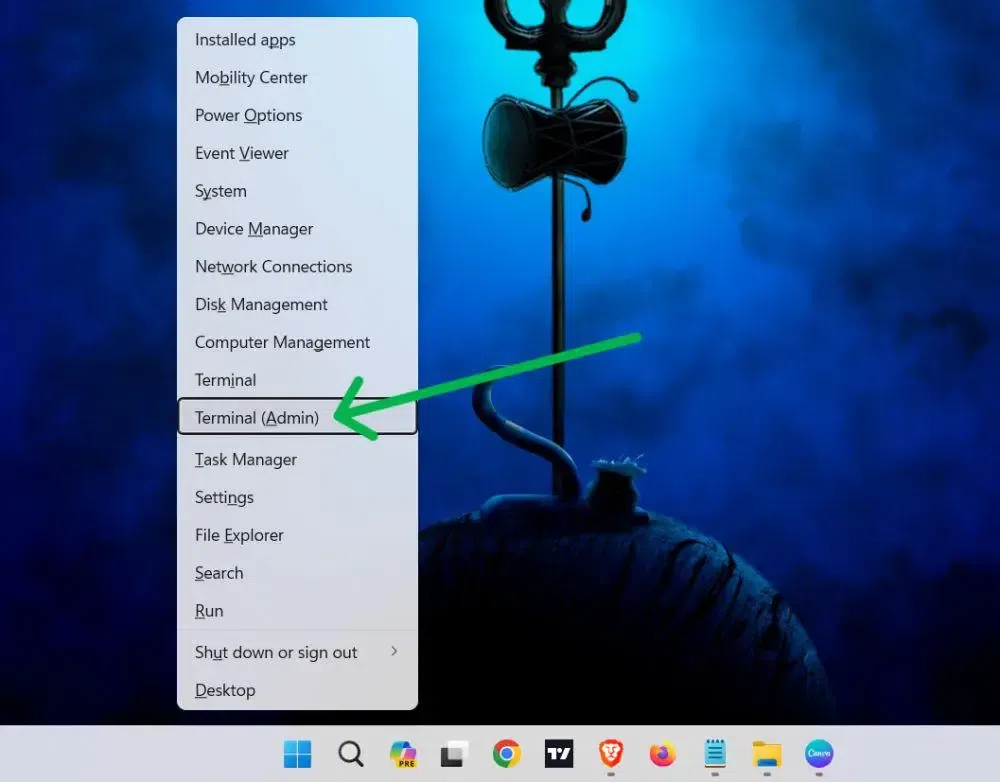
👁 Power-User-Menu Win + X Step 2 : Select Terminal (Admin)
Click Windows Terminal (Admin) . 👁 Run-CMD-as-an-Administrator-via-the-Quick-Access-Menu Use Terminal Step 3: Switch to Command Prompt
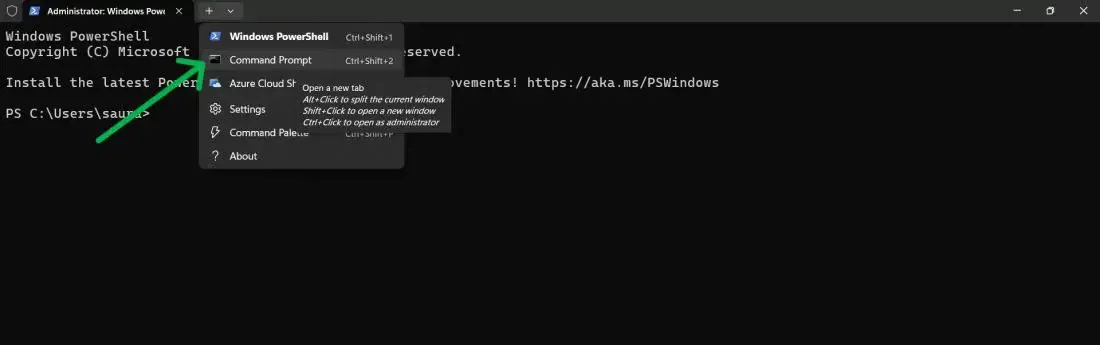
Click the down-arrow icon in Terminal → choose Command Prompt . 👁 Run-CMD-as-an-Administrator-via-the-Quick-Access-Menu-1 Select Command Prompt Method 4: Using Windows Tools (Windows 11 Only) S tep 1: Search for Windows Tools
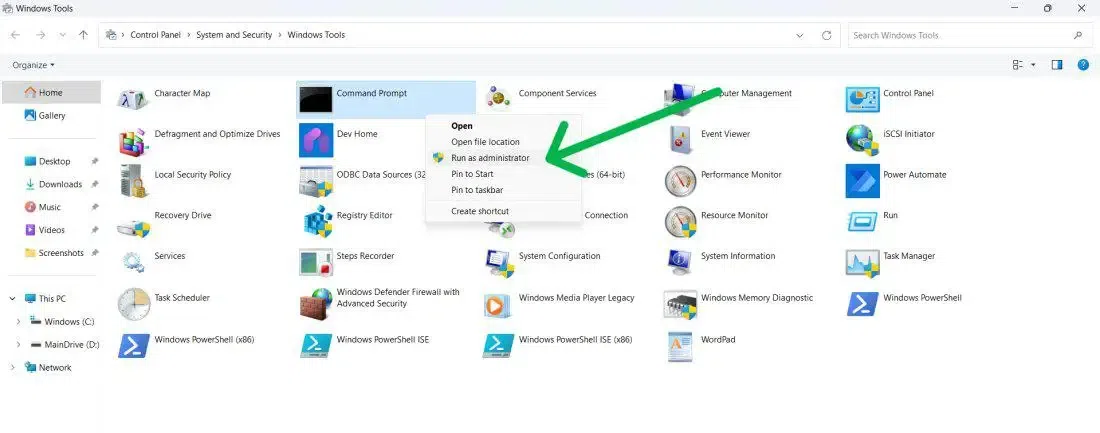
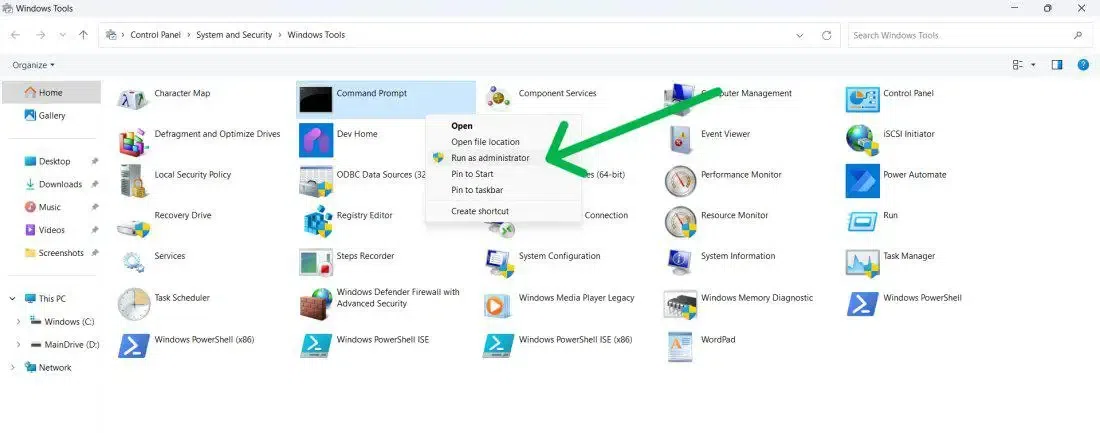
Open Start Menu → type Windows Tools → open it. Step 2: Open CMD as Admin
Make a right click and select "Run as Administrator" 👁 Open-Command-Prompt-As-Administrator-using-Windows-Tools Windows Tools Method 5: Using Task Manager (Windows 10 & 11) Step 1: Open Task Manager
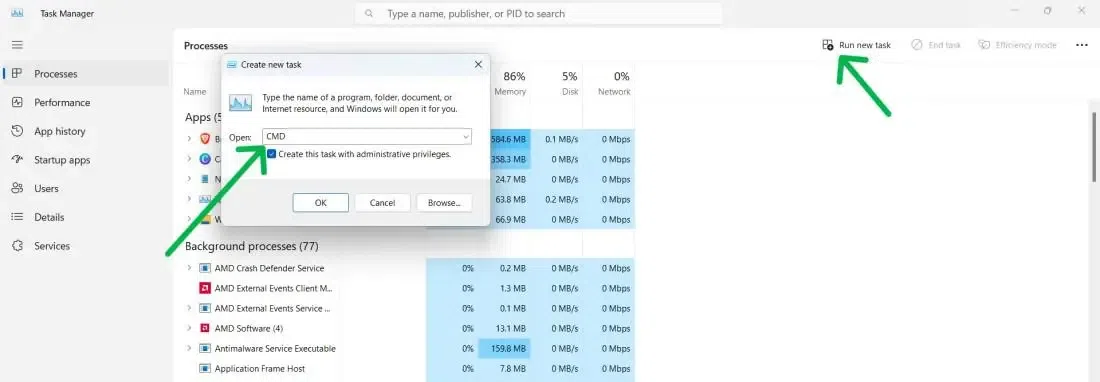
Press Ctrl + Shift + Esc or search for Task Manager . Step 2: Run a New Task
Go to File → Run new task . Step 3: Run CMD with Admin Privileges
Type cmd , check Create this task with administrative privileges , then click OK . 👁 Run-CMD-as-an-Administrator-Using-Task-Manager Using Task Manager Method 6: Through Control Panel (Windows 11) Step 1: Open Control Panel
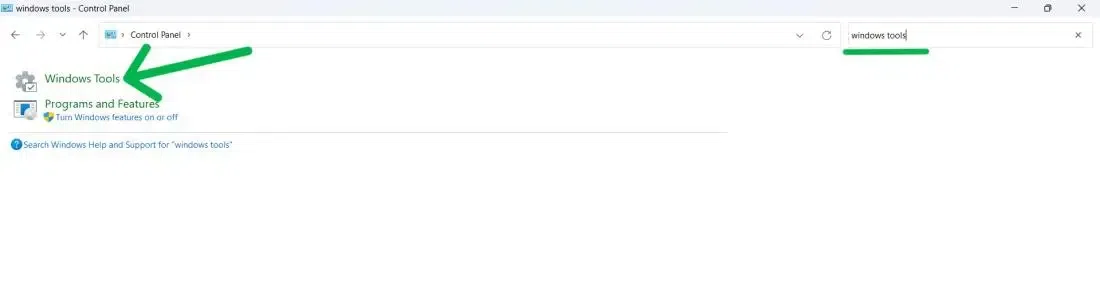
Press Win + R , type control , and press Enter. Search for Windows Tools inside Control Panel and open it. 👁 Run-CMD-as-an-Administrator-Using-the-Control-Panel Use Control Panel Step 2: Run CMD as Admin
Right-click Command Prompt → choose Run as administrator . 👁 Open-Command-Prompt-As-Administrator-using-Windows-Tools Run as Admin Method 7: Using File Explorer (Windows 10 & 11) Step 1: Open File Explorer
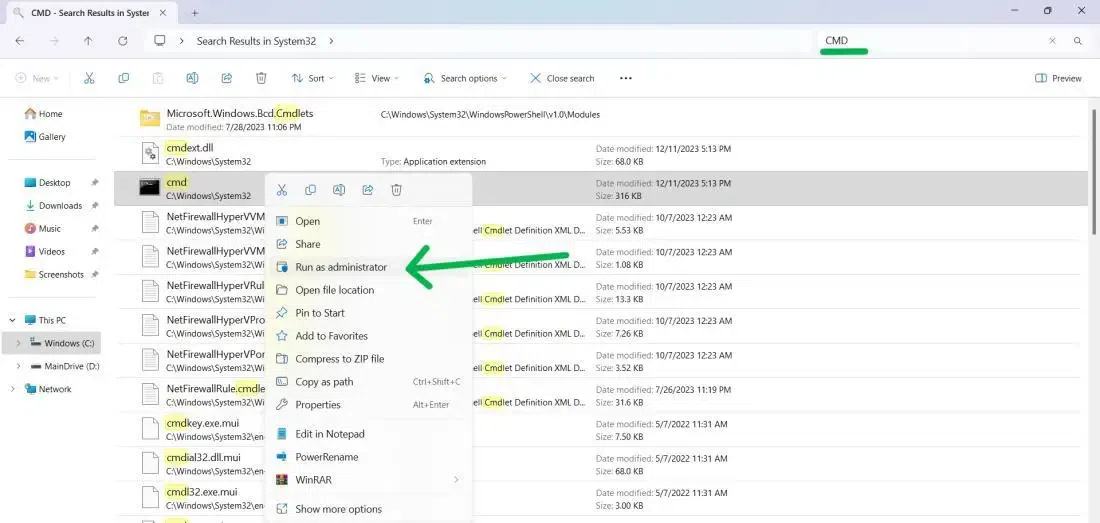
Press Win + E and search for cmd in the address bar or Start Menu. Step 2: Run as Admin
Right-click Command Prompt → select Run as administrator . 👁 Run-CMD-as-an-Administrator-Through-File-Explorer Through File Explorer Method 8: Create a Desktop Shortcut (Windows 10 & 11) Step 1: Browse to Command Prompt
Open File Explorer → search for cmd.exe . Step 2: Create a Shortcut
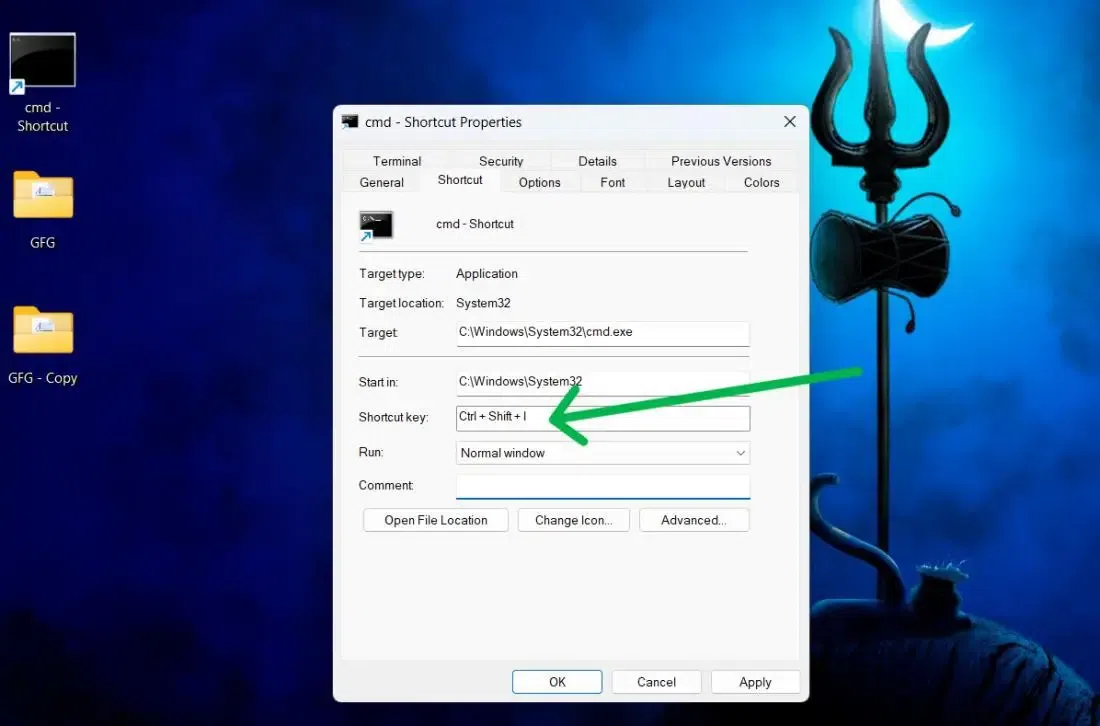
Right-click cmd.exe → choose Show more options → Send to → Desktop (create shortcut) or manually select Create Shortcut in Properties. Step 3: Assign Shortcut Keys (Optional)
Right-click the shortcut → Properties → Shortcut tab. Set a Shortcut key (e.g., Ctrl + Alt + C). 👁 Run-CMD-as-an-Administrator-Using-a-Desktop-Shortcut Desktop Shortcut Why Open Command Prompt as Administrator Running CMD in elevated mode allows you to:
Modify system settings Run system repair commands (e.g., sfc /scannow , DISM commands) Manage user accounts Access restricted files Fix network, disk, and boot-related issues Without admin rights, many essential commands will fail to execute.