|
VOOZH | about |
|
VOOZH | about |
Notepad is a simple yet powerful text editor available on all Windows versions. Whether you use it for quick note-taking or coding, there are many ways to open Notepad in Windows. From using shortcut keys to running commands in PowerShell, we’ll cover 10 different methods to open Notepad so you can access it in the way that suits you best. Explore these Notepad methods on Windows and find out how to quickly launch this handy tool.
Table of Content
Below are the 10 methods to open the notepad in Windows
Notepad Windows Search is an efficient tool that enables one to retrieve and run applications. Follow these steps to launch Notepad using Windows Search:
Step 1: Press the Windows key on your keyboard or click on the Windows icon in the taskbar (Or you can use Win + S to open the search bar).
Step 2: Enter "Notepad" into the search box.
👁 How-To-Open-Notepad-using-Windows-Search-(1)
Step 3: Click on the Notepad app in the search results.
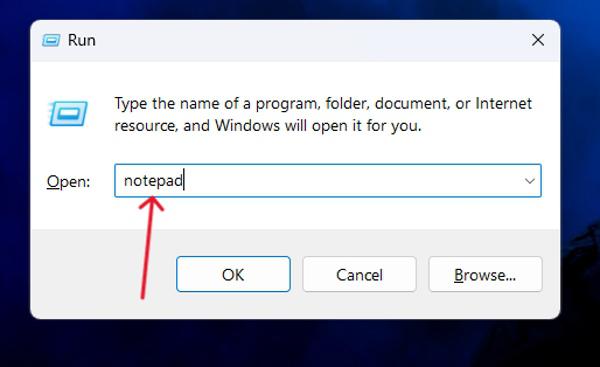
Run dialog offers a quick yet effective approach for launching applications. Here's how to launch Notepad using the Run dialog:
Step 1: To launch the Run dialog, press Win + R.
👁 How-To-Open-Notepad-With-Run-Dialog
Step 2: Type "Notepad" and press the Enter button.
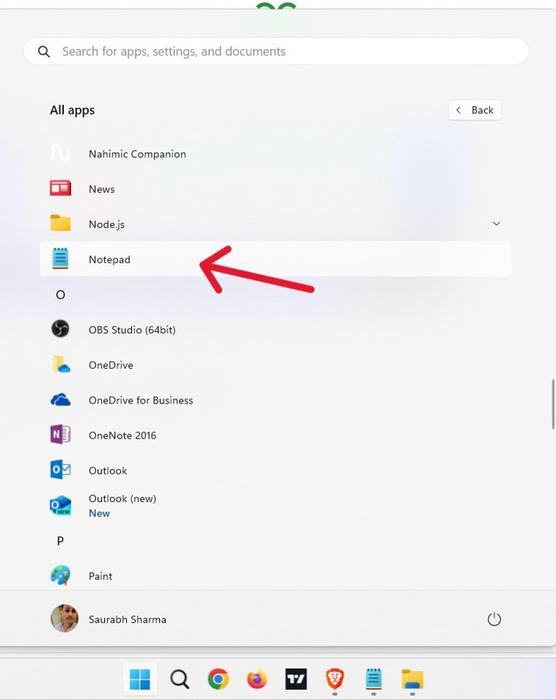
Step 1: Click on the Start button in the taskbar then click on All apps on the right hand.
Step 2: Scroll through the applications in the list.
👁 How-To-Open-Notepad-From-the-Start-Menu
Step 3: Click on the Notepad app to open it.
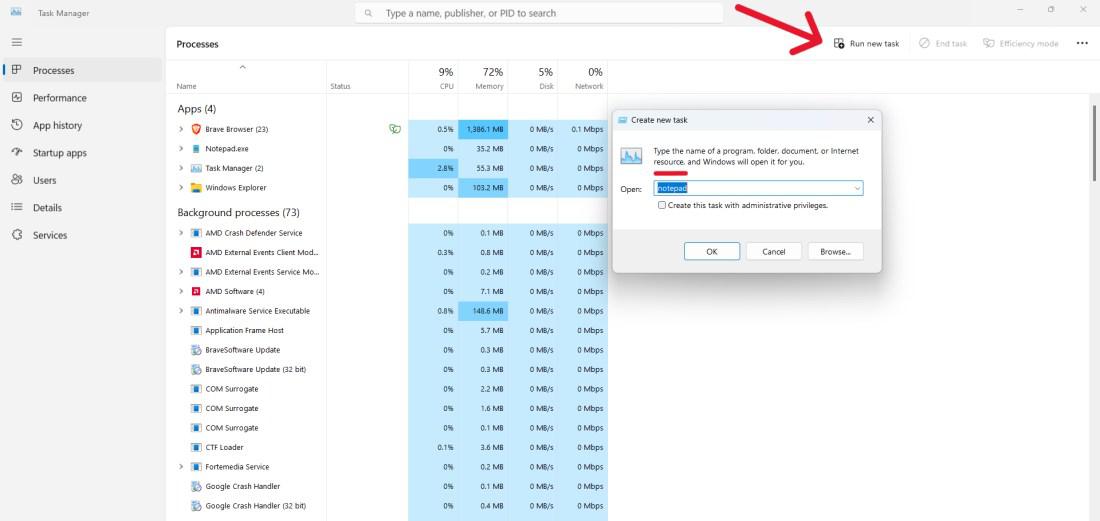
Task Manager is not solely for process management but also has application launching functions. Here's how to launch Notepad in Windows using Task Manager:
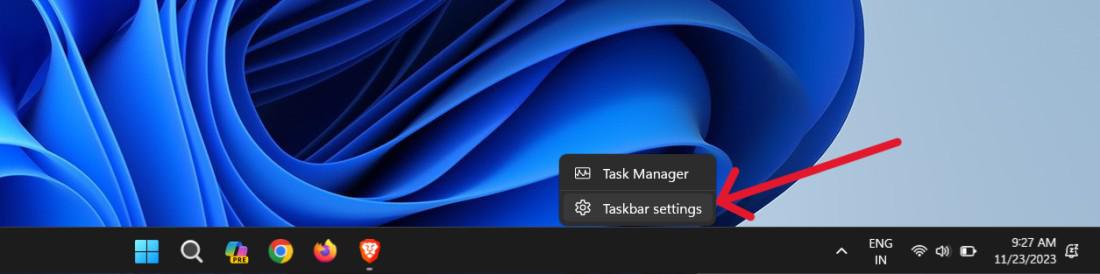
Step 1: Right-click on the taskbar and select Task Manager.
Step 2: Click on File in the top-left corner.
Step 3: Select Run new task.
Step 4: Type "Notepad" and press the Enter button.
👁 How-To-Open-Notepad-With-Task-Manager
Step 1: Press the Windows key on your keyboard or click on the Windows icon in the taskbar (or you can use Win + S to open the search bar).
Step 2: Type "Notepad" in the search bar then press Enter button.
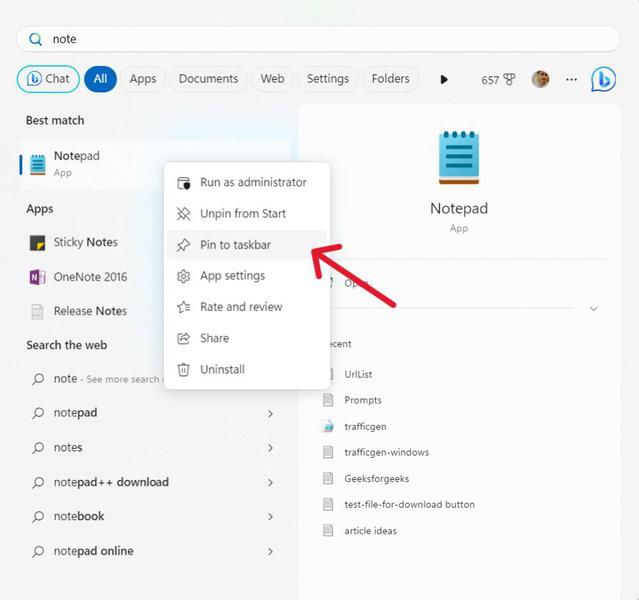
Step 3: Right-click on Notepad and select Pin to taskbar.
👁 How-to-Open-Notepad-From-Taskbar
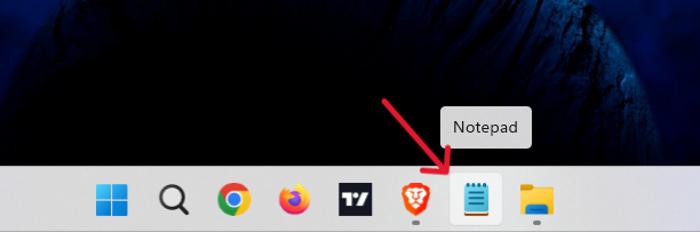
Step 4: Now you will see Notepad on the taskbar then click on the Notepad icon to open it.
👁 How-to-Open-Notepad-From-Taskbar-1
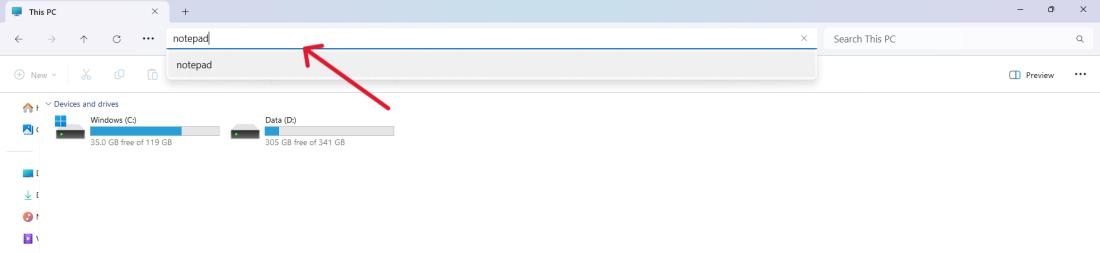
Step 1: Open File Explorer by pressing Win + E.
👁 How-to-Open-Notepad-From-File-Explorer
Step 2: In the File Explorer address bar type "Notepad".
Step 3: Hit enter to open Notepad.
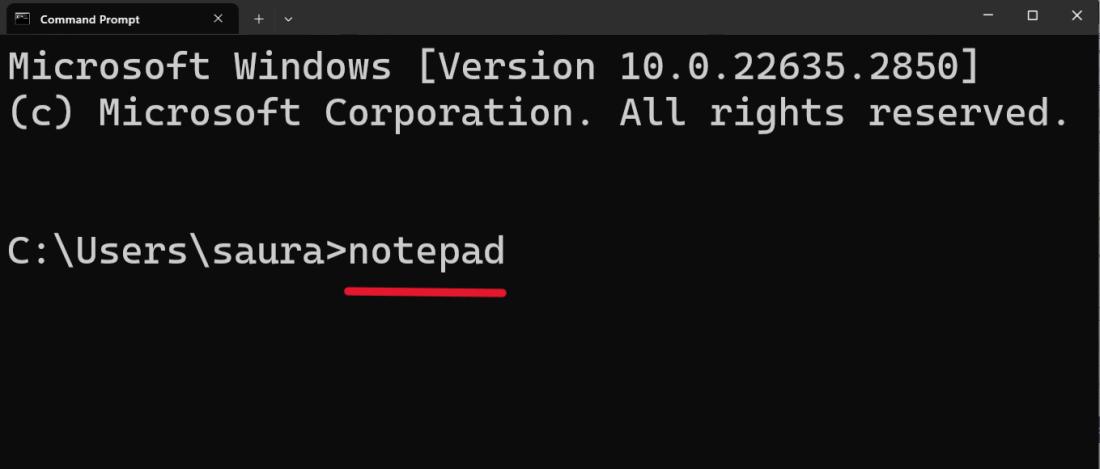
Launch Notepad via the command line can be done by command prompt enthusiasts. Follow these steps:
Step 1: To open the command prompt use the shortcut Win + S then on the search bar just type "CMD" then press Enter button.
👁 How-to-Open-Notepad-Using-Command-Prompt
Step 2: Type "notepad" and press Enter button.
This powerful scripting environment allows PowerShell users to launch Notepad. Here's how:
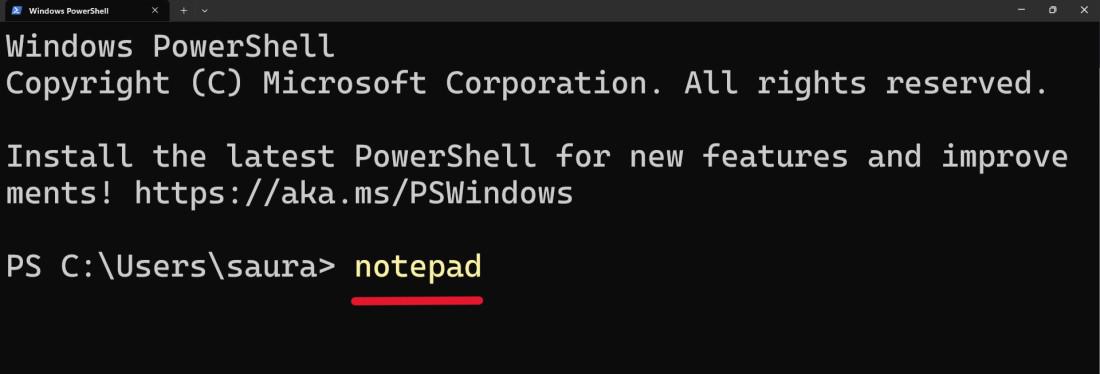
Step 1: To open PowerShell use the shortcut Win + S then on the search bar just type "Windows PowerShell" then press the Enter button
Step 2: Type "Notepad" and press the Enter button.
👁 How-to-Open-Notepad-Using-PowerShell
Step 1: Right-click on the desktop.
Step 2: Hover over New and select Shortcut.
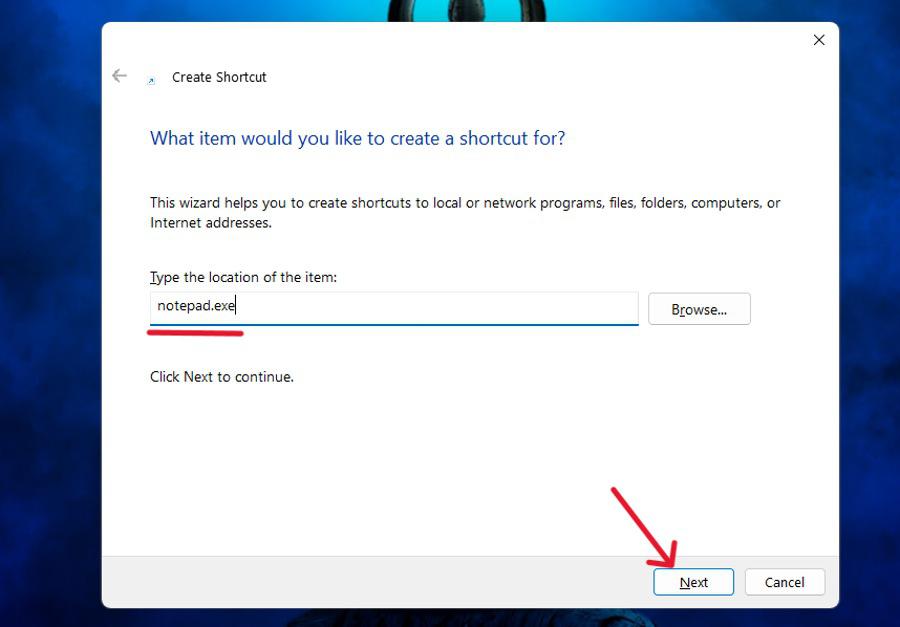
Step 3: In the location field, type "notepad.exe" and click Next.
👁 How-to-Open-Notepad-Using-a-Desktop-Shortcut
Step 4: Click on Finish.
Create a custom keyboard shortcut for launching Notepad by adding its shortcut to your desktop or a folder. This shortcut will efficiently launch Notepad when activated.
Step 1: Follow method 9 to create a desktop shortcut for Notepad.
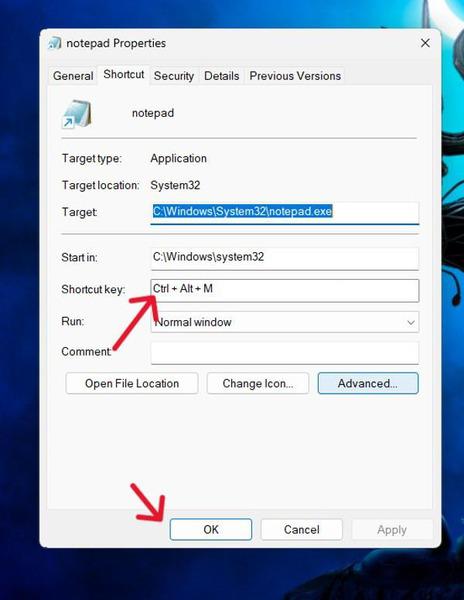
Step 2: Right-click on Notepad then click on Properties.
Step 3: In the Notepad Properties tab go to the shortcut tab.
Step 4: On shortcut key input type the desired shortcut like "Ctrl + Alt + M".
👁 How-To-Open-Notepad-Using-a-Keyboard-Shortcut
Step 5: Click on "Apply" then click on "OK".
There are plenty of ways to open Notepad in Windows, whether you're using Notepad shortcut keys or more advanced methods like Command Prompt or PowerShell. Each of these 10 methods to open Notepad can save you time and make it easier to access the editor for your needs. Try out different methods to find the one that works best for you, and enjoy faster access to Notepad on Windows.

.jpg)