A RAR (Roshal Archive) file is a compressed archive that combines multiple files and folders into a smaller package. RAR files help save disk space and speed up file transfers. They also support advanced features like:
- Password protection
- File repair and recovery
- Splitting large files into smaller parts
How to Open a RAR File on Windows
Method 1: Using File Explorer
- Navigate to the location of the RAR file on your Windows computer.
- Right-click on that file, then pick "Extract All" from the options listed.
👁 How-to-Open-a-RAR-File-on-Windows
- Select the location where you want to extract by clicking on the browse button.
- Then, On the bottom click on "Extract"
👁 How-to-Open-a-RAR-File-on-Windows-1
After a few your extracted file will be shown on the chosen location
Method 2: Using WinRAR
WinRAR is a widely used tool for opening and creating RAR files. It offers better compression, security options, and archive management.
- Download and install the Win RAR from their official website.
https://www.win-rar.com/start.html
👁 Using-a-Third-Party-Application-(WinRAR)
- Now navigate to the location of the RAR file on your Windows computer.
- Click on the file with your right mouse button. Move your cursor over "Open With". From the list, select "WinRAR Archiver".
👁 Using-a-Third-Party-Application-(WinRAR)-1
- On the top left click on "Extract To"
- Now browse the location where you want to extract the file
👁 Using-a-Third-Party-Application-(WinRAR)-2
- Press the OK button to proceed
How to Open a RAR File on Mobile
Opening and working with RAR files needs extra tools on Android. Third-party applications provide that useful ability. They let you unzip archived files with ease. But that's not all - you can also make new RAR packages too!
- Open the Play Store or App Store on your mobile phone
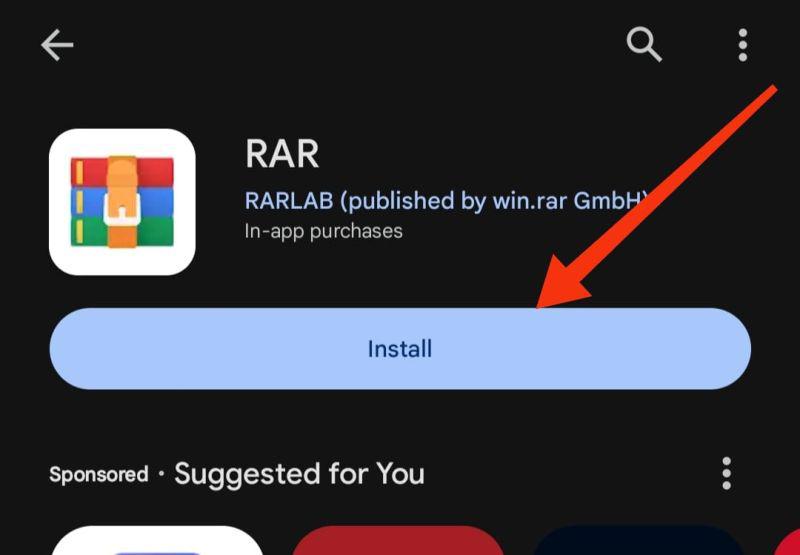
- On the app store search bar type "Win RAR" or just "RAR" then click on the "Install" button to download the application.
👁 How-to-Open-a-RAR-File-on-Android-Using-RAR-Application
- Open the application then navigate to the location of the RAR file on your mobile phone.
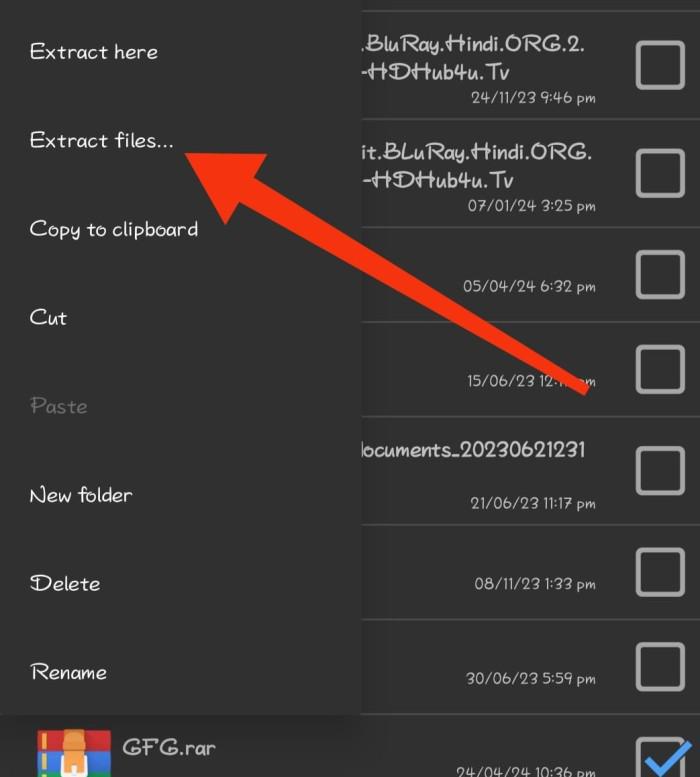
- Press and hold on the file then from the menu select "Extract Files..."
👁 How-to-Open-a-RAR-File-on-Android-Using-RAR-Application-1
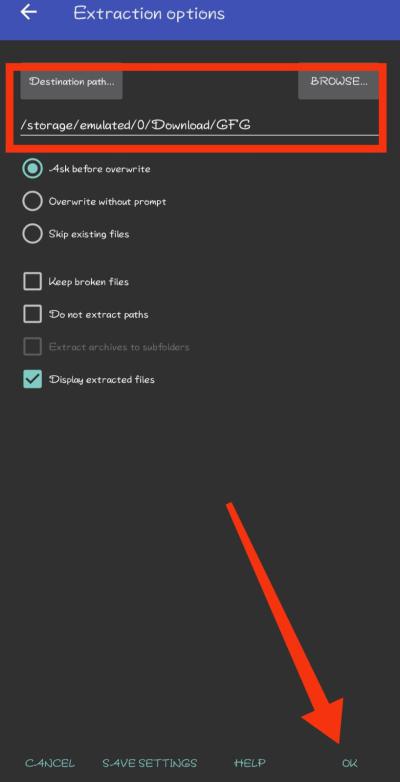
- Then, Select the location where you want to extract the file
- Click on the "OK" button to proceed
👁 How-to-Open-a-RAR-File-on-Android-Using-RAR-Application-2
Also Read:


.jpg)
-1.jpg)
-2.jpg)