|
VOOZH | about |
|
VOOZH | about |
Editing your Windows 11 lock screen is a fantastic way to add your touch to your PC. Customizing your device's lock screen, which is the first thing you see when you turn it on, can enhance both its look and functionality. Windows 11 offers several customization options for your lock screen, from altering widgets and notifications to changing the background. In this video, we'll demonstrate how to change the lock screen in Windows 11 effectively.
Table of Content
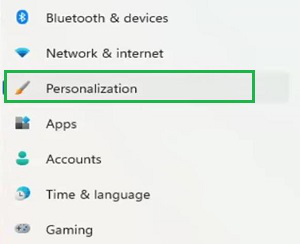
Step 1: Open Windows Settings & click on the ''Personalization'' option.
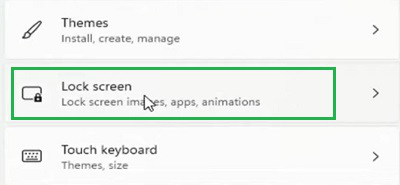
Step 2: Click on the Lock Screen settings option.
Hence, we are now inside Lock Screen Settings in Windows 11. We have to perform these steps every time for the Customization of the Lock Screen.
To how to adjust lock screen picture size on Windows 11, you can use the following methods. It will bring more charm to one unattractive window.
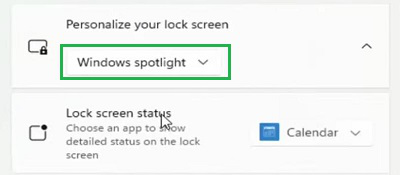
Under the Lock Screen option, you will find the Windows Spotlight is already selected. It is the settings that will Customize the Lock Screen on Windows 11 daily. You can use it for modifications.
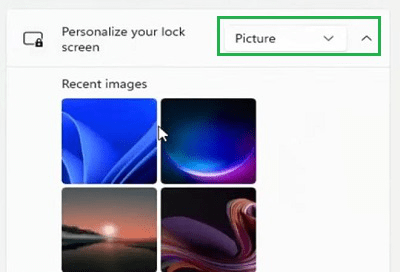
Under the Lock Screen Settings, you can change the Personalize Settings to Picture. You will find many inbuilt pictures from Windows. However, if you want you can upload pictures from your local drives as well.
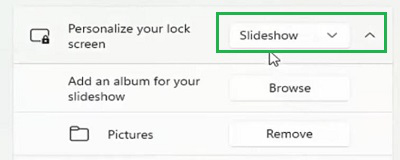
An alternative to Windows Spotlight & Pictures is the Slideshow Option. You can select the Slide show option from the same dropdown menu. Also, there are some files already present to make the Slideshow. However, if you want you can upload one folder with pictures that will be used as Slideshow.
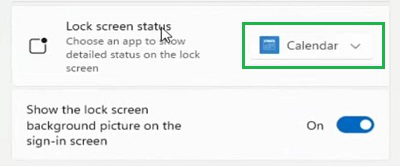
Now, if you want to receive a certain kind of notification from any app on Lock Screen, then this modification you can do. From the Lock Screen Status Section, select the App which notification you want to receive on the Lock Screen.
At last, there is a button present by which you can use the same background of the Sign-In Page as the Lock Screen. If you enable it the settings will start. If you Disable the button, the background image will be changed.
A quick and easy method to show off your individuality and improve your user experience is to personalize your Windows 11 lock screen. You may quickly customize widgets, control notifications, and change the wallpaper by following the preceding instructions. Utilize these customization options to make a lock screen that expresses your personal design and provides quick access to information.