|
VOOZH | about |
|
VOOZH | about |
When you work on different Web Browsers, there is one famous practice present to Refresh the Web Browser oftentimes to get new updates on that page. However, for the Firefox Web Browser, there are two kinds of Refresh Operations present. One is the traditional one, and another is the "Firefox Refresh Operation to Reset".
In this article, we will highlight the methods needed to work on the Refresh Firefox Operation to Reset Browser in no time.
Users can solve all the internal system problems by refreshing Firefox -
Users can run their system smoothly with excellent browsing performance by refreshing Firefox.
To Reset Firefox with Refresh Operation, the following two methods can be used. We will use the normal & straightforward method first.
Step 1: Open Firefox & go to the Help Settings. Under the Help Settings click on the More Troubleshooting Information Option.
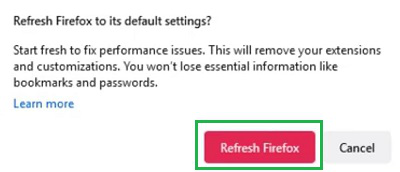
Step 2: Select the Refresh Firefox option.
Step 3: In the Popup Window, confirm by pressing the Refresh button.
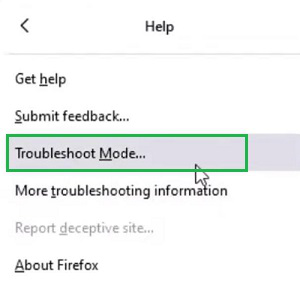
Step 1: Again open Help Settings in the Firefox Browser & go for the Troubleshooting Mode Option.
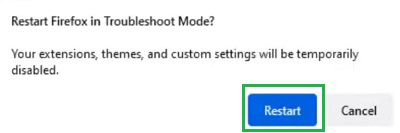
Step 2: It will start the Safe Mode Service. Click on the Restart button.
Step 3: We should not go inside the Safe Mode. Before that, we will get the Refresh Firefox option. Click on it to get the job done.
Note: In earlier times, an individual needed to perform a series of tasks to get back the Erased Data after Firefox Refresh. However, with the latest update, we need not to perform such activity more.
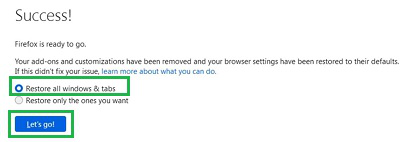
You will get the Window with Success Message. Click on the Restore All Windows & Tabs. Click on the Let's Go button.
From the above discussion, we can conclude that Resetting Firefox using Refresh Operation is not at all a challenging task. We have to initiate the process & the rest of the Firefox Browser will manage it. So, if you are facing any issues, before going for the Hard Reset on Firefox, do Refresh Firefox Reset first.