|
VOOZH | about |
|
VOOZH | about |
Looking to remove your Windows 10 password for a faster login experience? Whether you want to disable the password on Windows 10 or simply streamline the login process, this guide will walk you through the steps to turn off the Windows 10 login password. By following these easy steps, you'll learn how to skip the password on Windows 10 and set up automatic login, making your daily computer use more convenient.
Table of Content
Removing Windows's password is not a good idea, Though sometimes we feel like removing the password for instant login. Here we have provided easy methods to remove Windows 10 Password.
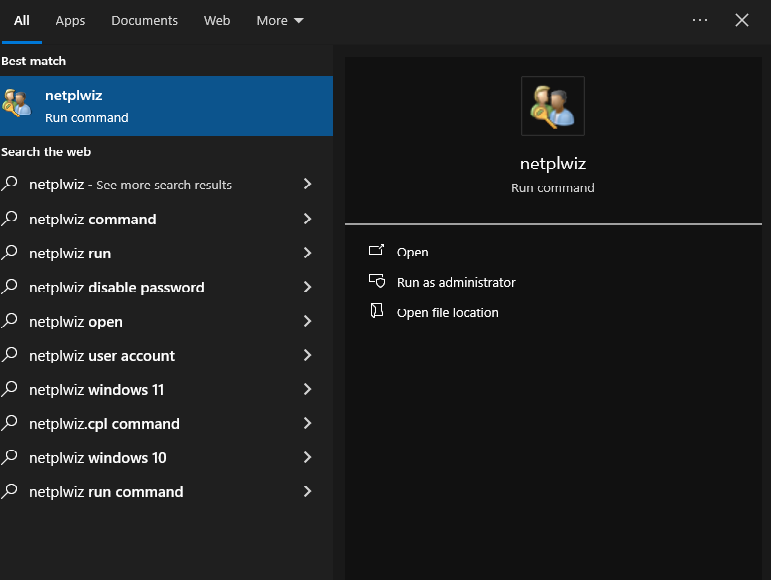
Step 1: Go to the start menu and type netplwiz in the search bar.
Step 2: Click on netplwiz option to proceed.
👁 Remove-Windows-10-Password-Using-User-account-Tool_pic2
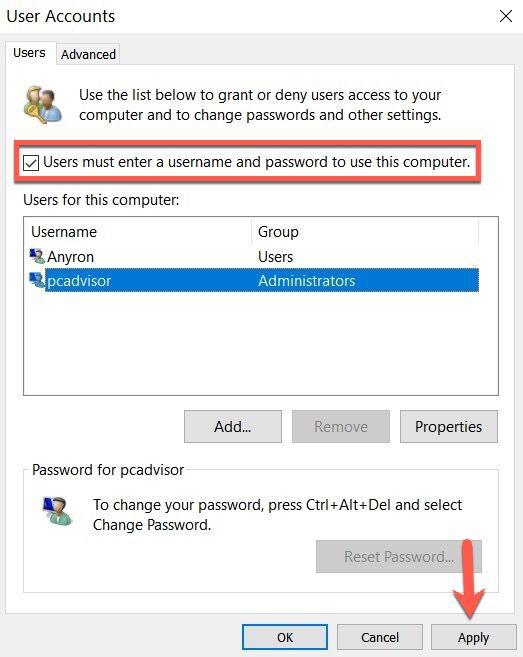
Step 3: Now uncheck the box ' Users must enter a user name and password to use this computer ' and click the Apply Button.
👁 Remove-Windows-10-Password-Using-User-account-Tool_pic3
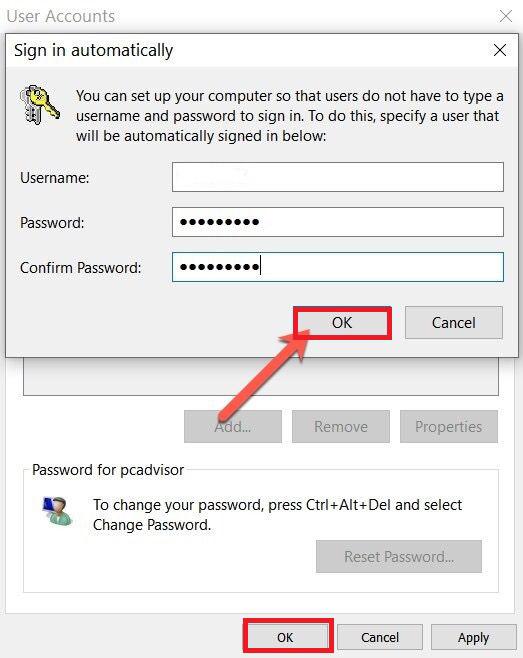
Step 4: Enter your Username, Password, and Password and click OK
👁 Remove-Windows-10-Password-Using-User-account-Tool_pic4
Step 5: Click OK one more time to save all the changes.
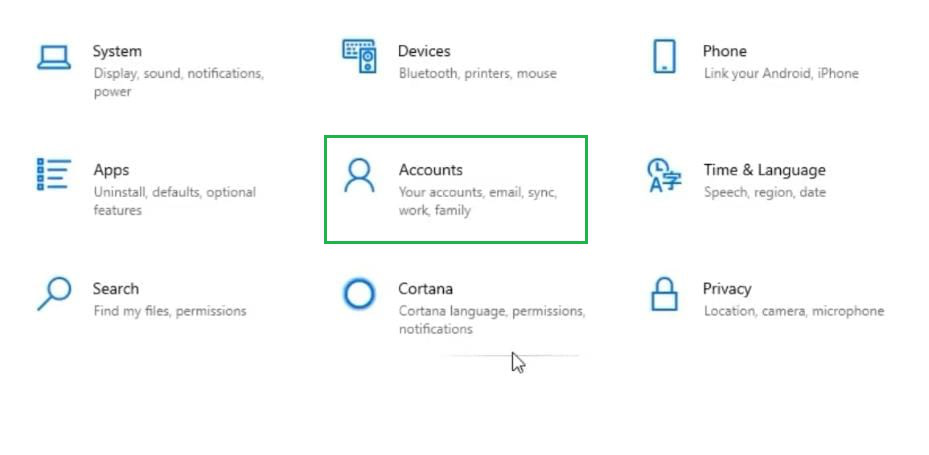
Step 1: Open the Control Panel and click on Accounts.
👁 Remove-Windows-10-Password-Using-Accounts-Settings_1
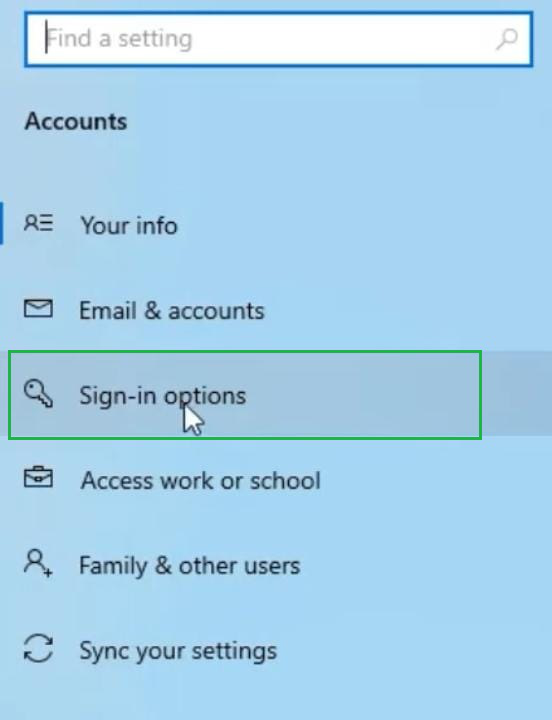
Step 2: Now, click on the Sign-in Option present on the Right-Hand Side of the screen.
👁 Remove-Windows-10-Password-Using-Accounts-Settings_2
Step 3: Click on the Password option.
👁 Remove-Windows-10-Password-Using-Accounts-Settings_3-(1)
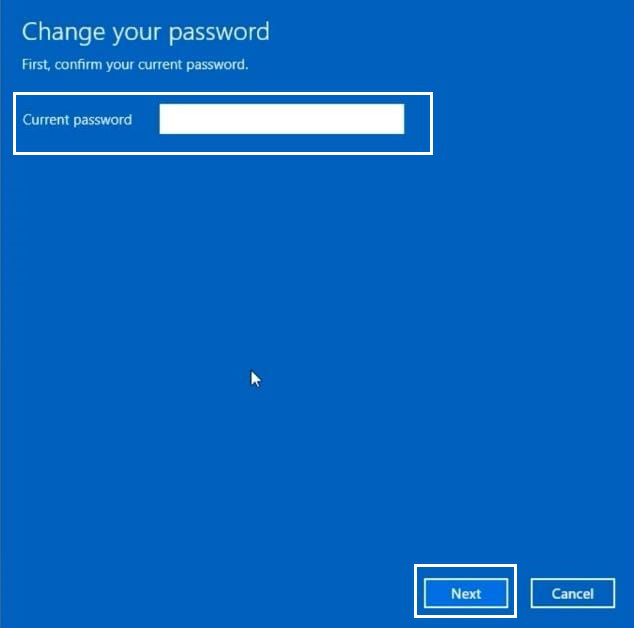
Step 4: Enter the Current Password then click on the Next button.
👁 Remove-Windows-10-Password-Using-Accounts-Settings_4
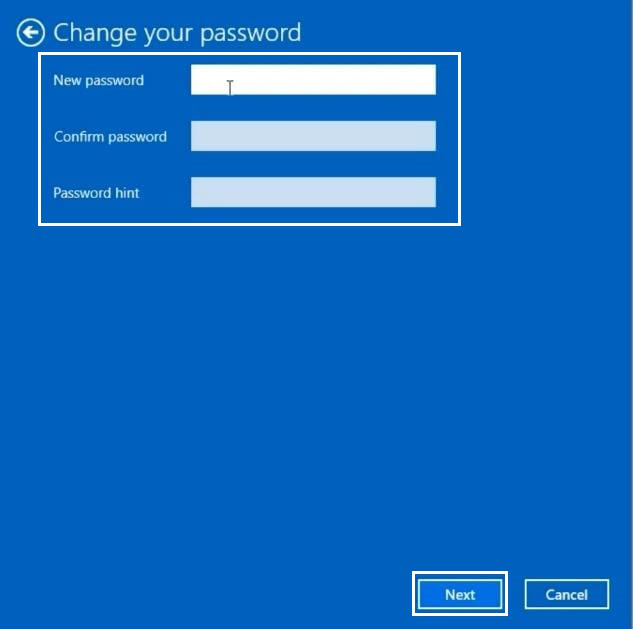
Step 5: In this section, leave the New Password and Confirm password field blank, Just click on the Next option to complete the processes.
👁 Remove-Windows-10-Password-Using-Accounts-Settings_5
Hence, we have successfully removed the password from Windows 10 using Account Settings.
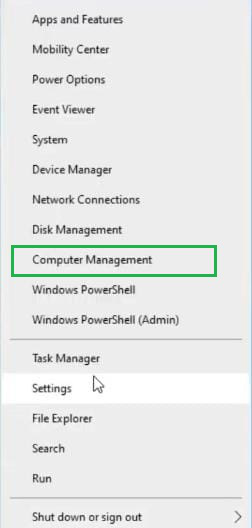
Step 1: Right-clicking on the Windows option. Then click on Computer Management.
👁 Remove-Windows-10-Password-Using-Computer-Management_1
Step 2: Click on the Local Users & Group options. There, you will find two more options: Users and Groups. Click on the Users options.
👁 Remove-Windows-10-Password-Using-Computer-Management_2-(1)
Step 3: A list of users will be displayed there. Here, you have to find out the username which you are currently using. If there is no name provided to the Account. It will be the Default Account.
👁 Remove-Windows-10-Password-Using-Computer-Management_3-(1)
Step 4: Click on the proceed option to get some more information about the method to remove the password.
Note: There will be some disclaimers. But they don't have much influence on the performance of the device. After removing the password, all the saved login data will be removed from the device. But all the saved data in the drive will be secured. So, there is no need to take worry about this process. But if required, follow the first method where such issues are not present.
👁 Remove-Windows-10-Password-Using-Computer-Management_4-(1)
Step 5: Here, don't enter any password. Keep them blank. Simply click on the OK option. Now you can use your Windows 10 system without any password.
👁 Remove-Windows-10-Password-Using-Computer-Management_5-(1)
So, we have successfully removed the password from Windows 10 using Computer Management.
By learning how to remove the Windows 10 password, you can save time and avoid the hassle of entering your credentials every time you log in. However, keep in mind that while Windows 10 auto login offers convenience, it may reduce the security of your system. Always weigh the balance between ease of use and security when deciding to disable the password on Windows 10.
Also Read

.png)
.png)
.png)
.png)
.png)