|
VOOZH | about |
|
VOOZH | about |
Facing issues with an app on your Windows PC? No need to worry! Resetting or repairing an app on Windows 11 is a simple process that can fix many common problems without requiring a full reinstall. Whether an app is not responding or behaving strangely, learning how to reset or repair apps on Windows 11 will help you resolve these issues.
This guide will show you how to quickly repair apps on Windows 11 or perform a full Windows 11 app reset to restore normal functionality.
Table of Content
Step 1: Press Win + I to open Settings.
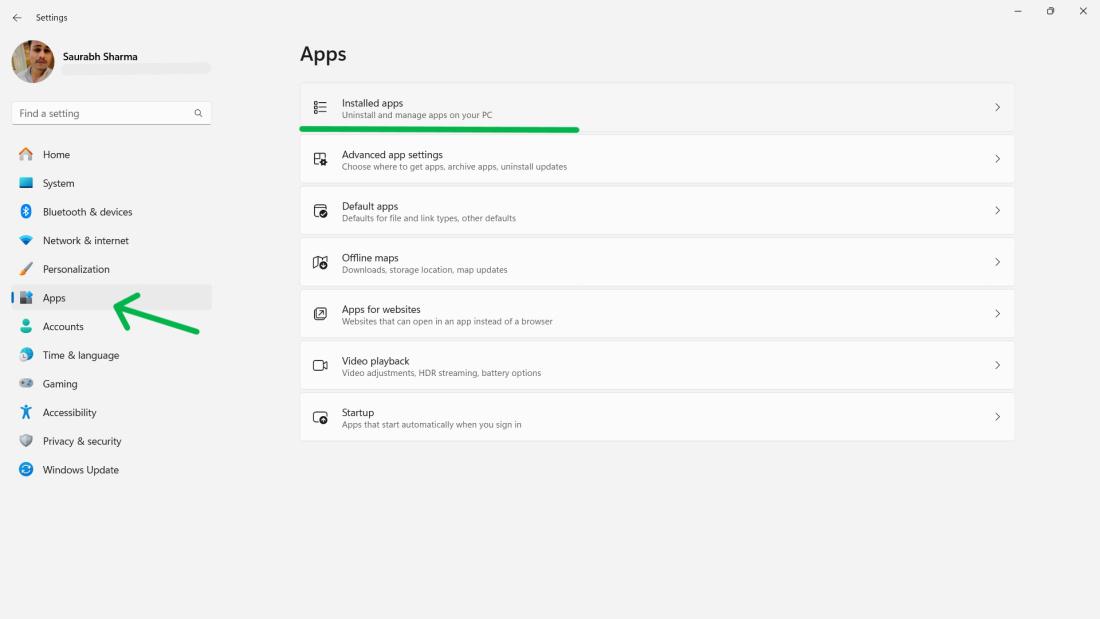
Step 2: In the Settings app, click on Apps on the left sidebar, and then click on Installed Apps on the right pane.
👁 How-to-Reset-and-Repair-an-App-on-Windows-11-Using-Settings-Ap
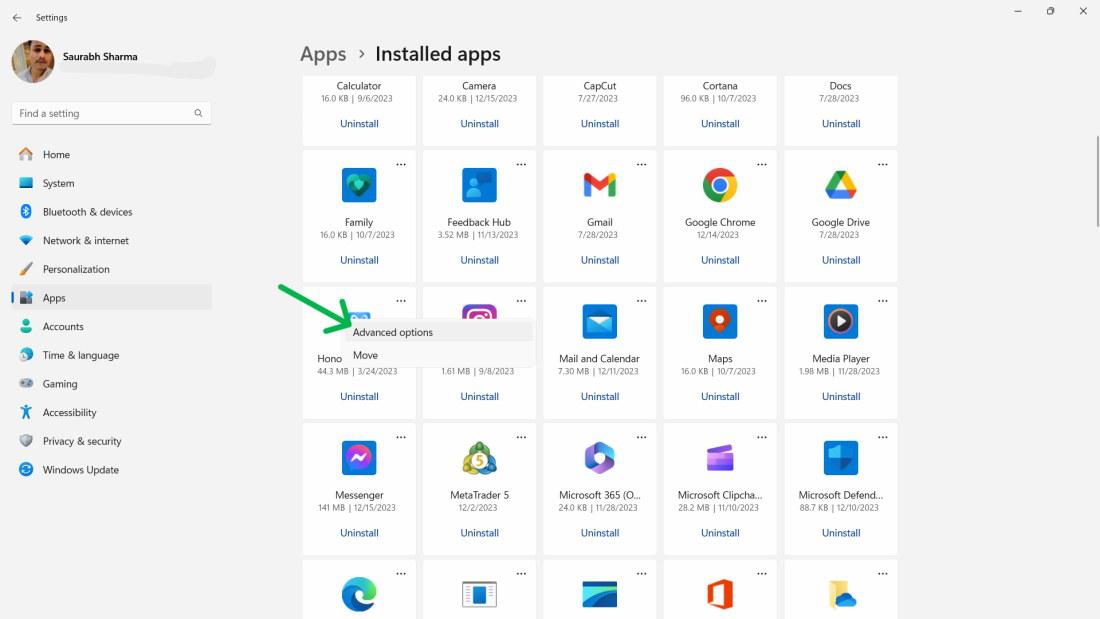
Step 3: On the right panel of your screen you will find a list of installed apps or programs, on your computer. Locate the desired app that needs resetting and/or repairing and click on the three-dot icon located in its app list. Then select "Advanced Options."
👁 How-to-Reset-and-Repair-an-App-on-Windows-11-Using-Settings-App-1
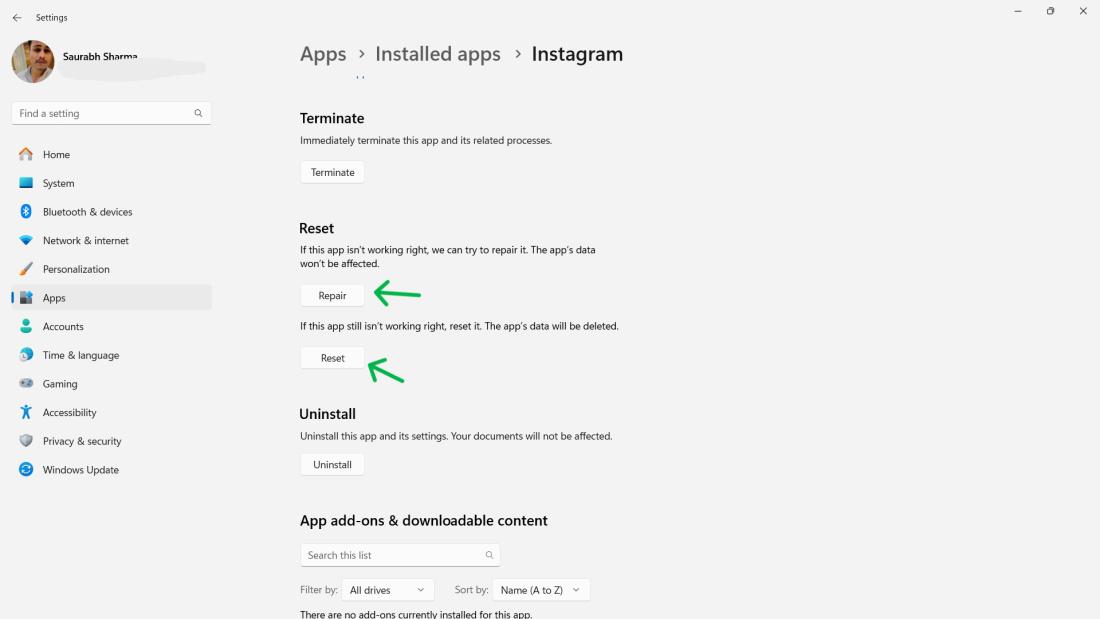
Step 4: Scroll down to the Reset section of the Advanced Options page. You will see two buttons: Repair and Reset.
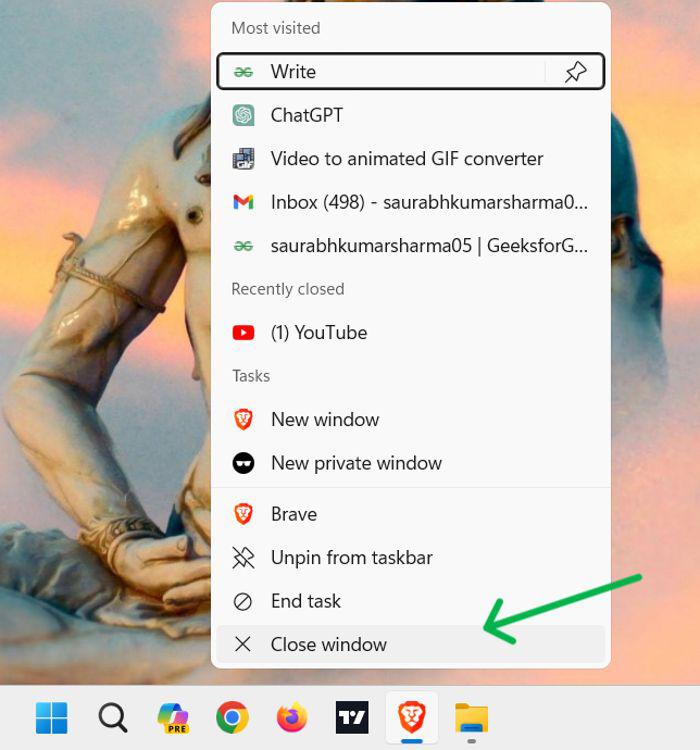
Step 1: Locate the app icon on the taskbar.
Step 2: Right-click on the app icon.
Step 3: Choose "Close window" to shut down the app completely.
👁 Resetting-and-Relaunching-Apps-on-Windows-11
Step 4: Open the Start menu and relaunch the app.
Step 5: This straightforward process can often resolve temporary issues without the need for extensive troubleshooting.
Step 1: Right-click on the taskbar and select "Task Manager" or use the shortcut (Ctrl + Shift + Esc).
Step 2: In Task Manager, Click on the Processes tab. Right-click your preferred app for reset or repair, and locate it. Then, click on End task.
👁 How-to-Reset-and-Repair-an-App-on-Windows-11-Using-Task-Manager
Step 3: Relaunch the app from the Start menu or desktop.
Knowing how to reset or repair an app on Windows 11 can save you from the hassle of uninstalling and reinstalling apps. By following these steps, you can easily fix apps on Windows 11and get them working properly again. Whether it's a minor glitch or a persistent error, the Windows 11 app reset and repair features provide convenient solutions for troubleshooting without losing your app data.
Also Read