|
VOOZH | about |
|
VOOZH | about |
From the Command Line Interface on Windows, the Command Prompt Application first comes to your mind. However, another great Command Line Interface is Windows Terminal i.e. Windows Powershell which can be also useful.
If you want to perform Remote Command Execution on some other Remote Computers, then the Powershell on Windows will be used. This article will discuss the steps to Execute Remote Commands on Windows Powershell.
If you are on any local Windows OS & want to perform some actions on the Windows Powershell, the Execution of Remote Command will be the only option. The Remote Command Execution enables the method to access other Windows Powershell Applications from any single device with the help of the IP Address.
Once, you enter the Computer Name or IP Address of the Windows, those two computers will be associated only with Powershell. That means, the Powershell of two Windows Computers will be connected & from your device you can execute some commands on the Remote Device. Here, two entire Windows OS are not completely connected.
This practice can be useful for System Administrators who need to manage different computers at the same time across the network.
Note: By default, the Remote Command Execution on Windows Powershell is disabled. So, if you have to work on the concept, you have to Enable Powershell Remote Command Execution.
Step 1:Right-click on the Start Button & go for the Windows Powershell. Launch in the Administrative Format.
Step 2: Now, execute the following command there. It will Enable the Remote Command on Powershell.
Command: Enable-PSRemoting -ForceAs you start the Powershell Remote Command Execution, you have to check whether the connection is correct or not. For that purpose, you can use the following command. If the Powershell Command is providing some output, the connection is correct. It will help to know whether the Remote Service is running on a Remote Computer or not.
Command: Test-WSMan <IP Address Or Remote Computer>Step 1: Once the Remote Command Execution Setup is completed, the following command should be used. It will connect the Local Windows Device along with the Remote Windows Device.
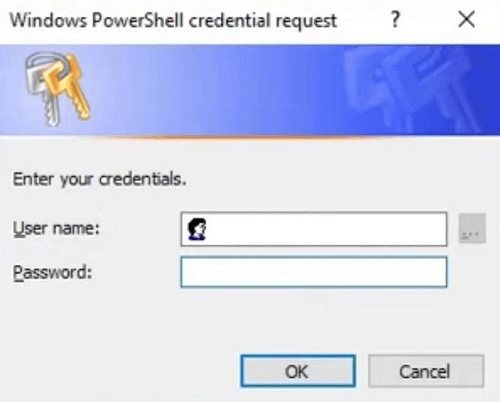
Command: Enter-PSSession -ComputerName <IP Address Or Remote Computer>Step 2: Now, a Small Window will appear. You have to provide the Username & Password of the device there. Now, click on OK.
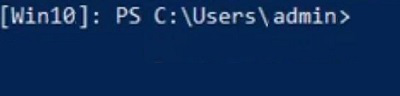
Step 3: Now, you will find the Computer Name will appear from the IP Address. Along with the Directory of Powershell will be changed. It is the indication that the Remote Connection is Successfully Created.
Now, it is time to discuss the Benefits of Windows Powershell Remote Command Execution. There are multiple reasons behind to Use of Remote Execution of Commands on Powershell. Let us check all of those reasons one by one.
From the above discussion, we conclude that Configuring Remote Command Execution on Powershell is a very simple task. You have to just enter the Windows Powershell Commands there properly. Also, you have to take care of the IP Address of the Remote Device as it will be inserted into the system for the connection.

.png)