|
VOOZH | about |
|
VOOZH | about |
QR codes have become a popular way to quickly access information, websites, and services with just a simple scan. Whether you're using an iPhone, Android, or another device, knowing how to scan QR codes is essential in today’s digital world. This guide will walk you through the process of scanning QR codes using different devices and apps, ensuring you can easily access the content behind any QR code you encounter.
QR codes provide a flexible and effective way to send required internal data. People are using QR codes for a growing number of reasons and benefits. No special apps are required – we'll cover built-in methods to help you read QR codes in no time. So let's discuss the initial process to easily scan QR codes on any device.
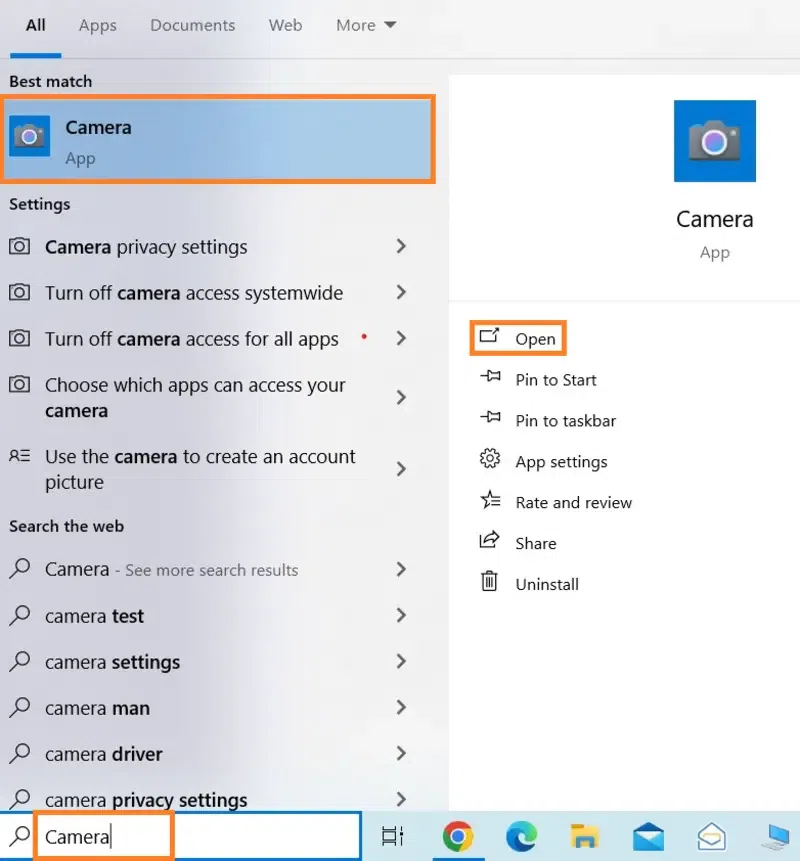
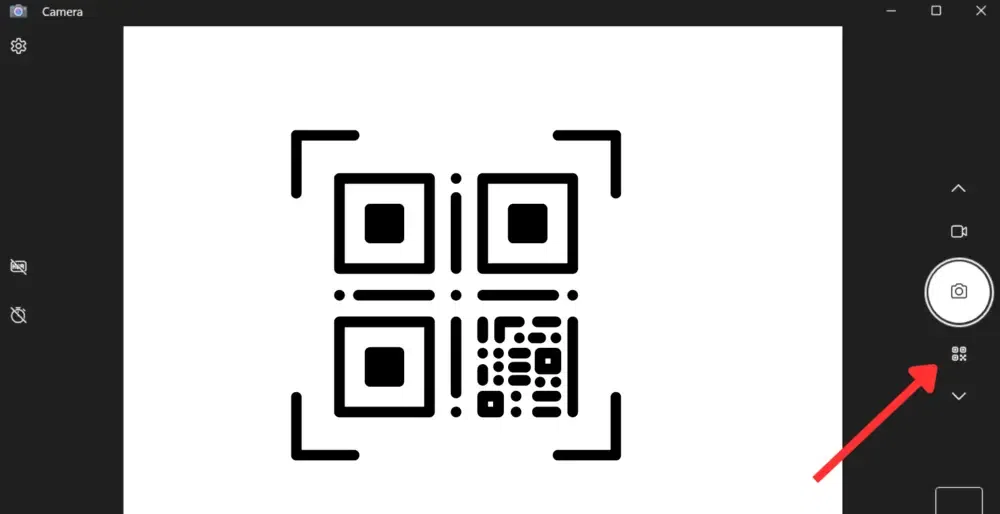
Use the camera app to scan QR codes on Windows, Follow the below-mentioned steps to scan the QR Code on Windows.
Step 1: Open the Windows Search menu> Type & Search Camera > Select the first result.
Step 2: Click on Barcode > Position the QR code or barcode in front of the camera.
In macOS, there is no actual functionality to scan the QR Codes. So, all Mac users need to download or install some free applications that are available in the Apple App Store. Follow the below-mentioned steps to read QR Codes on MacOS:
Step 1: Go to Apple App Store > Install QR Journal or QR Codes scanners
Step 2: Open QR Journal or Scanners > Select the "Scan" button to activate the system webcam
Step 3: Position the QR code in front of the system > Use the attached link or code.
If you don't want to download any third-party apps, you can alternatively transfer the QR code image to your iPhone or iPad, which has a built-in QR code scanner in the Camera app.
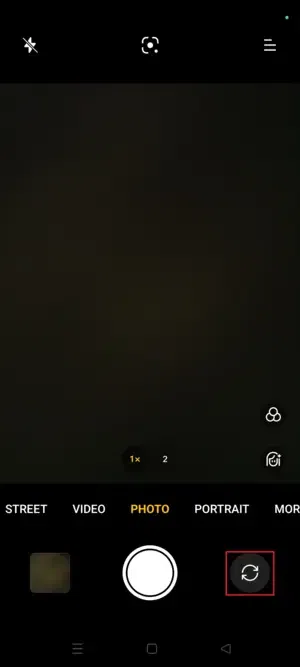
QR codes can be scanned using built-in camera apps on most smartphones. Users don't require much technical knowledge and can read QR Codes using camera by following the mentioned processes:
Step 1: Open Camera > Use rear-facing view
Step 2: Point the Camera position to a required QR Code > Tap on the banner or recent QR Code to scan.
If you're unable to see the QR Code on your Android device, follow the below-mentioned steps -
iPhone has the same functionality or techniques as Android devices to scan QR Codes. We need to follow the below-mentioned steps as per user situations.
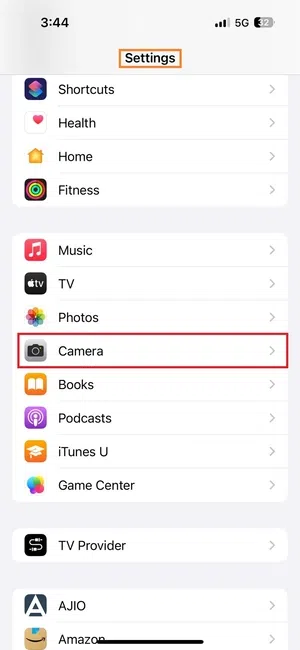
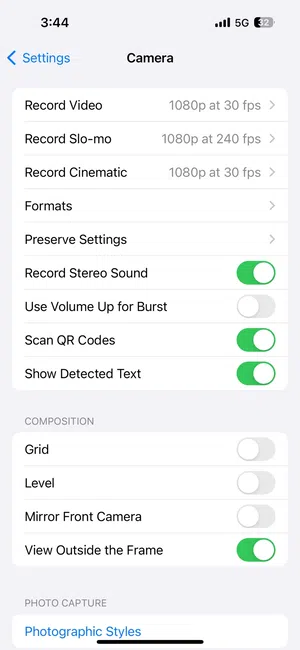
QR Code Scanner is a default software application in iOS devices but sometimes it doesn't work properly. Users need to follow the below-mentioned guides or steps to use QR code Scanner.
Step 1: Open Settings app > Scroll Down to open Camera application
Step 2: Find and Choose "Scan QR Codes" > Enable it and see it shows green switch signals.
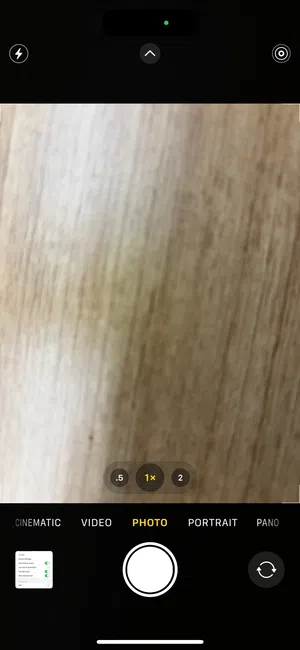
Users can read any QR Codes by using the iPhone built-in Camera application. Users need to follow the below-mentioned guides or steps to use it properly.
Step 1: Open the iPhone Camera application > Select the rear-facing view
Step 2: Point the camera in the proper direction to the QR Code > Wait some time to scan it properly for better processing.
There are several possible causes for your camera's inability to read QR codes. These are the most typical:
Caution: Tips for Scanning QR Codes Securely
Users need to follow the below-mentioned cybersecurity precautions to scan QR codes on any device securely.
- Never scan a QR code that you find in an odd or unfamiliar place.
- Avoid clicking on any links that are produced by dubious QR codes.
- Before visiting the URL, always check it again. Typically, the notification includes the website's name.
- Use only official apps if your operating system has a built-in QR code scanner.
- Invest in extra security measures to guard against viruses. Even if the QR code contains a link to a dangerous website, use NordVPN Threat Protection to prevent access to hostile websites.
Learning how to scan QR codes is a simple yet powerful skill that allows you to access a wealth of information with just a quick scan. Whether you're using your phone's camera or a dedicated QR code scanner app, scanning QR codes is straightforward and convenient. Incorporate these tips into your daily routine to make the most out of this versatile technology.

.png)