|
VOOZH | about |
|
VOOZH | about |
In our fast-paced world, sharing your location has become valuable for staying connected with friends, family, and colleagues. Google Maps provides a user-friendly platform for sharing your whereabouts, ensuring that you can easily meet up, coordinate events, or let someone know you're on your way. In this guide, we'll walk you through the simple steps to share your location on both mobile devices and PCs.
Step 1: Open Google Maps on your computer.
Step 2: Click on the blue dot that represents your location.
Step 3: In the pop-up window, select "Share your location."
Step 4: Choose how you want to share: either through a link or by directly inviting contacts.
Step 5: Copy the link or send the invitation, and you're done!
Sharing directions from your computer to your phone or tablet on Google Maps is a useful feature. Before we begin, make sure you're signed in to the same account on both your computer and your device. If your phone or tablet asks for notifications, simply tap to turn them on.
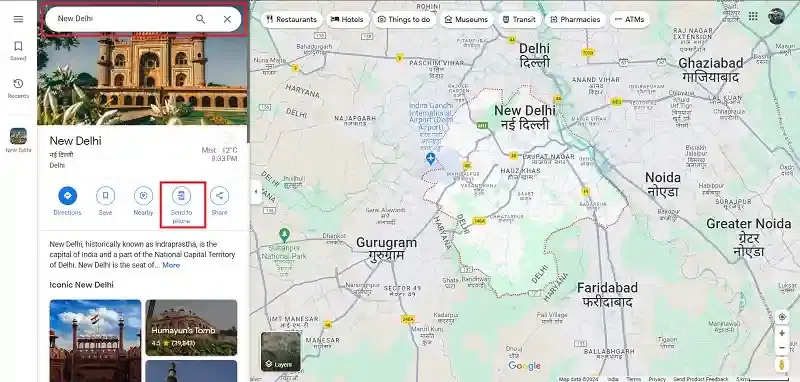
Open Google Maps on your computer.
Search for the directions you need. ( You can only send directions for a single destination, not multiple.)
Click on "Send to phone" and a prompt will be displayed.
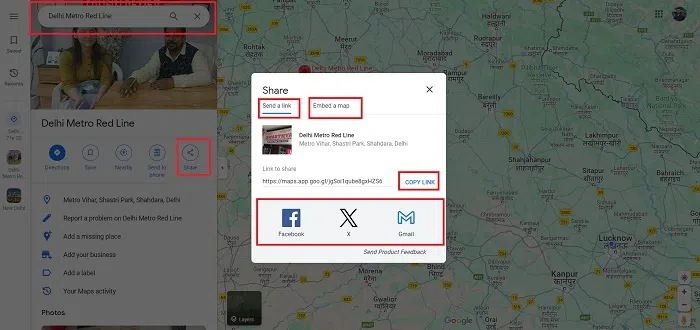
Open Google Maps on your computer. Click on "Directions. "Enter your destination and choose a route. Click "Share."
Choose your sharing method:
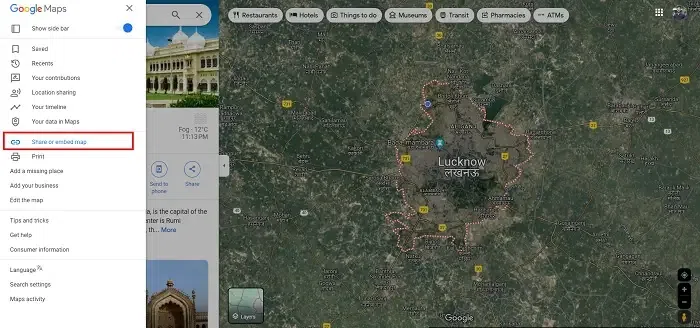
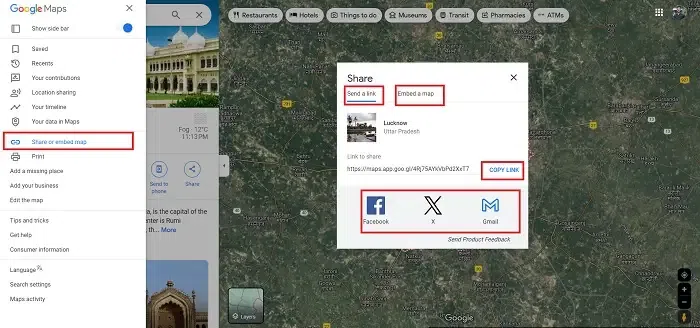
Open Google Maps on your computer. Navigate to the specific map area.
Click on the Menu, then "Share or embed map."
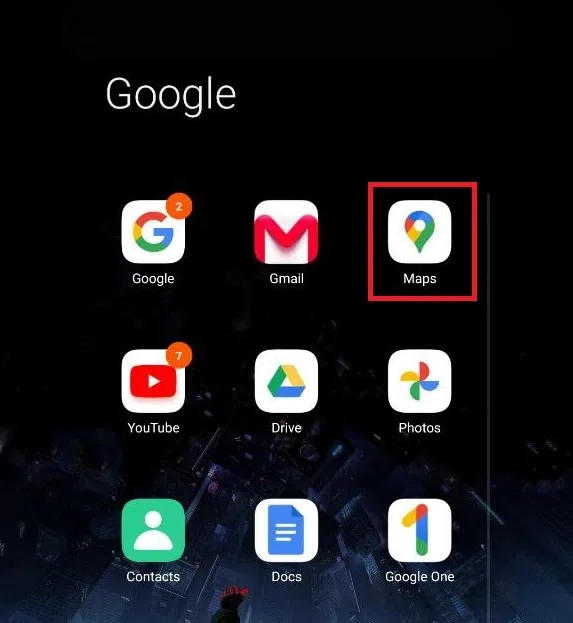
Open Google Maps by launching the Google Maps app on your mobile device. If you don't have it installed, you can download it from your app store.
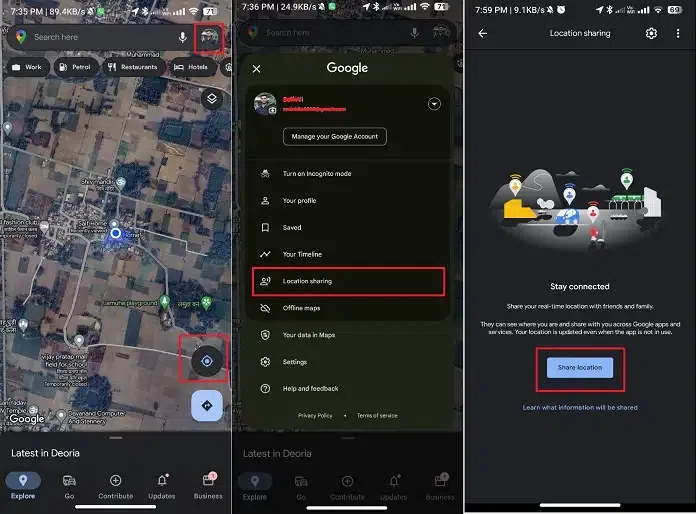
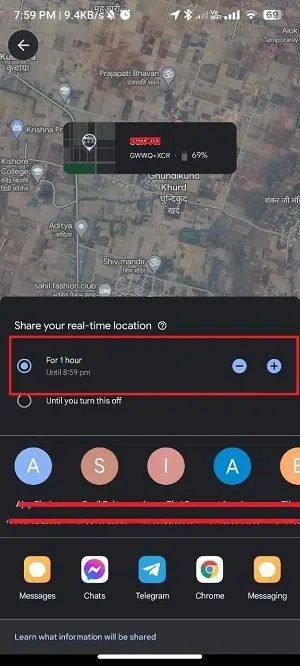
Select Your Location Tap on the blue dot that represents your current location on the map. This action will open a menu with several options. Choose Location Sharing From the menu, select the Share location option. This will prompt you to choose how long you want to share your location.
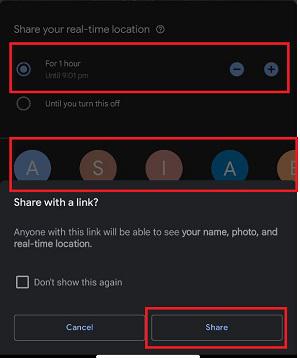
Set the Duration for which you want to share your location – whether it's for a specific time or until you manually turn it off.
Select Recipient and Choose the contact you want to share your location with. You can share it with individuals or through messaging apps.
Confirm Sharing After selecting the recipient, confirm your choice. The recipient will receive a notification with a link to view your real-time location.
Sharing your location on Google Maps is a simple yet powerful feature that enhances communication and convenience in our daily lives. Whether you're on a mobile device or a PC, the process is straightforward and user-friendly. Use this tool to stay connected and make meeting up with friends and family a breeze.
Can I stop sharing my location before the chosen duration expires?
Absolutely. You can manually stop sharing your location at any time by going back to the "Share your location" option and selecting "Stop sharing."
Do I need a Google account to share my location on Google Maps?
Yes, you need to be signed in to your Google account to access the full range of features, including location sharing.

.webp)
.webp)
.webp)
.webp)