 |
VOOZH | about |
|
VOOZH | about |
Google Meet is a widely-used video conferencing platform, and screen sharing is one of its most useful features for collaboration. Whether you're conducting a virtual meeting, presenting a report, or sharing a presentation, screen sharing on Google Meet helps enhance communication and ensures everyone is on the same page. However, knowing how to share your screen effectively is essential for smooth and efficient meetings.
In this guide, we will walk you through the best ways to share your screen on Google Meet, whether you're on a computer, iPhone, iPad, or Android device. Additionally, we'll address common issues, such as why you might not be able to share your screen and how to resolve them. Let's explore how to use this feature and make your virtual meetings more interactive.
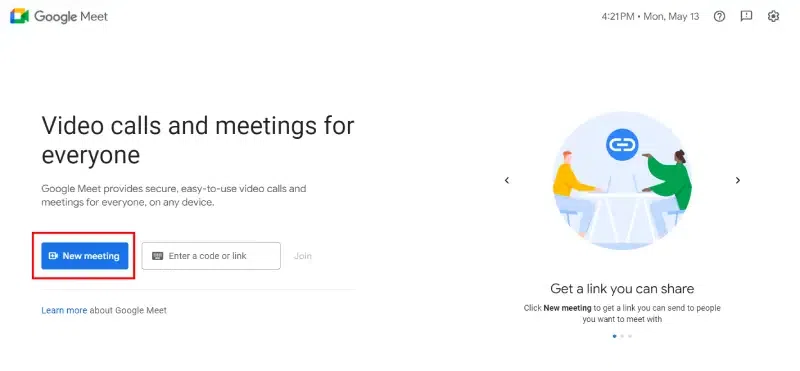
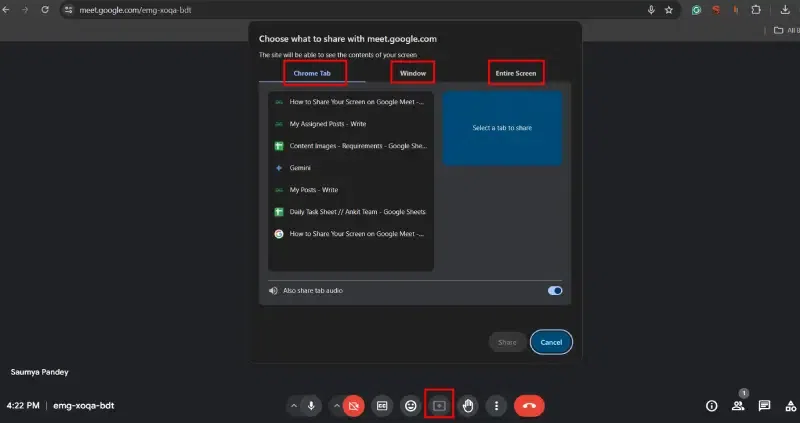
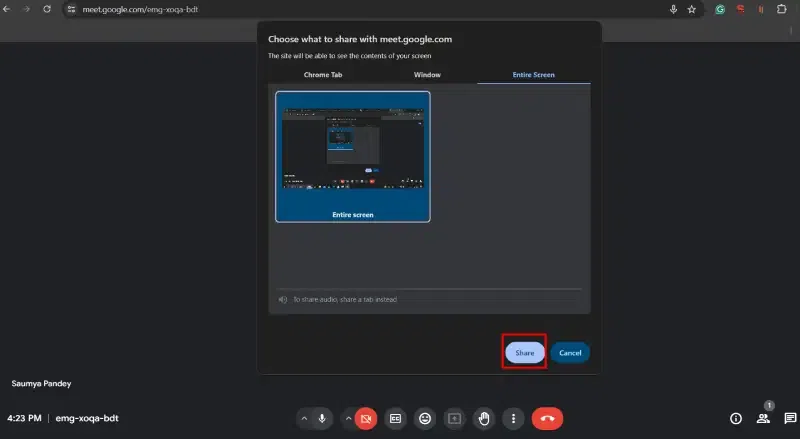
To share your screen in Google Meet on a computer, follow these steps:
Sharing your screen on Google Meet is a valuable feature for effective communication during virtual meetings. Whether you're presenting a report, demonstrating a process, or simply collaborating on a project, knowing how to share your screen can enhance the overall experience for you and your team. By following the steps outlined in this guide, you can easily share your screen on Google Meet, regardless of the device you're using.

.webp)