|
VOOZH | about |
|
VOOZH | about |
Shutting down your computer via Command Prompt is faster than clicking through menus - ideal for automation, remote management, or when the GUI freezes. The shutdown command gives you full control over timing, force options, restarts, and even remote shutdowns.
Now, we will be performing 3 different methods to shut down your computer using CMD. Let's find out:
One of the basic and mostly used methods is by running the following command:
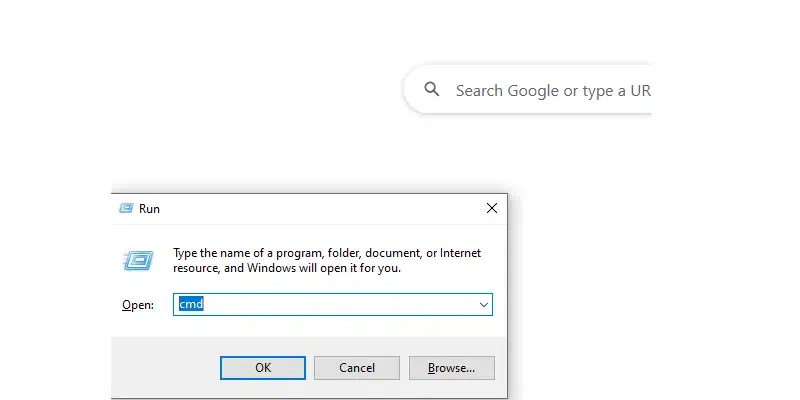
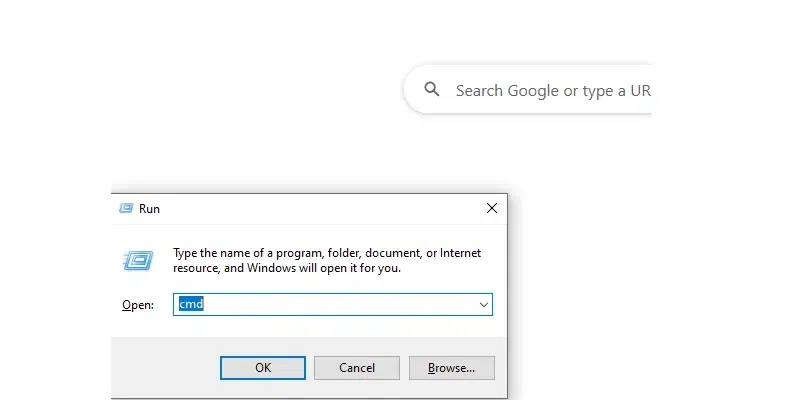
Hit the Windows + R, type "CMD" or command prompt and hit the Enter button.
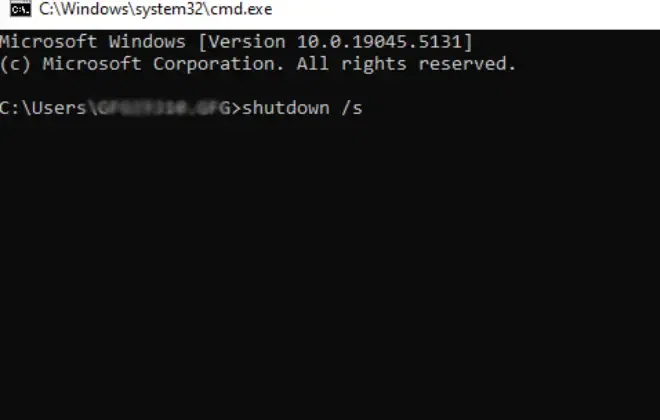
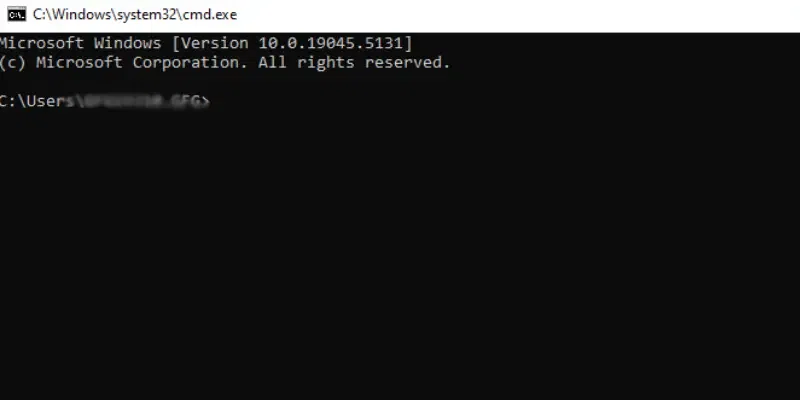
Once you enter the command prompt, type the following command.
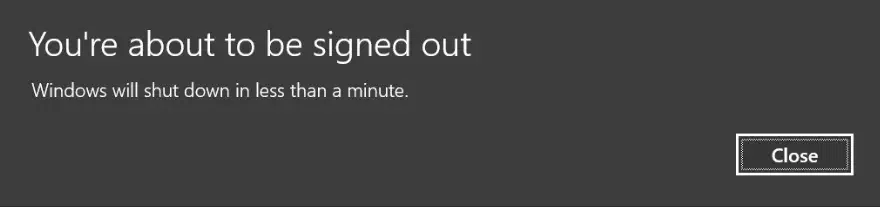
Now, you will see a pop-up for shut down the PC. This will immediate shut down your computer. However, you can also choose to cancel this method using the following command.
However, you can also choose to cancel this method using the following command:
Shutdown /a
You can also schedule to shut down you system using any specific time. Here, we have taken 60 seconds as an example. Let's follow the steps and command for te same.
Go to Run and type CMD. Now, hit the Enter button
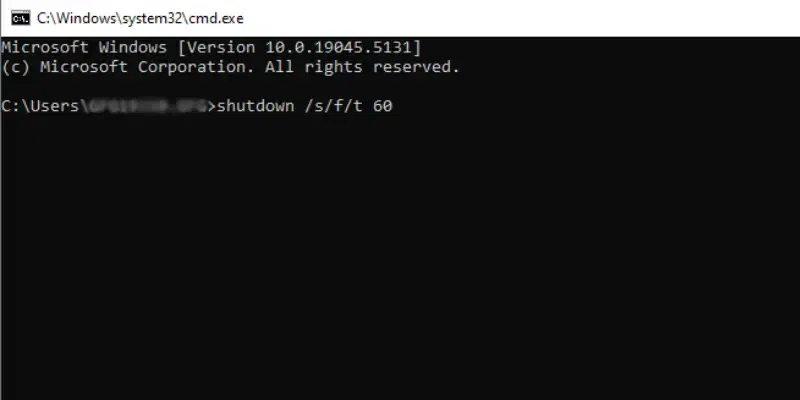
If you want your computer to shut down after 1 minute (60 seconds), use the following command:
shutdown /s /t 60Note: Your system will shut down right after 60 seconds. So, ensure to save all your unsaved data to avoid any data loss. However, you can also choose to cancel this method using the following command.
You can also choose to cancel this method using the following command:
Shutdown /awhere, a -> is to abort any scheduled shutdown (within the scheduled time frame).
You may also choose to force shut down your system if some applications are blocking the shutdown by following these methods:
Go to Run and type CMD. Now, hit the Enter button
Now, use the following command to force shut down your system.
shutdown /s /f /t 60Note: This command will force down your Windows system within next 60 seconds.
If you wish to shut own your system remotely then follow the steps below:
Ensure that the remote computer allows remote shutdowns via its firewall settings (the “File and Printer Sharing” feature should be enabled, and the Windows Management Instrumentation (WMI) service should be running).
Now, use this command to shut down your system remotely
shutdown /s /f /t 0 /m \\RemoteComputerNameHere, RemoteComputerName -> remote computer network's IP
You can also choose to restart your system instead of shutting it down. Let's understand this how you can perform it in few easy steps.
Go to "Run" and type "CMD" and hit the Enter button.
Now, type the following command to perform an immediate restart of your Windows PC.
shutdown /r /t 0Here, r -> is the function to restart, and /t 0 -> is to perform an immediate Restart.
You can also Restart your computer remotely using the following command:
shutdown /r /f /t 0 /m \\RemoteComputerName