|
VOOZH | about |
|
VOOZH | about |
Speaking of sharing, synchronization between the iPhone and iPad allows you to share photos, apps, contacts, messages, and a lot more across devices. It ensures such a seamless experience that it keeps the content updated in real-time across devices. You can synchronize data through iCloud, Bluetooth, or simply by connecting them directly from your iPhone to your iPad.
You can do an iCloud sync, iTunes, or Finder to your iPhone and iPad, whatever you prefer. Here are the methods in their respective steps.
iCloud is one of the best cloud storage services developed by Apple, which can help you automatically back up or share many kinds of data among your devices.
Step 1. Have your iPhone and iPad both signed in to the same Apple ID
Step 2. Enable the data that you want to sync with iCloud
Step 3. Choose what you want to sync, such as apps and settings
Step 4. Tap on iCloud Backup and turn on the iCloud Backup to permit automatic backup
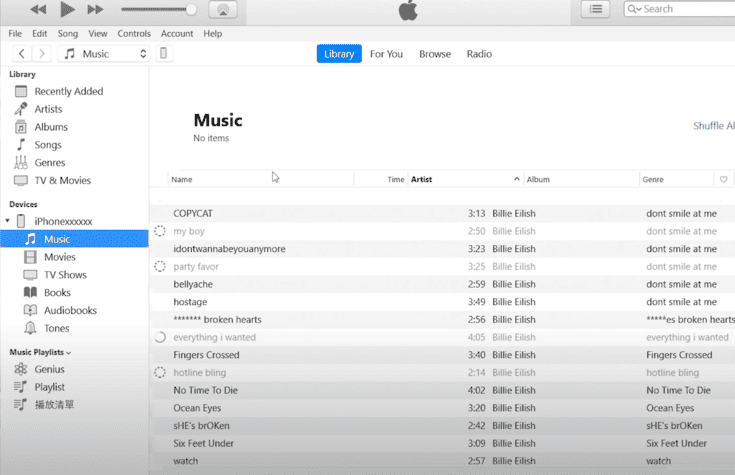
Alternatively, you could sync it directly with your PC. You can do this through iTunes on Windows and via Finder on macOS Catalina and later versions.
Step 1: Connect the iPhone and iPad to the computer using USB cables.
Step 2: Open Finder on macOS or iTunes in Windows.
Step 3: Tap on the iPhone listing.
Step 4: In the Settings, check to sync books, movies, music, or photos. Confirm checkboxes for these items and start synchronizing.
Step 5: Do the same on your iPad so that both devices will sync the same content.
With Airdrop, you can transfer files between the iPhone and iPad in an instant:
Step 1: Make sure that Wi-Fi and Bluetooth are on for both devices.
Step 2: Locate a file from your iPhone, such as a photo or document; tap the Share button.
Step 3: Tap AirDrop, then select your iPad from the list that appears.
Step 4: On the iPad, tap Accept to receive the file.
If syncing isn’t working, here are some troubleshooting steps you might want to take
The synchronization of the iPhone and iPad enhances the user’s experience by having data available across devices. Understanding the methodology and best practices—whether using iCloud for seamless automatic syncing, iTunes for manual transfers, or AirDrop for quick file sharing—will guarantee smooth data management.