|
VOOZH | about |
|
VOOZH | about |
Uninstalling applications on Windows 11 is a quick and effective way to free up storage, improve system performance, and remove unwanted or problematic software. Whether you're cleaning up your PC or troubleshooting issues, Windows 11 offers multiple ways to remove applications safely.
👁 How-to-Uninstall-an-Application-on-Windows-11
Below are six easy methods to uninstall apps on Windows 11.
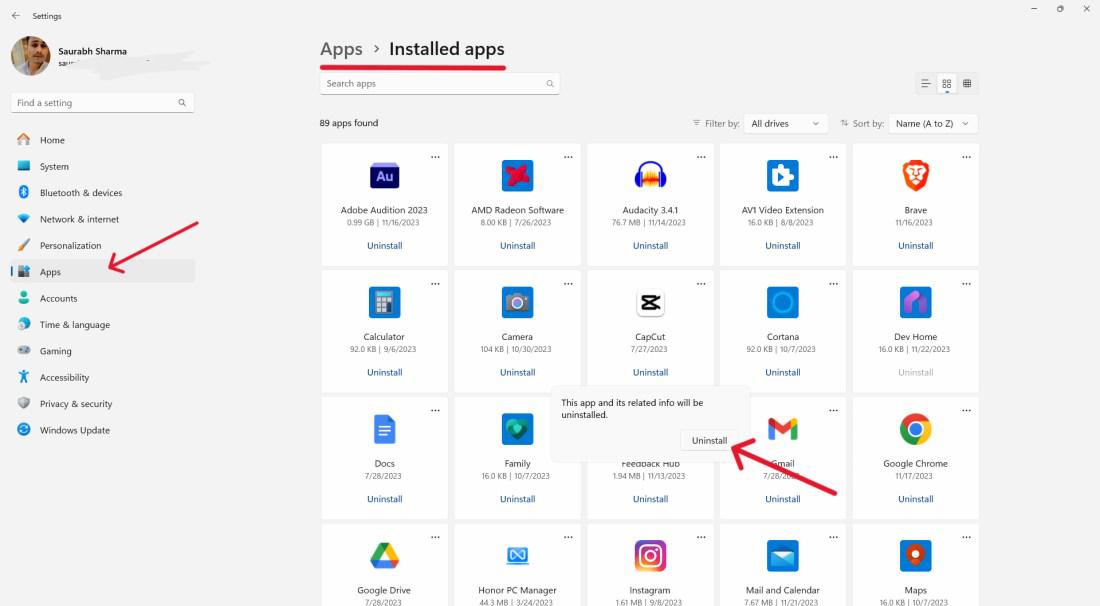
This is the most common and user-friendly way to remove apps.
Here's how to do it:
👁 Uninstall an Application on Windows
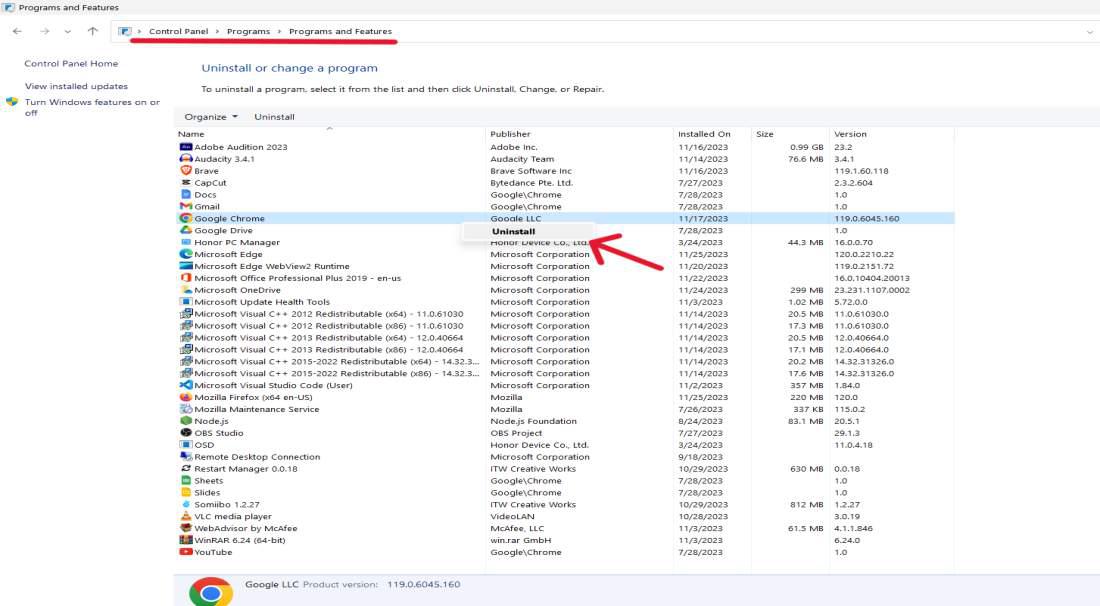
Ideal for users familiar with traditional Windows interfaces.
Here's how to do it:
👁 Uninstall an Application on Windows
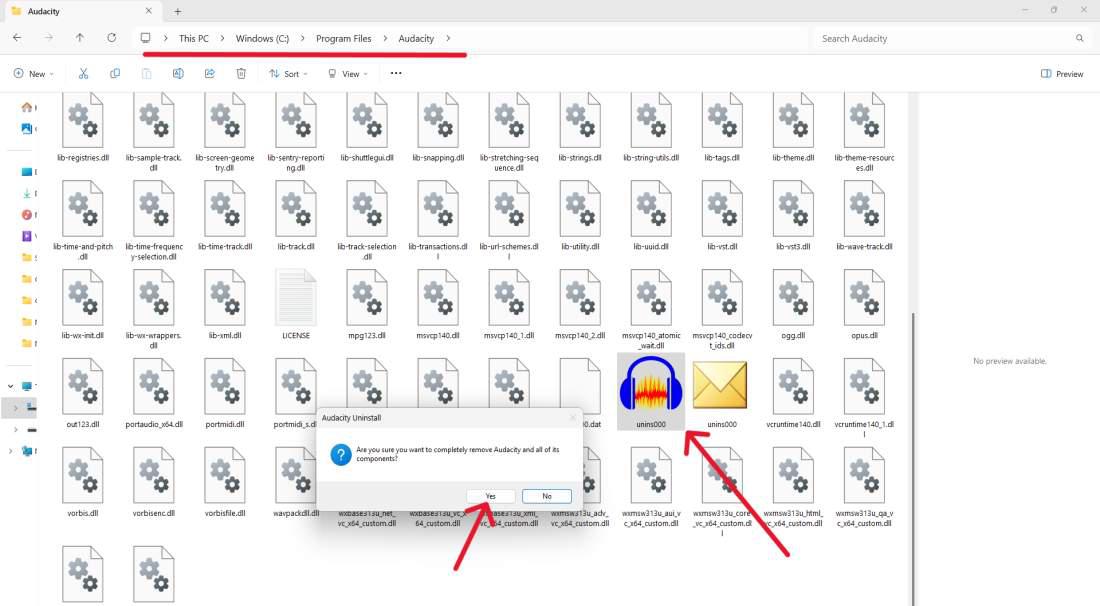
This method uses the app’s built-in uninstaller.
Here's how you can do it:
Note: Avoid deleting files manually. Removing critical files may cause system issues.
👁 Uninstall an Application on Windows
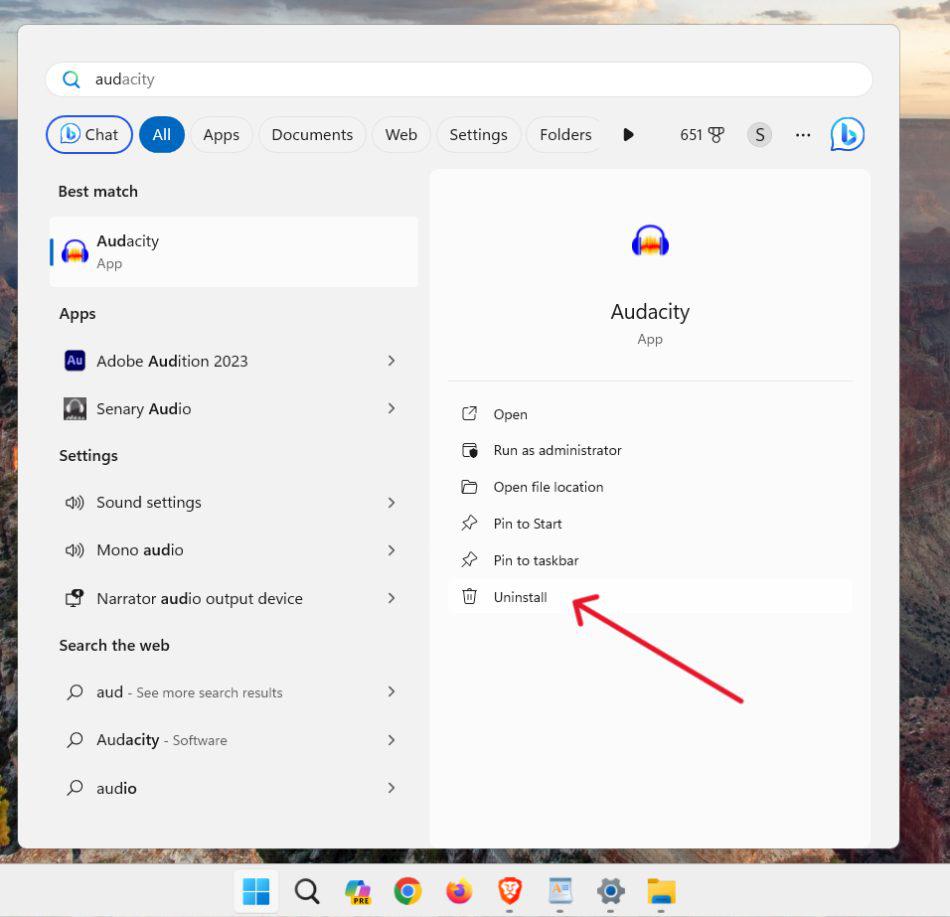
Another easy way to remove apps on Windows 11 is through the Start Menu. This method is quick and convenient, making it suitable for anyone who prefers a more visual approach to removing applications.
Here's how you can do it:
👁 Uninstall an Application on Windows
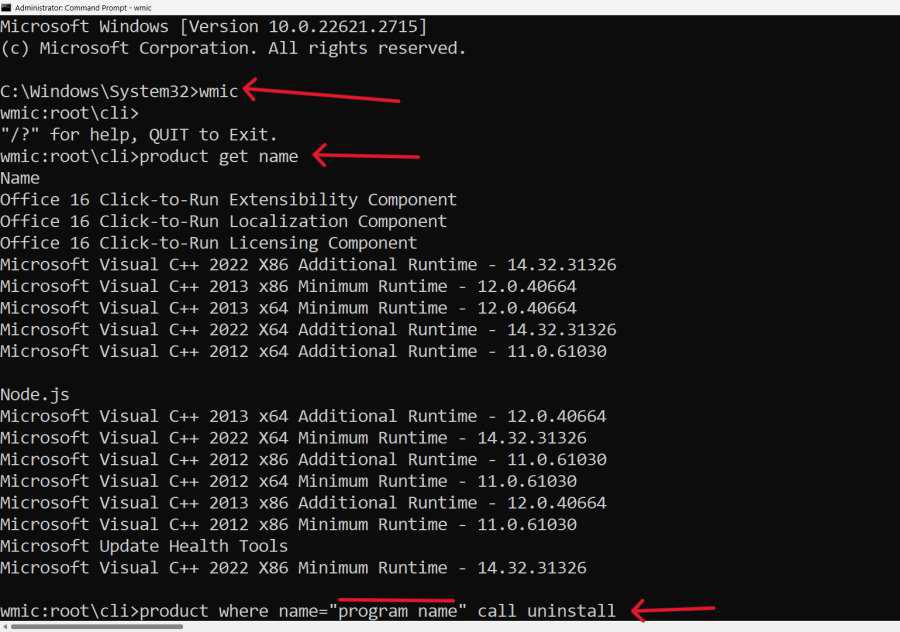
If you prefer using text commands, you can also remove applications on Windows 11 using Command Prompt. This method offers a quick way to uninstall apps without navigating through graphical interfaces.
Steps:
product where name='program name' call uninstall
👁 Uninstall an Application on Windows
Replace program name with the software name exactly as listed.
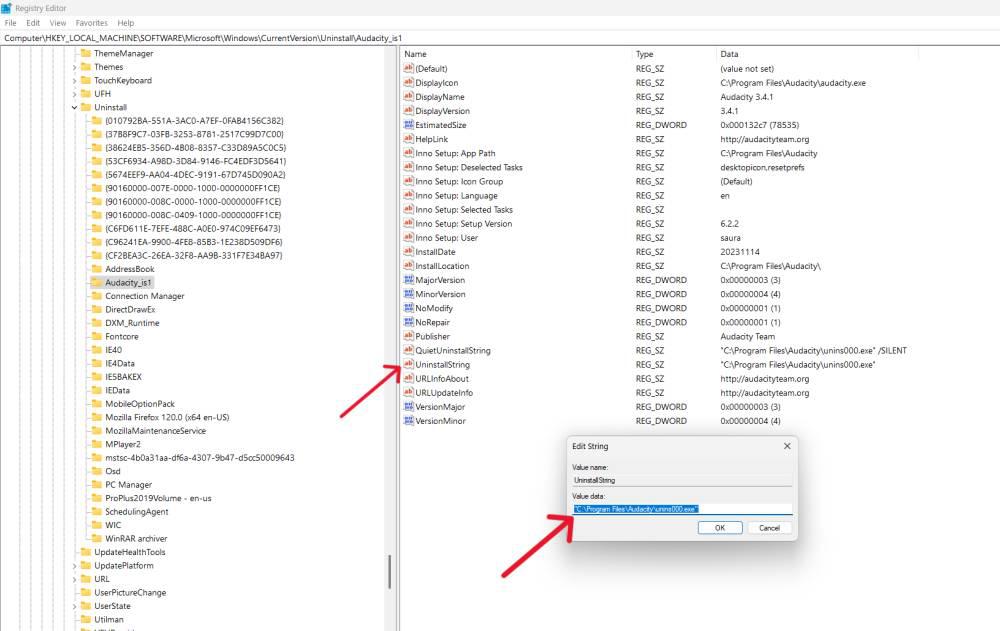
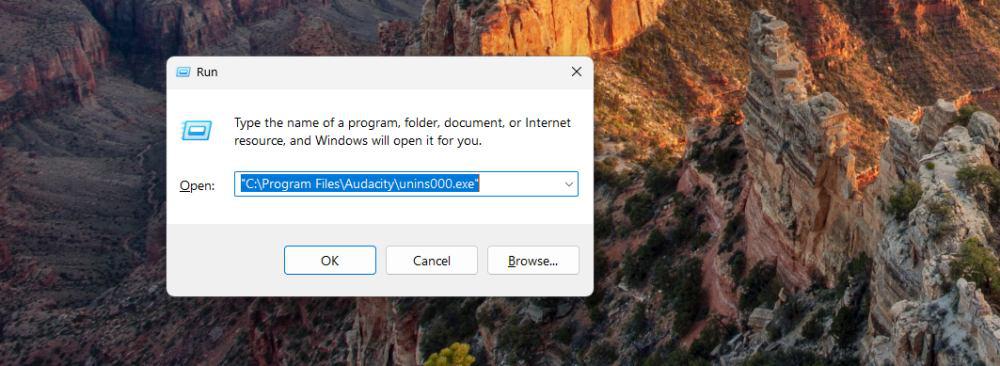
Only use this method if you are experienced, editing the registry incorrectly can harm your system.
👁 Uninstall an Application on Windows
👁 Uninstall Application on Windows