|
VOOZH | about |
|
VOOZH | about |
Keeping your browser up-to-date is essential for security purposes as well as to be able to use the latest features of the app. This article will provide you with a comprehensive guide on how to update your Google Chrome web browser on your Windows, Mac, Android and iPhone devices.
Usually, when a Google Chrome update is available, it automatically notifies the user to update Chrome to its latest version. However, if you want to update Google Chrome manually or you are facing some issues while updating the browser, this guide is for you. Let's see how we can update our Chrome browser on different devices
We will see steps to update Chrome to its latest version on different devices, such as Windows and Mac computers and your Android and iPhone devices. let's go over each device step by step.
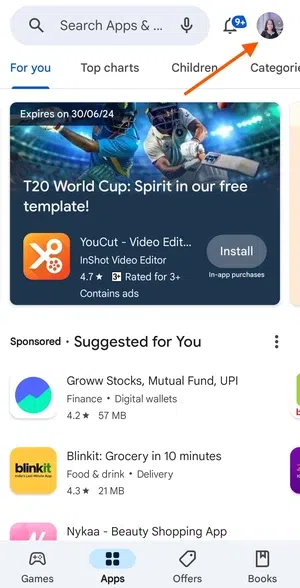
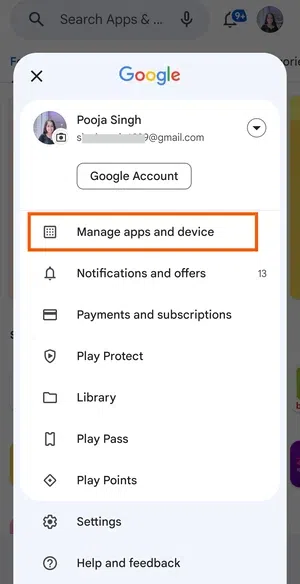
Google Chrome can be updated on Android from the Play Store either by going into manage apps & devices from your profile or by manually searching Google Chrome on the search bar and updating it. The Steps are as follows:
Step 1: Open Google Play Store and click on your Profile icon.
Step 2: Go to Manage apps and devices section.
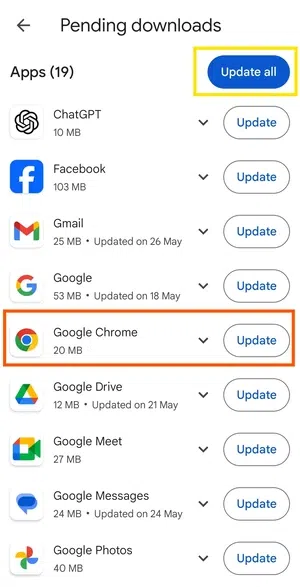
Step 3: Click on Updates available option
Step 4: Here you can see all your pending updates. Click 'Update All' to update all apps at once, or you can click on the Google Chrome option to specifically update it.
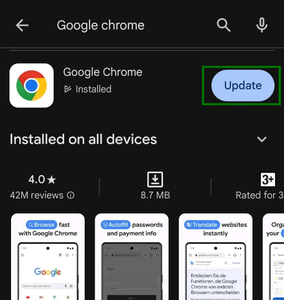
Alternatively, you can search for Google Chrome and click Update button.
👁 chrome-androidNOTE: If no update is available, you will not see an update button here; instead, you will see an open button. From here, your Chrome will be updated to the latest version.
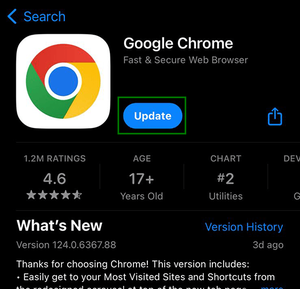
Updating chrome on iPhone is similar to android phones. it is done through your app store by clicking on your profile and updating from available updates. You can also search and update manually by the steps below :
Step 1: Go to Apple app store
Step 2: Search Google Chrome
Step 3: Click on google chrome and from there you will see an update button if any update is available.
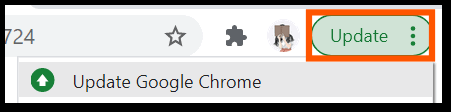
Chrome usually asks you to update it automatically in PCs when there's an update available by popping an update icon in the top right corner beside your profile icon from there you may be able to update chrome browser on PC.
If you want to update it manually or the update icon is not popping up, the steps to update are,
Step 1: Open Google Chrome
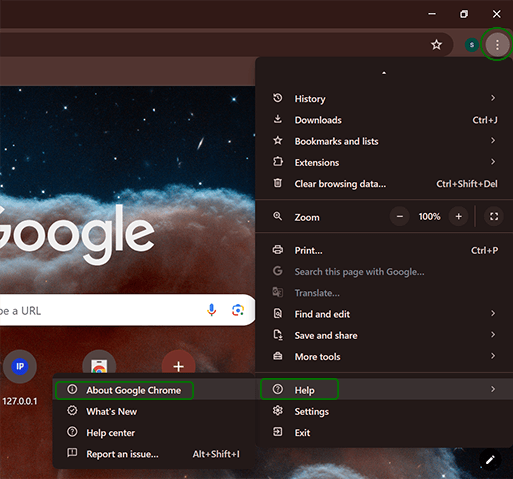
Step 2: At top right corner under the Close window button click on 3 dots
Step 3: In the menu find 'Help' drop-down menu
Step 4: In the menu select 'About Google Chrome'
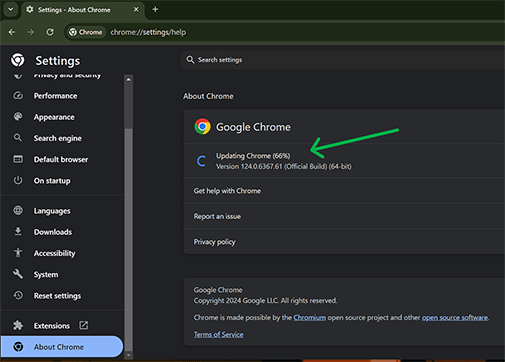
Step 5: In the opened tab you will see update chrome section. if the updating don't start automatically, manually click on update button.
Step 6: After its update is complete it will ask for relaunch of app and with that your chrome browser is updated
Also Check: How to Disable Chrome Automatic Update in Windows?
By following these steps you will be able to update your Google Chrome browser in different devices. If you are using tablets/other operating systems like Linux, Ubuntu the process to update the browser is quite similar to that of android and windows, to update Chrome on ubuntu, click here.
However, if some issue still persists you can always consider re-installing chrome after removing the current version and it will automatically download the latest version in your device. Always remember to save important data by syncing your browser to your google account to prevent loss of data while deleting/updating your chrome browser on your device.