System drivers are software components that allow Windows to communicate with hardware devices. Without drivers, your operating system wouldn’t know how to use your hardware correctly. Updated drivers often bring:
Better performance
Bug fixes
Security improvements
Compatibility with new Windows updates
Method 1: Update Drivers Using Device Manager (Built-in Tool)
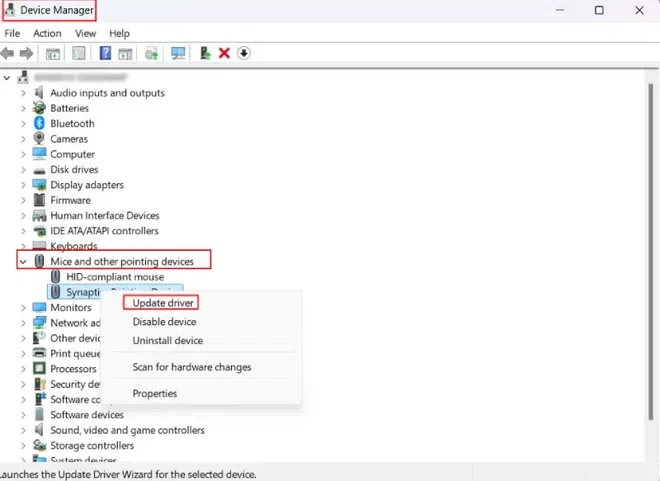
Device Manager is the most direct way to update individual drivers.
1. Open Device Manager
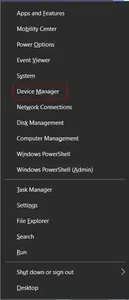
Press Win + X → Device Manager
Or press Win + R, type devmgmt.msc, and press Enter
Driver Updates through Settings: In Windows 11, Device Manager is still available, but Microsoft encourages users to update drivers directly via the Settings app (especially for graphics and network drivers).
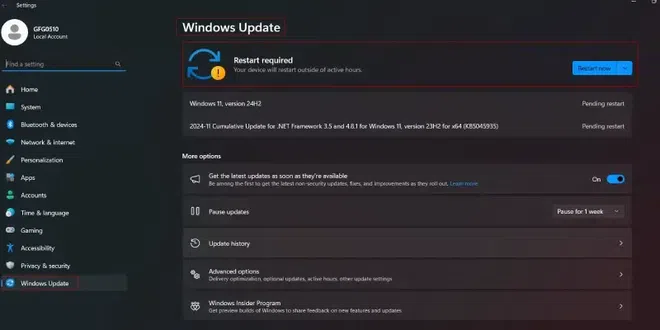
Go to Settings > Windows Update > Advanced options > Optional updates and look for available driver updates under "Driver Updates."
Method 2. Update Drivers Using Windows Update
Windows Update not only downloads and installs security updates but also checks for important driver updates. While this is a quick and easy method, it might not always offer the latest driver versions, especially for specialized hardware like graphics cards.
Note: Windows Update may not always provide the newest drivers for graphics cards or specialized hardware.
Additional Tip for Windows 11
Optional Updates: Windows 11 offers a more user-friendly way to manage drivers through Optional Updates. This is where Windows offers driver updates not included in the main update cycle.
Go to Settings > Windows Update > Advanced options > Optional updates to view and install optional driver updates.
Method 3. Update Drivers Using Manufacturer Website
Sometimes, Windows Update or Device Manager won't provide the most up-to-date or compatible driver for your hardware. In such cases, visiting the manufacturer’s website is the best option.
Steps:
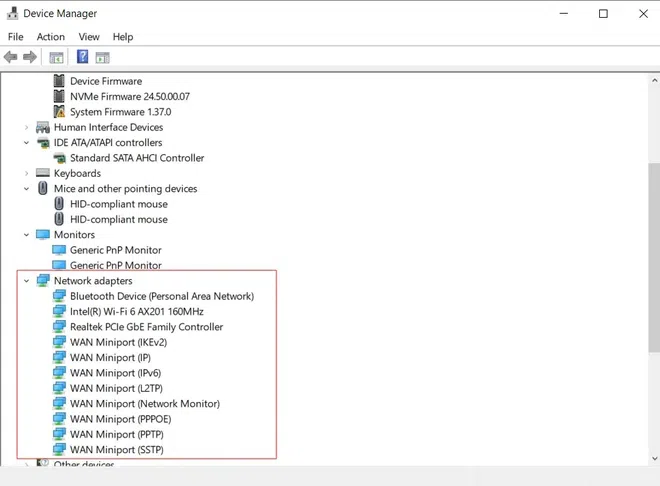
Identify your hardware model via Device Manager
Visit the official manufacturer website:
Graphics: NVIDIA, AMD, Intel
Audio/Network: Realtek
PC Brands: Dell, HP, Lenovo, ASUS
Select your exact model and Windows version (10/11 – 64-bit)
Download and install the latest driver
Restart your PC
Additional Tip for Windows 11:
Windows 11 Compatibility: Some older drivers may not be compatible with Windows 11. Ensure you download drivers specifically designed for Windows 11 from the manufacturer’s site to avoid compatibility issues.
Method 4. Update Drivers Using Third-Party Driver Update Software
For users who prefer an automated solution to update all their drivers at once, third-party driver update tools can be extremely helpful. These tools scan your system, detect outdated drivers, and install the latest versions.
Step 1: Download and Install the Driver Update Software
Go to the official website of the third-party tool (e.g., Driver Booster or Driver Easy), download the software, and install it on your PC.
Step 2: Run the Scan
Open the program and click Scan to detect outdated drivers.
Step 3: Select Drivers to Update
Once the scan is complete, the software will list all outdated drivers. You can choose to update all drivers or select specific ones.
Step 4: Install the Updates
Click on Update All to install the latest drivers. Some programs may ask you to restart your PC to complete the updates.
Step 5: Restart Your PC
After installing the updates, restart your computer to finalize the installation of the new drivers.
Additional Tip for Windows 11:
Compatibility: Most driver update tools work across Windows 10 and Windows 11, but it’s important to ensure that the third-party tool is compatible with Windows 11. Always download these tools from reputable sources to avoid installing malware.
Method 5. Things to Keep in Mind When Updating Drivers in Windows
1. Create a System Restore Point
Before updating any drivers, it’s always a good idea to create a system restore point to safeguard against any potential issues after the update.
Windows 10 & 11: Go to Control Panel > System and Security > System > System Protection and click Create.
2. Driver Rollback
If you encounter issues after updating a driver, you can rollback to the previous version using Device Manager.
Right-click the device > Properties > Driver tab > Roll Back Driver.
3. Check for Compatibility
Ensure the driver version you are downloading is compatible with your version of Windows 10 or Windows 11 (32-bit vs. 64-bit).
Method 6. Troubleshooting Driver Update Errors and Messages (Windows 10 and Windows 11)
While updating drivers on Windows 10 and Windows 11, you may encounter errors or issues that prevent successful installation. These problems can arise from various causes, such as corrupted files, compatibility issues, or conflicts with existing drivers. Below is a comprehensive guide to troubleshooting common driver update errors and messages on both operating systems.
1. "Windows Could Not Find Drivers for Your Device"
Cause: This error occurs when Windows is unable to locate a suitable driver for the device.
Solutions:
Use the Manufacturer’s Website:
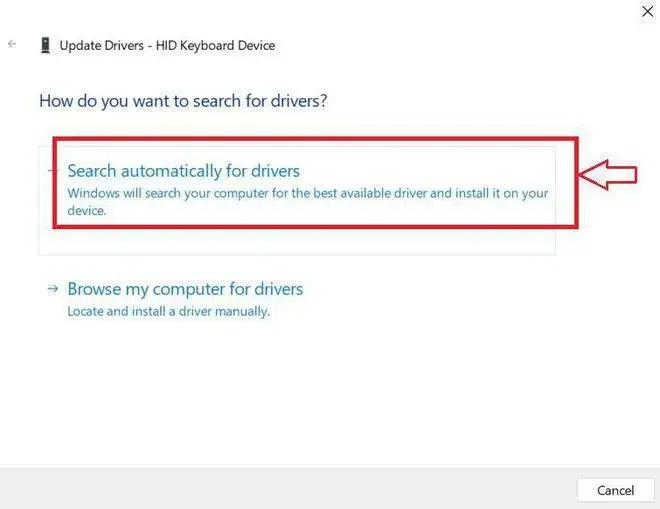
Download the driver manually from the manufacturer’s website and install it using the Browse my computer for drivers option in Device Manager.
Check Compatibility:
Ensure the driver is compatible with your version of Windows (10/11) and its architecture (32-bit or 64-bit).
Update Windows:
Run Windows Update to ensure your system is up to date, as some drivers require specific Windows updates.
2. "The Best Drivers for Your Device Are Already Installed"
Cause: This message indicates that Windows believes the current driver is the latest version, even if it's outdated.
Solutions:
Manually Update the Driver:
Visit the manufacturer’s website, download the latest driver, and update it through Device Manager by selecting Browse my computer for drivers.
Uninstall the Existing Driver:
In Device Manager, right-click the device and select Uninstall device. Restart your computer, then install the updated driver.
3. "This Device Cannot Start (Code 10)"
Cause: This error typically indicates a hardware compatibility issue or that the driver cannot be loaded.
Solutions:
Check Hardware Connections:
Ensure the hardware is properly connected. For example, reseat cables or verify that external devices are securely plugged in.
Reinstall the Driver:
Uninstall the problematic driver via Device Manager and reinstall it.
Run Hardware and Devices Troubleshooter:
Windows 10: Go to Control Panel > Troubleshooting > Hardware and Sound > Configure a device.
Windows 11: Open Settings > System > Troubleshoot > Other troubleshooters, then select Run next to Hardware and Devices.
4. "Driver is Not Digitally Signed"
Cause: Windows blocks unsigned drivers for security reasons.
Solutions:
Step 1: Install Driver in Test Mode
Boot into Test Mode, which allows unsigned drivers to be installed:
Step 2: Open Command Prompt as Administrator and run: