|
VOOZH | about |
|
VOOZH | about |
Firefox's address bar is an extremely useful widget that does more than just allow you to type in URLs. Knowing how to use the Firefox address bar can greatly improve your surfing experience, whether you're using it for various purposes such as searching the web, going directly to a website, or accessing services. We'll look at using the address bar to browse Firefox, taking advantage of its shortcuts, and personalizing it to your tastes in this article.
Gaining proficiency with these strategies will enable you to make faster and more intuitive web browsing by learning how to use the Firefox address bar effectively.
Table of Content
To Utilize the Address Bar on Firefox, the following guidelines should be executed as it has been discussed. Let us start with the method to quickly Open the Address Bar on Firefox.
To Quickly Open the Address Bar on Firefox, you have to press the CTRL + L keys simultaneously. However, in any new tab or window, the Firefox Address Bar gets enabled first to quickly search.
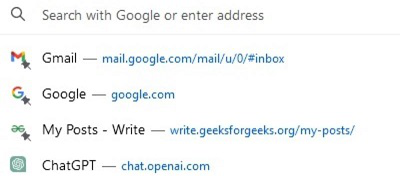
Before you start writing anything on the Address bar, you will get some links at the beginning. These are the links that you often open on the Web Browser. Click on any of them to quickly open.
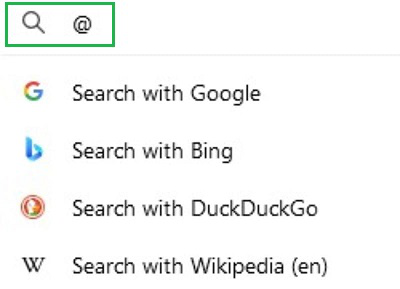
When you write down any text on the Address Bar, you will get an option at the button of the bar. If you click on any one of them, the written text will get searched by the selected Search Engine on Firefox.
Now, if you permanently make a change in the Search Engine, the @ will be used. On the Address Bar, write the @ Symbol & now select the Search Engine. It will be saved permanently for all future searches.
If you are writing any text related to Firefox Settings, the Suggestion Button on Firefox will arrive. Click on the Suggestion to go to that settings.
From the above discussion, it should become clear How to Use Address Bar on Firefox.
Gaining proficiency with Firefox's address bar can significantly increase how efficiently you browse. The Firefox address bar is a flexible tool that can be tailored and modified to meet your needs, offering speedy searches and direct navigation. Gaining a grasp of the several capabilities available in the Firefox address bar can help you maximize your surfing experience, regardless of your level of experience. See how the Firefox address bar may expedite your online activities by starting to explore these suggestions right now.