Your operating system has a function called macOS Recovery that you may use to troubleshoot your Mac when something goes wrong. MacOS Recovery can provide you the ability to reinstall MacOS, restore it from an operating system backup, or perform disk diagnostics. This article will go into detail on how to go about using macOS Recovery step by step so that even its infrequent users can navigate it without any problems.
Recovery macOS is a utility built into the Mac operating system that allows owners to troubleshoot and repair their systems Critical utilities offered through this include the capability to reinstall macOS, restore from backups, run diagnostics on the disk, and access support online. With macOS 15 Sequoia, such tools have been refined and boast new features, including external drive support and solidly improved functionality in Disk Utility.
Primary terminologies
MacOS Utilities: A suite of utilities accessed through macOS Recovery for comprehensively handling problems relating to disk management, system restoration, and OS reinstallations.
Time Machine: This is the backup feature built into macOS, which allows users to make incremental backups and restore them using the macOS Recovery.
Disk Utility: A system utility used to manage your Mac’s drives; you use it to repair or erase a drive.
First Aid: Option in Disk Utility that checks for disk corruption and repairs the disk if issues are found.
MacOS Recovery Options
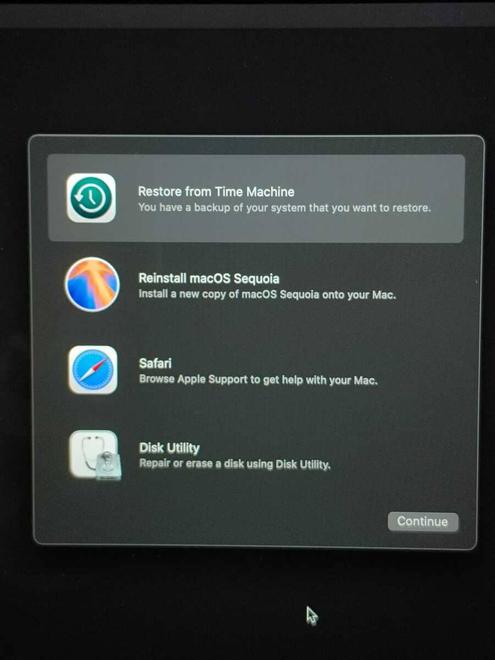
Restore from Time Machine Backup:
This is selected if you have an available backup and you want to restore your computer to an earlier point in time. Click Continue, then choose your backup disk and follow the onscreen instructions.
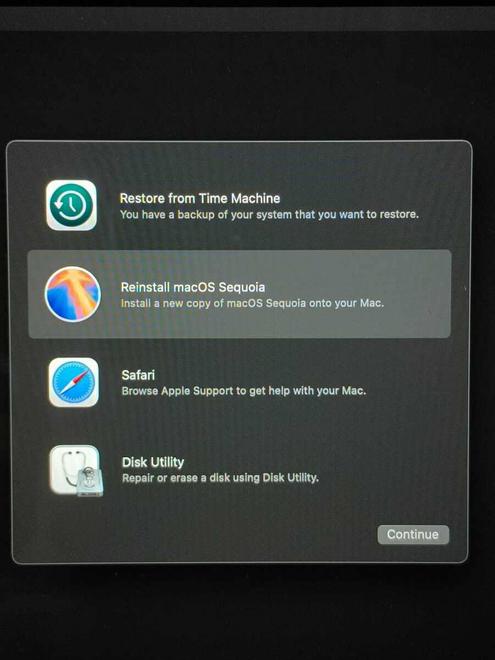
Reinstall macOS:
This option reinstalls the operating system without touching your files. Click on The reinstall macOS icon; then click Continue and follow the onscreen instructions appearing to install a fresh copy of the operating system.
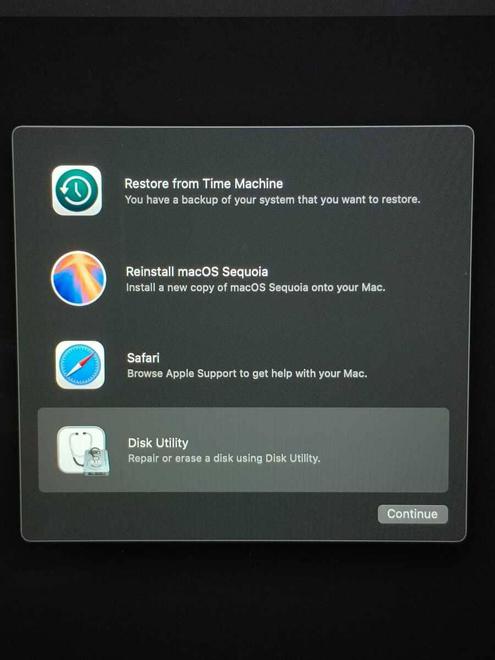
Disk Utility:
This is helpful for your drive check and repair, or erase it before you reinstall macOS. Click on The isk Utility icon; then click First Aid to repair or manage your Mac’s disk.
Get Support Online:
Opens the browser to troubleshoot via Apple’s support resources.
Step-by-Step Guide
Starting macOS Recovery
Reinstall macOS
Using Disk Utility
Quitting macOS Recovery
1. Starting macOS Recovery
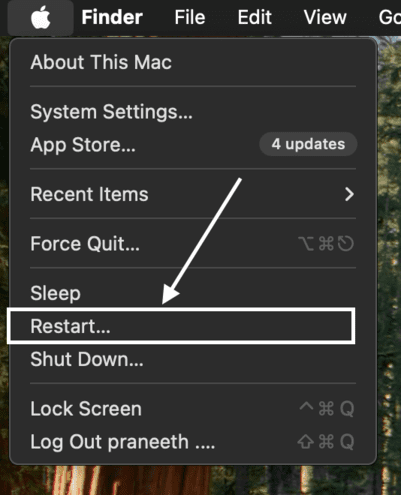
Step 1: Shut down your Mac
Step 2: Power on, then immediately hold down the Command ⌘ + R keys. Continue to hold through the apparent boot process until you see an Apple logo or a grey spinning globe, For Mac Silicon Users, hold the power button, then you can see the following options.
Step 3: After a brief load time, you will be brought to the macOS Utilities window
Step 1: In the macOS Utilities screen, click on Reinstall macOS, then click Continue
Step 2: Follow the on-screen instructions to choose your drive and begin the installation process. Connect to the internet also because the system may download the latest version of macOS
Not backing up data: Back up your data before the reinstallation process of macOS in order not to lose it unintentionally.
Please disregard Internet Connection: Reinstalling macOS via Cloud needs to have proper access to the Internet.
Skipping disk repairs: The Disk Utility should be run to diagnose and repair disk errors before reinstalling macOS.
Using the wrong key combination: the new Apple Silicon Macs require the holding of the Power button, while the Intel Mac requires Command ⌘ + R.
Points to Remember
Access on Intel Macs: Immediately hold down the Command (⌘) + R keys on startup
Access on Sierra under Apple Silicon Macs: Press and hold the Power button until you see the startup options appear.
Reinstall macOS won’t erase your files - still, back up your data just in case
The utility helps in repairing disk issues with the capability to reinstall macOS. It also adds support for installing applications on the external drive
using macOS 15 Sequoia, enhancing performance in general for gaming
Conclusion
MacOS Recovery features a quite powerful toolkit for troubleshooting, repairing, or reinstalling macOS. This is from restoring from backups to fixing disk issues—a necessary component of system maintenance. This article will help you get the capability of macOS Recovery with full confidence.