|
VOOZH | about |
|
VOOZH | about |
The Storage Spaces feature in Windows 11/10 lets you combine multiple physical drives into a single virtual disk for improved performance and data redundancy. This guide covers how to create, configure, and manage Storage Spaces efficiently for better storage management in Windows 11/10.
Windows Storage Spaces lets you pool multiple drives into one in Windows 11 and 10. You can create virtual spaces from these pools, format them with your chosen resiliency, and use them as regular drives.
Creating a storage pool and space in Windows is akin to building a foundation for a house. It’s the initial step that allows you to consolidate various physical disks into a single virtual entity, providing a streamlined approach to managing diverse storage resources efficiently.
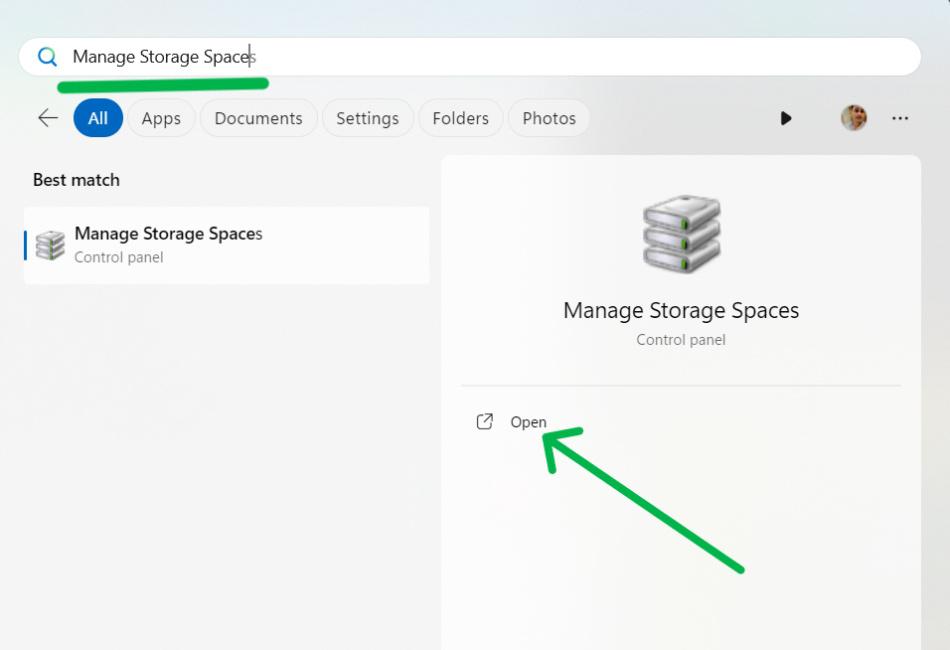
Step 1: Search for "Manage Storage Spaces" in the Start menu
Step 2: In the search bar input type "Manage Storage Space" and hit the enter button to open it.
👁 Use Storage Spaces in Windows 11/10
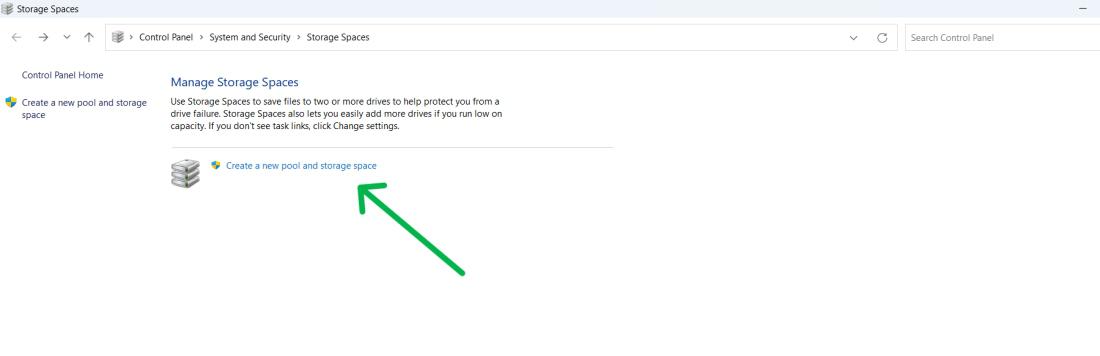
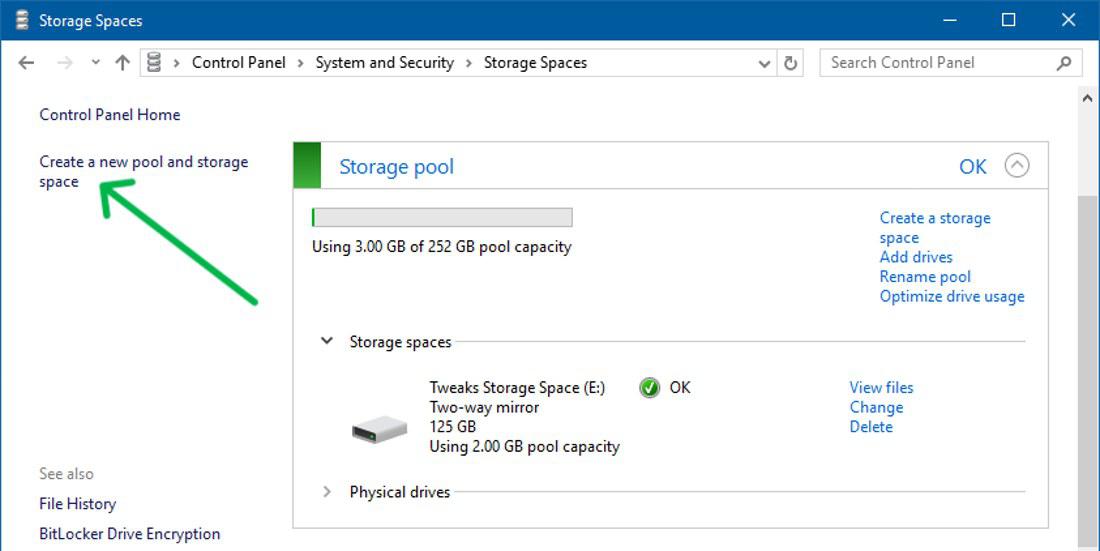
Step 3: Then, Click on the "Create a new pool and storage space"
👁 Use Storage Spaces in Windows 11/10
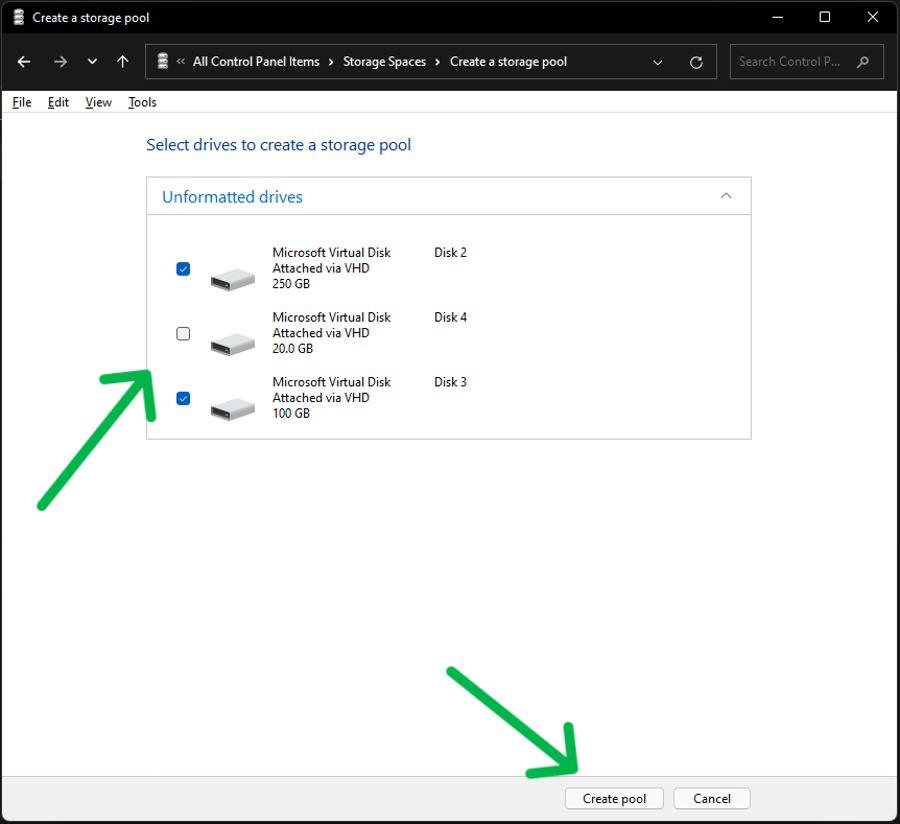
Step 4: Choose the drives for your pool and click ‘Create Pool’. Remember, this will erase all existing data on the drives.
👁 Use Storage Spaces in Windows 11/10
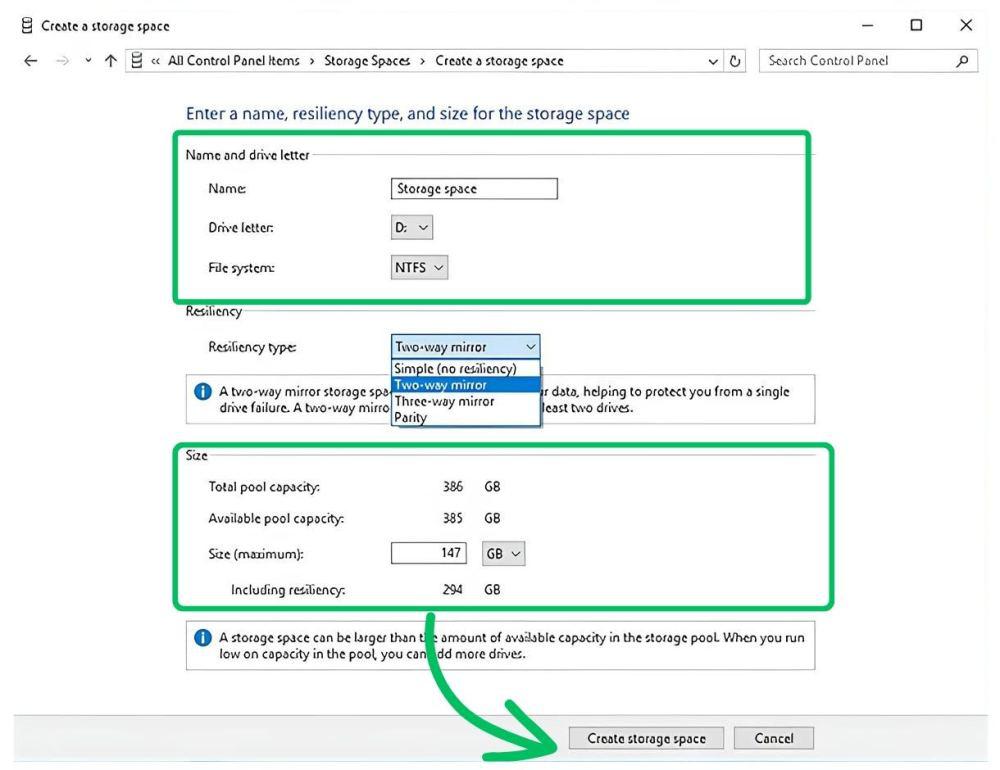
Step 5: Create the Storage Space in Windows
Step 6: Allocate Size
Step 7: Click the "Create storage space" button to complete the process.
👁 Use Storage Spaces in Windows 11/10
Creating multiple storage spaces in a single pool allows you to designate distinct areas for various data types, much like rooms in a house serve different purposes. This method provides the flexibility to sort and secure your data, customizing each space to fit specific storage needs and resiliency levels.
Step 1: Search for "Manage Storage Spaces" in the Start menu
Step 2: In the search bar input type "Manage Storage Space" and hit the enter button to open it
👁 Use Storage Spaces in Windows 11/10
Step 3: Click on the "Create a storage space" on the left side pane
👁 Use Storage Spaces in Windows 11/10
Resizing storage spaces lets you adjust the room’s size to meet your changing needs. This method gives you the flexibility to expand for new data or reduce capacity, all without interrupting the current setup.
Step 1: Search for "Manage Storage Spaces" in the Start menu
Step 2: In the search bar input type "Manage Storage Space" and hit the enter button to open it.
👁 Use Storage Spaces in Windows 11/10
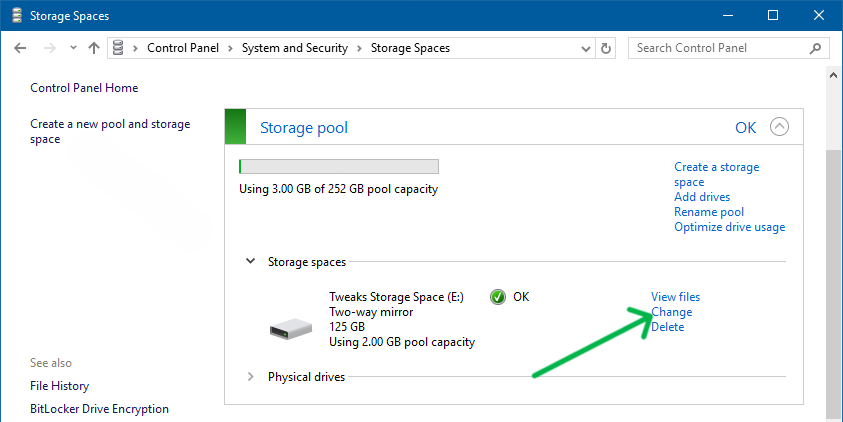
Step 3: Click "Change" under the storage space.
👁 Use Storage Spaces in Windows 11/10
Step 4: Modify name, drive letter, or size.
Step 5: Click "Change storage space" to finish.
Optimizing drive usage ensures that your storage pool operates at peak efficiency, much like a well-organized home runs smoothly. This process redistributes data across all available drives, enhancing both performance and data protection.
Step 1: Search for "Manage Storage Spaces" in the Start menu
Step 2: In the search bar input type "Manage Storage Space" and hit the enter button to open it
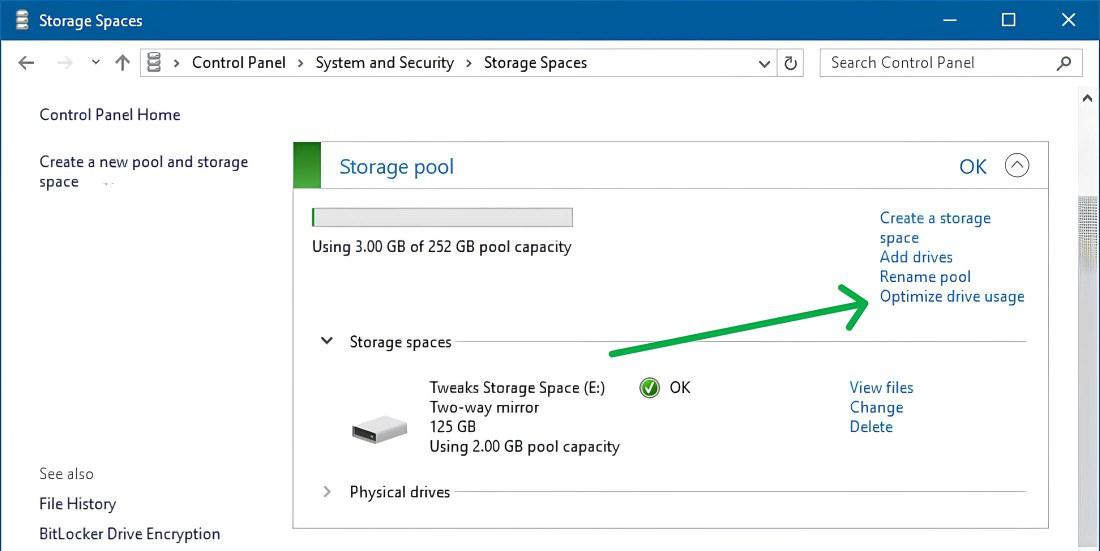
Step 3: In Storage Spaces click the Optimize drive usage from the storage pool
👁 Use Storage Spaces in Windows 11/10
Step 4: Then, On the bottom click on "Optimize drive usage"
Deleting storage spaces in Windows can be necessary when it’s time to repurpose or decommission storage resources. This method is like clearing out a room before a renovation, allowing you to reclaim space and redirect it towards new uses or configurations.
Step 1: Search for "Manage Storage Spaces" in the Start menu
Step 2: In the search bar input type "Manage Storage Space" and hit the enter button to open it
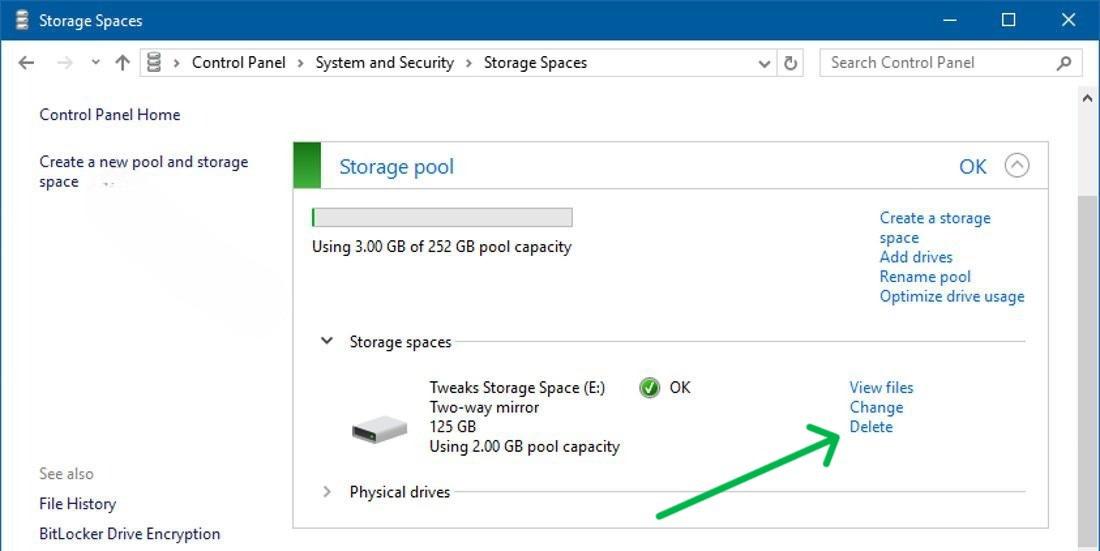
Step 3: In Storage Spaces click the "Delete" from the storage pool
👁 Use Storage Spaces in Windows 11/10
Step 4: Then, click the "Delete" to finish the process.
Here are solutions to the most common Storage Spaces issues in Windows 11/10: