 |
VOOZH | about |
|
VOOZH | about |
Many people use Gmail every day and deal with lots of emails. Are you a Gmail user? You might have been looking for easy methods to handle all your messages. Google has an awesome Smart Compose feature that can make things easier. It uses smart technology to help you write messages quicker and simpler. Let's explore some cool things about this amazing Gmail feature.
With Gmail's Smart Compose function, you may get predictive text suggestions as you type, making it easier to compose emails. The feature is available on the Gmail web version. It uses machine learning algorithms to understand the context of your message, offering real-time suggestions for phrases and sentences. When you start typing, the smart compose feature predicts the further text that you want to convey. It makes email composition fast and efficient. Smart Compose indicates what you want to say as you type, making email composition faster and more efficient. This tool can improve your overall Gmail experience because it changes based on how you write over time.
There are multiple benefits of Smart Compose. Some of those are:
Navigating Smart Compose for Gmail is easier than finding your keys in a crowded bag. Follow these steps, and you'll be typing emails faster than anyone.
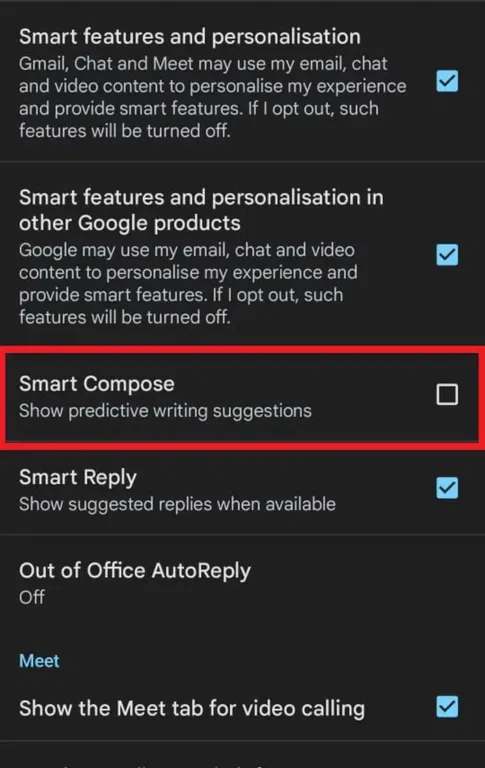
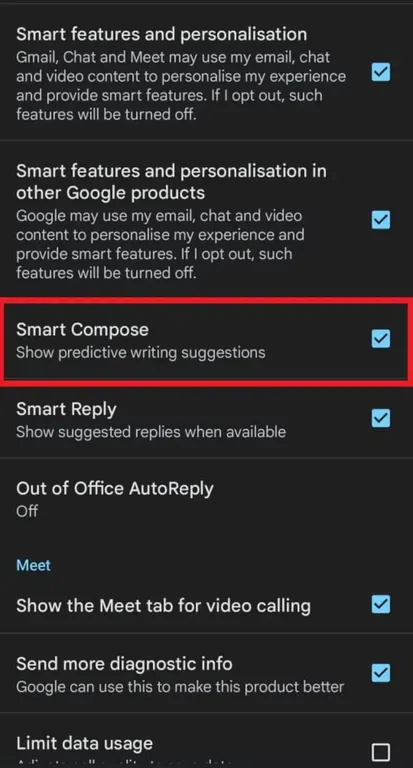
To turn on Smart Compose or turn it off on your Android or iOS devices, follow the enlisted steps:
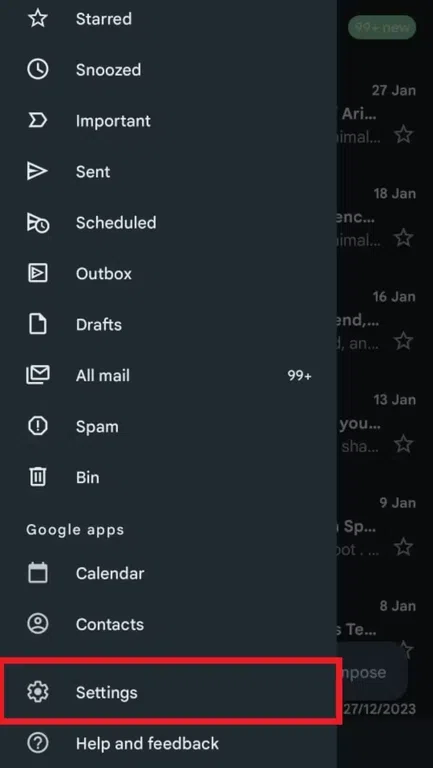
Turn on the Gmail application on your devices. If you are a new user, create your Gmail account and log in with your credentials. Go to the settings to open the options.
Click "See All Settings" to find smart management in general settings.
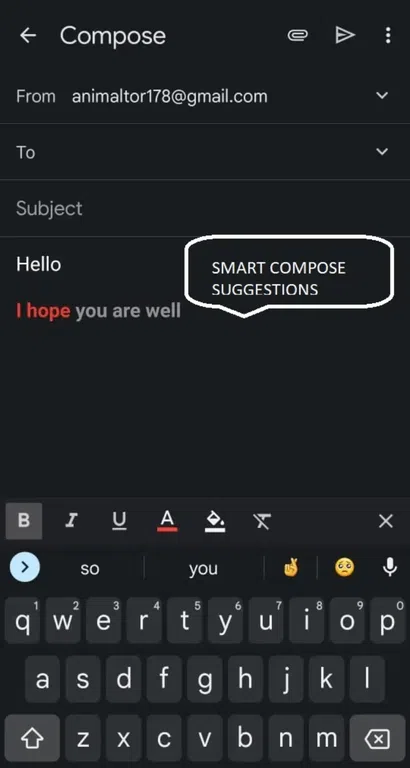
Predictive writing suggestions appear as you compose an email.
Start your Gmail application on your device and click the Menu icon at the top left corner.
Start composing a new email by tapping the "+" or "Compose" icon.
While typing the email, look for Smart Compose suggestions in the light grey text as you compose your message. The recommendations are completely based on your writing style and the context of your email.
👁 Check-for-Smart-Compose-Suggestions
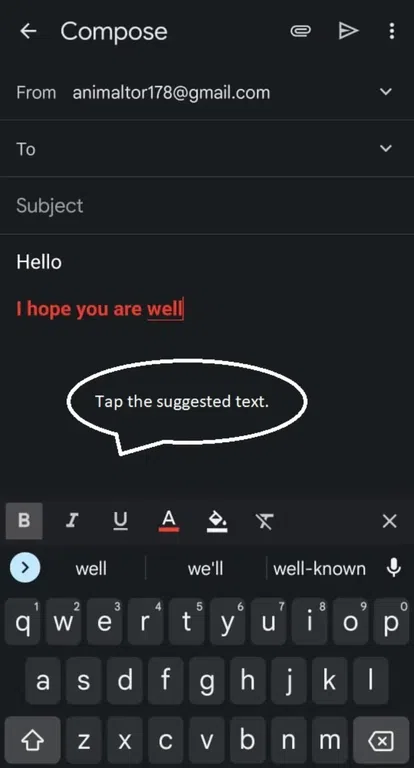
Tap the suggested text. This quickly inserts a suggestion to your email. As you type, the suggestion may finish the word or sentence. Accept the suggestion by pressing the spacebar.
Note:
Smart Compose learns from your writing patterns over time and adapts to your preferences. Smart Compose supports multiple languages.
Open Gmail's mailbox on your web browser. Sign in with your credentials and sign in. Now click on the gear icon that appears next to your profile picture.
Now, choose the option See All Settings,
Go to the general tab, scroll down to the Smart Compose. After that, check the button next to the option Writing suggestions ON and Writing suggestions OFF.
Scroll down and click on Save Changes.
👁 Screenshot-(150)
Enabling Smart Compose in your desktop browser is easy and needs only a few steps.
Open your desktop browser, start with Gmail, and sign in. Click on the "General Settings" option.
Now, you must scroll down to the section showing Smart Compose and click on the option Writing Suggestions ON. You can also enable Smart Personalization by choosing the option Personalization.
At the bottom of the page, click the "Save Changes" option. After this, Gmail will reload in your browser.
To perform the task more easily, you must know how to type emails in Gmail using the Smart Compose feature. In that case, you must start typing after opening a new window.
To accept a Smart Compose suggestion, press the "Tab" key (on a physical keyboard) or tap the suggestion on the Touch board. Alternatively, continue typing, and the suggestion will automatically be accepted.
Like any other algorithm, Smart Compose continuously evolves to help you as much as possible. While you type an email, it starts to learn and understand your writing style to give you correct suggestions next time. By opting for Smart Compose personalization, you can get help from Gmail. Gmail will analyze your slang, writing style, and commonly used words and phrases and later can offer you more accurate results as much as possible.
The differences between these two features of Gmail are:
Feature | Smart Compose | Smart Reply |
|---|---|---|
Language Compatibility | Supports multiple languages |
Available only in English |
Usage |
Assists in composing detailed emails |
Enables quick responses to emails in the inbox |
Subject Suggestions |
Suggests email subjects to users |
Ideal for short responses like 'Thanks,' 'Confirmed,' etc. |
Speed |
Functions at a slightly slower pace compared to Smart Reply | Swiftly generates responses |
Smart Compose in Gmail is an incredible feature offering substantial assistance. While it's still in the learning phase, like other algorithms, using it more frequently enhances its effectiveness. The more you use it, the better suggestions you'll receive, ensuring an increasingly remarkable email creation experience. Embrace the potential of Smart Compose to streamline and elevate your Gmail interactions.

.webp)
.webp)
.webp)
.webp)
.webp)
.webp)