|
VOOZH | about |
|
VOOZH | about |
The Xcopy command in Windows is an advanced file-copying tool that allows you to copy entire directories, including all subfolders and files. It goes beyond the basic copy command by supporting large-scale data transfers and automated file operations. This makes Xcopy ideal for tasks that require efficiency, flexibility, and control over how files are copied.
Why xcopy is useful:
copy commandBasic Syntax:
xcopy [source] [destination] [options]
To copy a single file:
xcopy C:\source\file.txt D:\destination\
This copies file.txt into D:\destination.
Example:
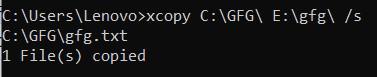
Use /s to copy all subdirectories except empty ones:
xcopy C:\source\ D:\destination\ /s
Example:
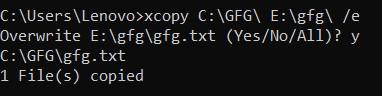
Use /e to include empty subdirectories:
xcopy C:\source\ D:\destination\ /e
Example:
Suppress overwrite prompts using /y:
xcopy C:\source\ D:\destination\ /y
Example:
Copy only files that are newer or modified using /d:
xcopy C:\source\ D:\destination\ /d
This saves time and storage during backups.
Example:
To hide output and suppress file listing:
xcopy C:\source\ D:\destination\ /q
Example:
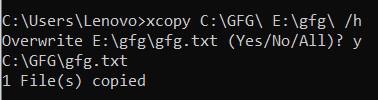
Use /h to copy files normally skipped:
xcopy C:\source\ D:\destination\ /h
Normally, hidden and system files are not copied. The /h switch forces the Xcopy command to the include them.
Example:
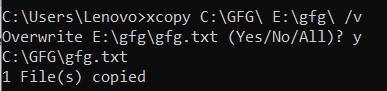
Use /v to ensure copied files match the source:
xcopy C:\source\ D:\destination\ /v
Example:
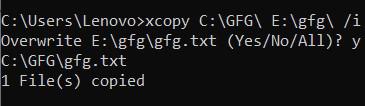
When xcopy is unsure if the destination is a file or folder, use /i:
xcopy C:\source\ D:\destination\ /i
Example:
Here are some commonly used Xcopy options:
| Option | Description |
|---|---|
/s | Copies directories and subdirectories except empty ones |
/e | Copies all subdirectories, including empty ones |
/y | Overwrites files without prompting |
/d | Copies only files newer than the destination |
/v | Verifies files after copying |
/h | Copies hidden and system files |
/q | Quiet mode suppresses output |
/i | Assumes destination is a directory |
/f | Displays full source and destination paths |