|
VOOZH | about |
|
VOOZH | about |
Switching browsers is easy when you know how to import data from Chrome to Firefox. Whether you're looking to transfer bookmarks, passwords, or browsing history, Firefox provides a seamless process for migrating all your important data. In this guide, we will show you step-by-step how to transfer Chrome data to Firefox, including settings and other essential information. By following these instructions, you'll be able to complete the Chrome to Firefox migration in just a few minutes.
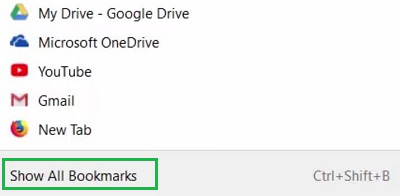
Step 1: Open Bookmark Settings of Firefox. Click on the Show All Bookmarks.
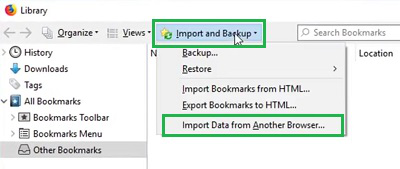
Step 2: Click on the option Import & Backup. And then go for the option, Import Data from Another Browser.
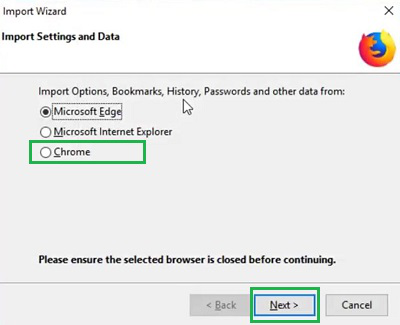
Step 3: Select the Chrome Browser option & Next.
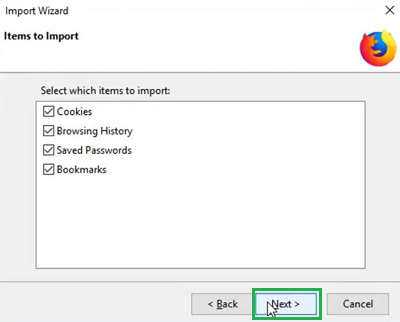
Step 4: Click on Next to start the importing process.
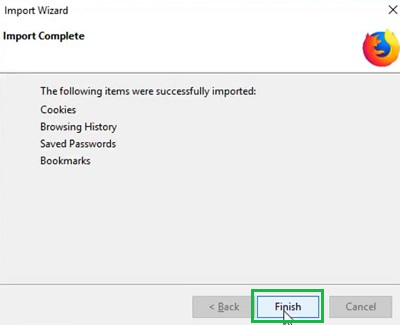
Step 5: Click on Finish to complete the process & close the Tab.
Now that you know how to import data from Chrome to Firefox, you can switch browsers without losing any important information. Whether you need to import Chrome bookmarks to Firefox, transfer your browsing history, or sync passwords, Firefox’s import tool makes the process straightforward. By completing the Chrome to Firefox migration, you ensure a smooth transition, keeping all your settings and data intact.