|
VOOZH | about |
|
VOOZH | about |
Google Maps helps you quickly identify your current location and postal address. Knowing your exact address can be useful for navigation, sharing your location, receiving deliveries, and accessing nearby services with greater accuracy.
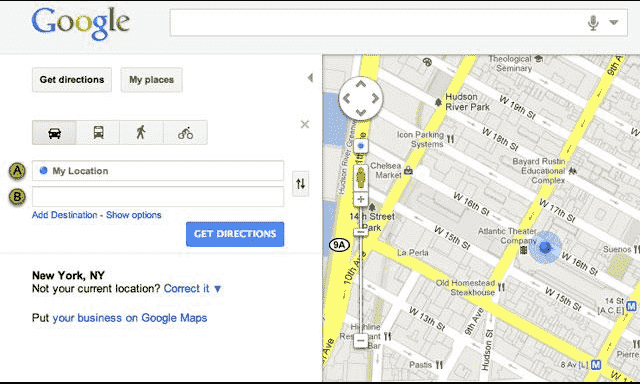
Here are the steps to locate yourself on Google Maps on desktop:
Your location will be automatically shown on Google Maps once Location Services are enabled.
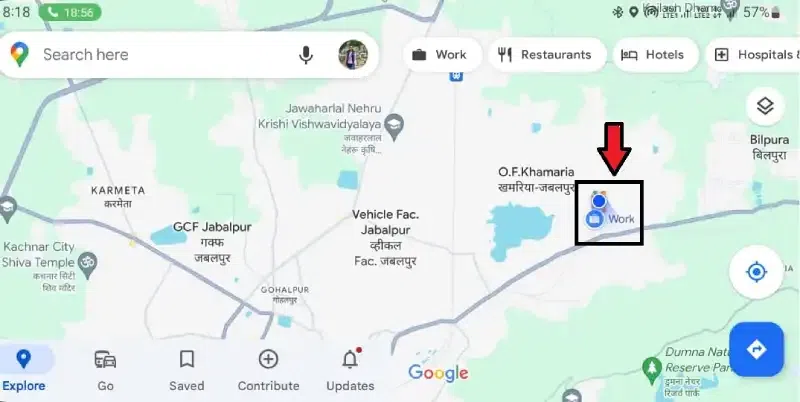
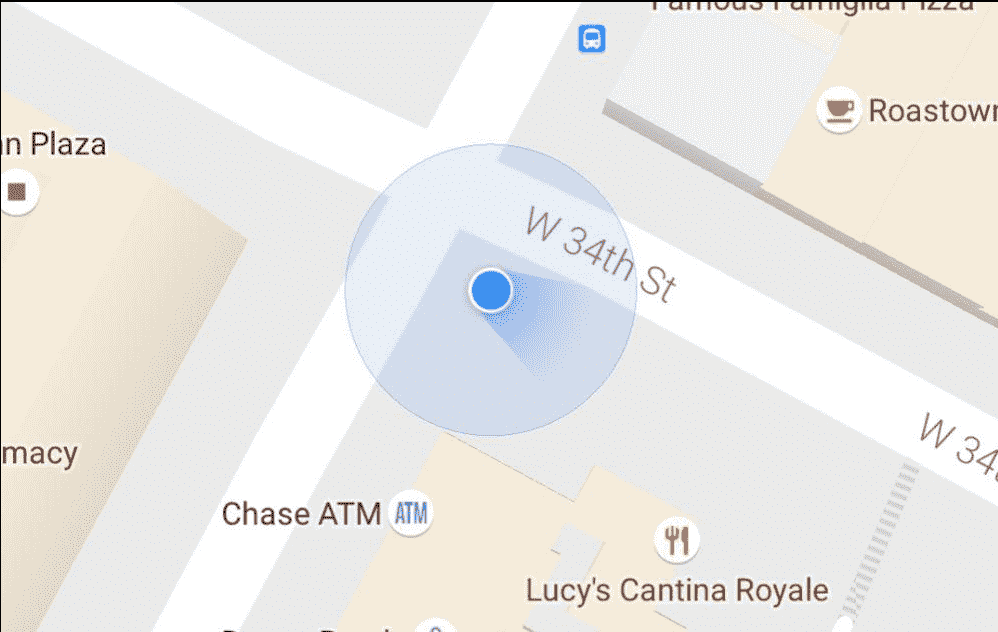
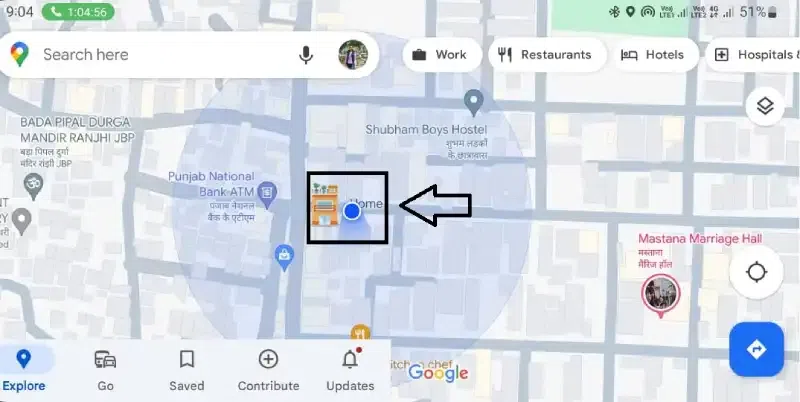
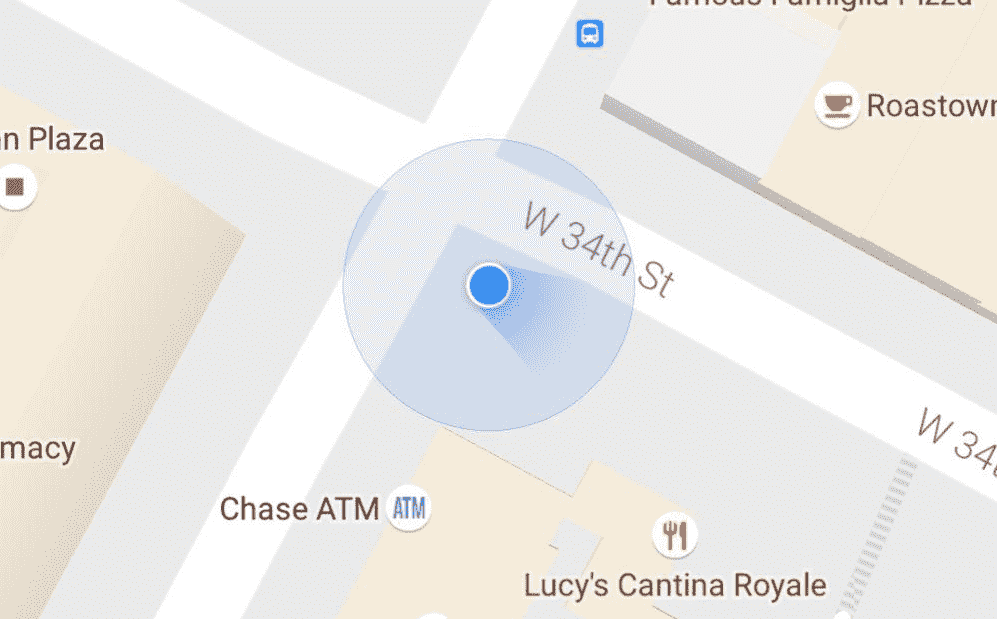
You can see a small blue dot on a map that represents your current location.
Note: If you don't see the blue dot, tap the My Location button to locate yourself on the map.
Use the mouse scroll wheel or the + button on the map to zoom in and view your current location more clearly. The blue dot indicates your current position.
Click and drag the map using your mouse to explore nearby areas. To return to your current location, click the "My Location" button on the map.
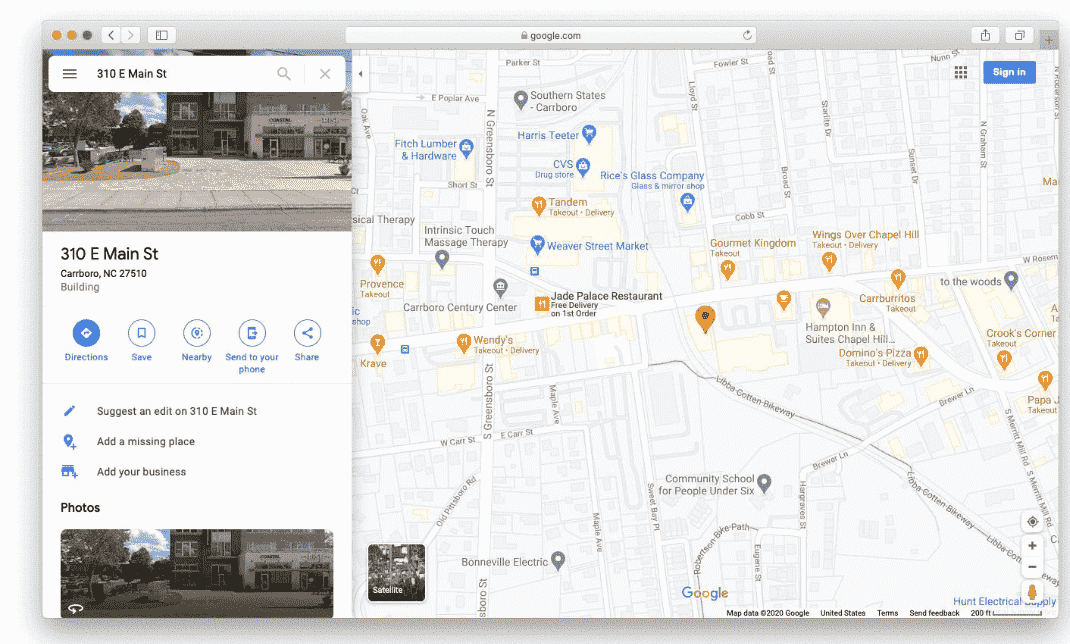
Click the blue dot representing your current location. Google Maps will display information about your location, including nearby addresses and coordinates.
After clicking your location, an information panel will appear on the left side of the screen with location details.
Review the information panel to find your current address, coordinates, and other location details.
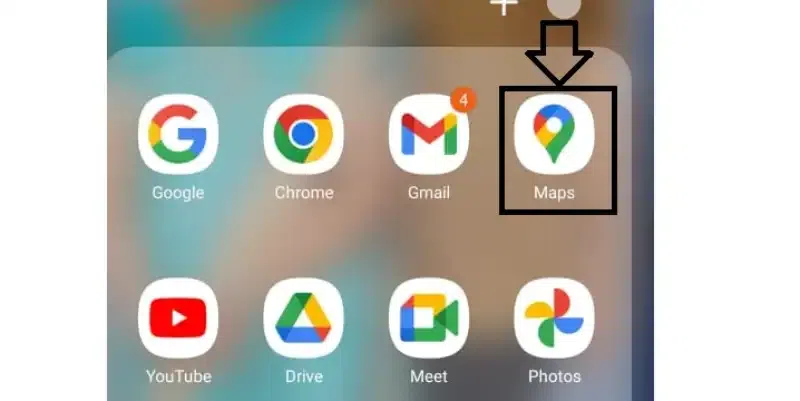
Make sure your location services are turned on in your device’s settings. If you’re using iPhone, search for Google Maps in the App Store. For Android users, download it from the Google Play Store. The app will prompt you to enable Location Services if it’s your first time using it.
Once installed, open the Google Maps app. Your location will be represented by a blue dot on the map. If the dot isn't visible, tap the compass icon on the right side of the screen to center the map on your location.
Double-tap the blue dot or use pinch gestures to zoom in and get a closer view of your current location.
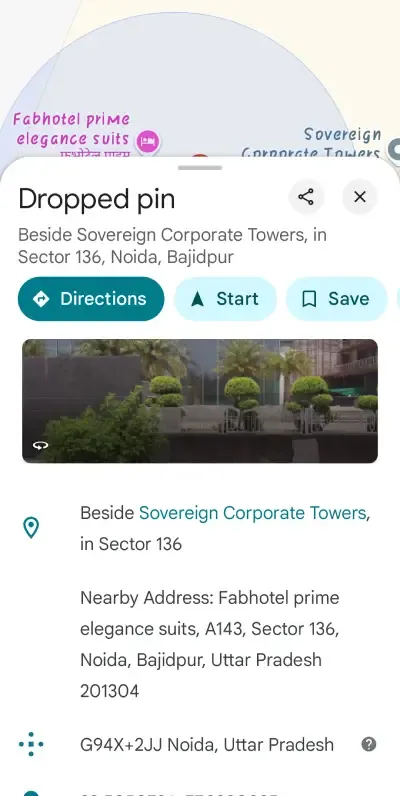
Tap the blue dot to view your current location details. If you want to save a specific spot, tap and hold any location on the map to drop a pin and view its address and coordinates.
Notes:
- iPhone (iOS): Search for "Google Maps" in the App Store. You're set to go after you download the app!
- Android users should search for "Google Maps" on the Google Play Store. To begin using the app, download it.
- The first time you use Google Maps, it may ask you to activate "Location Services." This allows the app to locate you. To activate Location Services, follow the prompts on the screen.
Google Maps uses Geolocation API and HTML5 to pinpoint your exact location. Here’s how it works:
This combination of location data ensures that you always get a precise reading of your location on Google Maps.