|
VOOZH | about |
|
VOOZH | about |
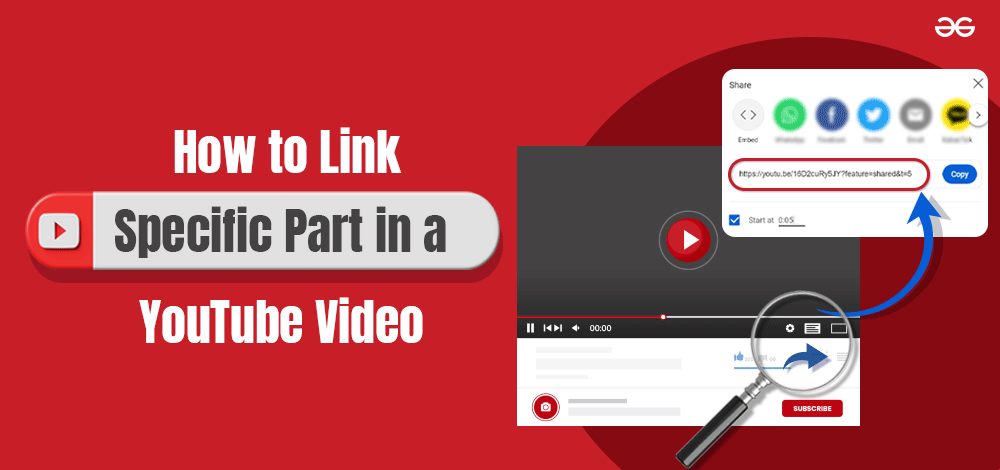
If you've ever wanted to link to a specific part of a YouTube video, you're in luck. YouTube provides an easy way to share videos starting at a specific time by using timestamps in YouTube links. This feature allows you to create a YouTube video link at a specific time, ensuring that your viewers start watching from the exact moment you want. In this guide, we’ll explain how to timestamp a YouTube video and share it effortlessly.
Table of Content
For Generating Links for Any Specific Part of YouTube Videos, the following guidelines should properly be used. Let us start with the simple Right Click Method on the Computer.
Step 1: Open YouTube in your browser on a desktop or laptop
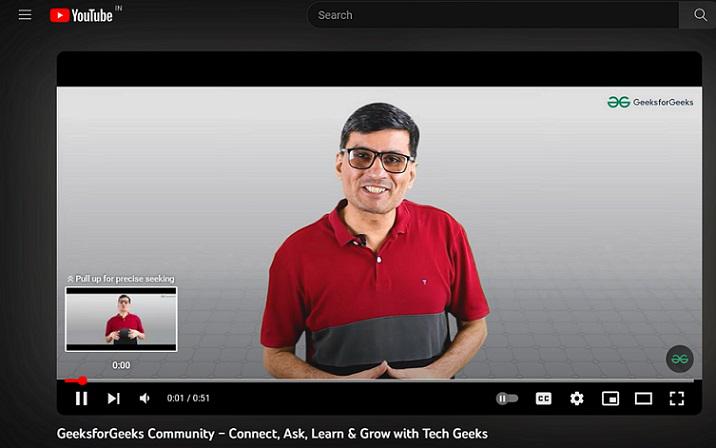
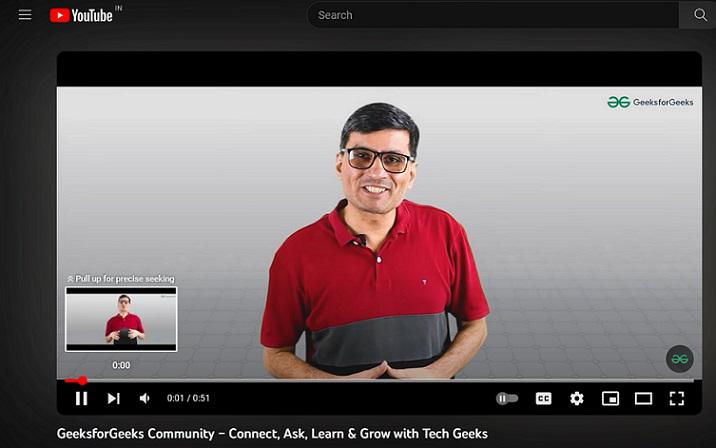
Step 2: Open the YouTube video from which you want to share a specific part
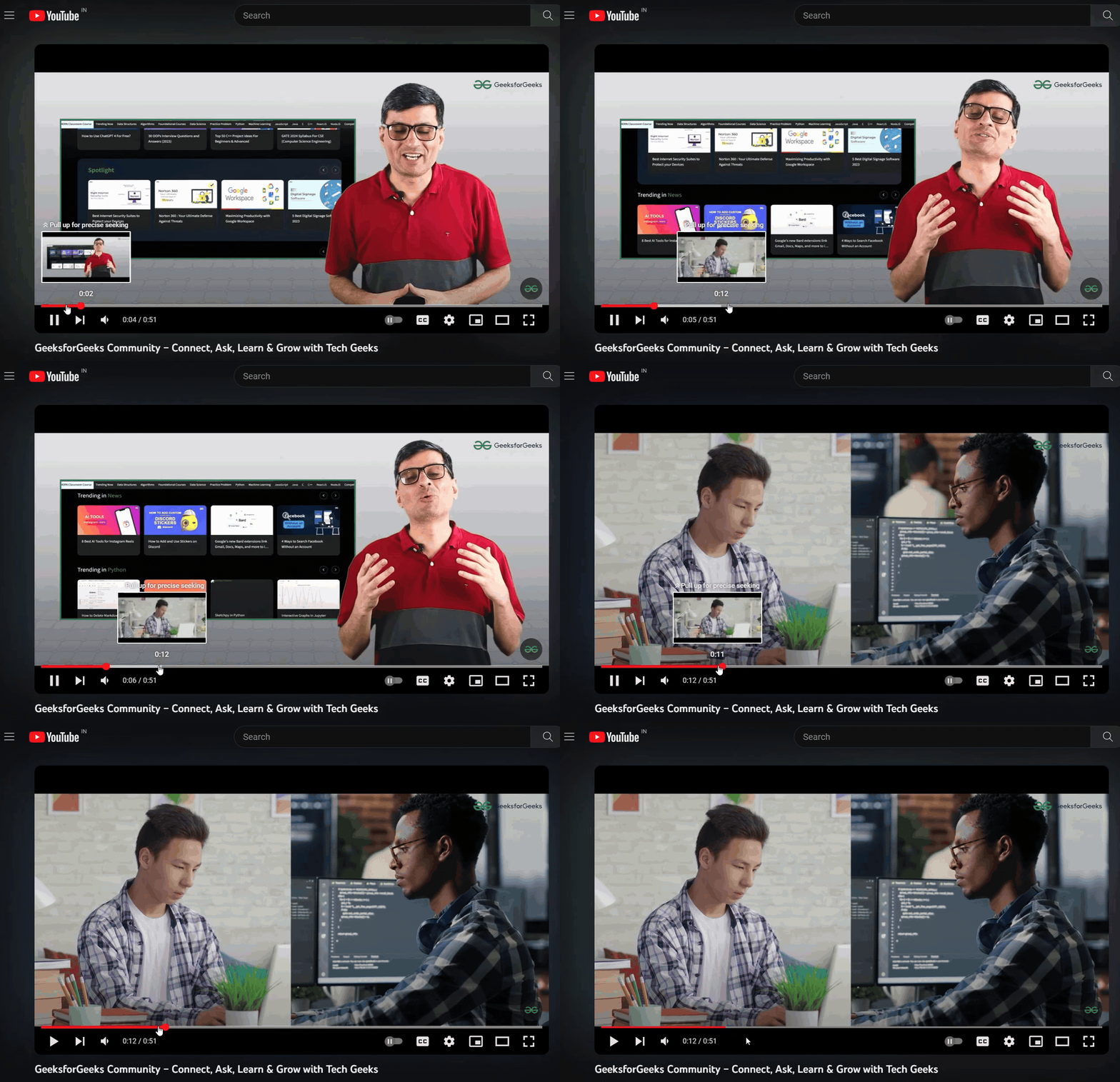
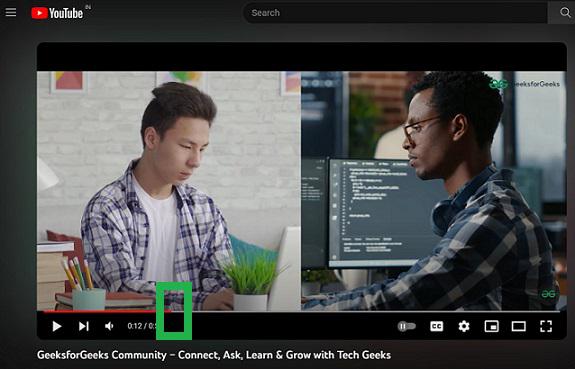
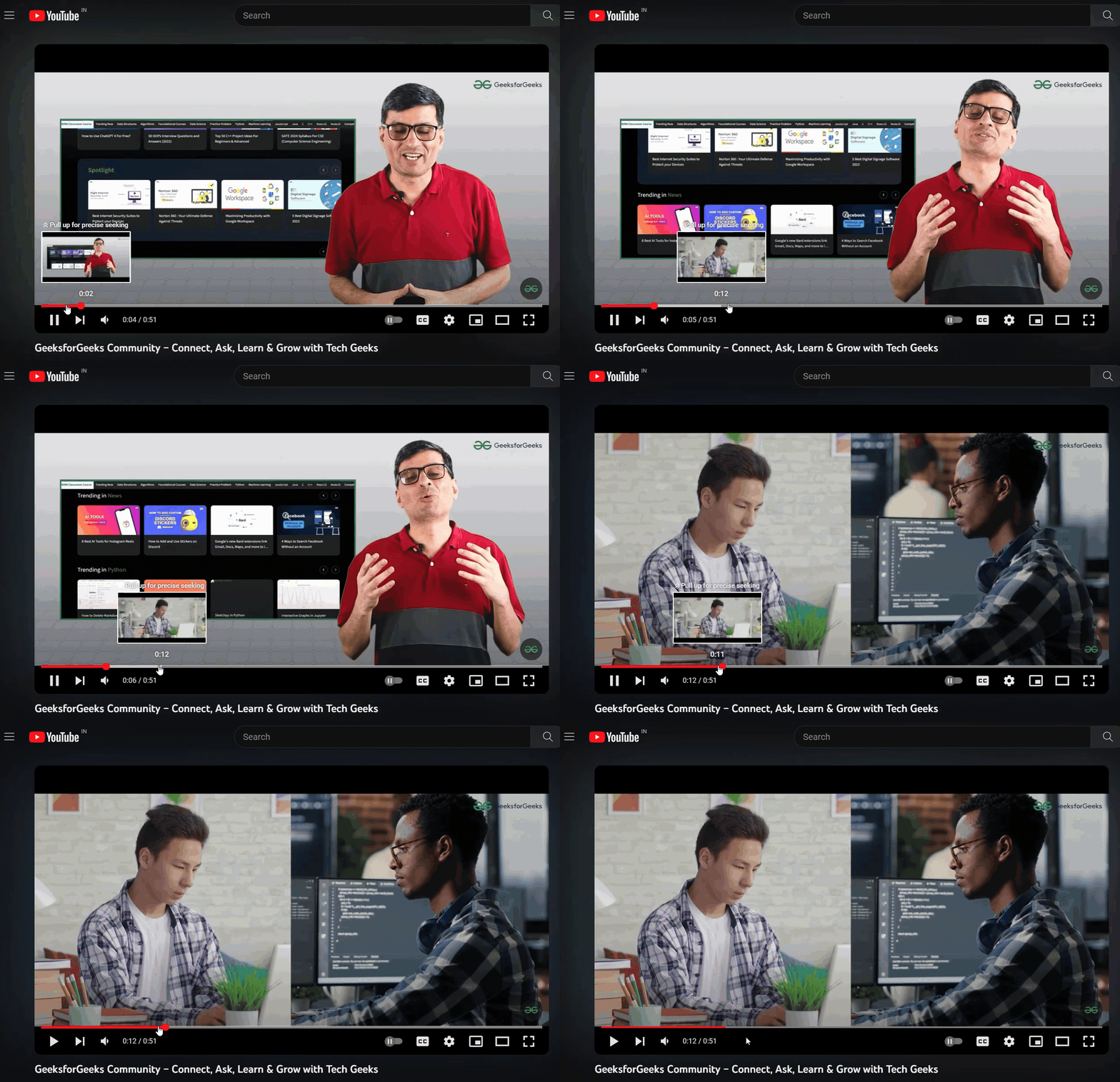
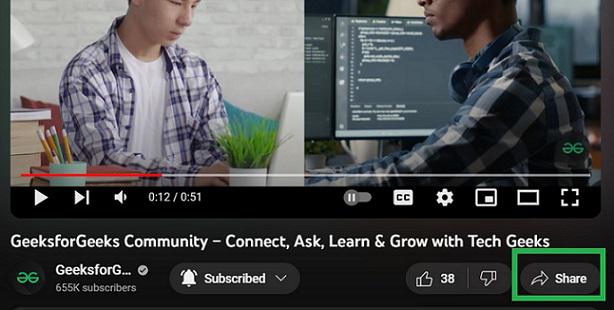
Step 3: Move the progress bar of the video to the desired point you want in the video and Pause the video
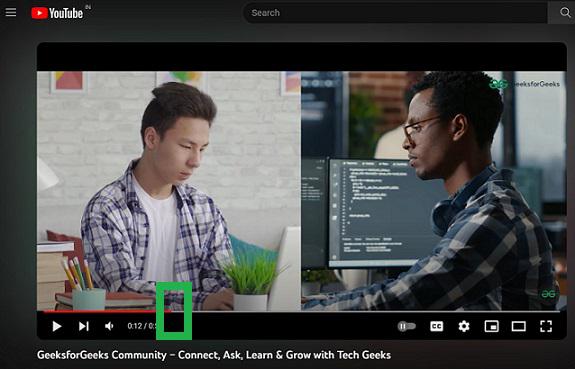
Now the video is paused at 0:12 timestamp.
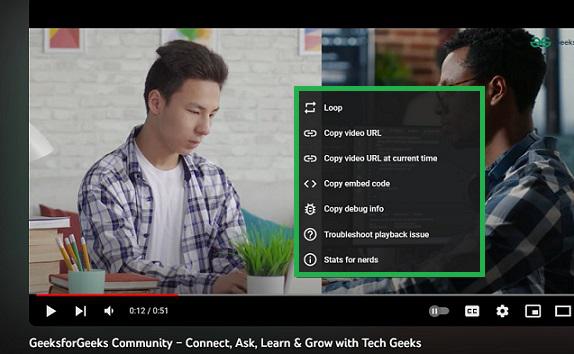
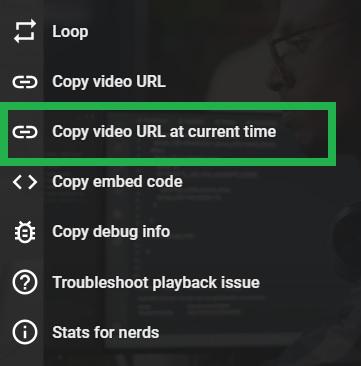
Step 4: Right-click on the paused video and a dropdown appears.
Step 5: Select 'Copy video URL at current time' in the dropdown
Now the link of the specific part where you paused in the original video is copied successfully. Now if you paste and open this URL on the browser, the YouTube video starts playing from the point where the original video is paused to copy the URL.
Step 1: Open YouTube in your browser on a desktop or laptop
Step 2: Open the YouTube video from which you want to share a specific part
Step 3: Move the progress bar in the video to the desired point you want and Pause the video
Now the video is paused at 0:12 timestamp
Step 4: Click the 'Share' button below the video frame on YouTube
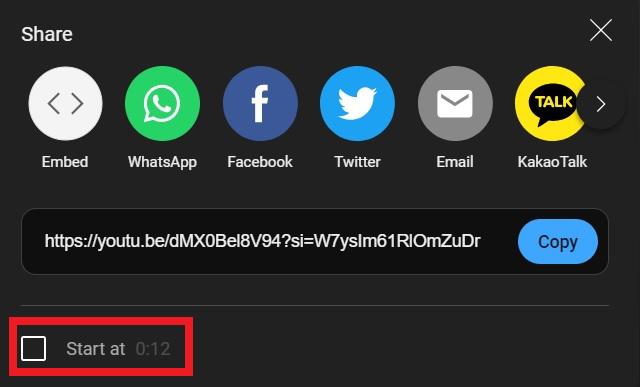
Step 5: Tick the checkbox at the bottom of the dialog window which is opened
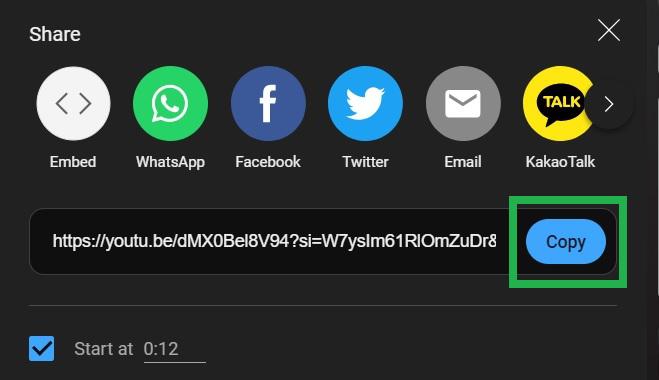
Step 6: Click the 'Copy' button in the dialog window
Now the checkbox is ticked denoting that the video starts from this specific part. Click the 'Copy' button at the right side of the URL to copy the URL from the specific part of YouTube.
Now the link of the specific part where you paused in the original video is copied successfully. Now if you paste and open this URL on the browser, the YouTube video starts playing from the point where the original video is paused.
Step 1: Open the YouTube app on your mobile device
Step 2: Play the video which you want to share in the YouTube mobile app
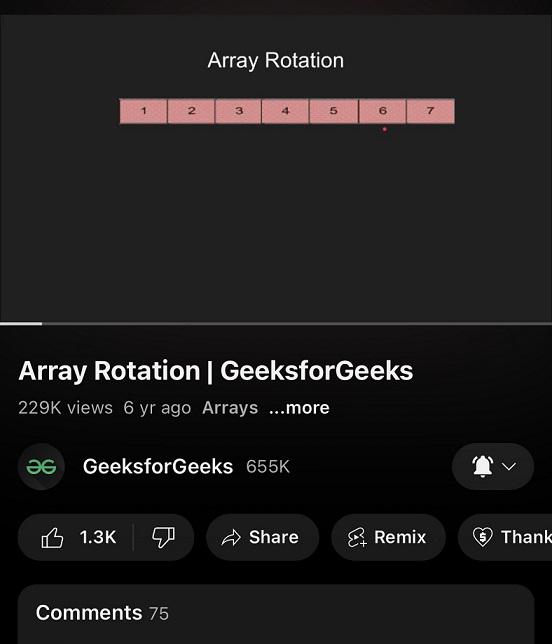
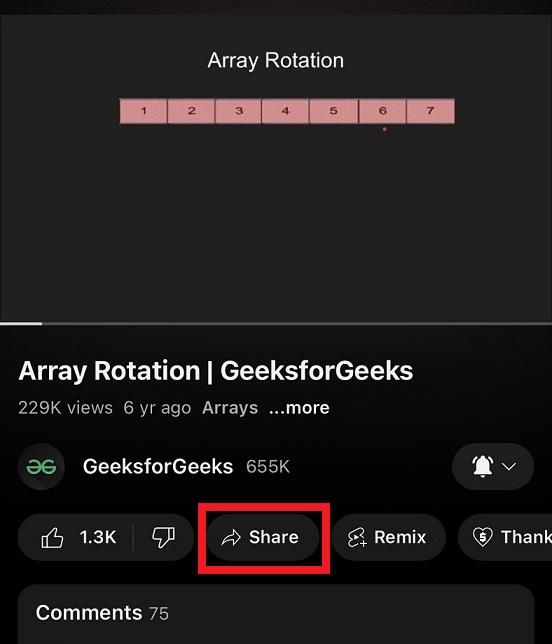
Step 3: Click the 'Share' button below the video to copy the URL of the video.
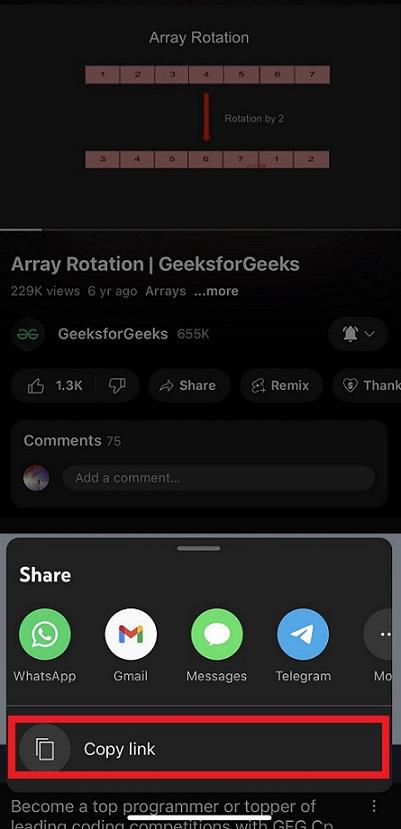
Step 4: Click 'Copy link' in the drop opened
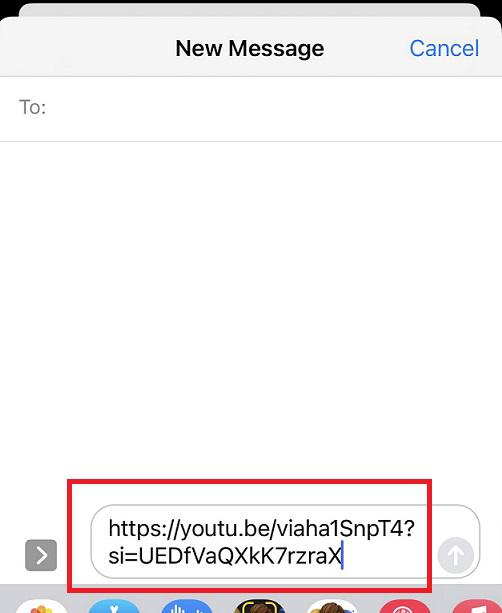
Step 5: Paste this URL as a text message or email
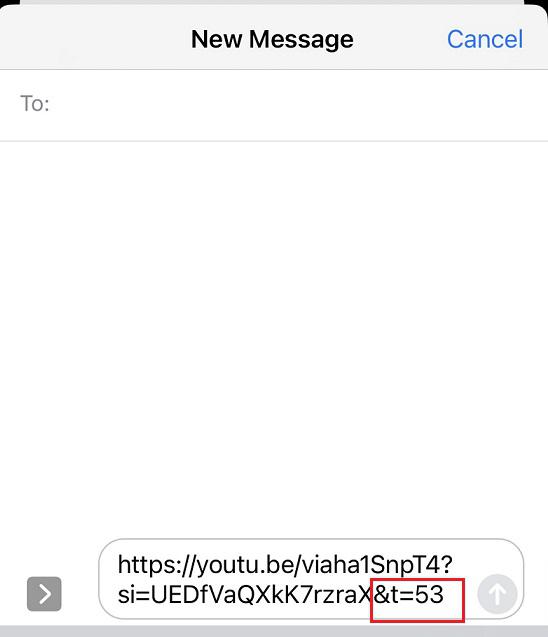
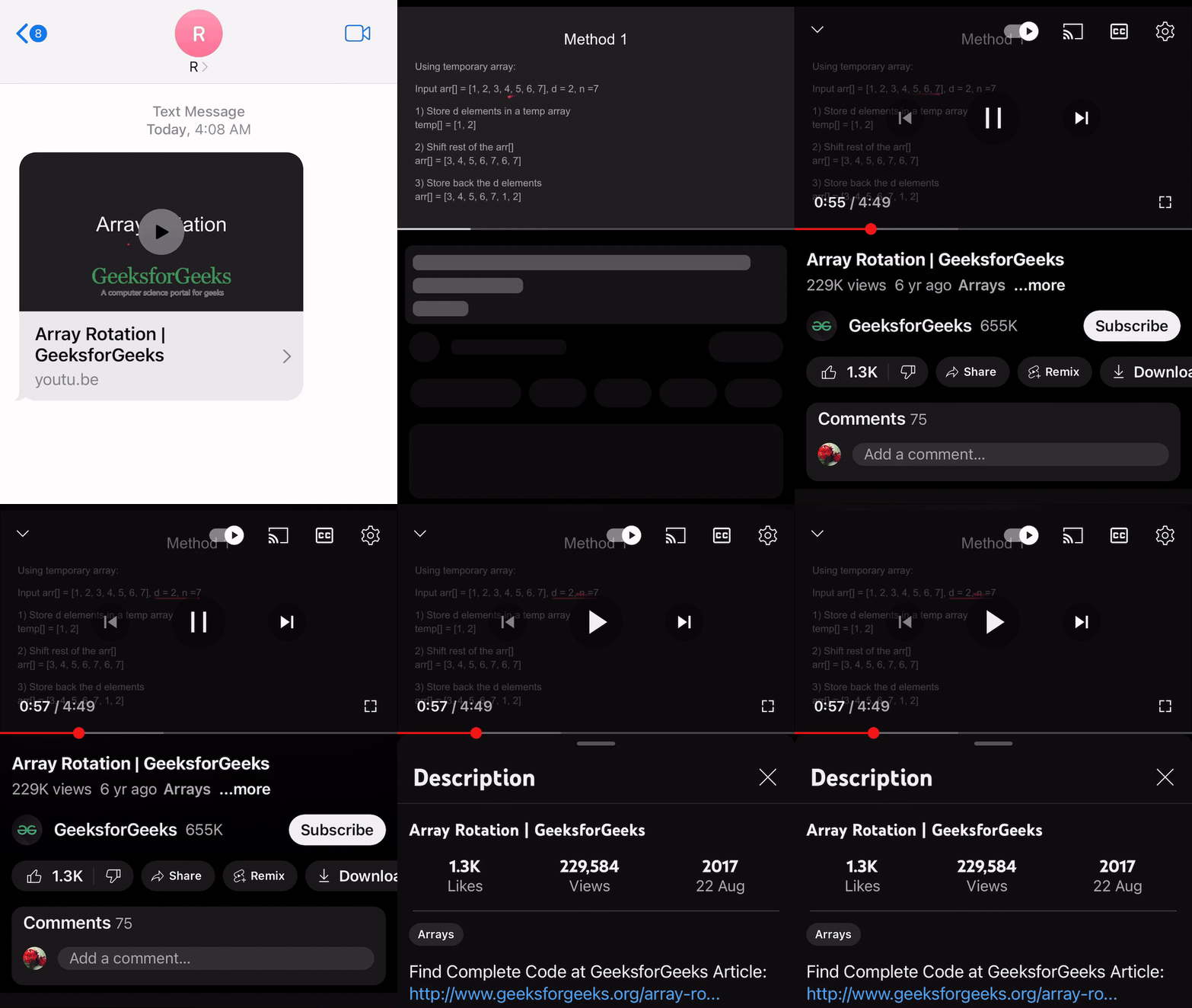
Step 6: Append the time to the pasted URL as &t=time before sending the pasted URL to others
Example:
- To start your video from 53 seconds, you need to append the link with &t=53s
- To start your video from 6 minutes and 48 seconds, you need to append the link with &t=6m48s.
- To start your video from 1 hour, 6 minutes, and 48 seconds, you need to append the link with &t=1h6m48s.
After pasting the URL, make sure to add this timestamp in seconds by appending the parameter &t=seconds to the URL before sending it to others. This makes the YouTube video open starting from the specified seconds.
Step 7: The YouTube video starts playing from the specified timestamp on clicking the received link
Now when the receiver opens this URL send by clicking on it, the YouTube video starts playing from the specified seconds mentioned in the parameter. Here the YouTube video starts playing from 53 seconds in the YouTube app on a mobile device.
Being able to link to a specific part of a YouTube video can save time and make sharing content more efficient. By using the YouTube timestamp feature, you can ensure that viewers focus on the exact section of the video you want to highlight. Whether you're sharing tutorials, music, or important segments, learning how to create a timestamp link on YouTube will improve your content-sharing experience.