Gaining knowledge about locking Google Chrome's incognito tabs can improve your surfing security and privacy. Although it doesn't completely shield users from prying eyes, incognito mode enables users to surf without leaving any trace. This article will walk you through using Google Chrome's privacy features and protecting incognito tabs to make incognito mode secure. Find out how to maintain the privacy and security of your incognito browser.
Given below is a step-by-step Guide to Locking Incognito Tabs on Google Chrome.
STEP-1: Install a Third-Party Extension
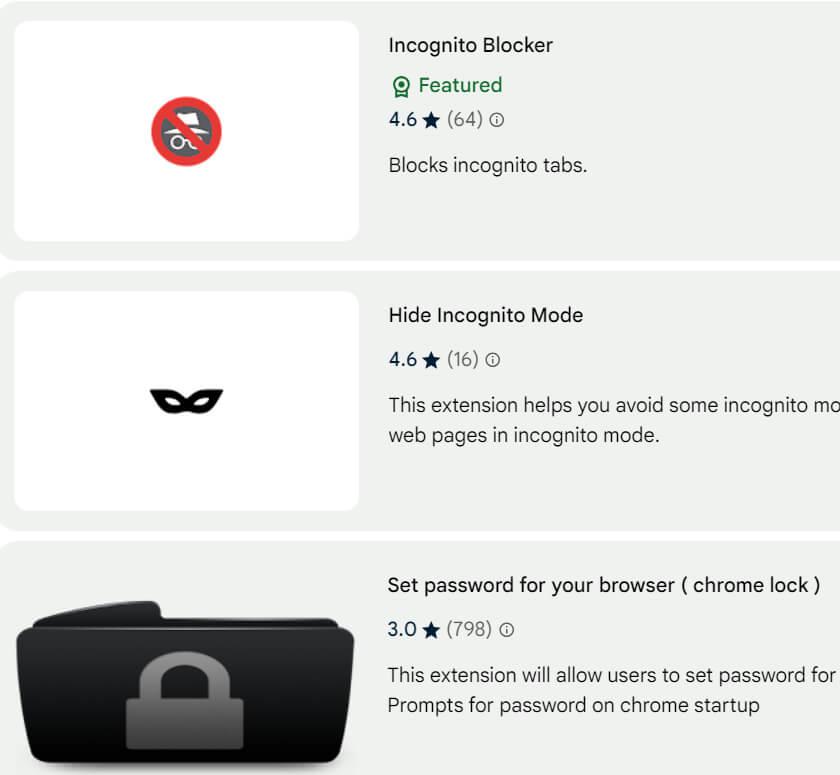
Google Chrome cannot lock incognito tabs by default, but you can install third-party extensions from the Chrome Web Store to achieve this. Standard options include 'Lock Incognito' and 'Tab Blocker'.
Visit the Chrome Web Store and find an extension you want to add.
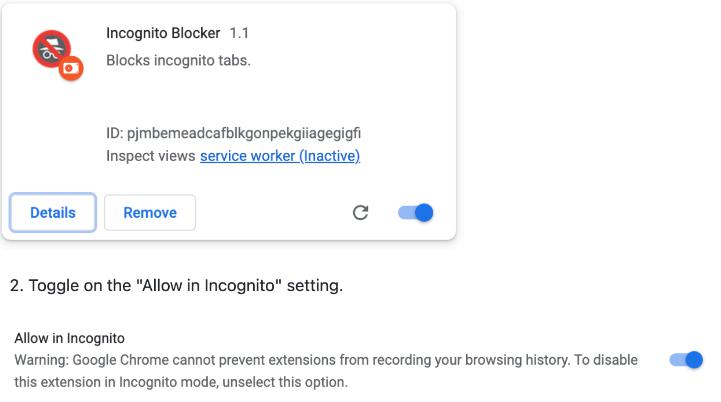
Locate your installed extension and turn on Allow in incognito. The extension must work in this mode.
STEP-4: Lock Your Incognito Tabs
When you have set up the extension on your browser, check whether it’s enabled while browsing in incognito mode, and click on its icon beside the omnibar (address bar).
Select an option to lock tabs. You could be asked for the password as required before.
STEP-5: Unlock Your Incognito Tabs
You must enter the set password to get back to your private tabs while using incognito mode.
This further ensures that even if someone else manages to access your device, he/she cannot see what you have been doing privately.
Conclusion
Securing your incognito tabs is essential for preserving your privacy when using the internet. You can improve the security of your private sessions by using the instructions on how to lock Google Chrome's incognito tabs. Keep in mind that even if using incognito mode helps stop your browser history from being saved, there are still steps you need to do to protect incognito browsing from malicious websites. Utilize Chrome's incognito security features to efficiently manage your tabs and protect your privacy.