|
VOOZH | about |
|
VOOZH | about |
A transparent taskbar in Windows 11 and Windows 10 is when the bar at the bottom where you see the Start button, pinned apps, and clock turns see-through. Normally, it’s a solid color like gray or black, but with this tweak, your desktop wallpaper peeks through. You can make it a little see-through (translucent) with Windows settings or completely transparent using apps like TranslucentTB. It’s a small change that makes your screen look different and cooler.
In this article, we will see how to make the taskbar transparent using in-built settings, the Windows registry editor, Windows accessibility settings and Third-Party tools which will make your work easier.
Here are the simple steps on how to make the taskbar transparent in Windows 10 and 11.
Press Win + I to open Settings App or Go to the Start Menu and type "Settings" and click to open it. Alternatively you can press Win + X and click on "Settings"
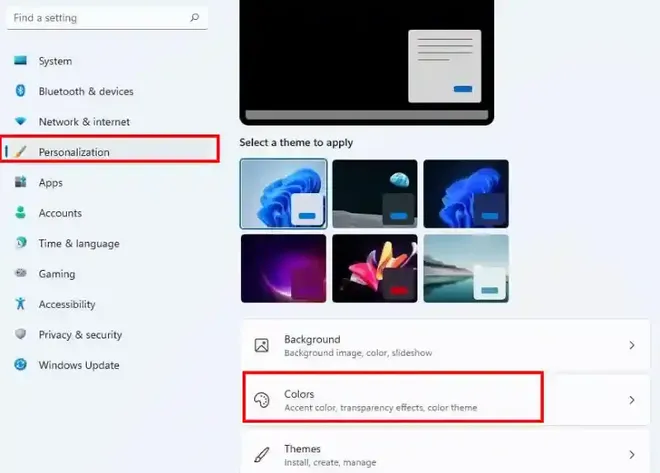
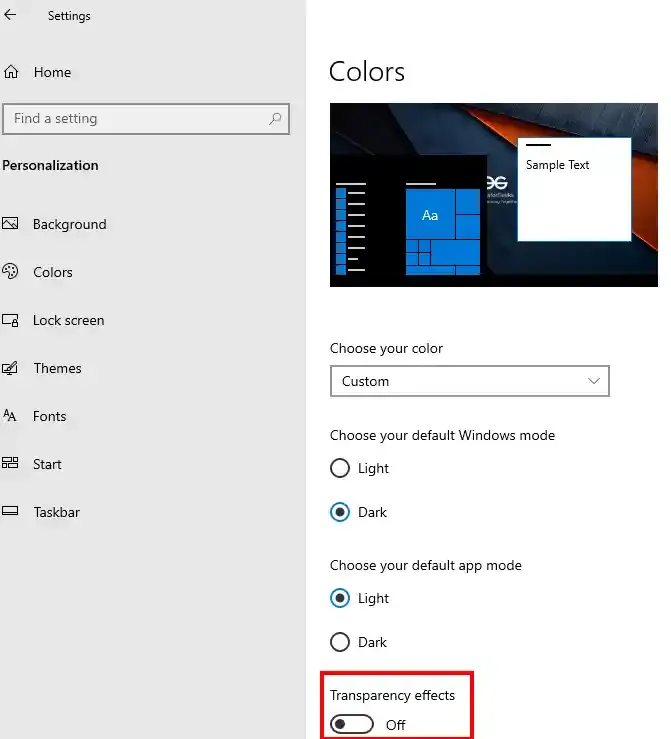
Once you enter Settings, Navigate to Personalization, and click Colors.
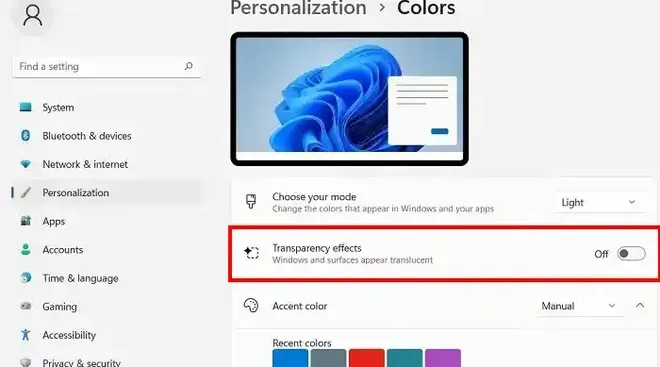
Within colour options, you'll find "Transparency Effects". Navigate to that option and click on the Toggle button "Transparency effects" to turn it on.
Your taskbar should now be semi-transparent and have a blurry background. You can turn it back off by navigating through the same steps.
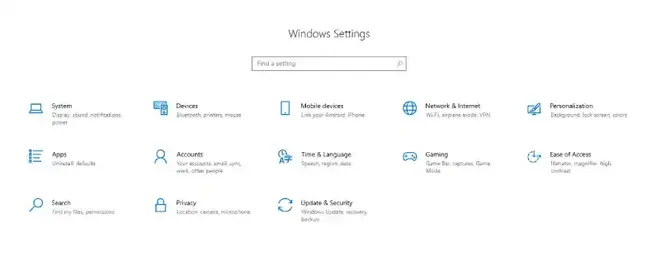
Press Win + I to open Settings App or Go to the Start Menu and type "Settings" and click to open it. Alternatively you can press Win + X and click on "Settings"
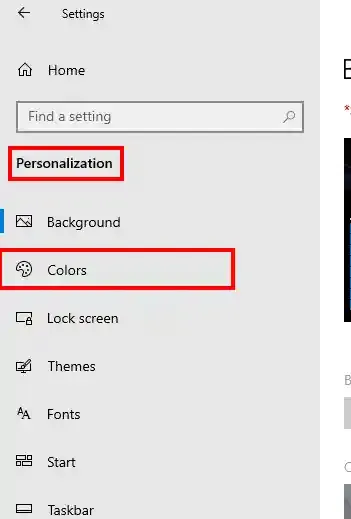
Click on Settings and Navigate to Personalization, and click Colors.
Navigate to "Transparency Effect" and click on the Toggle button to turn it on.
You'll now notice that your Windows 10 computer has a transparent Taskbar option.
Here are the simple steps to make the taskbar transparent using the Windows Registry Editor and tis can be applicable in both Windows 10 and 11.
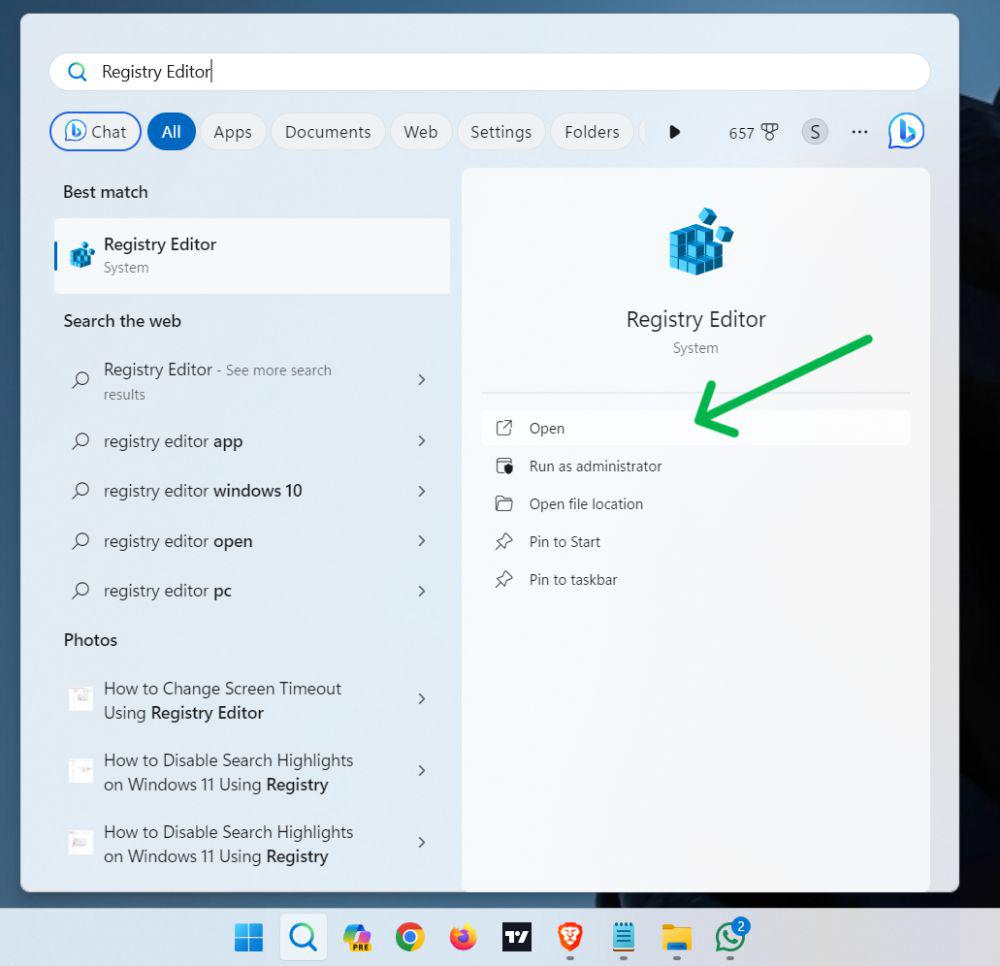
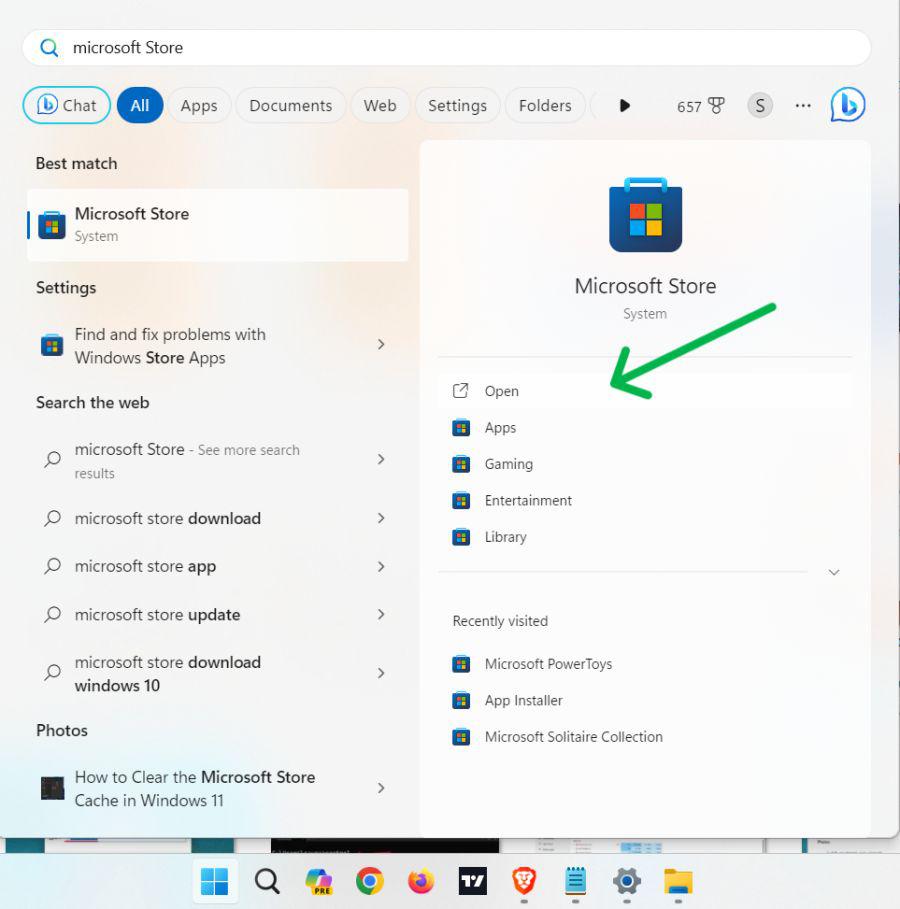
Press Win+R, type "regedit", and click OK Or Press Win + S and search for "Registry Editor" then click on "Open"
👁 How to Make the Taskbar Transparent in Windows 11?
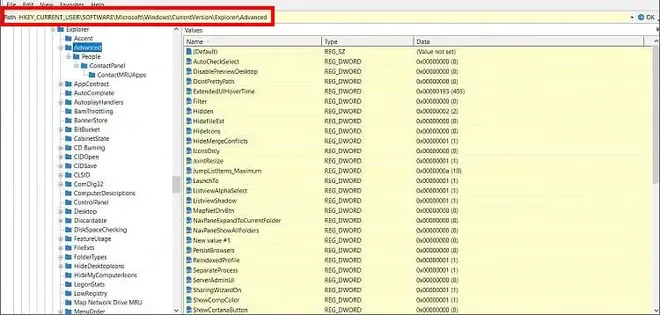
Once you open Registry Editor, navigate through the following path:
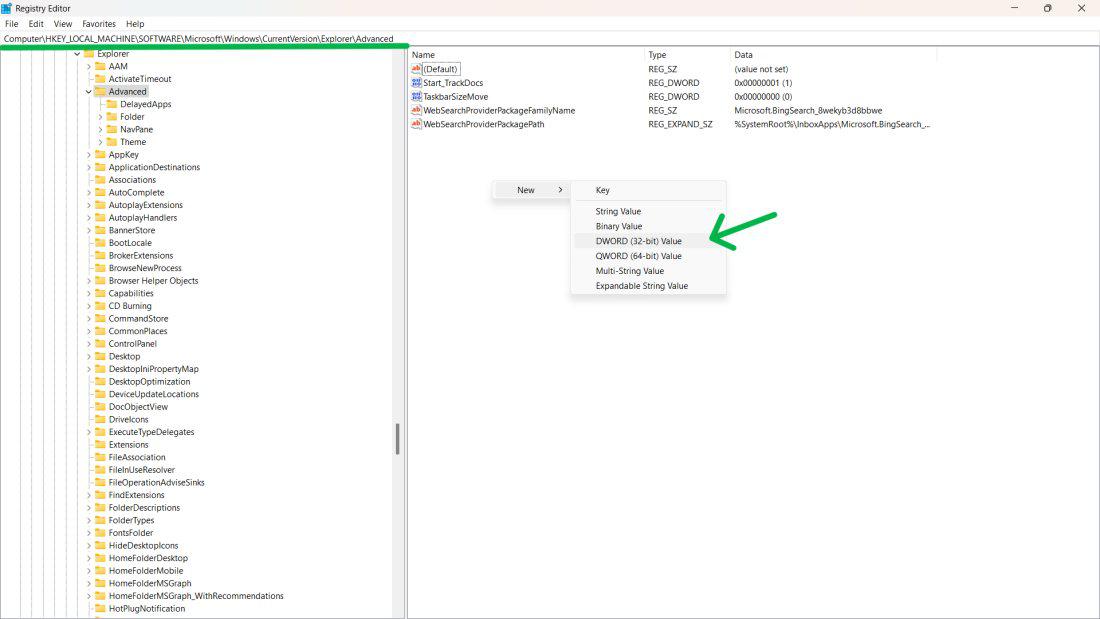
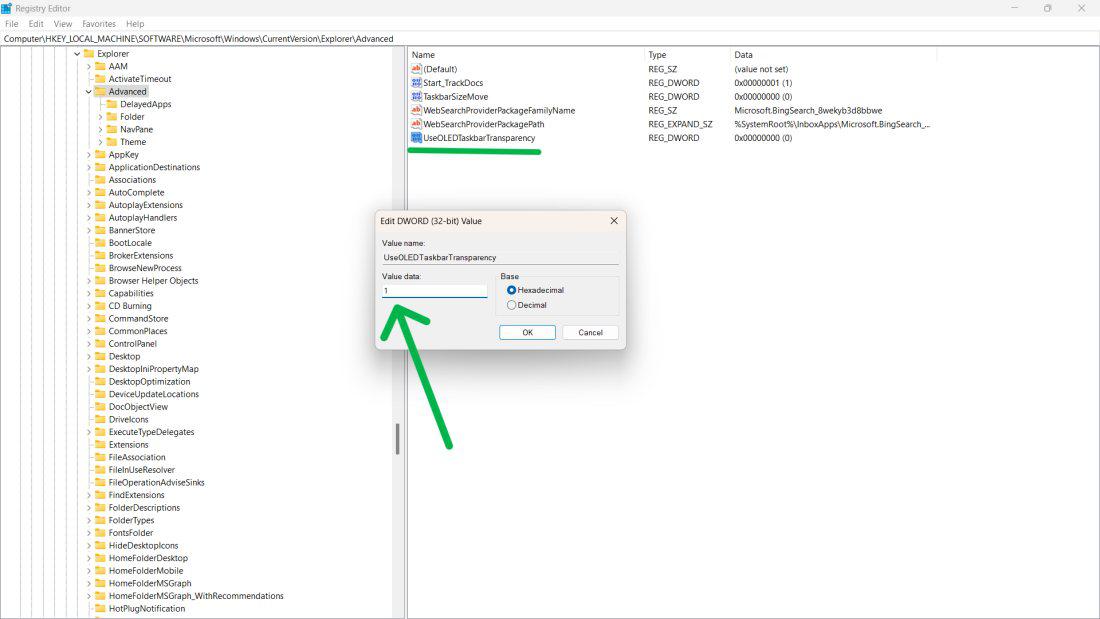
HKEY_LOCAL_MACHINE\SOFTWARE\Microsoft\Windows\CurrentVersion\Explorer\Advanced
Make a right-click on right panel and select "New" >DWORD (32-bit) Value.
👁 How-to-Make-the-Taskbar-Transparent-Using-the-Windows-Registry-Editor
Rename "UseOLEDTaskbarTransparency " and then double-click UseOLEDTaskbarTransparency and set its value to 1.
👁 How-to-Make-the-Taskbar-Transparent-Using-the-Windows-Registry-Editor-1
Restart your computer to see the transparency.
If you face any difficulty while performing the above methods, then you may look for any trusted third-party software to make changes in your Windows 10/11 taskbar. Here's two of the most recommended tools that you can use in Windows 10 and 11:
To provide you an overview, we've added simple steps to download and use athird-party tool, TranslucentTB for Windows 10 and 11:
Use keyboard shortcut and press Win + S on the search bar and type "Microsoft Store" and open it
👁 How to Make the Taskbar Transparent in Windows 11?
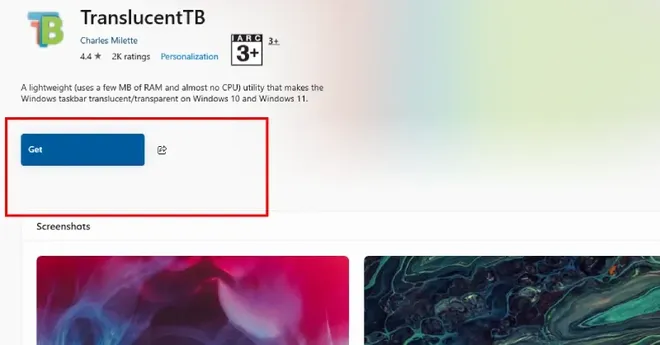
On the Microsoft search bar type "Taskbar Customizer" or "TranslucentTB" and it Enter button. Once you find the application, click on "Get" to start the downloading process.
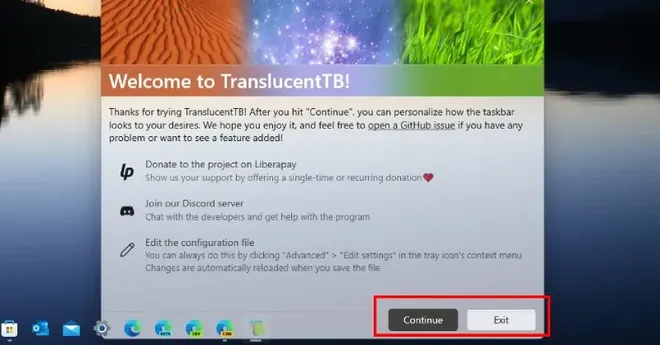
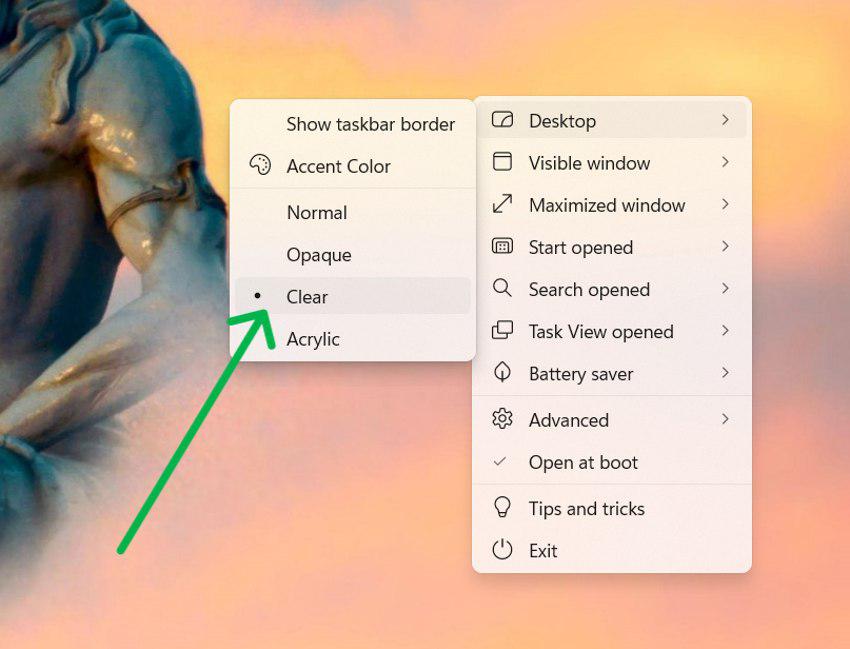
Click on the system tray Icon then select TranslucentTB.
Click on "Desktop" then click on "Clear" To Make the Taskbar transparent & to turn off TranslucentTB click on "Normal"
👁 How-to-Make-the-Taskbar-Transparent-Using-TranslucentTB-Application
Certain GPU's (like AMD or NVIDIA) offers customization to their users which also includes taskbar customization. Here's what you can do:
Here are the simple steps to make the Taskbar Transparent Using the Accessibility Setting in Windows: