5 Best Ways to Repair Windows 10 Using Command Prompt
Last Updated : 5 Dec, 2025
When Windows 10 starts running slowly, crashes frequently, or fails to boot, it may seem like a complete reinstall is the only solution. Fortunately, the Command Prompt offers several powerful built-in tools that can diagnose and repair many system issues quickly. With just a few commands, you can fix disk errors, restore corrupted files, repair the bootloader, or resolve Windows Update problems.
What this guide covers:
Essential CMD tools like CHKDSK, SFC, DISM, BCD, and NET commands
How each command helps repair common Windows 10 errors
Step-by-step instructions to run all fixes directly from Command Prompt
Methods that work even when Windows won’t start normally
Important Note
This article will highlight all the methods to Repair Windows 10 with the help of Command Prompt Only.
Best Practices to Use Command Prompt
Before using the Windows repair commands, keep these important points in mind:
1. Always Run CMD as Administrator
Many repair commands modify system files, so CMD must run in Administrator mode. Otherwise, the commands won’t work or won’t apply any changes.
2. Enter Commands Carefully
Typing errors in CMD can cause failure or unexpected results. Double-check the syntax before pressing Enter.
3. Back Up Important Data
If your PC is unstable or experiencing severe errors, always back up your files. A major system failure could make your data inaccessible.
How to Repair Windows 10 Using Command Prompt
Below are the five most effective command-line methods to fix common Windows issues.
Method 1: Repair Disk Errors Using CHKDSK
What it does:
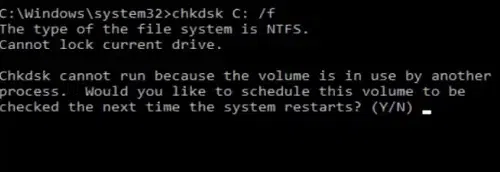
CHKDSK scans your drives for disk errors, bad sectors, and file system issues. Disk issues often cause Windows boot problems or random crashes.