How To Resume Paused or Interrupted Downloads in Google Chrome?
Last Updated : 23 Jul, 2025
You might be wondering how to resume paused or interrupted downloads in Google Chrome if you've ever encountered a download interruption. Thankfully, you can resume paused downloads with Chrome without having to start the file download from scratch thanks to its built-in capabilities. This tutorial will walk you through the process of picking up where your paused Chrome download left off, whether it was caused by a network problem or a browser crash.
How To Resume Paused or Interrupted Downloads in Google Chrome?
This guide will show you how to start downloading again from where you left off using the Chrome browser.
Steps To Resume Paused or Interrupted Downloads in Google Chrome
Given below are the steps to resume paused downloads in Google Chrome:-
1. Google Chrome’s Download Manager
Google’s browser has a built-in system for managing document retrievals, which makes it easier for users to continue their downloads within the same window.
Open Chrome: Go ahead and launch Google Chrome via your device.
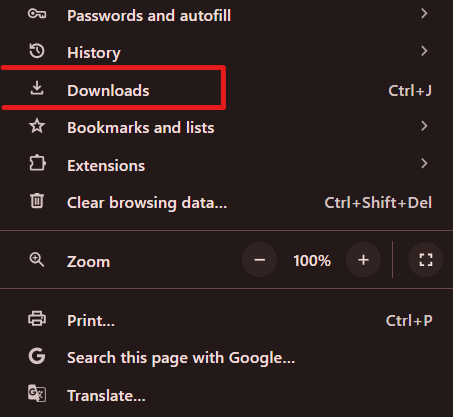
Access Download Manager: Click on the three-dot menu icon at the top right-hand corner of the browser, then select downloads or press `Ctrl+J`.
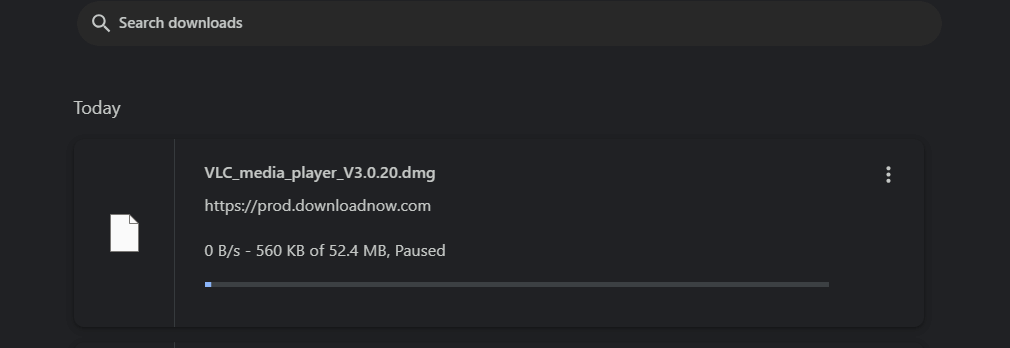
Resume Download: Proceed by clicking the resume option next to the partially downloaded document.
2. Use A Download Manager Extension
If Google Chrome’s built-in download manager cannot be used to continue downloading, another third-party software extension that will serve the same purpose can be accessed.
Install A Download Manager Extension: You may need to search for and install a good-quality program, like Chrono Download Manager or Free Download Manager, to help you manage all your downloads from the Google Store.
Add The URL: Copy the URL from Google Chrome’s download manager.
Paste And Resume: Open this extension manager, paste the URL, and then start downloading from where it was stopped. It should carry over the download starting point.
3. Manual Resume Downloads
At times, situations could arise where manual intervention becomes necessary when resuming downloads, specifically when one has a partially downloaded file and the URL remains active.
Locate The Partially Downloaded File: Find the file in question on your device. It usually has a “.crdownload” extension.
Copy The Download URL: Retrieve the link from the website where you downloaded it, or check your Chrome history.
Use A Download Manager: There is an application/software that you can use for managing downloads that is independent of the browser, and it’s referred to as a download manager, aka downloader.
Paste The URL And Resume: Paste this download URL into the same download manager but specify where it was interrupted. Parts are already downloaded using one of those file systems like FAT32 (Winchester).
4. Use Command Prompt (For Those Who Are Used To It)
Those at home with command-line tools can use the command prompt to resume the download.
Find The File Path: The file path for the partially downloaded file should be located somewhere on your computer
Open Command Prompt: Click on `Win + R`, type in `cmd`, and hit Enter key
Use the `curl` Command: Use the `curl` command with the `C` option to continue from where it was left off. The command should look somewhat like this:
curl -C - -o <output file> <download URL>
Replace <output file>with the name and path of the file where you want to save the download.
Replace `<download URL>` with the actual URL of the file you want to download.
Conclusion
With Google Chrome, resuming interrupted downloads is an easy way to avoid having to start over and waste time. You can quickly resume halted Chrome downloads and continue working without losing any progress by following the correct procedures. A flawless download experience depends on your ability to control interruptions, regardless of the download manager you're using—Google Chrome or another one.