|
VOOZH | about |
|
VOOZH | about |
If you're looking to turn off animations in Windows 11, you can improve your system's performance and responsiveness. Disabling animation effects in Windows 11 not only speeds up the interface but also reduces visual distractions. This guide will walk you through the steps to disable animations in Windows 11 by adjusting the Windows 11 animation settings and visual effects to optimize your system's performance.
Table of Content
Given below are the methods to Turn Off Animations Effects in Windows 11.
To start, let's use the Settings app to disable animations in Windows 11. Here's how:
Step 1: Open Settings by pressing the Windows key + I.
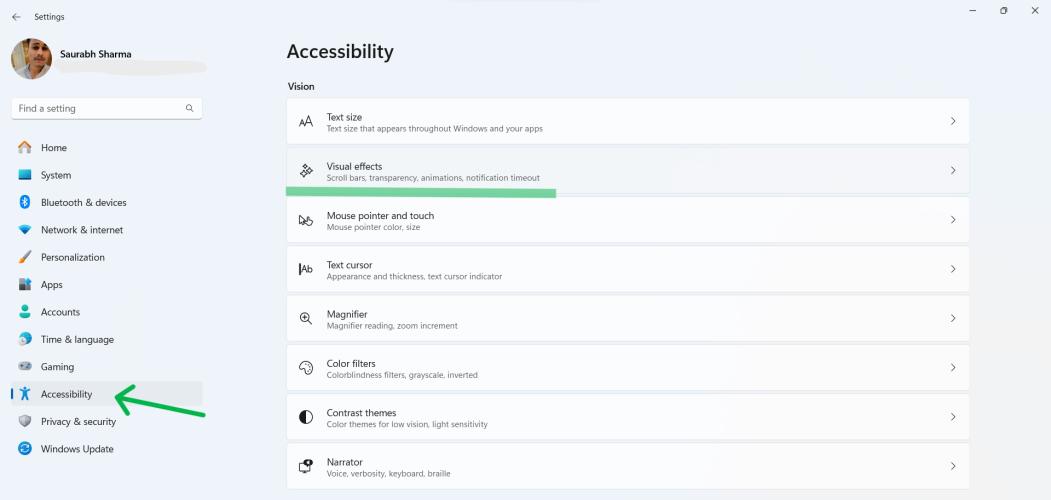
Step 2: Navigate to Accessibility > Visual effects.
👁 How-to-Turn-Off-Windows-11-Animation-Effects-via-Settings
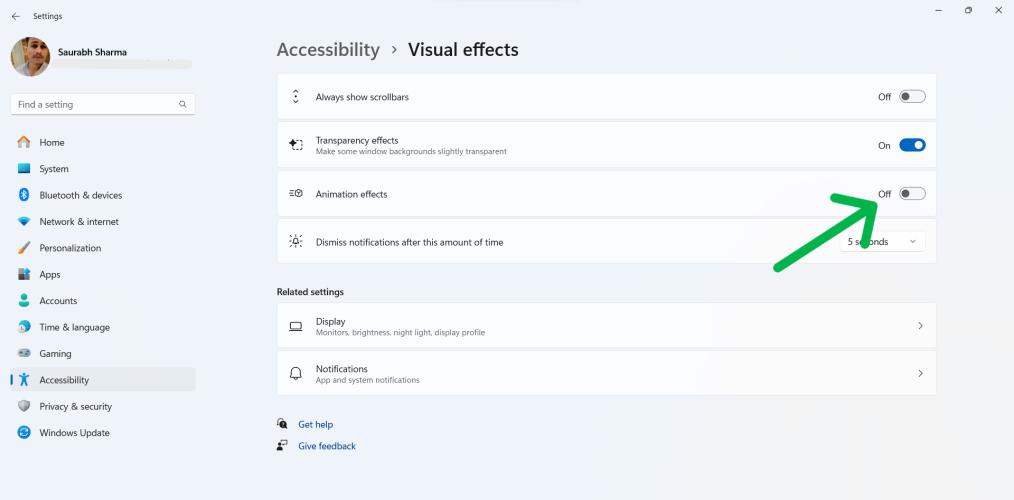
Step 3: Toggle off "Animation effects".
👁 How-to-Turn-Off-Windows-11-Animation-Effects-via-Settings1
If you prefer using the Control Panel to adjust settings on your computer, you can also turn off animations in Windows 11 through this method. Here's how:
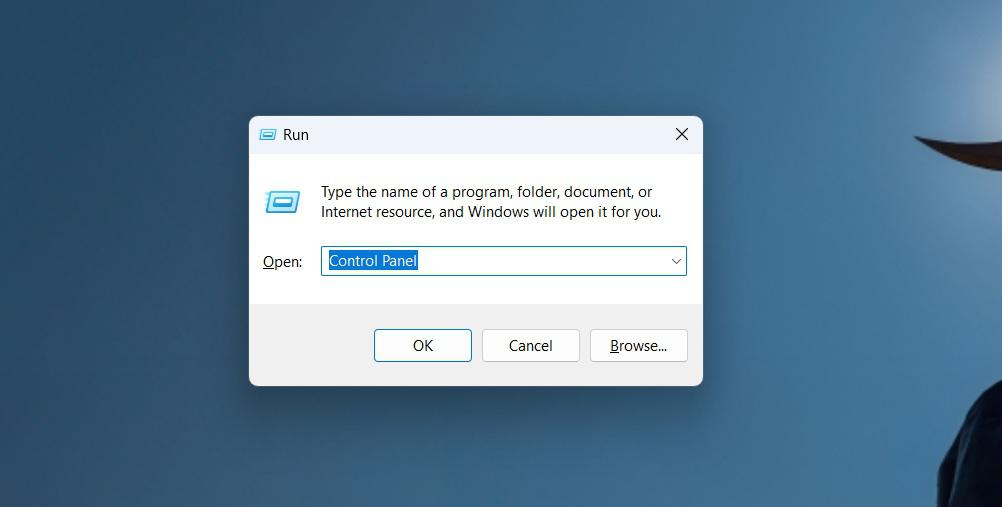
Step 1: Open Run Dialog by pressing Win + R then input "Control Panel"and hit enter
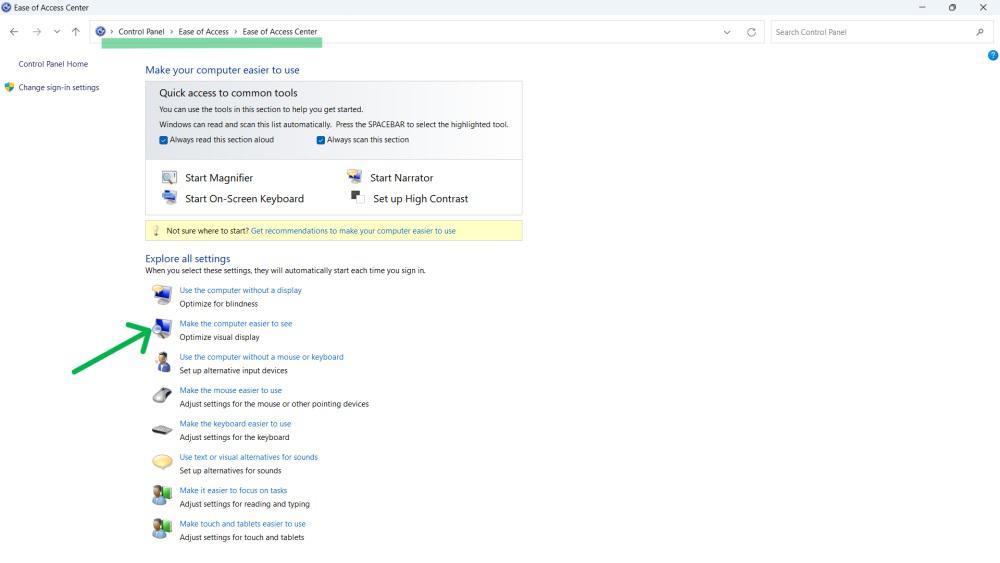
Step 2: After opening the control panel navigate to Ease of Access then click on Ease of Access Center.
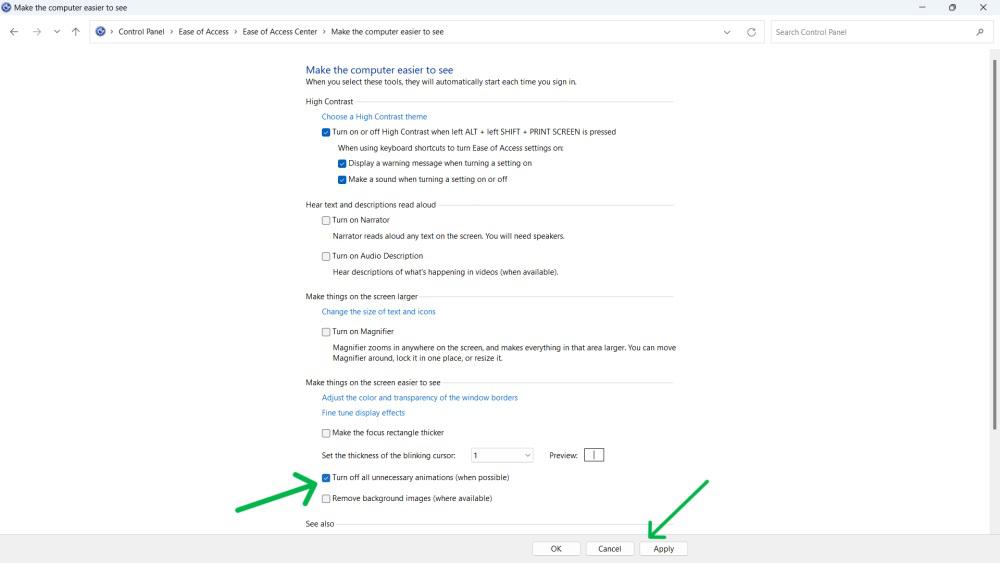
Step 3: Click on Make the computer easier to see
👁 How-to-Disable-Windows-11-Animation-Effects-via-the-Control-Panel
Step 4: Check the Turn off all unnecessary animations (when possible) option
👁 How-to-Disable-Windows-11-Animation-Effects-via-the-Control-Panel1
Step 5: Click on "Apply" then on "OK"
If you're looking for a more comprehensive way to disable animation effects in Windows 11, you can use the Performance Options. Here's how:
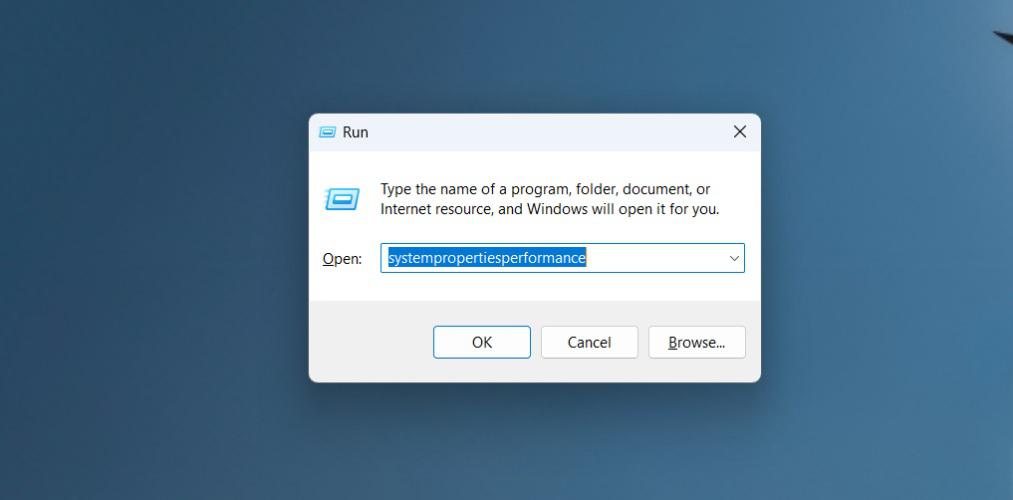
Step 1: Open Run Dialog by pressing Win + R then on input "system properties performance" then hit enter
👁 How-to-Turn-Off-Windows-11-Animation-Effects-via-Performance-Options
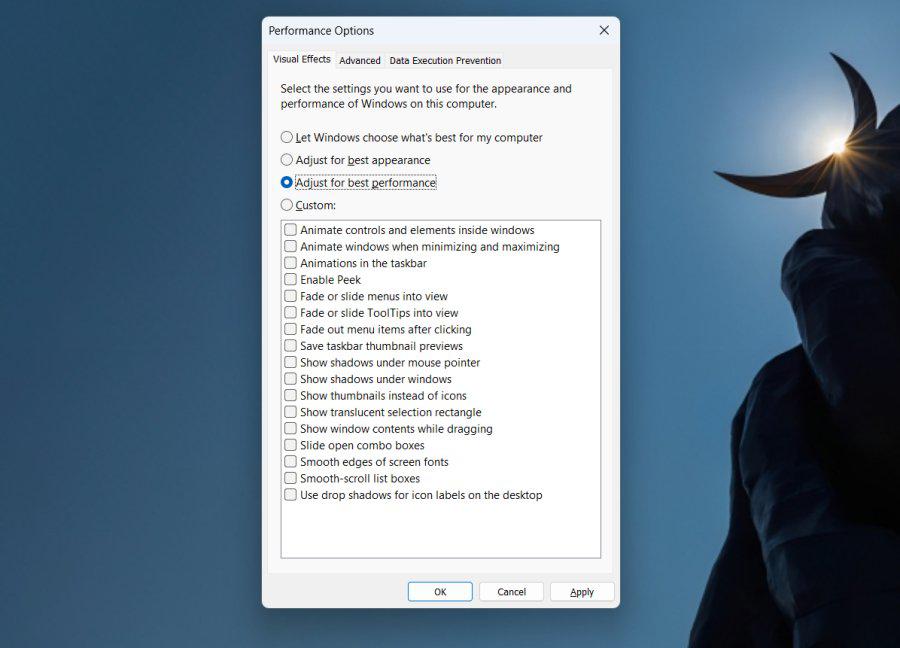
Step 2: Choose "Adjust for best performance" and click Apply. This disables most animations.
👁 How-to-Turn-Off-Windows-11-Animation-Effects-via-Performance-Options-1
Step 3: Click on "OK"
If you're comfortable making changes to your computer's settings in a more advanced way, you can use the Registry Editor to turn off animations in Windows 11. Here's how:
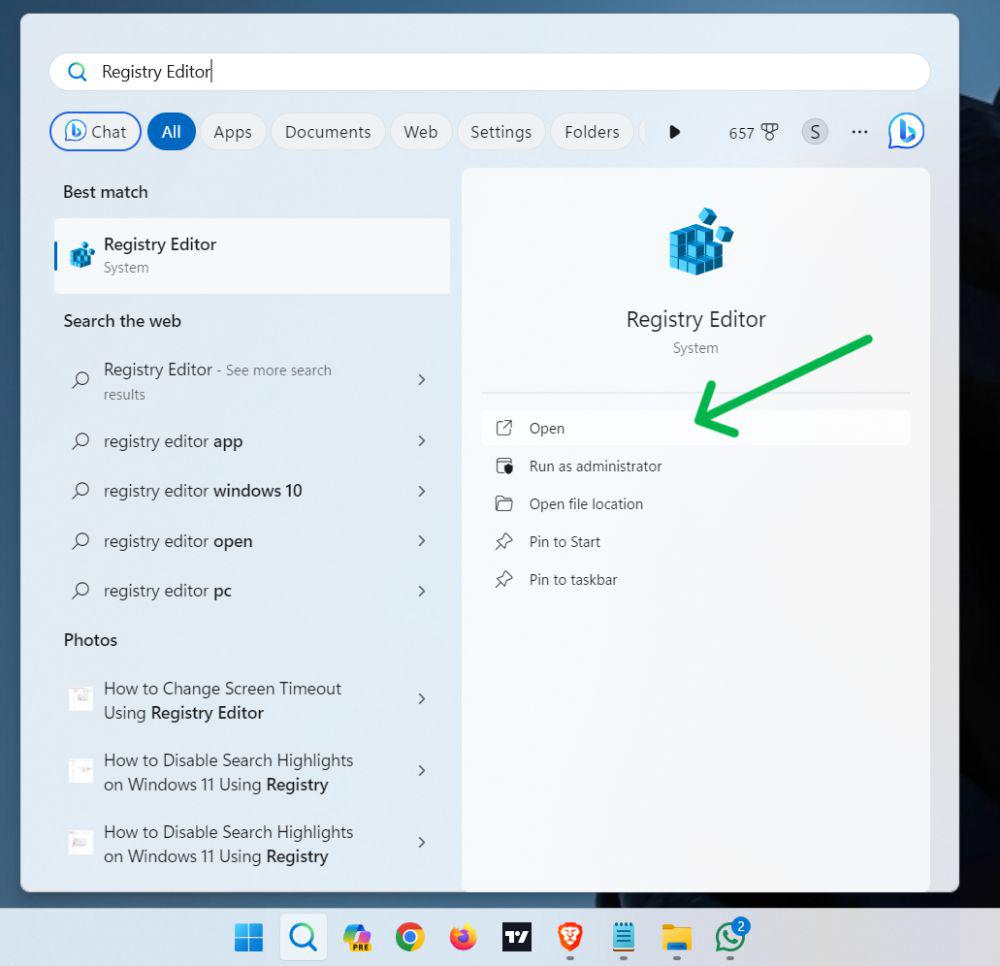
Step 1: Press Win + S to open the search bar on search bar type "Registry Editor"
👁 Turn Off Animations in Windows via Registry Editor
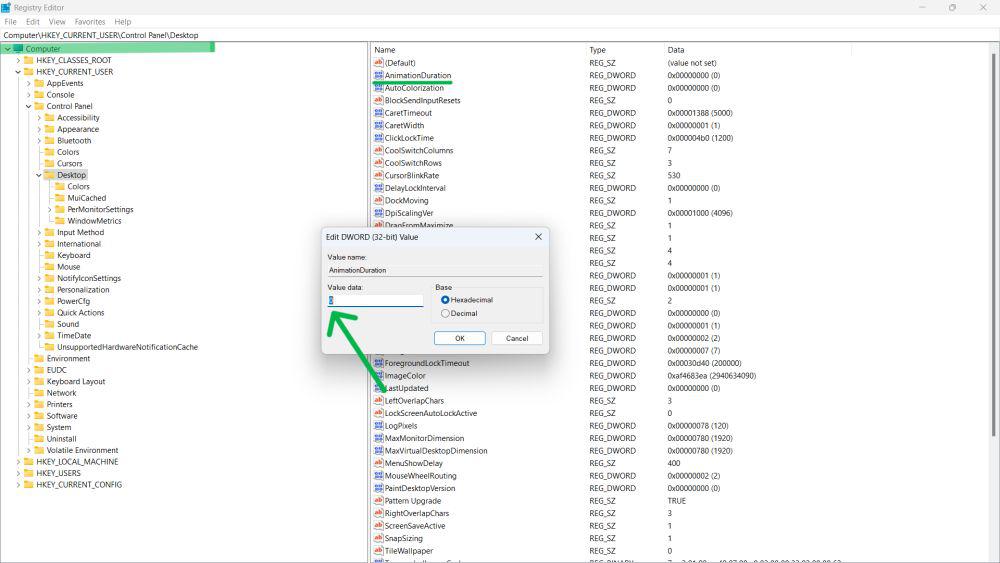
Step 2: Navigate to HKEY_CURRENT_USER\Control Panel\Desktop.
Step 3: Create a new DWORD (32-bit) value named AnimationDuration. Set its data to 0 and restart your computer.
👁 How-to-Turn-Off-Windows-11-Animation-Effects-via-Registry-Editor
Turning off animations in Windows 11 is a simple way to enhance system performance, especially on older hardware. By learning how to disable animation effects on Windows 11, you can create a smoother experience and potentially speed up Windows 11. Explore the Windows 11 visual effects options to further optimize your system, ensuring a more efficient and responsive workflow.