VOOZH about

URL: https://www.geeksforgeeks.org/techtips/turn-on-private-browsing-on-ios-or-ipad/

⇱ How to Go Incognito in Safari on Mac, iPhone, or iPad? - GeeksforGeeks


  • Courses
  • Tutorials
  • Interview Prep

How to Go Incognito in Safari on Mac, iPhone, or iPad?

Last Updated : 12 Jul, 2024

Today we will learn how to turn on incognito/private mode in Safari browser on iPad, Mac and iPhone. Follow the simple steps below to open stored prescriptions and search the web without deleting history.

To open Incognito mode we just find another tab/window option in Safari, select Private Browsing and click OK and we can browse as we normally would in Safari but with Private Browsing turned on.

What is Incognito/private mode?

Private mode (incognito) is where the browser doesn’t save any data about your session. Now open Safari private mode, here’s how to do it:

Methods To Go Incognito on MAC:

  • Launch Safari from your Mac.
👁 Screenshot-2024-05-27-151953-(1)
private window opening
  • Click on File in the menu bar at the top of your screen.
  • Select New Private Window. Alternatively, you can use the shortcut Shift + Command + N.
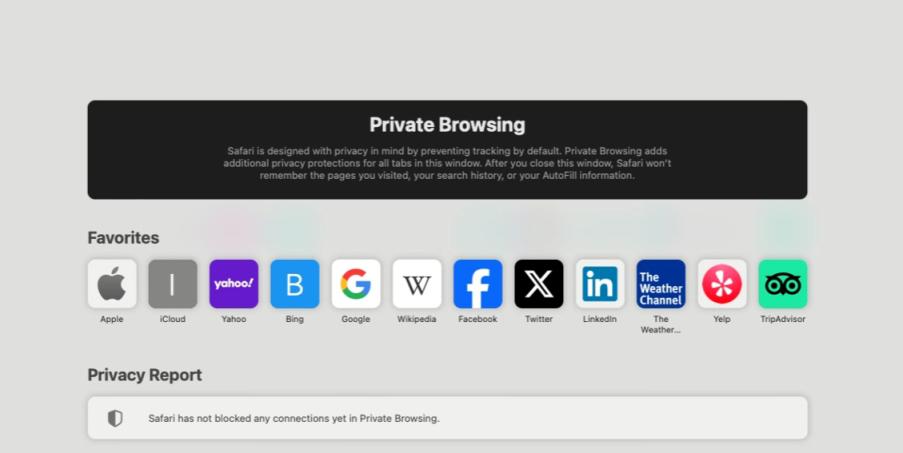
  • A new window will open with a dark address bar, indicating that we are in Private Browsing mode & now we can search in incognito mode.
👁 Screenshot-2024-05-27-152007
private browsing mode

Turn on Private Browsing on iPhone:

  • Open the Safari app on your iphone.
👁 Screenshot-2024-05-27-152209-imageonlineco-merged-(1)
private browsing in iPhone
  • Now just tap on the tabs button (two overlapping squares) at the bottom right of the screen.
  • Now tap on the Private at the bottom left of the screen.
  • Then on the '+' button to open a new private tab.
  • Now the interface will turn dark, indicating that we are in Private Browsing mode and you are done.

How to Go Incognito on iPad:

  • Now firstly open the Safari app in your iPad.
👁 Screenshot-2024-05-27-152336-(5)
  • Now just tap the tabs group button (two overlapping squares) at the top right of the screen.
  • Then on the Private option as shown in the above screenshot.
  • Now finally on the '+' button on the top right to open a new private tab.
👁 image-(1)
private browsing on iPad
  • Now, the interface will show private browsing, indicating that we are in Private Browsing mode.

How To Turn off Private Browsing?

  • On Mac: Close the Private Window by clicking the red close button in the top left corner.
  • On iPhone or iPad: Tap the Tabs button, then tap Private again to exit private browsing mode and return to normal browsing.
Comment
Article Tags: