Upload and Post Images to Twitter with Google Script
Last Updated : 23 Jul, 2025
Twitter is a social media site that allows its users to publish short messages, called "tweets," to their followers. Twitter does allow for an interface that will accept an image to be uploaded. We can also automate the process of uploading the images to Twitter.
Google Apps Script is a cloud-based scripting platform developed by Google. It provides the possibilities for automation by utilizing other Google services including Gmail, Sheets, and Drive. It is also possible to use it for working with various external APIs. This article will explain how to use Google Apps Script to upload and post images on your Twitter account.
Steps to Post Images to Twitter with Google Apps Script:
Step 1: Create an account for Twitter developer and register an application with Twitter.
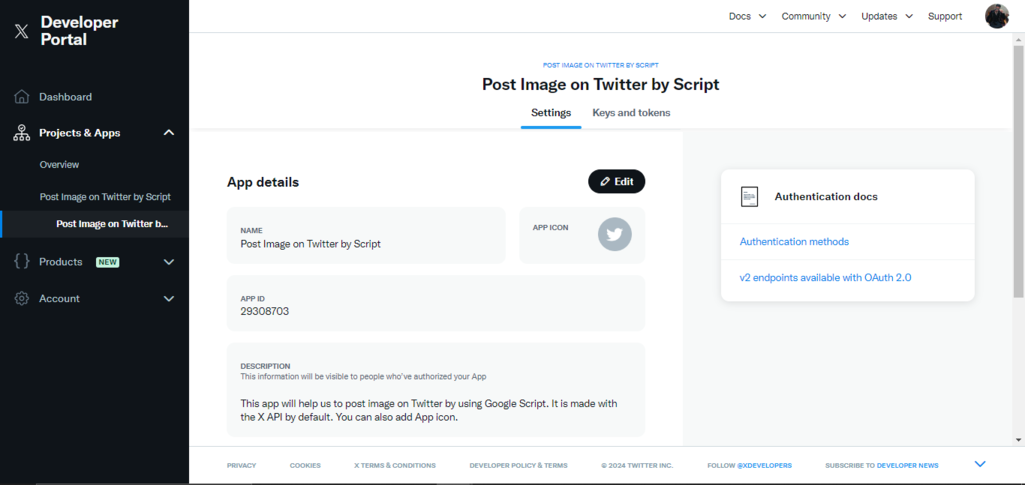
First of all, you need to have a Twitter Developer account and set up an application that will issue access keys for the Twitter API before setting out to connect Google Apps Script with Twitter.
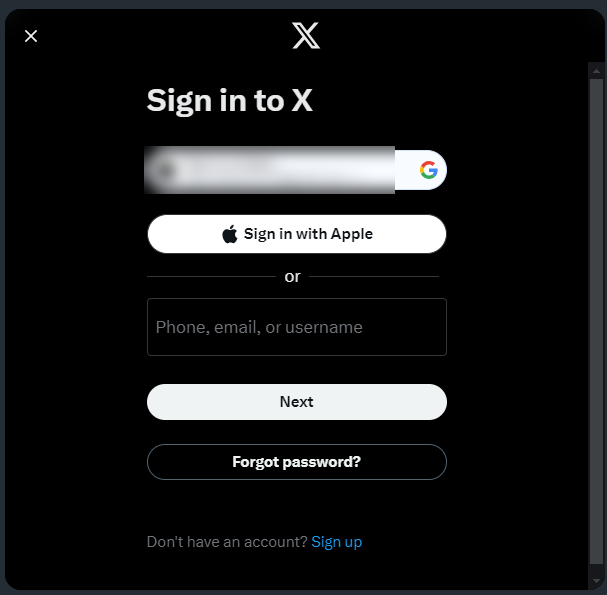
Go to the Twitter Developer Portal and log in at: https://developer.x.com/en
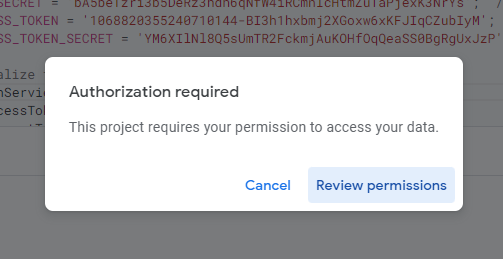
In the Apps Script editor, clicked the "Run" button. Since this is the very first time this script was run, a request popped to authorize the OAuth1 connection. Click on "Review permissions" and grant access.
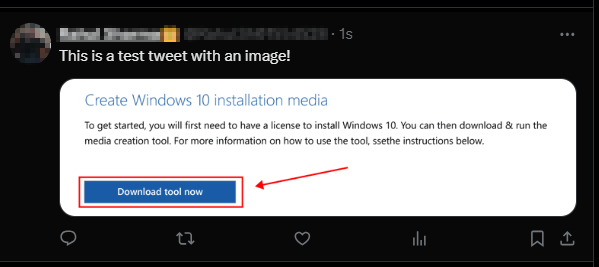
After the script runs successfully, you should see a new tweet on your Twitter timeline containing the uploaded image and the message defined in the script.
Tweet Example:
Text: "This is a test tweet with an image!"
Image: The image from the specified URL or Google Drive will be attached to the tweet.
We can modify the script to dynamically fetch images from Google Drive, Google Sheets, or external URLs as needed.
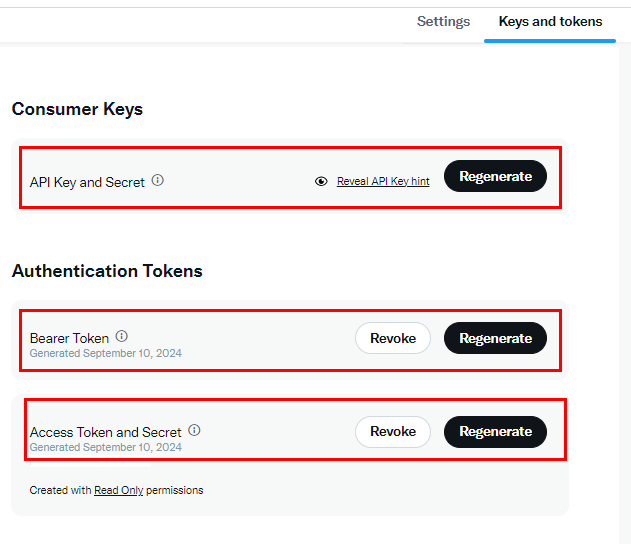
API Credentials: Ensure you have the correct API Key, API Secret, Access Token, and Access Token Secret from the Twitter Developer Portal.
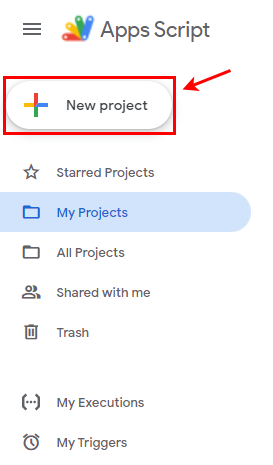
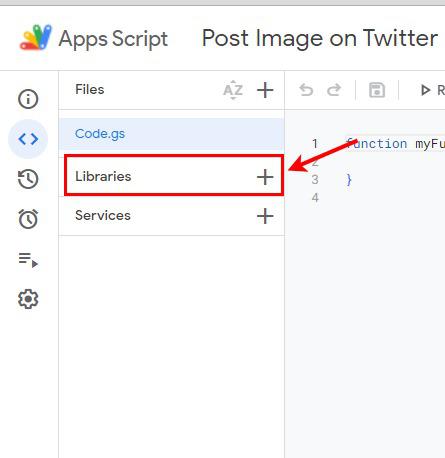
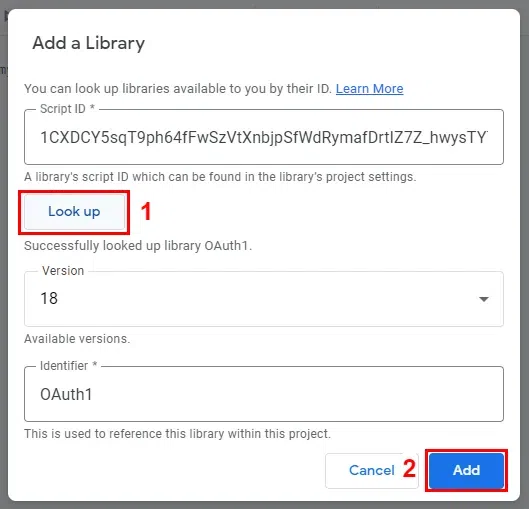
OAuth1 Library: Make sure you've added the OAuth1 library in your Apps Script project with the script ID: 1CXDCY5sqT9ph64fFwSzVtXnbjpSfWdRymafDrtIZ7Z_hwysTY7IIhi7s.
HTTP Status Codes: Use muteHttpExceptions: true to handle HTTP responses properly. This allows you to debug any issues with the API calls.
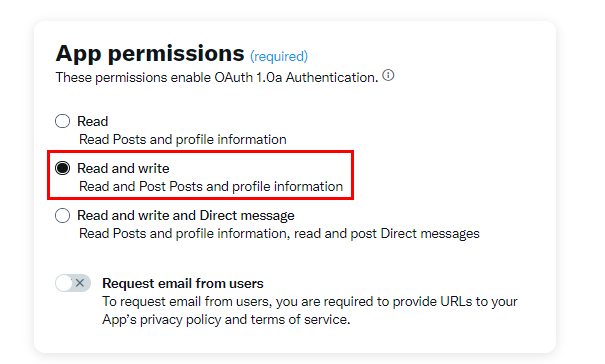
Access Permission: Make sure that your app has "Read and write" permission enabled. Otherwise this script won't work, and you will get an error and nothing will happen. It will be found in User authentication settings.
In conclusion, one can post images to Twitter using Google Apps Script easily, but it requires a lot knowledge and patience. Main part is setting account and app in Twitter developer. It is rather an effective automation for different social media tasks. This use case allows for a simple OAuth1 connection in order to interact with the Twitter API by posting updates, media, and many others, by just a few lines of code into their respective Google environment. Such a solution would work for both personal and business applications since it remains scalable and open for customizations.