
Unless you've been on a digital detox for the last six months, you probably know the PC hardware market is going through a pretty rough patch. Buying RAM, SSDs, and graphics cards is virtually out of reach for the majority of new builders and upgraders alike. In this market, you can't rely on hardware upgrades to keep your rig up to date. Extending the life of your PC in 2026 will hinge on making the most of what you have. From taming high thermals and tweaking your BIOS to using third-party utilities, non-hardware upgrades can help you boost system performance, avoid thermal throttling, and get improved noise levels. The best upgrades this year will be born out of understanding your PC better while you wait for the market to cool down.
The RAM crisis derailed my PC upgrade plans, so here's what I'm doing instead
Built in the Covid era, and upgrading in the AI era
The best upgrade might be no upgrade at all
AM4 and LGA 1700 gang, assemble
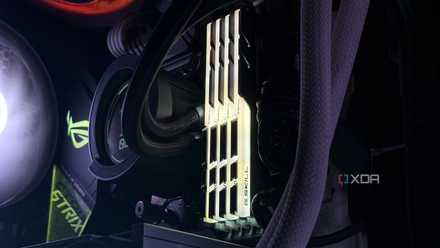
People like me who've been using a DDR4 system for years might have planned to jump to DDR5 in 2025 or 2026. The best time to upgrade was six months ago, but even if you missed out on the window, there's a silver lining. Older platforms like AM4 and LGA 1700 are suddenly more relevant than ever, as more and more users flock to them in this terrible market. As the prices of DDR5 RAM are in the stratosphere, DDR4 is now the smarter choice again, allowing users to build relatively affordable gaming PCs. Your "old" DDR4 rig's lifespan has got a shot in the arm, as the current crisis is reportedly going to last until 2028.
Instead of buying $400 of DDR5 RAM for an AM5 or LGA 1850 system, you could overclock your DDR4 RAM for a quick performance boost. The results probably won't be game-changing, but you may improve your 1% and 0.1% low FPS. If nothing else, this crisis will force you to learn memory overclocking. It's much more involved than simply enabling XMP or EXPO in your BIOS/UEFI, and is a valuable skill to have in your toolkit. You could also undervolt your CPU for lower temperatures and a quieter cooler. In most cases, the performance doesn't suffer at all, and you may even get a slight boost, since the additional thermal headroom allows your CPU to boost higher for longer. This way, you can make the most of your CPU and RAM, extending your platform's longevity even if it's technically "dead."

I'm sticking with my DDR4 system - here's how I'm making the most of it
It's not by choice, but I'm ready to push my DDR4 build to the limit
GPU undervolting can extend longevity while boosting performace
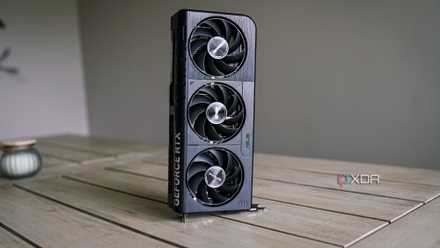
I mentioned CPU undervolting in the previous section, but undervolting your GPU can yield arguably better results for gaming. The GPU does most of the heavy lifting in modern games, especially at higher resolutions and High–Ultra settings. By lowering the voltage supplied to your GPU, you're essentially trimming the fat. Most GPUs don't require the default voltage levels that are configured for safe and stable operation. There's always room for reduction and extracting the same performance at a lower voltage. Many gamers undervolt their GPUs by default to lower temps and power consumption, without any performance penalties. The best part is that you may even get an increase in performance, thanks to the GPU being able to maintain higher boost clocks for longer.
Of course, decent cooling hardware will allow your CPU and GPU to stretch their wings, yielding better results. Upgrading to an RTX 50 or RX 90 series GPU may not be feasible right now, but you can still extract more out of your existing card. It may not count as a massive upgrade, but you might be able to cross 60 FPS in some scenarios, and that's not a bad deal at all.

Don’t buy a new GPU — do these 5 things instead
You have a lot more options than you think
Your NVMe SSD might need a heatsink
A tiny investment for huge results
You might think that the SSD you've been using for years doesn't need a heatsink, but monitoring the temperature might reveal a different story. During intense loads, modern Gen4 and Gen5 SSDs can sometimes throttle performance beyond 70℃. The throttling temperature can be different for your particular SSD, but capped performance is more common than you might think. Elevated temperatures, slowed transfers, and sluggish performance can be signs that your SSD can do with a heatsink. You'll not only improve your SSD thermals and lifespan, but also avoid performance throttling and a system that feels slow for seemingly no reason.
Those of you with Gen5 SSDs may already be using a bundled or aftermarket heatsink, but if not, I'd highly recommend one. Gen5 SSDs are available with or without a heatsink, and if you bought the latter variant, it's possible your drive might not be performing at its potential. Adding an aftermarket heatsink can dramatically improve its performance during large file transfers and productivity applications. And a heatsink isn't a "hardware" upgrade, strictly speaking.

If you're not using active cooling for your PCIe 5.0 SSD, you'll definitely need to for PCIe 6.0
You think Gen5 SSDs run hot? Wait for Gen6 drives
Lossless Scaling can come to the rescue of older GPUs
We have frame generation at home
While undervolting is one way to make your older GPU feel less old, Lossless Scaling can actually transform your mid-range GPU to high-end status. This third-party utility works with practically every GPU and game you can think of. Owners of RTX 40, RX 5000, and newer GPUs enjoy official frame generation support, but older cards can feel pretty limiting without this functionality. This is where Lossless Scaling can act as a bridge for your GPU, providing plenty of upscaling and frame generation options for you to explore. It might not be as perfect as DLSS or FSR frame generation, but it's damn impressive, considering it's a third-party application.
Whether you have an Nvidia, AMD, or Intel GPU, you can use Lossless Scaling to double your framerates in any game. The x3 and higher modes come with their own downsides, such as graphical artifacts and higher latency, so the x2 mode works best for most situations. For just $7, this program can introduce powerful frame generation to unsupported GPUs. The problems with frame generation are well-known, but as long as your base framerate is at least 60–80 FPS, Lossless Scaling can be a game-changer for mid and high-refresh-rate monitors.
Lossless Scaling
- OS
- Windows
- CPU
- 64-bit processor required
With its powerful frame generation and upscaling provisions, Lossless Scaling offers an affordable way to increase your in-game FPS.
Lossless Scaling is what I wanted DLSS to be
DLSS may be more polished, but Lossless Scaling is what it should have evolved into
BIOS tweaks can delay hardware upgrades
Don't write your CPU off too soon
Your PC's firmware, i.e., BIOS or UEFI, is an oft-overlooked source of performance optimization. Tweaking your BIOS isn't a one-time thing you do when setting up a new build; you should revisit it now and then to ensure you're not missing out on performance, stability, and security features. Updating your BIOS once every 6 months is just the tip of the iceberg. It ensures your system isn't unprotected from security threats, and you're not missing out on stability and feature updates. Additionally, you should also ensure you've enabled all the performance-oriented features already present in your BIOS/UEFI.
Depending on whether you have an AMD or Intel CPU, you will have access to Precision Boost Overdrive (PBO) or Adaptive Boost Technology (ABT), respectively, in the BIOS. These features allow your CPU to intelligently boost performance based on the power and thermal conditions of the processor. You might not have turned these features on since you assembled your build, so it's worth checking them out in the BIOS. Next, you should confirm if Resizable BAR is enabled in the BIOS. This feature allows your CPU to access your GPU's entire VRAM instead of requesting it in small chunks, boosting gaming performance by up to 15% in some games. That's too good to be ignored, so make sure your system doesn't have it disabled by mistake.
While you're in the BIOS, you can also have a look at the CPU and system fan curves. They might be configured wrong or have more room for improvement, allowing you to enjoy lower noise levels without compromising on optimum thermals. Lastly, the C-states, or CPU idle states, of your CPU can have an impact on the power consumption and peak performance of your CPU. Enabling higher C-states can allow your chip to conserve power when idling by turning off most of its internal logic. Lower C-states will ensure it keeps all the cores active and voltages high, helping overclockers dial in more stable overclocks. Depending on your preferences, you can choose between higher and lower C-states.

5 tweaks you can make in your BIOS/UEFI for power efficiency
If you want to lower your electricity bill, head into your BIOS and change a few settings
PC upgrades of 2026 will be driven by software, not hardware
The year 2026, and maybe 2027 and 2028 as well, will probably see highly inflated hardware prices across the board. Companies are set to cancel major hardware launches as all the supply gets routed to data center demand. PC users will need to focus on optimizing what they already have instead of focusing on hardware upgrades. Extracting more performance out of your CPU and GPU, and ensuring better thermals and noise levels will take center stage as we wait for the storm to pass.