|
VOOZH | about |
|
VOOZH | about |
Home » Platforms & Tools » Tool Overview: Slack
SKIP AHEAD TO
Slack is MIT’s Canvas integration for messaging and collaboration. Teaching teams can create a private Slack workspace for a course. Members of the workspace can chat together in conversation channels for topics, projects, and groups, and send direct messages.
Faculty, staff, and students.
Yes.
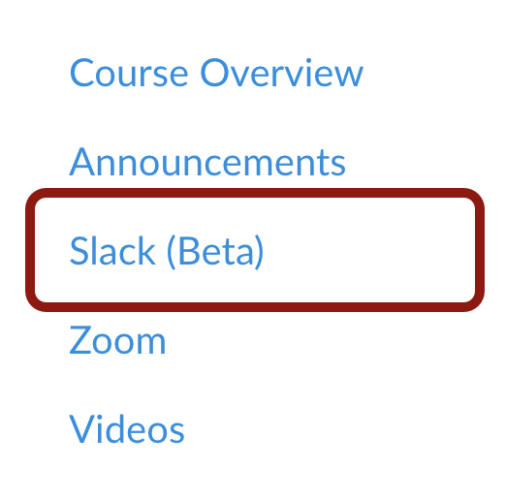
In your Canvas course, click on Slack (Beta) in the Course Navigation Menu. Note: If “Slack (Beta)” isn’t listed, you can easily enable it under Settings.
IMPORTANT: You must access your course’s Slack workspace for the first time through your Canvas course by clicking on Slack (Beta) in the Course Navigation Menu. Subsequently, you can access it directly through the Slack app of your choice (e.g., Desktop, iOS), rather than from Canvas.
For step-by-step instructions, refer to:
MIT faculty, staff, and students can search Slack’s Knowledgebase articles.
Submit a support request for any questions related to Slack.
Search our Knowledgebase articles and/or submit a support request for any questions related to using Slack for teaching and learning.
© 2026 MIT Sloan Teaching & Learning Technologies.